Founder note
Why trust this guide?

Adam Argaman
Founder, Outloop
I'm Adam Argaman.
For more than 15 years I've worked across marketing, creative, data, and systems — and for the last 7+ years I've been running a digital marketing agency: real clients, real ad accounts, real folders, real reports, real delivery pressure.
When AI agents became practical, I put them inside those workflows: Google Ads analysis, reporting, Drive and Shared Drive assets, creative briefs, project management, and client updates.
AI agents are not blocked by ideas.
They are blocked by the operating environment around them.
Every workflow in this guide comes from that work. So does Outloop — it started
from repeated multi-client access pain: agents need access to client systems, but
keys should not end up in chats,
.env
files, project folders, screenshots, or the wrong client workspace.
You can use the workflows here before using Outloop. But as soon as you run them across real clients, you will feel the same bottleneck: approved access, workspace scope, human approval, and audit.
"AI does not only help agencies write faster. It helps agencies deliver more client work with better margins, if the access layer is controlled."
Agents are easy in demos.
Real client work breaks on access.
When we first started using AI agents inside our agency, the demos were impressive. Agents could analyze campaigns, draft reports, organize tasks, and prepare creative recommendations.
But real delivery kept breaking on the same operational questions:
Which client is this?
Which account or folder is allowed?
Which credential
should the agent use?
Who approves the action?
How do we prove what
happened?
Why does a human need to rebuild the setup again?
The agents were getting smarter. The environment around them was still fragmented.
Real work means the agent needs to touch:
- the right Google Ads account
- the right Meta account
- the right Drive folder
- the right client assets
- the right reporting data
- the right Asana or ClickUp project
- the right client workspace
Names and logos belong to their respective owners; Outloop is not affiliated with or endorsed by these platforms.
That is where most AI agency workflows break. Not because the model is not smart enough. Because the access layer is messy.
What changed
The shift happened when we stopped treating an agent like another chatbot and started treating it like a real worker.
When you hire a person, you give them a computer, files, tools, permissions, procedures, and working context. A serious AI agent needs the same kind of permanent operating environment.
For an agency, that environment must also separate every client workspace, bind the correct accounts and resources, define human approval boundaries, and preserve proof of what happened.
The model can change. The agency-controlled environment, knowledge, skills, workflows, and access remain.
This guide shows how to apply that operating model to one real client workflow — without turning every client into another manual setup loop.
The execution model is simple:
Propose. Approve. Execute. Audit.
The agent can help. The human stays in control. The right workspace gets the right access. The wrong client stays protected.
The map
Five boundaries every real agent workflow needs
Before the platform chapters, this is the shape of the whole thing. Every workflow in this guide is an answer to these five questions.
- Working environment — where the agent's files, skills, tools, and procedures live.
- Client workspace — which client, project, people, accounts, and folders apply.
- Approved access — which systems and resources the workflow may use.
- Action and approval boundary — what the agent may read, draft, write, publish, or never do.
- Proof and reuse — what happened, what was approved, and how the workflow becomes repeatable.
Write the answers down for one workflow before you automate it. If a line is blank, that blank is where the workflow will break across clients.
One-workflow map
Workflow:
Business outcome:
Client workspace:
Agent/runtime:
Systems required:
Accounts/resources:
Files/folders:
Read actions:
Draft actions:
Write actions:
Human approver:
Blocked actions:
Completion proof:
Reusable skill or procedure:
You do not need to finish all 12 chapters before putting this into practice. Choose one workflow, download the matching skill, and run it in read-only or draft-only mode. A human reviews anything that could change a client system.
Chapter 01
Why agent demos do not survive client delivery
Most agent demos are clean because they avoid the messy parts.
They use fake data. They use one account. They use one folder. They use one user. They do not cross client boundaries. They do not need approvals. They do not need audit. They do not need to explain what happened later.
Client work is not like that.
A real agency has many clients, many tools, many folders, many tasks, and many people involved. The agent is not just writing text. It needs to work inside the delivery system.
That means:
- reading performance data
- finding waste
- preparing recommendations
- organizing assets
- creating tasks
- drafting reports
- preparing client updates
- sometimes executing approved actions
The workflow breaks when the agent asks:
Where is the key?
Which client is this?
Which account should I use?
Can I access
this Drive folder?
Is this the final asset or a draft?
Can I write to this account?
Who approved this?
Where do I log what I did?
This is why the real problem is not AI intelligence. The real problem is operational access.
If you cannot explain which client, which workspace, which tool, which permission, and which approval gate the agent is using, the workflow is not ready for real client delivery.
Map one workflow you want an agent to run. Then ask: where does it need access?
Chapter 02
The operating model: propose, approve, execute, audit
The safest pattern for agency agents is not “let the agent do everything.”
The safest pattern is:
- Propose
- Approve
- Execute
- Audit
Propose
The agent reads approved data and creates a structured recommendation.
Example: the agent reviews Google Ads search terms and marks each one as keep, negative candidate, needs review, or do not touch.
At this stage, the agent should not change anything.
Approve
A human reviews the recommendation. The approval should be explicit.
Good approval: approved checkbox · approved task status · named approver · approved change list.
Weak approval: “looks good” · “ok” · “maybe” · silence · a Slack reaction.
Execute
Only approved changes move to execution. Execution should be scoped: one client, one account, one action set, one workspace, one approved task.
Audit
After execution, a separate read-only check confirms what changed. The audit should answer:
- what was requested
- what was approved
- what was executed
- which account was touched
- whether the agent saw a raw secret
- whether the request was allowed or denied
This pattern lets agencies use agents without pretending humans disappear. Humans approve. Agents help operate. The system keeps boundaries.
Workflow readiness checklist
What data does the agent need to read?
What action might the agent propose?
Who approves it?
How is approval recorded?
What can the agent execute?
What must stay blocked?
What audit proof is produced?
Use this checklist on one real client workflow before automating it.
Chapter 03
Google Ads without the wrong-account mistake
Google Ads is one of the best agency workflows for agents. It is also one of the most dangerous if access is messy.
A good Google Ads agent workflow does not start with mutations. It starts with read-only analysis.
Recommended first workflows:
- search terms audit
- budget loss analysis
- rank loss analysis
- campaign performance summary
- negative keyword candidates
- landing page mismatch notes
- query cluster opportunities
The agent should produce recommendations shaped like: campaign, ad group, search term, spend, clicks, conversions, reason, recommended action, confidence, human decision.
The output should not be: “Here are 100 changes I already made.”
The output should be: “Here are 100 candidates. Approve the ones you want.”
An agency has one manager account and many client accounts. The agent must not just “use Google Ads” — it must know which customer account is allowed for this workspace.
Wrong model: one shared credential can touch everything and the agent decides.
Better model: one approved agency credential can be reused, but runtime activity is pinned to the right client account.
What the agent can do safely first: read campaign data, classify search terms, draft negative keyword candidates, flag budget/rank loss, prepare an approval task.
What should require explicit approval: adding negatives, changing budgets, pausing keywords, changing campaign settings, creating new campaigns, editing ads.
Google Ads recommendation output
Summary
Evidence
Suggested action
Risk level
Account affected
Human approval required
Rollback note
Post-check required
Use the Google Ads Waste & Search Terms Auditor to produce an evidence-backed list of wasted search terms, each classified and ready for a human to approve. It does not change the account.
Download this skillThe hard part is not writing the recommendation. The hard part is letting the agent use the right client account without seeing the raw key or touching the wrong account.
Google Ads API access is owned by your agency: your own manager account, your own developer token, your own Google Cloud project. The Google Ads setup guide walks the whole path, including the access levels that decide what you can reach today.
Send us one Google Ads workflow. We’ll show you where access needs to be scoped.
Request a Workflow ReviewChapter 04
Meta creative fatigue and the handoff to humans
Creative fatigue is a good AI workflow because it connects data, assets, and people.
The agent can help detect: rising frequency, falling CTR, rising CPA, falling ROAS, winner decay, audience saturation, creative format fatigue.
But the agent should not decide creative strategy alone.
A better workflow:
- Read campaign and creative performance.
- Match fatigue signals to the actual creative assets.
- Create a creative brief.
- Create a designer task.
- Human reviews.
- Human approves production.
- Human approves the client-facing version.
The agent's job is to reduce friction. It should produce: what is fatiguing, why it matters, what new angle to test, what asset is needed, what the designer should create, what claim must be checked, what client approval is needed.
The agent sees an ad ID but not the actual asset. Or it sees the asset but cannot find the final file. Or it creates a brief that does not match the client's real offer. Creative workflows need clean file structure and approved access to the right folders.
Creative fatigue brief
Campaign
Creative asset
Fatigue signal
Performance evidence
Suggested new angle
Required format
Required asset source
Designer task
Approval owner
Client approval needed: yes/no
Use the Creative Fatigue Signal Scanner to produce a severity-ranked list of fatiguing ads, flagged only when two or more signals agree. It does not pause or edit anything.
Download this skillThis workflow crosses ad data, Drive assets, and project management. Without scoped access, teams either keep the agent read-only forever or give it too much access.
Meta access is owned by your agency too: your own Meta Developer account, your own app, your own Business Verification and App Review. The Meta Ads setup guide separates what always applies from what depends on your permissions and access level — and Business Verification is the long pole, so start it before you need it.
Use the fatigue brief template on one client this week.
Chapter 05
Drive and Shared Drive are the real agency workspace
Most agency work does not live only in ad platforms. It lives in folders.
Strategy docs. Reports. Videos. Thumbnails. Creative briefs. Captions. Client approvals. Exports. Drafts. Final assets.
If your Drive is messy, your agents will be messy.
Recommended client folder structure
Client workspace folders
Client Workspace
• 00 Admin
• 01 Strategy
• 02 Ads
• 03 Creative
• 04 Reports
• 05 Client Approvals
• 06 Final Assets
• 07 Archive

Creative folder
• Briefs • Raw Assets • Drafts • Final • Published • Rejected
Naming rule:
YYYY-MM-DD_client_campaign_assettype_status_version
Example: 2026-07-03_clientA_meta_summer-video_final_v03.mp4
Agent rules
Agents may: list approved folders, read approved files, draft reports, organize proposed file moves, upload approved generated assets to staging, create task-linked file references.
Agents should not: delete client files without explicit approval, move final assets without approval, create public links without approval, change ownership, access unrelated client folders, publish files without a gate.
The agent creates a great report but a human still needs to move it, rename it, upload it, or put it in the right client folder. That is not full automation. That is text generation plus human file labor.
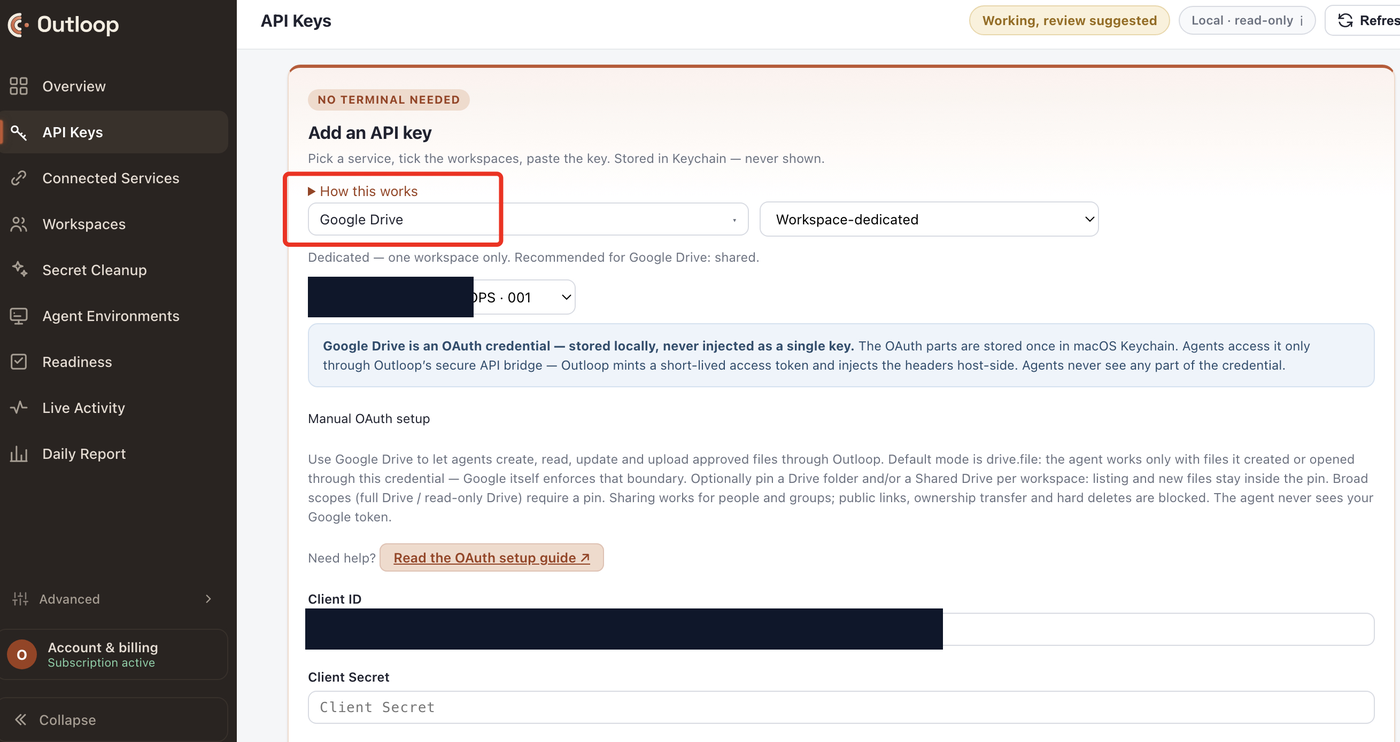
Use the Drive & Asset Hygiene Auditor to produce a map of the client’s folder tree, the specific mess named, and a proposed clean structure. It never moves, renames, or deletes a file.
Download this skillReal agency agents need safe access to client files, not just prompts. The right model is approved file access for the right workspace, with audit and redaction.
Audit one client folder. If an agent cannot tell what is draft, final, approved, or published, fix the structure before automating.
Chapter 06
Reporting that becomes client-ready work
A weekly report is not just a summary. It is a decision tool.
A good agent-assisted report should include: what changed, why it changed, what we did, what we recommend next, what needs approval, what needs client input, what data cannot be trusted yet.
The agent can draft the report. But it must know which data matters. Do not rely only on platform numbers.
Better reporting stack
- Google Ads for spend and campaign signals
- GA4 for site behavior
- Search Console for organic visibility
- CRM for lead quality
- revenue or sales source for business truth
- project management for what the team actually did
The agent should flag: tracking gaps, missing revenue data, unusual conversion swings, high spend with low CRM quality, strong platform performance but weak business outcome, tasks that were planned but not executed.
Weekly client report
1. Executive summary
2. Performance movement
3. What changed this week
4. What we did
5. What needs approval
6. Risks or tracking issues
7. Next actions
8. Internal QA note
The internal QA note should not automatically go to the client. It is for the agency team.
Use the Weekly Client Report Drafter to produce a plain-language report draft led by the client’s real success metric, with anomalies flagged. A human reviews and sends it.
Download this skillDo not let an agent send reports directly until you have a client-safe approval layer.
Chapter 07
Project management is the approval surface
Asana or ClickUp should not be a dumping ground. It should be the approval surface.
Good agent-created tasks include: client, workspace, workflow, source data, recommendation, risk level, approval owner, deadline, affected account or folder, proposed action, audit link or proof note.
Bad agent-created tasks: vague title, no source, no priority, no owner, no client context, no approval state, no link to evidence, no clear action.
Recommended task types
- Review recommendation
- Approve execution
- Creative brief
- Reporting issue
- Tracking issue
- Client approval
- Post-execution audit
- Data quality issue
Task status should separate:
proposed · needs review · approved ·
executed · verified · blocked · rejected
This gives the agent a clean path. The agent does not need to guess what “done” means.
Use the PM Task Hygiene Scanner to produce every open task classified with confidence and evidence, plus a high-confidence “propose to close” batch. It never changes a board.
Download this skillWhen project management becomes the approval surface, access should follow approval. The agent should not receive write capability just because it can create a task.
Pick one workflow and define exactly which task status unlocks execution.
Chapter 08
MCP is useful, but it is not the whole operating system
MCP is useful. It gives agents a standard way to call tools.
But MCP alone does not solve the agency operating problem.
A real agency needs to know: which client, which workspace, which account, which folder, which access, which approval, which audit trail, which human is responsible.
MCP connects tools. Outloop controls which client access the workflow may use.
Both can be true at once. Outloop does not replace your MCP connectors — it decides which client the workflow is allowed to reach.
Common MCP problems in agency work
- one connection tied to the wrong account
- auth expires
- connector is missing
- connector is read-only when the workflow needs write
- connector can write but not safely per client
- agent does not know which account is allowed
- no clean audit for client proof
MCP is part of the stack. It is not the access governance layer.
Do not ask “Do we have an MCP connector?” Ask “Can this agent safely use the right client access from the right workspace?”
Chapter 09
Browser automation is not an agency operating system
Browser automation can be useful. It can help when: no API exists, a UI-only workflow is needed, the task is low risk, a human can supervise, the browser session is stable.
But browser automation is fragile for real client operations.
It can break because of: login sessions, 2FA, popups, UI changes, slow pages, permissions, ad platform restrictions, account switching mistakes, hidden state, browser profile problems.
For ad platforms, reporting, files, and client systems, APIs are usually safer. They are:
- more stable
- more auditable
- easier to scope
- easier to test
- easier to repeat
Browser automation can be a fallback. Approved API access is the preferred operating path when available.
Neither is banned. Mark each workflow honestly, and keep the fragile path supervised.
For each workflow, mark it as API-first, browser fallback, or human-only.
Chapter 10
The access layer agencies are missing
By now, the pattern should be clear. Agents can help with real client work. But every serious workflow eventually hits the same wall:
Access.
The agency needs a way to answer:
Which client is this?
Which workspace is allowed?
Which account can this workflow
touch?
Which folder can the agent read?
Can the agent write?
Did a human approve
it?
Did the agent see a secret?
What exactly happened?
Without this layer, teams fall back to bad workarounds: pasted API keys, .env
files, shared credentials, broad owner accounts, browser sessions, manual copy/paste, one-off
scripts, disconnected MCP setups.
That works for demos. It does not scale across real clients.
Outloop is built for this layer
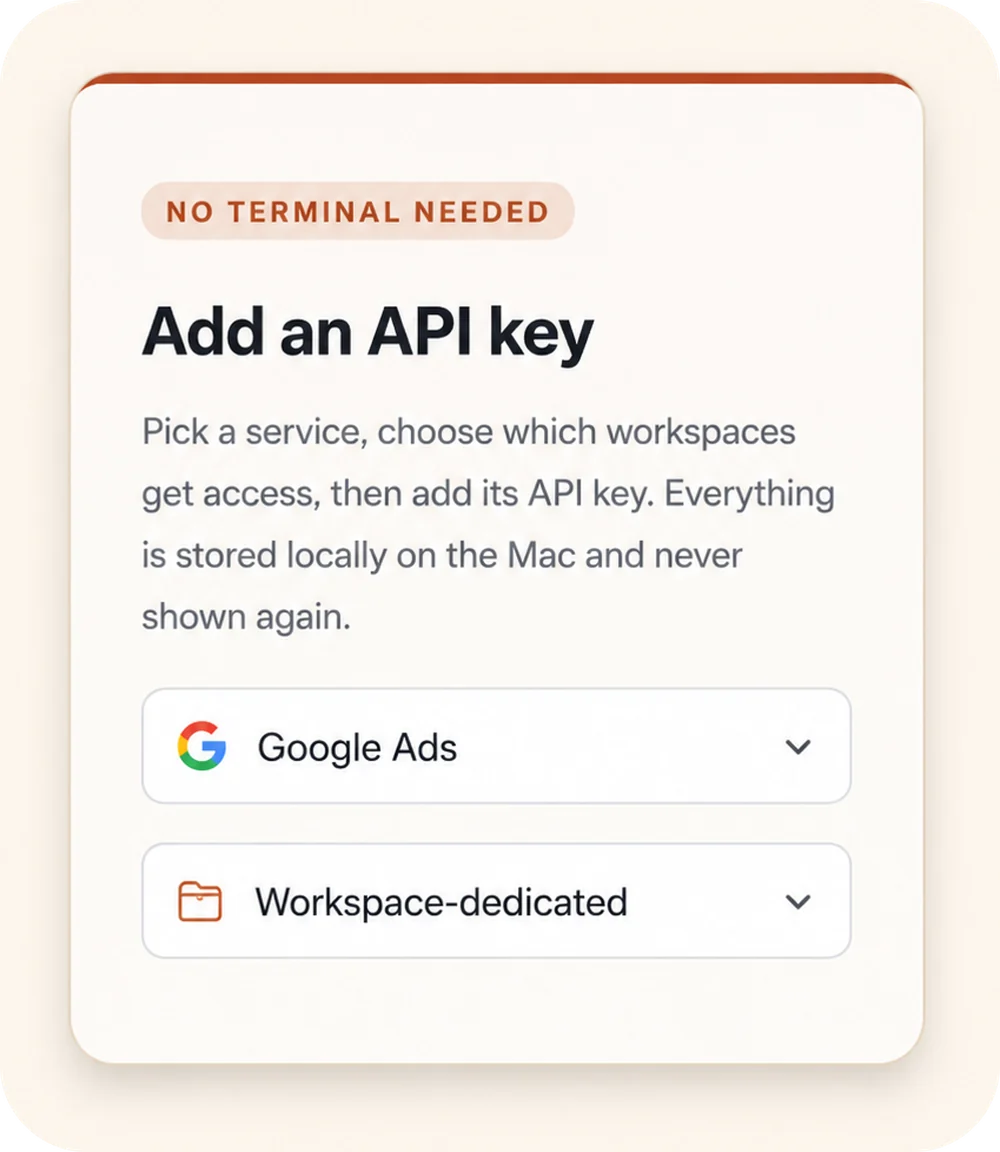
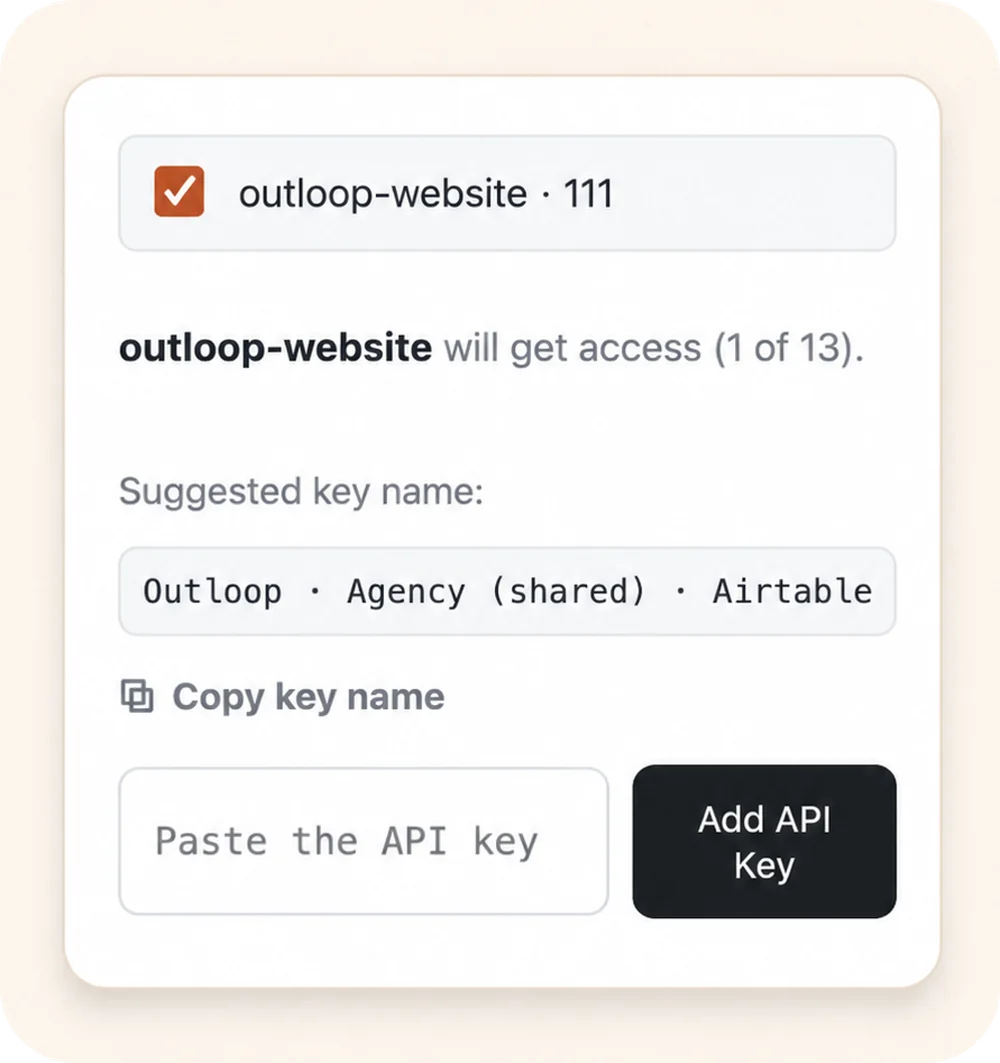
Outloop lets agencies:
- connect approved API access once
- assign it to the right client workspace
- let agents use it without seeing the raw secret
- block wrong-client access
- keep local-first runtime control
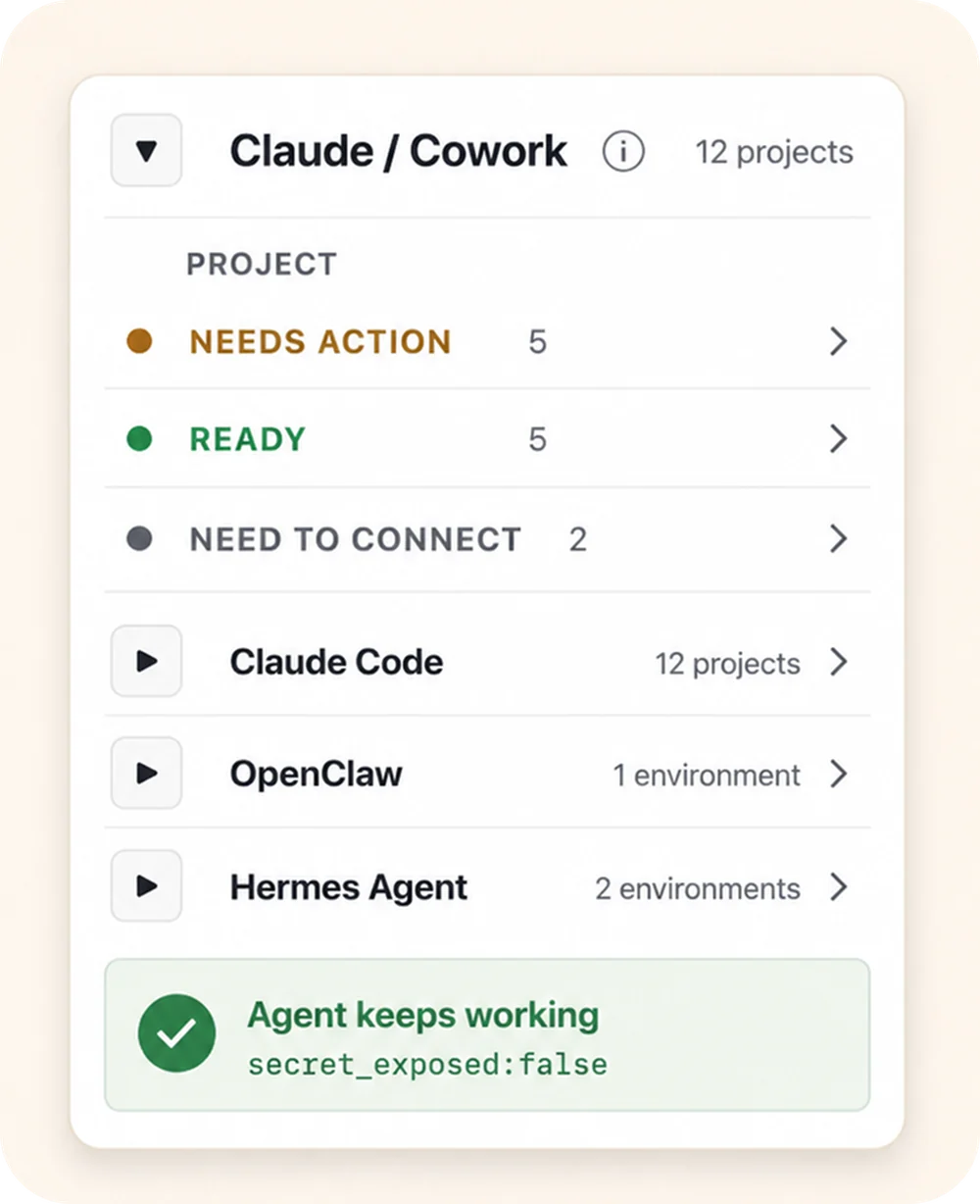
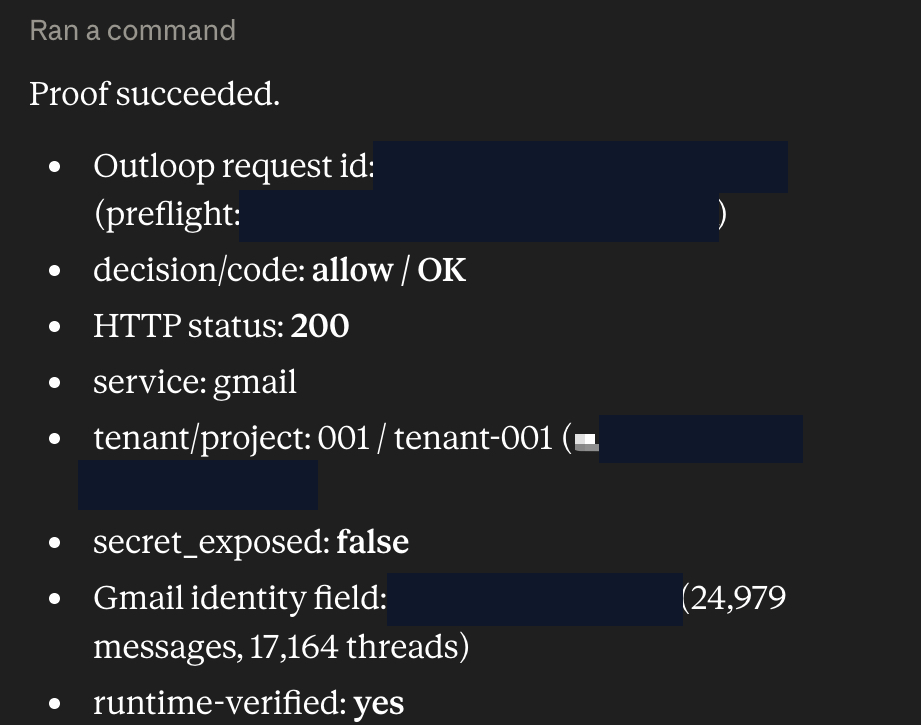
- produce audit proof like
secret_exposed:false
The point is not “hide a key.” The point is:
Run more client AI workflows without rebuilding access every time.
Send us one workflow. We’ll map where access breaks and what should be API, MCP, browser fallback, human approval, or blocked.
Request a Workflow ReviewChapter 11
Choose the first workflow to hand over
Do not automate the whole agency first. Hand over one workflow, prove it, then widen. This chapter is how you pick that one.
Every workflow below is a real agency job, and every one of them is already free to browse and download — no email, no account. The hard part was never getting the list. It is knowing which one to start with and what it needs before an AI worker touches a client account.
Step 1 — Pick the area you already run
Start where your agency already does the work by hand every week. Unfamiliar territory is a bad place to learn what an AI worker gets wrong.
- Paid Media — 5 workflows
- Commerce — 2 workflows
- CRM & Sales — 17 workflows
- Files & Content — 11 workflows
- Social & Publishing — 4 workflows
- Research & Data — 7 workflows
- Agency Operations — 18 workflows
Step 2 — Pick a sensible first workflow
Inside that area, the first one should be all four of these:
- Repeated — it happens weekly or per client, not once a quarter.
- Currently manual — a person is doing it by hand right now.
- Easy to verify — you can tell within minutes whether the output is right.
- Low consequence if the first run is wrong — nothing a client sees, nothing you cannot undo.
That fourth test is the one people skip. The safest first runs are the workflows that cannot change a client system at all — they read, classify and draft, and a human decides what happens next. 37 of the 64 are exactly that:
- Affiliate and Partner Operations Draft only
- Agency Onboarding and Runbooks Draft only
- Analytics Measurement Plan Draft only
- API Integration Development Draft only
- Automation Architecture Draft only
- Avatar Video Production Draft only
- Business Document Production Draft only
- Buyer Signal Research Draft only
- Creative Production and Briefing Draft only
- CRM Data Hygiene Draft only
- Cross-Channel Performance Reporting Draft only
- Email Deliverability Audit Draft only
- Email Follow-Up Draft only
- Frontend Interface Review Draft only
- Google Merchant Center Operations Draft only
- GTM Performance Scorecard Draft only
- ICP and Positioning Strategy Builder Draft only
- Landing Page Conversion Audit Draft only
- Lead and Call Quality Draft only
- Marketing Experiment Design Draft only
- MCP Integration Development Draft only
- Outreach Pipeline Planning Draft only
- Professional Network Outreach Draft only
- Proposal from Discovery Draft only
- Recruitment Evidence Organization Draft only
- Reddit Research Operations Draft only
- Reusable Skill Authoring Draft only
- SaaS Catalog and Billing Operations Read only
- Screen Demo Production Draft only
- SEO, Analytics and Search Intelligence Draft only
- SEO and GEO Website Strategy Draft only
- Short-Form Video Editing Draft only
- Social Intent Research Draft only
- Software Release Verification Draft only
- Telephony Workflow Design Draft only
- Web Research and Structured Extraction Read only
- Website and Form Implementation Draft only
If you want a first pass that touches nothing at all, the five read-only starter skills further down are deliberately smaller versions of the same idea.
Step 3 — Choose one
Write it down as a sentence, not a category: “Every Monday, someone on my team pulls last week's search terms for each client and flags the waste.” If you cannot write that sentence, you have picked an area, not a workflow — go back to step 2.
The full catalog, if you want to scan it in one place:
| Workflow | Main systems | What it can change |
|---|---|---|
| Paid Media | ||
| Google Ads Campaign Builder | Google Ads | Changes with approval |
| Google Ads Optimization and Governance | Google Ads | Changes with approval |
| Marketing Experiment Design | Google Ads, Meta, Google Analytics | Draft only |
| Meta Ads Optimization and Governance | Meta | Changes with approval |
| Performance Growth Operator | Google Ads, Meta, Google Analytics | Changes with approval |
| Commerce | ||
| Affiliate and Partner Operations | Custom API | Draft only |
| Google Merchant Center Operations | Google Merchant Center | Draft only |
| CRM & Sales | ||
| Buyer Signal Research | Firecrawl, Apify, Airtable | Draft only |
| CRM Architecture | Airtable, HubSpot, Zoho CRM | Changes with approval |
| CRM Data Hygiene | Airtable, HubSpot, Zoho CRM | Draft only |
| CRM Revenue Recovery | Airtable, HubSpot, Zoho CRM | Changes with approval |
| Email Deliverability Audit | Gmail, Instantly | Draft only |
| Email Follow-Up | Gmail | Draft only |
| Email Infrastructure Operations | Gmail, Instantly, MailerLite | Changes with approval |
| Email Marketing Operations | MailerLite, Klaviyo, Custom API | Changes with approval |
| GTM Pipeline Operations | Airtable, Custom API | Changes with approval |
| Lead and Call Quality | Airtable, HubSpot, Zoho CRM | Draft only |
| MailerLite Email Marketing | MailerLite | Changes with approval |
| Outbound Prospecting | Apify, Instantly | Changes with approval |
| Outreach Pipeline Planning | Airtable, Instantly | Draft only |
| Professional Network Outreach | Custom API | Draft only |
| Sales Discovery and Conversion | Airtable, Custom API | Changes with approval |
| Telephony Workflow Design | Custom API | Draft only |
| WhatsApp Lead Follow-Up | WhatsApp Business Platform, Airtable | Changes with approval |
| Files & Content | ||
| Avatar Video Production | Custom API | Draft only |
| Business Document Production | — | Draft only |
| Content Production Pipeline | Google Drive, OpenAI | Changes with approval |
| SEO Content and Editorial Planning | Google Search Console, Custom API | Changes with approval |
| Creative Production and Briefing | Google Drive, OpenAI | Draft only |
| Frontend Interface Review | — | Draft only |
| Google Drive and Shared Drive File Operations | Google Drive | Changes with approval |
| Screen Demo Production | — | Draft only |
| Short-Form Video Editing | — | Draft only |
| Website and Form Implementation | Custom API | Draft only |
| Website Content Management | Custom API | Changes with approval |
| Social & Publishing | ||
| Facebook and Instagram Community Operations | Facebook, Instagram | Changes with approval |
| Instagram Message Operations | Instagram, Facebook | Changes with approval |
| Multi-Channel Social Publishing | Facebook, Instagram, YouTube | Changes with approval |
| YouTube Publishing and Channel Operations | YouTube | Changes with approval |
| Research & Data | ||
| Analytics Measurement Plan | Google Analytics, Google Search Console | Draft only |
| Landing Page Conversion Audit | — | Draft only |
| Reddit Research Operations | Apify, Firecrawl, Airtable | Draft only |
| SEO, Analytics and Search Intelligence | Google Search Console, Google Analytics | Draft only |
| SEO and GEO Website Strategy | Google Search Console, Google Analytics, Firecrawl | Draft only |
| Social Intent Research | Apify, Firecrawl | Draft only |
| Web Research and Structured Extraction | Firecrawl | Read only |
| Agency Operations | ||
| Agency Onboarding and Runbooks | Airtable, Custom API | Draft only |
| API Integration Development | Custom API | Draft only |
| Automation Architecture | n8n, Airtable | Draft only |
| Cross-Channel Performance Reporting | Google Ads, Meta, Google Analytics | Draft only |
| Custom API Operations | Custom API | Changes with approval |
| Data Sync and Workflow Orchestration | n8n, Airtable | Changes with approval |
| GTM Performance Scorecard | Airtable, Google Analytics, Custom API | Draft only |
| ICP and Positioning Strategy Builder | Firecrawl | Draft only |
| MCP Integration Development | — | Draft only |
| Outloop Custom API Setup | Custom API | Changes with approval |
| Project Board and Approval Operations | Asana, ClickUp | Changes with approval |
| Project Knowledge Maintenance | — | Changes with approval |
| Proposal from Discovery | — | Draft only |
| Recruitment Evidence Organization | — | Draft only |
| Reusable Skill Authoring | — | Draft only |
| SaaS Catalog and Billing Operations | Custom API | Read only |
| Software Release Verification | — | Draft only |
| Workspace Context Preparation | — | Changes with approval |
Step 4 — Map what it actually needs
Now take that one workflow into the Client Workflow Access Map below. It walks the accounts, resources, permissions, approvals and proof the workflow depends on, and finishes with the platform readiness gap that is actually blocking it. Everything you type stays in your browser tab.
A skill file is instructions, not a permission system. Choosing the workflow and writing the skill is the easy half; approved access, workspace scope, write boundaries and audit are enforced separately — and that is what decides whether the workflow survives a real client.
Choose one workflow. Map it. Then decide whether it is ready for a real client.
Chapter 12
Final checklist
Before an agent works on a real client workflow, answer these:
- Is the client workspace defined?
- Is the tool account defined?
- Is the Drive or Shared Drive folder defined?
- Is the action read-only, draft-only, write, or destructive?
- Is there a human approval point?
- Is approval explicit?
- Is there audit proof?
- Can wrong-client access be blocked?
- Can the agent complete the workflow without seeing raw secrets?
- Can the human understand what happened afterward?
Those ten questions collapse into three outcomes:
Can the agent complete useful work?
Can it use only the correct client resources?
Can
a human understand and verify what happened?
If any answer is unclear, the workflow is not ready to scale yet.
Before the worksheet
From platform readiness to first proof
Chapters 3 and 4 assumed the access already worked. For Google Ads and Meta it usually does not yet — and the reason teams stall is that they treat one long checklist as a single job. It is four, and only the last two are ours.
Platform developer readiness
Who owns it: Your agency. One-time per platform, reused across every client.
Outloop: None. Outloop cannot apply, accelerate, or guarantee an outcome.
Client account and resource access
Who owns it: Your agency, granted by the client.
Outloop: None. The platform decides what your credential can reach.
Connection to Outloop
Who owns it: Your agency, locally.
Outloop: Credentials entered once, stored in the macOS Keychain, pinned to one workspace and one client resource.
First runtime proof
Who owns it: Your agency.
Outloop: Outloop performs and audits it: correct identity and resource, a safe real read, secret_exposed:false, and a wrong-client request denied before any backend call.
Your agency owns the developer identity on every platform. Your own Google Cloud project and your own developer token from your own manager account; your own Meta Developer account and your own Meta app. Outloop does not supply a shared developer account, a shared app, or a shared token, and cannot shorten a platform review. What Outloop does is start at stage three: your approved credentials entered once, pinned to the right client resource, used without the agent ever seeing them, and proved.
The two long poles are worth knowing before you plan a date: on Google Ads it is the developer token application and the access level it grants; on Meta it is Business Verification. Both are elapsed time, not effort — so start them early and do the rest of the setup while you wait. Full steps live on the Google Ads guide and the Meta Ads guide, with the wider model in professional API access readiness.
A safe read on the right client
resource, returning a real result with secret_exposed:false, plus a request
naming another client's resource denied before any backend call. That is the first proof —
not the ceiling. Approved write actions follow, with resource pinning, audit and human
approval gates.
The worksheet
Client Workflow Access Map
One real client workflow. Not three. Fill this in for the workflow that breaks most often, and you will finish with every account, resource, approval and proof it needs written down — plus the platform readiness gap that is actually blocking it.
Everything you type stays in this browser tab. Nothing is saved, uploaded, or sent to Outloop, and nothing you type reaches analytics. Print it or copy it out — closing the tab clears it. Never write a token, API key, client secret or developer token in this worksheet, or anywhere else outside the Outloop credential flow.
The workflow
Google Ads
Fill this block only if your workflow touches Google Ads.
Who must own it: Your agency. Google usually grants one developer token per company, and states that if you use a third-party app or service, the developer of that app needs its own token — so the token, the Google Cloud project and the OAuth client are all yours.
Authentication model: OAuth 2.0 (client ID, client secret, refresh token) plus a developer token
Developer app / token requirement: A developer token from the API Center of your own Google Ads manager account (MCC), plus your own Google Cloud project and OAuth client.
Always required
- Google Ads manager account (MCC). The developer token is issued here — not from Google Cloud. You must be signed into a manager account.
- Google Cloud project. A dedicated project with the Google Ads API enabled, kept separate from website or product infrastructure.
- OAuth consent screen and OAuth client. Configured with a neutral, accurate app name and a business contact email.
- Developer token. Requested in Tools & Settings → Setup → API Center. The application asks for company name, company URL and an API contact email.
- Refresh token. The long-lived OAuth token Outloop stores locally so it can mint short-lived access tokens host-side.
- Client customer ID. The specific account this workspace may touch, distinct from the MCC login customer ID.
Depends on permissions, access level, business type and intended actions
- Access level. Test Account Access reaches test accounts only. Explorer Access reaches production at a lower daily limit. Basic and Standard Access are applications with Google-published review windows. You do not need the top level to run a first proof.
- API token application. Required for higher access levels. Answer for what the tool actually does — internal users, the campaign types and capabilities you genuinely use.
- Write capability. Budget, bid, status and structural changes stop for a named approver. Account-level deletions are blocked outright.
Permissions / scopes — request only what the workflow needs
https://www.googleapis.com/auth/adwords— The single Google Ads API scope. Read and write are governed by account permissions and Outloop approval gates, not by separate scopes.
Safe first proof: One account-scoped read on the approved client customer ID under the correct MCC login context, returning HTTP 200 with secret_exposed:false — plus a request naming a different customer ID, denied before any backend read. A safe read is the first proof, not the limit — approved write actions follow with resource pinning, audit and human-approval gates.
Wrong-client denial: RESOURCE_ID_NOT_ALLOWED
Timing: Google publishes its own review windows for Basic and Standard Access. Treat them as Google's figures, check the current documentation, and remember Google decides both the level and the timeline.
Setup guide: Connect Google Ads API to Outloop · Google Ads API access levels · Google Ads API developer token
Stays in this tab. Never sent anywhere.
Meta Ads
Fill this block only if your workflow touches Meta Ads.
Who must own it: Your agency. You create and control your own Meta Developer account and your own dedicated Meta app, and you own the business relationship, the permissions, the review status and the credential lifecycle. Outloop provides no shared developer account, no shared app and no shared token.
Authentication model: Access token generated from your own Meta app, typically via a System User
Developer app / token requirement: Your own Meta Developer account and your own dedicated Meta app, connected to your Business Portfolio, with the permissions your workflows need approved at the access level they need.
Always required
- Meta Developer account. Registered to your agency.
- Your own Meta app. Created in the App Dashboard, with the app type and use case that match what you actually do.
- Business Portfolio. Your app connected to your own Business Portfolio.
- Client asset access. Approved access to the ad account, and to the Page or Instagram business account where the workflow touches them.
- An active ad account. Required to run campaigns and manage billing.
Depends on permissions, access level, business type and intended actions
- Standard vs Advanced Access. Business apps receive Standard Access automatically, which only lets you request permissions from people who hold a role on your app. Production scale needs Advanced Access.
- Business Verification. Required when your app requests advanced-level access and will be used to reach data belonging to businesses outside your own — the normal agency situation. It is the long pole; start it first.
- App Review. Required per individual permission and feature at advanced level. Meta expects at least one successful call using each requested permission within the 30 days before you submit.
- Live mode. Required before advanced-level permissions work for people without a role on your app.
- System User. The right choice for unattended agency automation and the flow the setup guide documents — but not universally mandatory. Which token type you need depends on the connection flow and the assets involved.
- Data Use Checkup. An annual re-certification once you hold permissions.
Permissions / scopes — request only what the workflow needs
ads_read— Read ad reports and ad account data. Enough for a first proof.ads_management— Read and manage ads. Request only where the workflow genuinely writes.business_management— Manage business assets. Request only where genuinely required.pages_* / catalog_management— Only for workflows that touch Pages, connected Instagram business resources, catalogs, products or product sets.
Safe first proof: A read on the pinned ad account that confirms the correct identity and resource, returns a real API result with secret_exposed:false, and shows a request naming another client's resource denied before any backend call. A safe read is the first proof, not the limit — approved write actions follow with resource pinning, audit and human-approval gates.
Wrong-client denial: CUSTOMER_RESOURCE_PIN_REQUIRED
Timing: Meta does not publish a guaranteed review time for Business Verification or App Review, so plan around the dependency rather than a date. Outloop cannot influence either.
Setup guide: Connect Meta Ads API to Outloop · Meta app access levels · Marketing API authorization · Meta App Review
Stays in this tab. Never sent anywhere.
Any other system
Drive, a CRM, a project board, a custom API — same four questions, same readiness ladder.
Finished? Copy the map and send it with an AI Workflow Review request — we will read a workflow you have already documented, and tell you where access will break.
The Skill Pack
Put the playbook to work
Download all five public-safe skills and start with one real client workflow today. Each skill finds, classifies, or drafts. A human approves anything that could change a client account, file, report, or project board.
How to use them: download the pack, unzip it into your agent's
skills folder (for Claude Code: .claude/skills/ — each skill ships as
<skill-name>/SKILL.md), or open any single skill file and paste it
into your agent as instructions.
Google Ads Waste & Search Terms Auditor
SKILL.mdClassifies every search term as KEEP, NEGATIVE CANDIDATE, NEEDS HUMAN REVIEW, or DO NOT TOUCH — with the evidence attached. Read-only, report only.
Creative Fatigue Signal Scanner
SKILL.mdFlags decaying paid-social creative only when two or more signals agree, ranked by severity against each ad’s own baseline. Detection only.
Drive & Asset Hygiene Auditor
SKILL.mdMaps a client’s folder tree, names the specific mess (drafts mixed with finals, naming drift, orphans), and proposes a clean structure. Never touches a file.
Weekly Client Report Drafter
SKILL.mdTurns raw platform data into a plain-language draft led by the client’s real success metric, with anomalies flagged. A human reviews and sends every report.
PM Task Hygiene Scanner
SKILL.mdClassifies every open Asana/ClickUp task with confidence levels and evidence, plus a high-confidence “propose to close” batch. Permanently read-only.
Each skill carries its own safety rules and a human approval checkpoint — run them read-only, exactly as written.
Names and logos belong to their respective owners; Outloop is not affiliated with or endorsed by these platforms.
Send me one real client agent workflow.
I'll help you map the systems, resources, approval points, and access boundaries that are likely to break when you run it across real client workspaces.
No API keys or private client data are required.