Learn · Setup guides
Connect Meta Ads API to Outloop
Last updated:
In short
Connecting Meta Ads to Outloop means generating an access token from your agency's own Meta app, storing it once in the local Outloop app (macOS Keychain), and pinning Meta ad accounts to each approved workspace.
Your agency owns the Meta app and completes Meta's own requirements first. Agents then work only on their workspace's pinned resources — reporting, campaign and creative work, image and video uploads — without ever seeing the token. Wrong-client access is blocked before any call, and every request is audited with secret_exposed:false.
What the per-workspace pin does in practice
Recorded in a demo workspace running Meta Ads and Google Ads work: a request for an ad account outside the workspace’s pin is refused with RESOURCE_ID_NOT_ALLOWED, and a request for a campaign, ad set or ad that does not belong to the bound ad account is refused with META_OBJECT_NOT_APPROVED — the action is not sent to Meta.
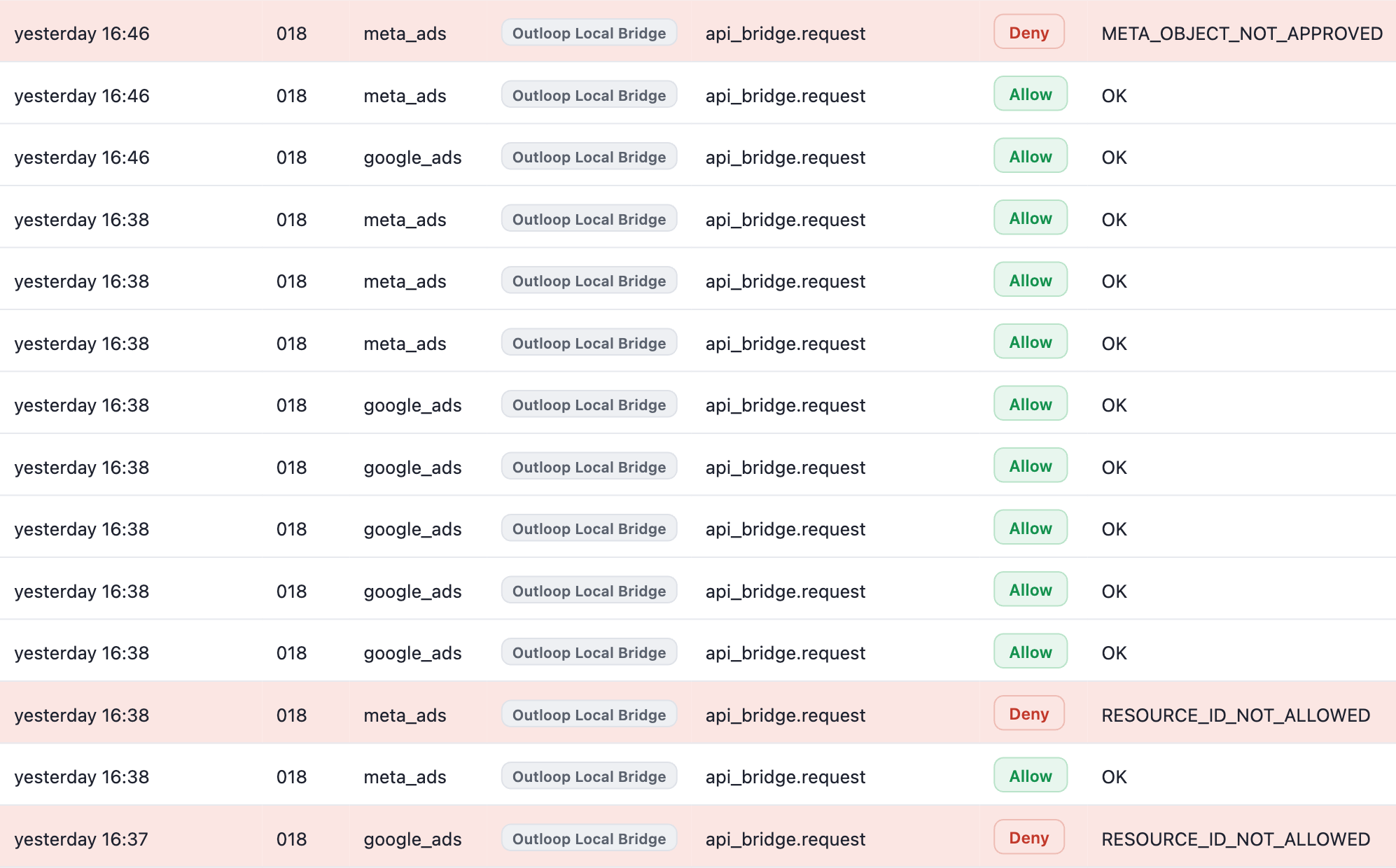
Swipe sideways to read the log · open full size
Refused: these wrong-resource requests did not run
- Deny ·
RESOURCE_ID_NOT_ALLOWED(google_ads and meta_ads) — the request named an account outside this Workspace’s approved resources; the requested action was refused - Deny ·
META_OBJECT_NOT_APPROVED(meta_ads) — a campaign, ad set or ad that does not belong to the approved ad account; the requested action is not sent to Meta - Approved requests in the same workspace keep executing around the refusals — Allow · OK
Real execution in an Outloop demo workspace (workspace 018), published in the September 26, 2026 proof pack — not a customer case study, and not evidence of ad spend, delivery or performance. Enforcement covers requests routed through Outloop. See the runtime access walkthrough for the recorded flow.
What this connection enables
One Meta System User access token, stored once, working safely for every approved workspace:
One Meta System User access token
  → stored once locally in the macOS Keychain
  → shared securely through Outloop
  → assigned only to approved workspaces
  → one or more Meta ad account IDs pinned to each workspace
  → agents use approved Meta Marketing API capability
    without ever seeing the token
With Outloop's Full API access mode, agents operate across the Meta surface your agency has been approved for — not a read-only reporting slice. Where your app holds the required permissions and assets, that includes:
- ✓Ad accounts, campaigns, ad sets and ads
- ✓Creatives, image upload and video upload
- ✓Insights and reporting
- ✓Catalogs, products and product sets
- ✓Pages and connected Instagram business resources
- ✓Other approved Business Portfolio resources
A safe read is the first proof, not the ceiling. Approved write operations run with workspace-to-resource pinning, action classification, redaction, a full audit trail, and human-approval gates. Delete and archive are separate destructive actions and stay disabled unless the operator explicitly enables them. What is actually available to you depends on the permissions, access level, App Review outcome and assets Meta has approved for your app.
The token itself is never handed to an agent. The credential is used on the wire, host-side; the agent receives a redacted, audited result. Each workspace is limited to the Meta ad account IDs assigned to it — see wrong-client access in agent loops.
Your agency owns the Meta app
You create your own Meta Developer account and your own dedicated Meta app. Your agency controls the app, the business relationship, the permissions, the review status and the credential lifecycle. Outloop does not supply a shared developer account, a shared app, or a shared token, and it cannot shorten Business Verification, App Review or Advanced Access.
Outloop starts after Meta approves you. You connect your own approved credentials through the Outloop credential flow, Outloop binds the correct business, ad account, Page, catalog or Instagram resource to the correct client workspace, and every runtime request is audited and redacted without the raw credential ever reaching the agent.
Meta readiness: what always applies, what depends
Meta's requirements are not one flat checklist. Some apply to everyone; others depend on the permissions, access level, business type and actions your workflows genuinely need.
Always required
- ✓A Meta Developer account.
- ✓Your own app in the App Dashboard, with the app type and use case that match what you actually do.
- ✓The app connected to your Business Portfolio.
- ✓Approved access to the client assets your workflow touches — ad account, and the Page or Instagram business account where relevant.
- ✓An active ad account for campaign and billing work.
Depends on your permissions, access level, business type and intended actions
- ·Standard Access vs Advanced Access. Business apps get Standard Access automatically, which only lets you request permissions from people who hold a role on your app. Production scale needs Advanced Access.
- ·Business Verification. Required when your app requests advanced-level access and will be used to reach data belonging to businesses outside your own — which is the normal agency situation.
- ·App Review. Required per individual permission and feature you request at advanced level. Meta expects at least one successful call using each of those permissions within the 30 days before you submit.
- ·Live mode. Required before advanced-level permissions work for people without a role on your app.
- ·A System User. The right choice for unattended agency automation and the flow this guide documents — but not universally mandatory. Which token type you need depends on the connection flow and assets involved.
- ·Write permissions. Request
ads_managementorbusiness_managementonly where the workflow genuinely writes or manages assets.ads_readis enough for a first proof. - ·Data Use Checkup. An annual re-certification once you hold permissions.
Business Verification is the long pole — start it first. Meta does not publish a guaranteed review time, and neither will we. Use the waiting period to finish asset assignment and design your first safe read. The submission itself is covered step by step in the Meta Marketing API App Review guide, and the wider model — what your agency owns versus where Outloop starts — is in professional API access readiness.
What you need before starting
- ✓An active Meta Business Portfolio.
- ✓Your agency's own Meta app, created in your own Meta Developer account and connected to that portfolio.
- ✓The permissions your workflows need approved for that app, at the access level they need.
- ✓A System User in that portfolio.
- ✓The required ad accounts assigned to that System User.
- ✓The Outloop Mac app installed.
- ✓A workspace already connected in Outloop.
Never paste access tokens, Authorization headers, or customer secrets into chat, screenshots,
docs, .env files, project folders, agent prompts, or generated
artifacts. The token's only destination is the local Outloop app in Step 7.
Step 1: Find your Business Portfolio ID
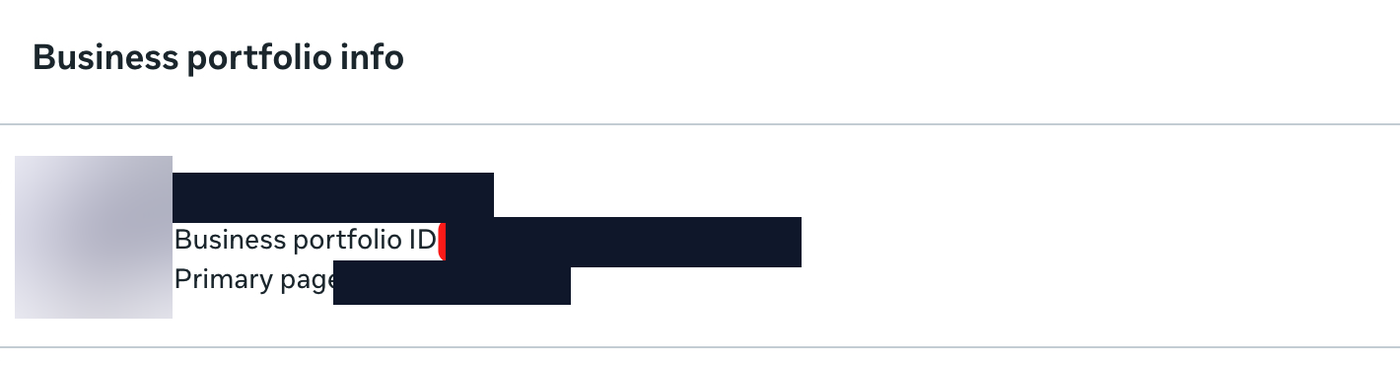
In Meta Business Settings (Meta Business Suite → Settings), open Business info. The Business Portfolio ID is shown below your portfolio name.
Step 2: Prepare the System User
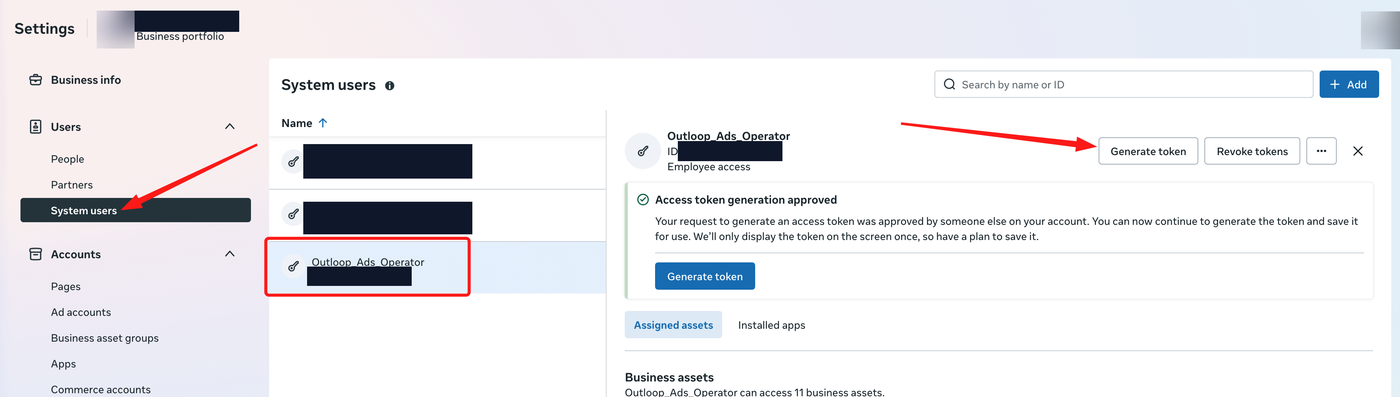
Go to Business Settings → Users → System users. Select your dedicated System User, or create one for agent automation. Then confirm — under Assigned assets — that the ad accounts your workspaces will manage are assigned to this System User. A token can never reach an ad account its System User does not have.
Step 3: Click Generate token and select your own app
Click Generate token. In the app selector, choose your agency's own Meta app — the app you created and control.
Step 4: Choose token expiration
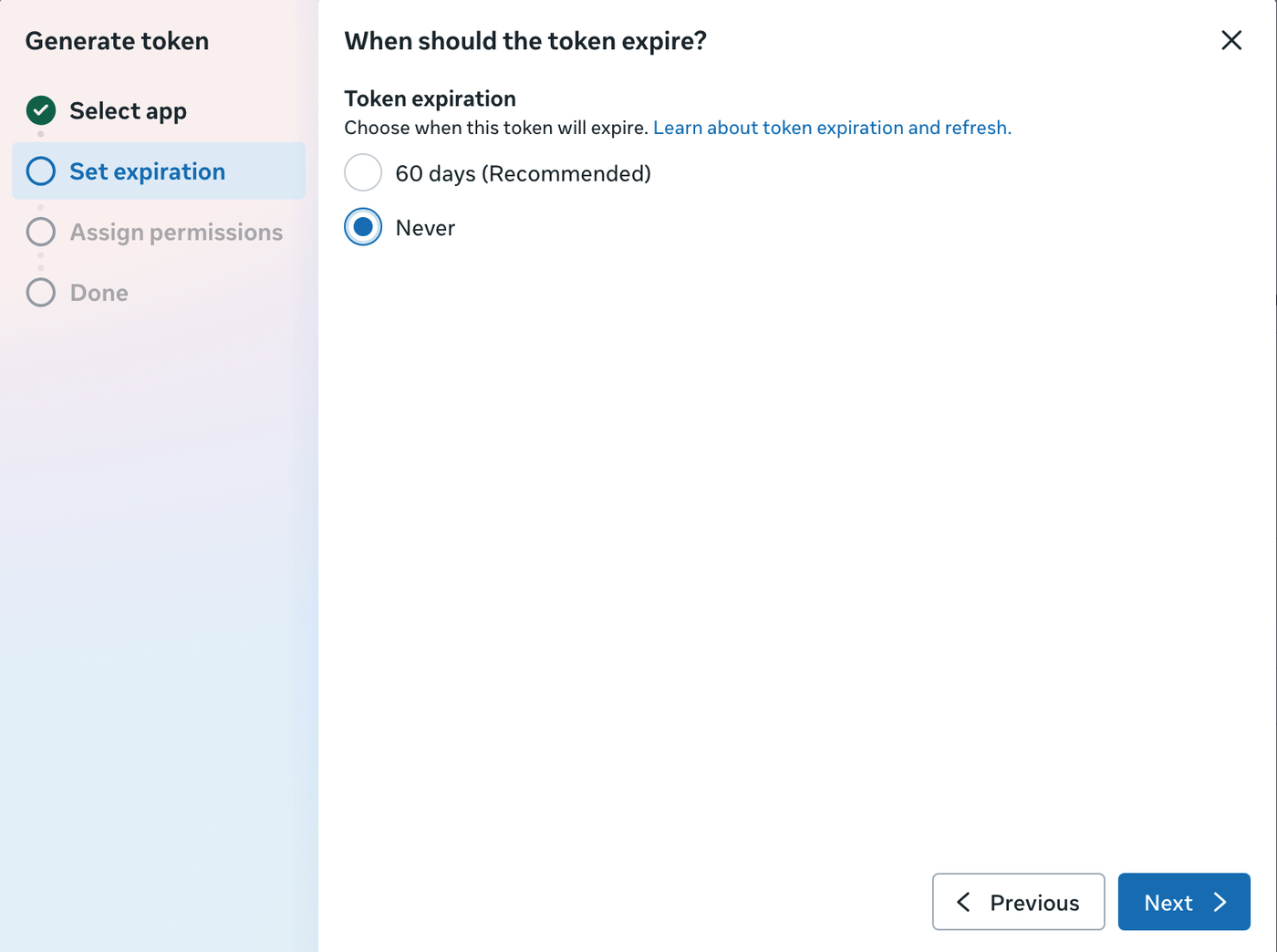
For uninterrupted agency workflows, you may choose Never for a dedicated System User with tightly limited business assets. Choose a shorter expiration when required by your organization's security policy. Tokens can be revoked and rotated later at any time from the same System users screen.
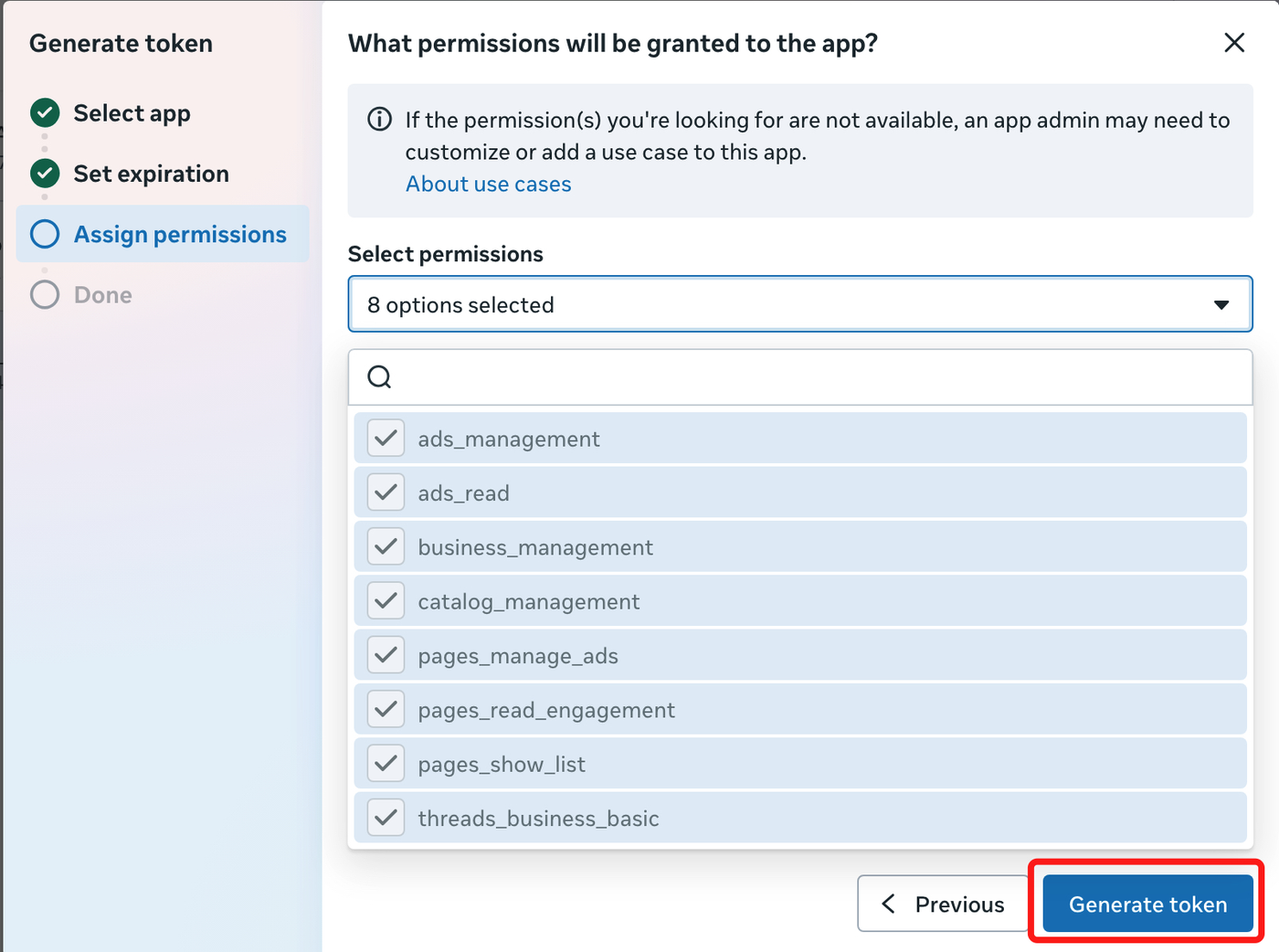
Step 5: Select permissions
Select the permissions the token will carry. Meta's documentation calls
ads_read and
ads_management the primary Marketing API
permissions — the core set for reading and managing ads:
ads_read              # reporting and read-only access
ads_management        # campaign / ad set / ad / creative work
business_management   # only when workflows manage business portfolio assets
The remaining permissions in the approved set are optional —
only needed for workflows that touch those assets:
pages_manage_ads,
pages_read_engagement, and
pages_show_list for ads that run from a
Facebook Page, catalog_management for
catalog / commerce ads, and
threads_business_basic for Threads
workflows. Select what your client work actually uses.
Step 6: Generate and copy the token
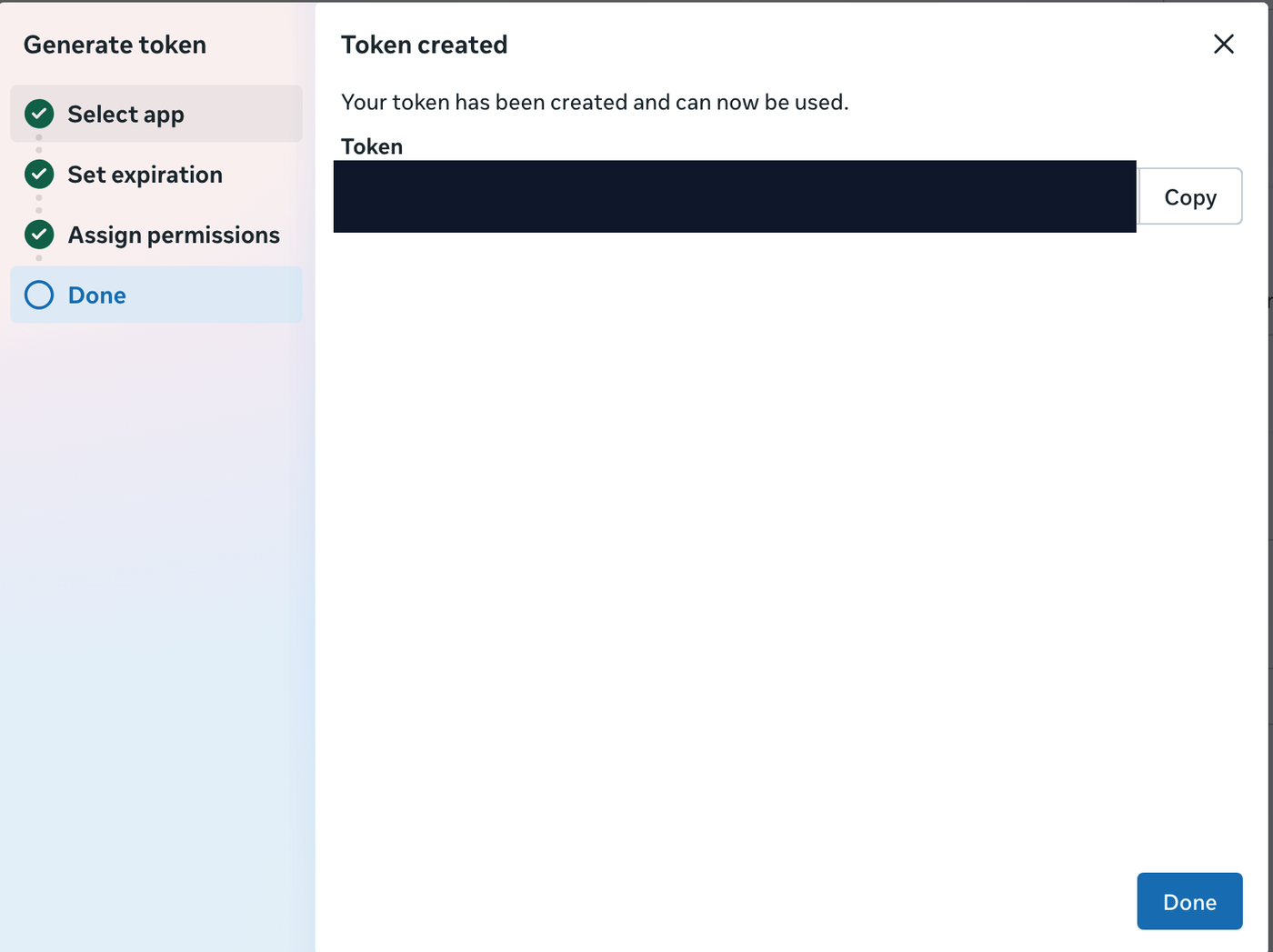
Click Generate token. Meta displays the token
once. Copy it and go directly to the local Outloop app —
do not paste it into chat, documentation, project files, .env
files, screenshots, or agent prompts.
Step 7: Add Meta Ads access in Outloop
In the Outloop Mac app, add access for Meta Ads and paste the System User access token once. (If a button in an older build still says "Add API Key", the value you are pasting is your System User access token — Outloop stores it the same way.) Then:
- ✓Business Portfolio ID — optional and informational only (from Step 1).
- ✓Store the access as Shared / global — one agency token, assigned per workspace afterwards.
- ✓When macOS asks for Keychain access during the first proof, enter your Mac login password and click Always Allow so proofs don't re-prompt.
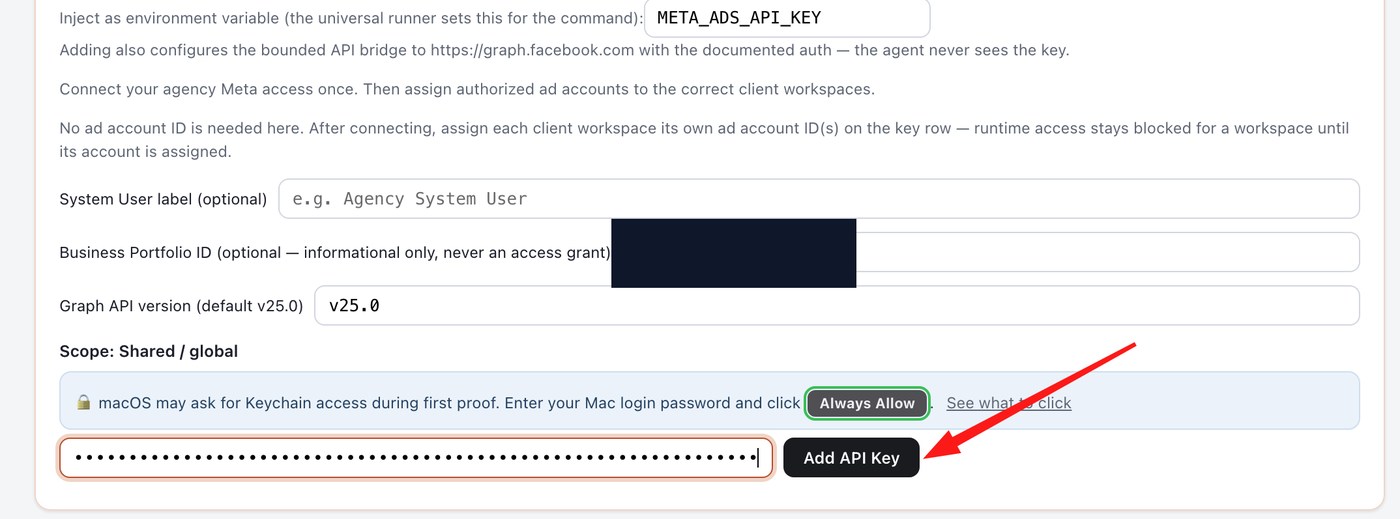
Outloop stores the token in the macOS Keychain and never shows it again. Agents never receive it — the credential is used on the wire, host-side, and results come back redacted.
Step 8: Find the Meta ad account ID
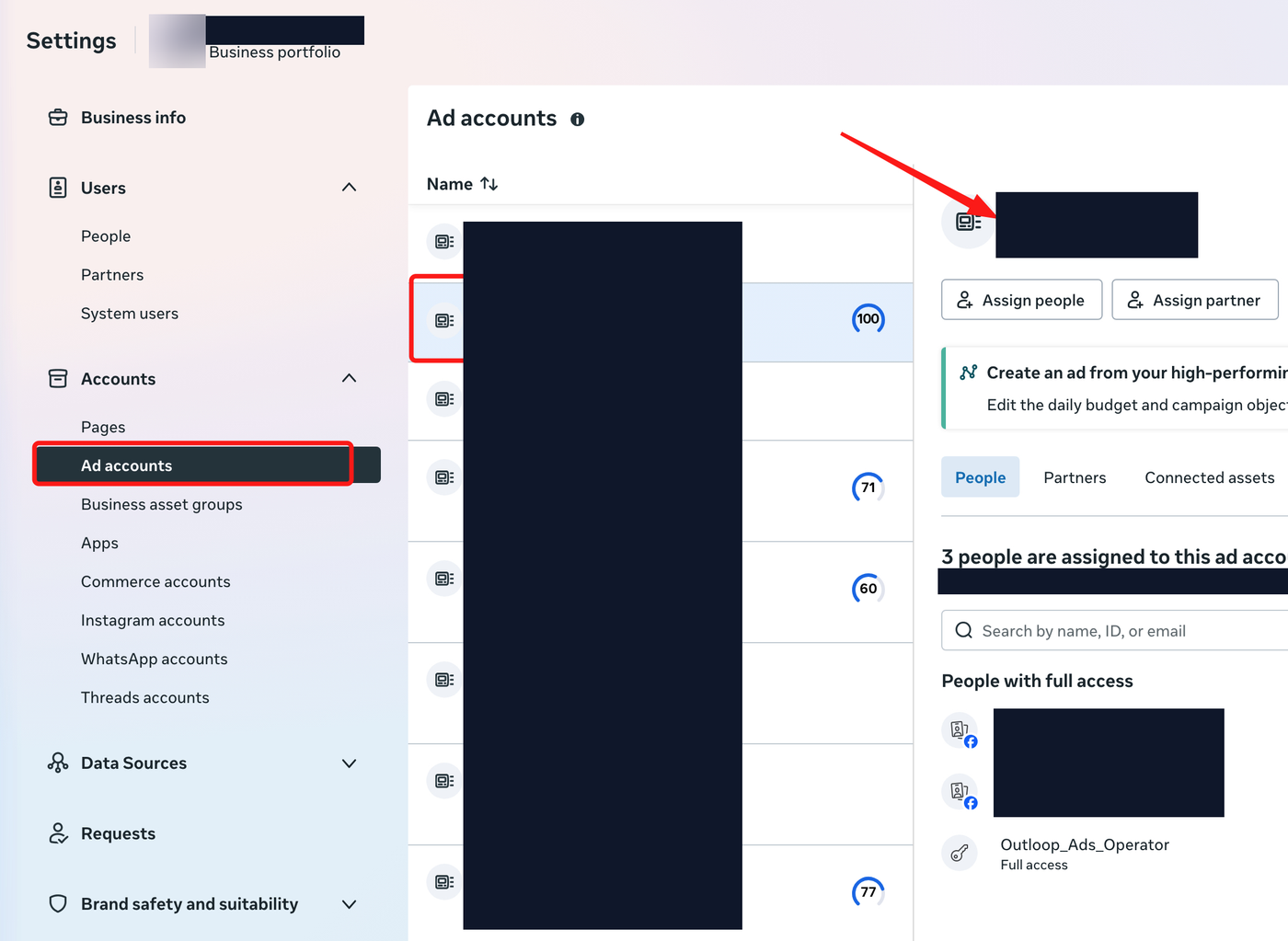
Back in Meta: Business Settings → Accounts → Ad accounts. Select the client ad account a workspace should manage and copy its numeric ID from the details panel. The account must already be accessible to your System User (Step 2) — assigning an ID in Outloop cannot grant access the token does not have.
Step 9: Assign the ad account to the Outloop workspace
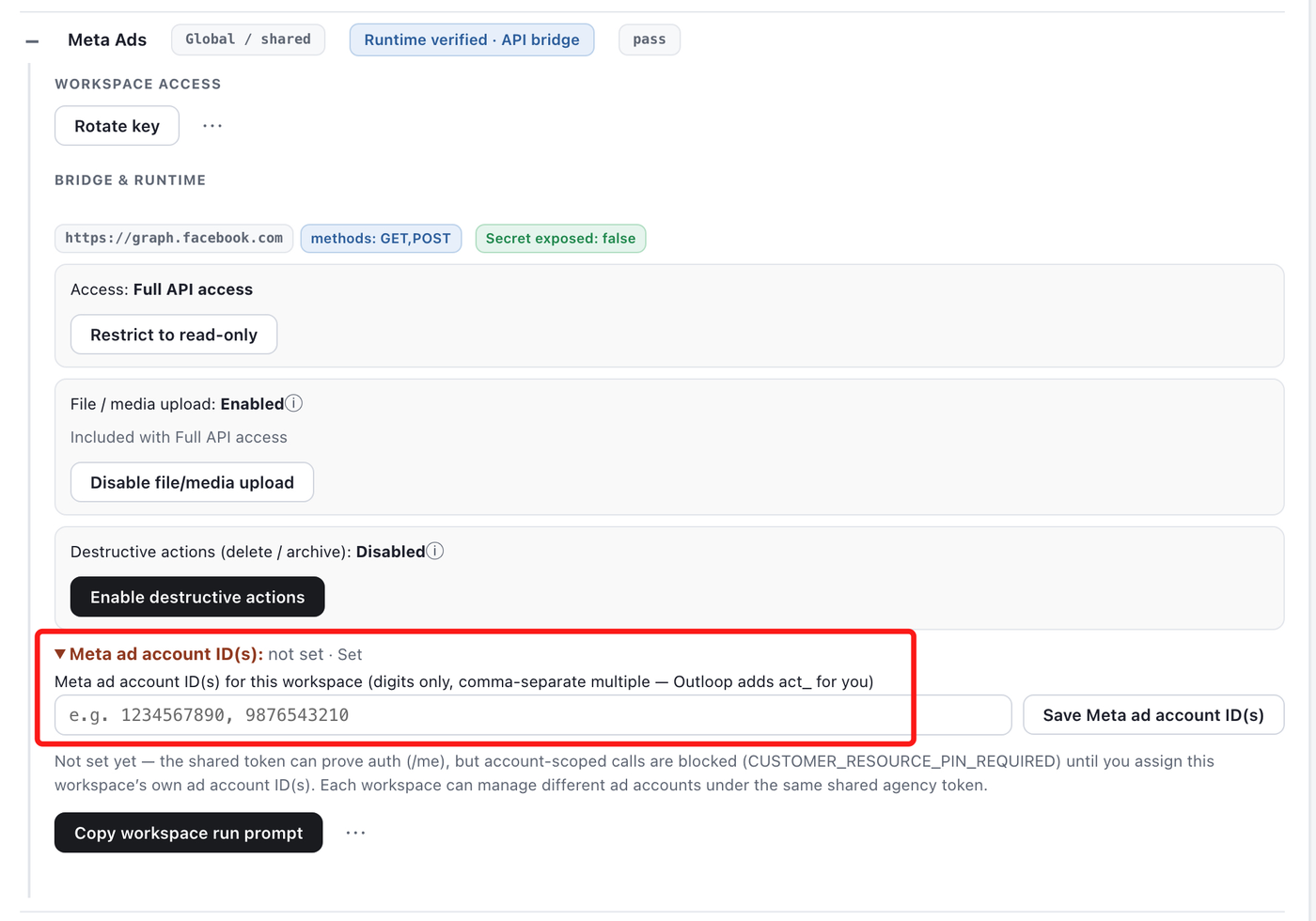
On the workspace's Meta Ads access row, open
Meta ad account ID(s), enter the ID as
digits only — comma-separate multiple IDs — and save.
Outloop adds the act_ prefix internally.
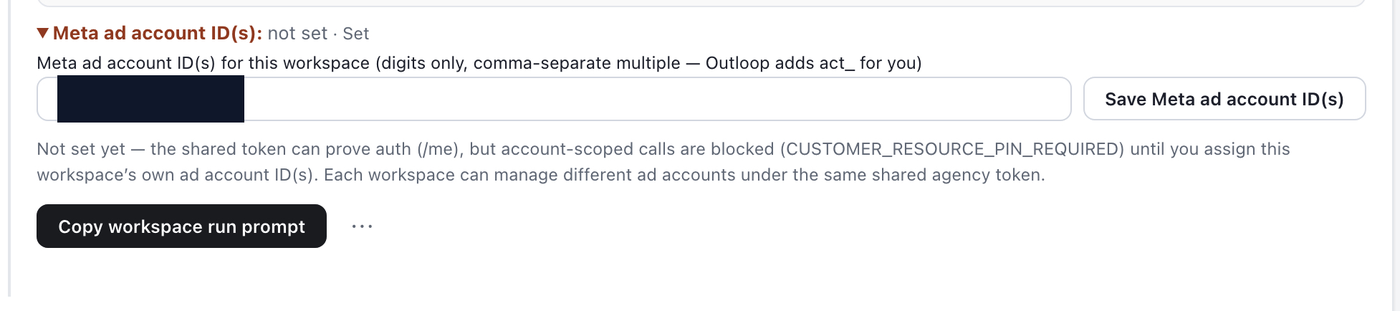
This assignment is the tenant-safety boundary. Until at least one approved ad account is assigned,
the workspace can prove identity (/me)
but account-scoped calls stay blocked
(CUSTOMER_RESOURCE_PIN_REQUIRED). Each
workspace can manage different ad accounts under the same shared agency token.
Step 10: Run the first proof
Click Copy workspace run prompt on the Meta Ads row and give it to the workspace's agent. The safe first proof is read-only:
GET /me                          # verify the System User identity
GET /act_<AD_ACCOUNT_ID>         # read the assigned ad account
GET /act_<AD_ACCOUNT_ID>/campaigns?limit=5   # bounded campaign list
Success criteria:
decision: allow
HTTP 200
secret_exposed: false
correct ad account only
audit entry exists
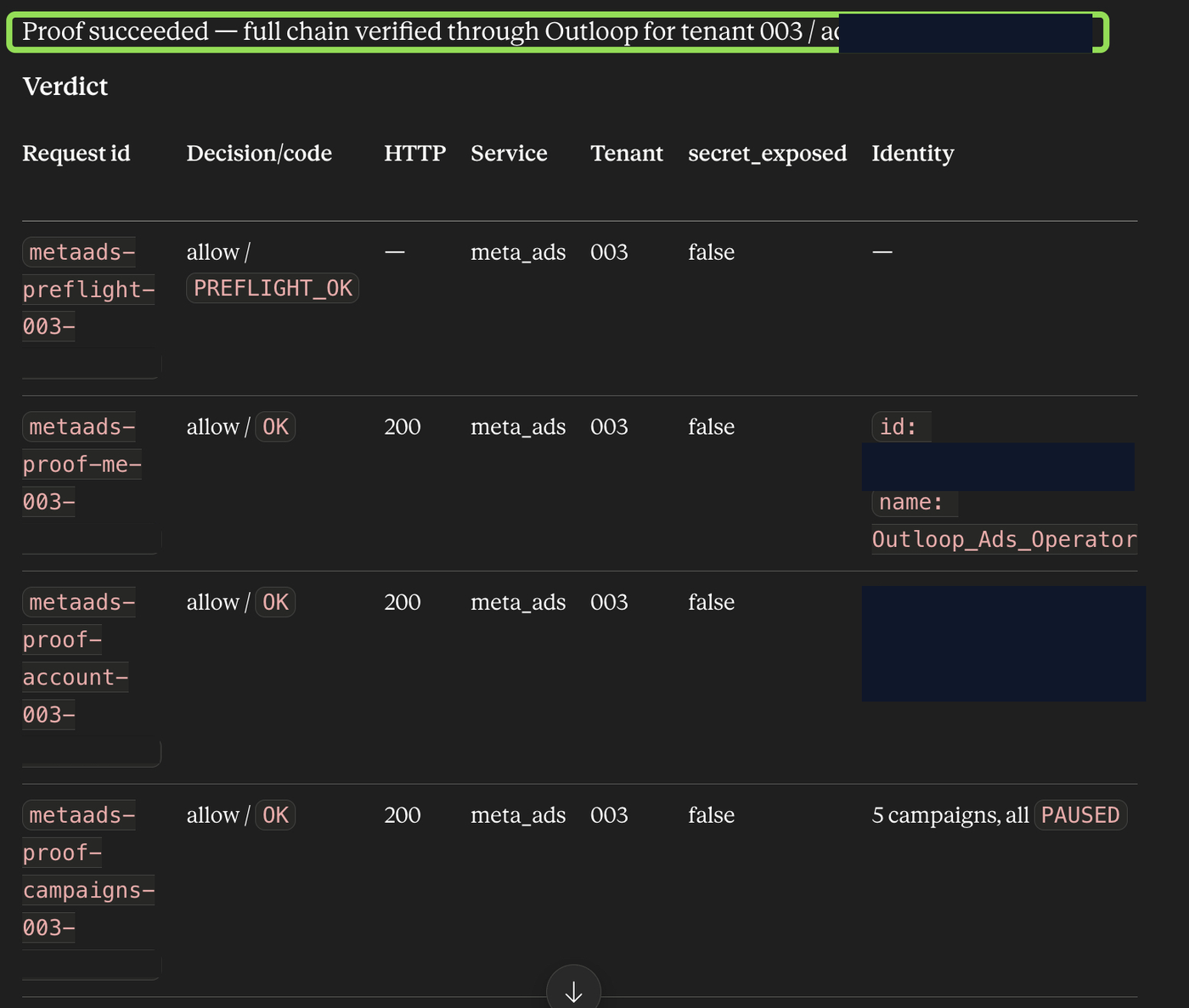
A successful end state on the access row reads: Runtime verified ·
API bridge, Full API access, file / media upload
enabled, your assigned Meta ad account ID(s), and
secret_exposed: false on every audit
entry.
Optional: prove uploads and a PAUSED creative
Not required for the initial connection. When you want to confirm full capability on your own client account, run the same safe sequence used to runtime-verify this connector — it spends nothing and delivers nothing:
- →Upload an image to the assigned ad account.
- →Upload a video and wait for Meta's asynchronous video processing to finish.
- →Create a clearly named test creative or ad in PAUSED status.
- →Confirm no delivery and no spend, then clean up manually in Ads Manager if you wish.
All of this works with destructive actions disabled — creating, updating, uploading, and pausing are normal operations.
Optional: enable delete and archive
Normal create / update / pause / upload operations do not require this. Enable destructive actions only when you intentionally want agents to permanently delete or archive Meta entities (campaigns, ad sets, ads, creatives) on the workspace's assigned accounts.
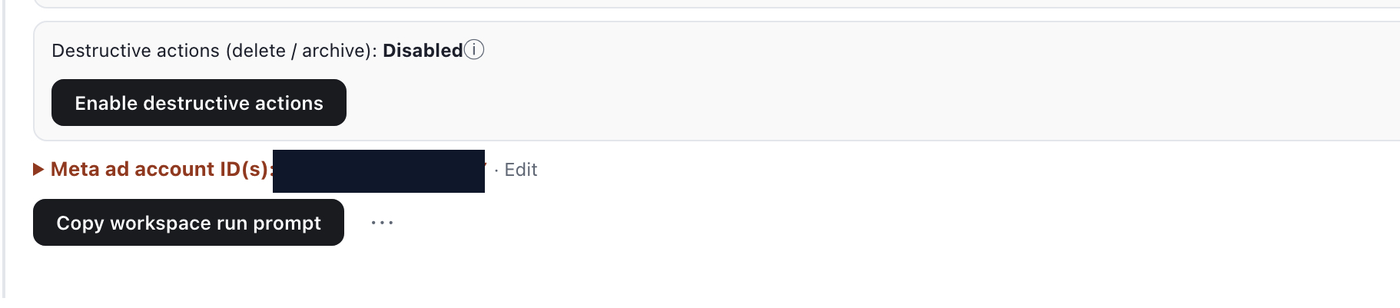
Outloop asks for explicit confirmation and spells out the consequences before enabling:
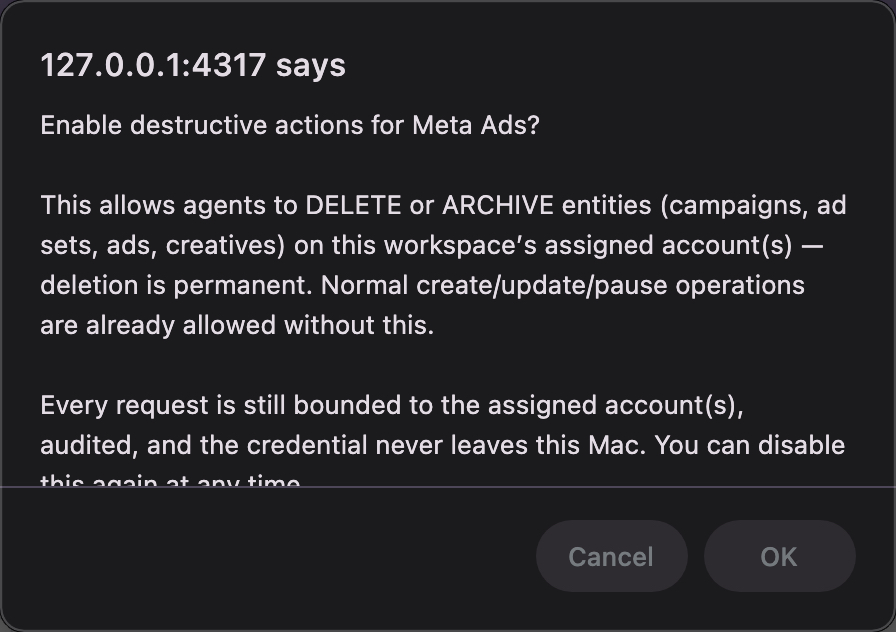
- →Deletion may be permanent — treat it accordingly.
- →Access stays limited to the workspace's assigned ad accounts.
- →Every request is still audited, and you can disable destructive actions again at any time.
What is verified vs what we don't claim
- Verified Read access through Outloop: identity (
GET /me), the assigned ad account, and a bounded campaign list returned HTTP 200 with decision allow, audit entries, andsecret_exposed: false— shown in Step 10. - Verified Per-workspace scoping: account-scoped calls are blocked (
CUSTOMER_RESOURCE_PIN_REQUIRED) until a Meta ad account ID is assigned to the workspace. - Verified Write operations — campaign / ad set / ad / creative creation, updates, pause and resume, image upload (
POST /act_<id>/adimages), video upload (POST /act_<id>/advideos) with asynchronous processing, and video thumbnails: runtime-verified through Outloop with HTTP success, decision allow, audit entries, andsecret_exposed: false— using clearly named PAUSED test entities with no delivery and no spend. - Disabled by default Delete / archive: blocked until the operator explicitly enables destructive actions for the workspace.
Marketing API through Outloop vs the Meta ads MCP
Meta launched an official ads MCP server
(mcp.facebook.com/ads), and it can create and
edit campaigns, ad sets and ads. On
16 July 2026
Meta wrote that it is "opening up our ads MCP server to any developer with their own Meta app," and that
it will be "gradually rolling out access to tools available to ad accounts through this integration
method." Meta publishes no maturity label for it, so we state none. It is a real option for interactive
ad work — but it is a different access model, and it is not connected or verified in this workspace.
| Dimension | Marketing API through Outloop | Meta ads MCP (official) |
|---|---|---|
| Status here | Runtime verified Read and write chain runtime-verified: allow, HTTP success, secret_exposed:false, audited. | Not connected here Open to any developer with their own Meta app since 16 July 2026; Meta says tool access is still gradually rolling out. |
| Credential handling | Token never seen System User access token stays in the macOS Keychain; used on the wire host-side. | Meta-hosted auth You authenticate the AI client to Meta; access follows your Meta login/session. |
| Per-client scoping | Workspace-pinned Each workspace is limited to its assigned Meta ad account IDs; wrong-client calls are blocked. | Account-wide Scoped to what your Meta user can reach — no per-workspace ad account pinning. |
| Capabilities | Full API access Reads, creation, updates, pause/resume, image and video upload; delete/archive off by default. | Broad toolset Meta lists reporting, ad creation/management, catalog tools — not verified in this workspace. |
| Audit trail | Local audit log Every request audited locally with decision, HTTP status, and secret_exposed:false. | Platform-side Activity visible through Meta’s own surfaces; no local per-workspace audit. |
Common mistakes
- ✕Pasting the System User access token into chat, a prompt, or
.env— its only destination is the local Outloop app. - ✕Entering the Business Portfolio ID where the Meta ad account ID belongs — they are different identifiers with different jobs.
- ✕Entering
act_1234567890in the workspace assignment — enter digits only; Outloop adds the prefix. - ✕Enabling destructive actions "to make it work" — normal reads, creates, updates, pauses, and uploads never need it.
- ✕Assigning every workspace the same ad account list — the per-workspace assignment is what keeps clients separated.
- ✕Expecting an assigned ID to grant access the System User doesn't have — assets are granted in Meta Business Settings first.
- ✕Publishing screenshots with token values or client account IDs.
The Outloop value
Meta gives the agency API access. Outloop makes that access tenant-safe:
One agency token may reach many ad accounts.
But each agent workspace only reaches the ad accounts assigned to it.
Related: AI agent API key management · Outloop for AI agencies · Meta Marketing API App Review guide · Google Ads API setup · WhatsApp Cloud API setup · AI for marketing agencies.
Outloop is available with setup guides and product support for agency teams. Outloop is an independent tool and is not affiliated with or endorsed by Meta. See the security model.
Is this for you?
A good fit if…
- You manage several clients’ Meta ad accounts through a Business portfolio.
- You want agents to read or build only in the right ad account.
- You can set up a Meta app and the permissions Meta requires.
You may not need Outloop if…
- You manage one ad account and never share access.
- You only need Meta reporting that an existing connector already delivers well.
- You cannot complete Meta’s app and permission requirements for your agency.
Run Meta Ads agents without handing over tokens.
Outloop is available with setup guides and product support for AI agencies, operators, and dev shops.