Learn · Setup guides
Connect Google Ads API to Outloop
Last updated:
In short
Google Ads API does not use a normal API key for account management. A production agency setup needs Google Cloud OAuth credentials, a Google Ads developer token, a refresh token from user consent, the MCC login_customer_id, and a customer ID mapping for each client account.
Outloop stores the sensitive parts locally — client secret, refresh token, developer token — mints access tokens host-side, and injects the required headers at request time. The agent never sees any of them, and a workspace that tries to use another client's customer ID is denied before any backend read.
Why Google Ads setup is different
Google Ads is not a "paste one API key" service. Real account access needs multiple parts:
client_id          = Google Cloud OAuth app identity
client_secret      = OAuth app secret
refresh_token      = long-lived OAuth token after consent
developer_token    = Google Ads API access token from API Center
login_customer_id  = MCC / manager account ID
customer_id        = the client ad account ID
These should not be pasted into generic API-key fields — Google Ads needs a dedicated OAuth-aware setup flow, which is how Outloop handles it.
Never paste API keys, access tokens, refresh tokens, client secrets, developer tokens, Authorization
headers, or customer secrets into chat, screenshots, docs, .env files,
project folders, or generated artifacts.
Google Ads API: direct setup vs Outloop-managed setup
Google Ads API gives agencies powerful access, but it is not a simple API-key setup. A direct setup means the agent or workflow must handle OAuth credentials, refresh tokens, developer tokens, MCC routing, customer IDs, request headers, and tenant safety. Outloop keeps that sensitive setup host-side and gives the agent a safer way to request Google Ads actions without seeing the secrets.
| Workflow area | Direct Google Ads API setup | With Outloop | Why it matters |
|---|---|---|---|
| Credential setup | You manage OAuth client ID & secret, refresh token, developer token, MCC login-customer-id, and each client's customer ID. | ✓ Stored once through Outloop's secure setup flow. | The agent never handles raw OAuth or developer-token details. |
| Secret exposure | Tokens and headers can leak into project files, chat, logs, or .env files. | ✓ Sensitive values stay local; runtime headers are injected host-side. | The agent gets the result, not the secrets. |
| Multi-client access | One MCC can reach many accounts, so you must block wrong customer IDs manually. | ✓ Each workspace is mapped to its allowed Google Ads customer ID. | Wrong-client access is blocked before a backend read. |
| Agent workflow | The agent must build API calls, headers, token refresh, and account routing. | ✓ The agent requests a specific action through the bridge. | Workflows become simpler and less fragile. |
| API headers | The workflow must attach Authorization, developer-token, and login-customer-id correctly. | ✓ Outloop injects the required headers at request time. | Fewer setup mistakes and fewer broken runs. |
| Tenant safety | Every project needs custom guardrails to avoid crossing accounts. | ✓ Workspace-to-customer-ID mapping is part of the access layer. | Safer for agencies managing multiple clients. |
| Proof & verification | You build your own proof, audit, and secret-leak checks. | ✓ Expected proof is clear: an account-scoped read on the workspace customer ID returns allow, HTTP 200, secret_exposed=false and an audit entry — and a request naming an unapproved customer ID is denied with RESOURCE_ID_NOT_ALLOWED before any backend read. | Easier to know when the setup is actually runtime-ready. |
| Daily operations | More technical setup keeps falling back on the human operator. | ✓ The agent works through approved workspace access without asking for secrets again. | Keeps the operator out of the runtime loop. |
You manage OAuth client ID & secret, refresh token, developer token, MCC login-customer-id, and each client's customer ID.
✓ Stored once through Outloop's secure setup flow.
The agent never handles raw OAuth or developer-token details.
Tokens and headers can leak into project files, chat, logs, or .env files.
✓ Sensitive values stay local; runtime headers are injected host-side.
The agent gets the result, not the secrets.
One MCC can reach many accounts, so you must block wrong customer IDs manually.
✓ Each workspace is mapped to its allowed Google Ads customer ID.
Wrong-client access is blocked before a backend read.
The agent must build API calls, headers, token refresh, and account routing.
✓ The agent requests a specific action through the bridge.
Workflows become simpler and less fragile.
The workflow must attach Authorization, developer-token, and login-customer-id correctly.
✓ Outloop injects the required headers at request time.
Fewer setup mistakes and fewer broken runs.
Every project needs custom guardrails to avoid crossing accounts.
✓ Workspace-to-customer-ID mapping is part of the access layer.
Safer for agencies managing multiple clients.
You build your own proof, audit, and secret-leak checks.
✓ Expected proof is clear: an account-scoped read on the workspace customer ID returns allow, HTTP 200, secret_exposed=false and an audit entry — and a request naming an unapproved customer ID is denied with RESOURCE_ID_NOT_ALLOWED before any backend read.
Easier to know when the setup is actually runtime-ready.
More technical setup keeps falling back on the human operator.
✓ The agent works through approved workspace access without asking for secrets again.
Keeps the operator out of the runtime loop.
Outloop is an independent tool and is not affiliated with or endorsed by Google.
See the outcome this setup can support.
Before the detailed setup steps, watch an approved Google Ads campaign build in a demo account.
This is a campaign workflow example, not an OAuth, developer-token or MCC setup tutorial.
- An approved campaign brief
- Real Google Ads campaign objects
- A PAUSED result for human review
Create your trial, then install on your company-controlled Mac. Set up your first workspace.
1:24 · Ellātu Google Ads build · No form required
Demo brief and assumptions. Real campaign execution, configured PAUSED. No delivery or performance claim.
Step 1: Create a dedicated Google Cloud project
Use a project reserved for API access — for example
outloop-google-apis — kept separate from any
website or product infrastructure projects. It holds three things: the enabled Google Ads API, the OAuth
consent screen, and the OAuth client credentials.
Step 2: Enable Google Ads API
APIs & Services → Library → Google Ads API → Enable
Planning to send offline conversions? Enable the Google Data Manager API in the same project now — it is a separate API with its own scope.
Step 3: Create OAuth client credentials
Google Auth Platform → Clients (older Cloud Console layouts: APIs & Services → Credentials → Create credentials → OAuth client ID), application type Web application. Leave authorized JavaScript origins empty and add Outloop's local callback under Authorized redirect URIs:
http://127.0.0.1:44317/oauth2/callback
You create this client once for every Google connector, not once per service. The full walkthrough — project, APIs, the whole scope set in one paste, and the publishing-status step that stops a working connection expiring after about a week — is in Set up one reusable Google Cloud OAuth app. The Google Ads developer token in the next step is separate and has no equivalent elsewhere.
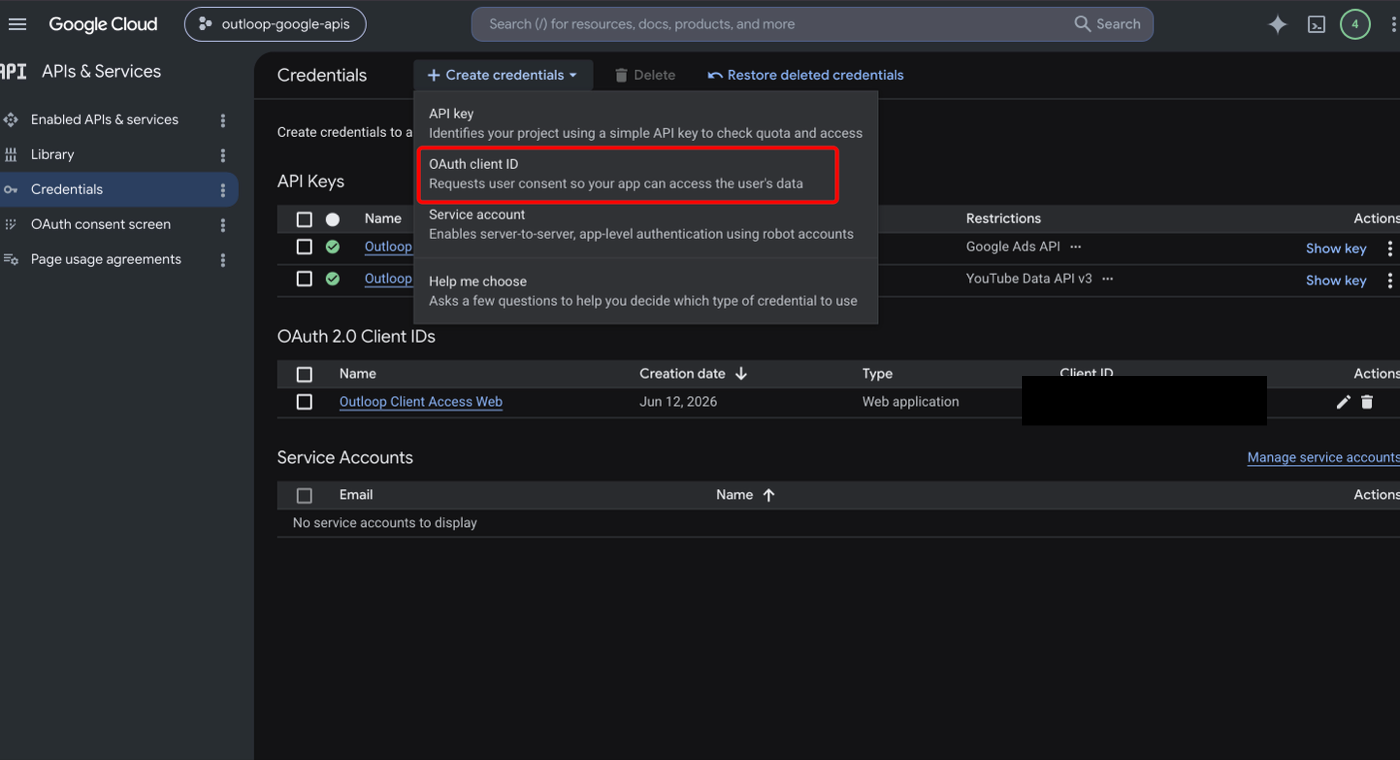
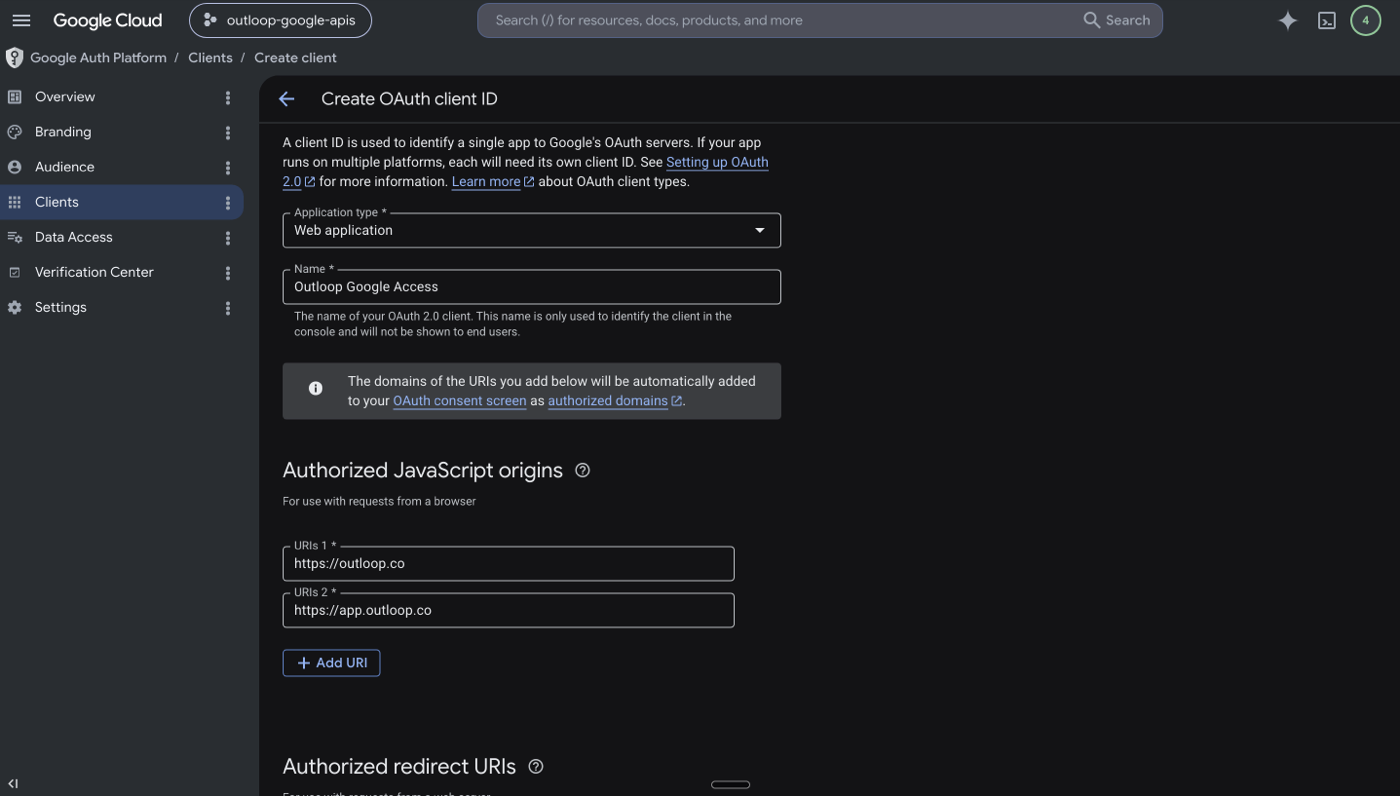
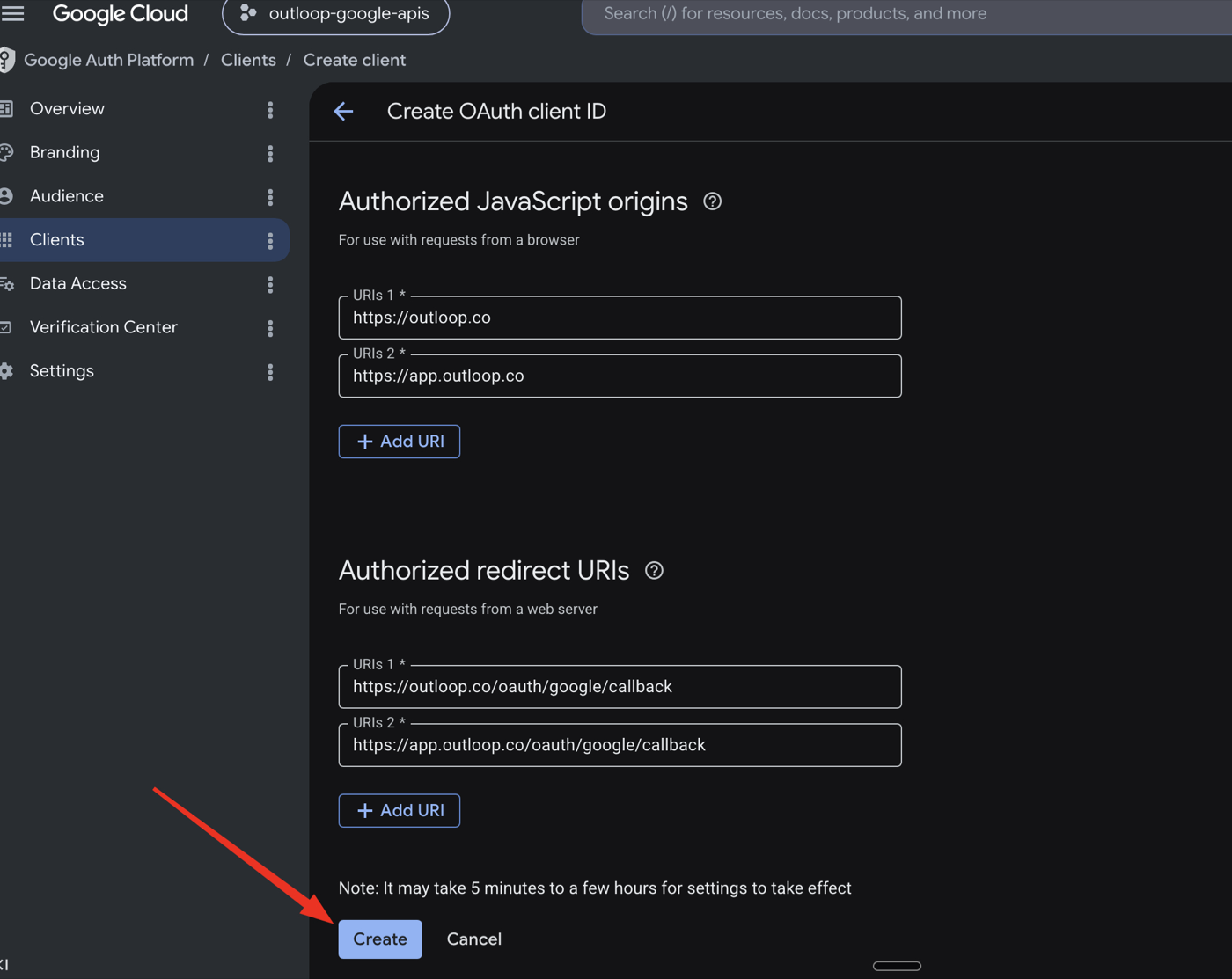
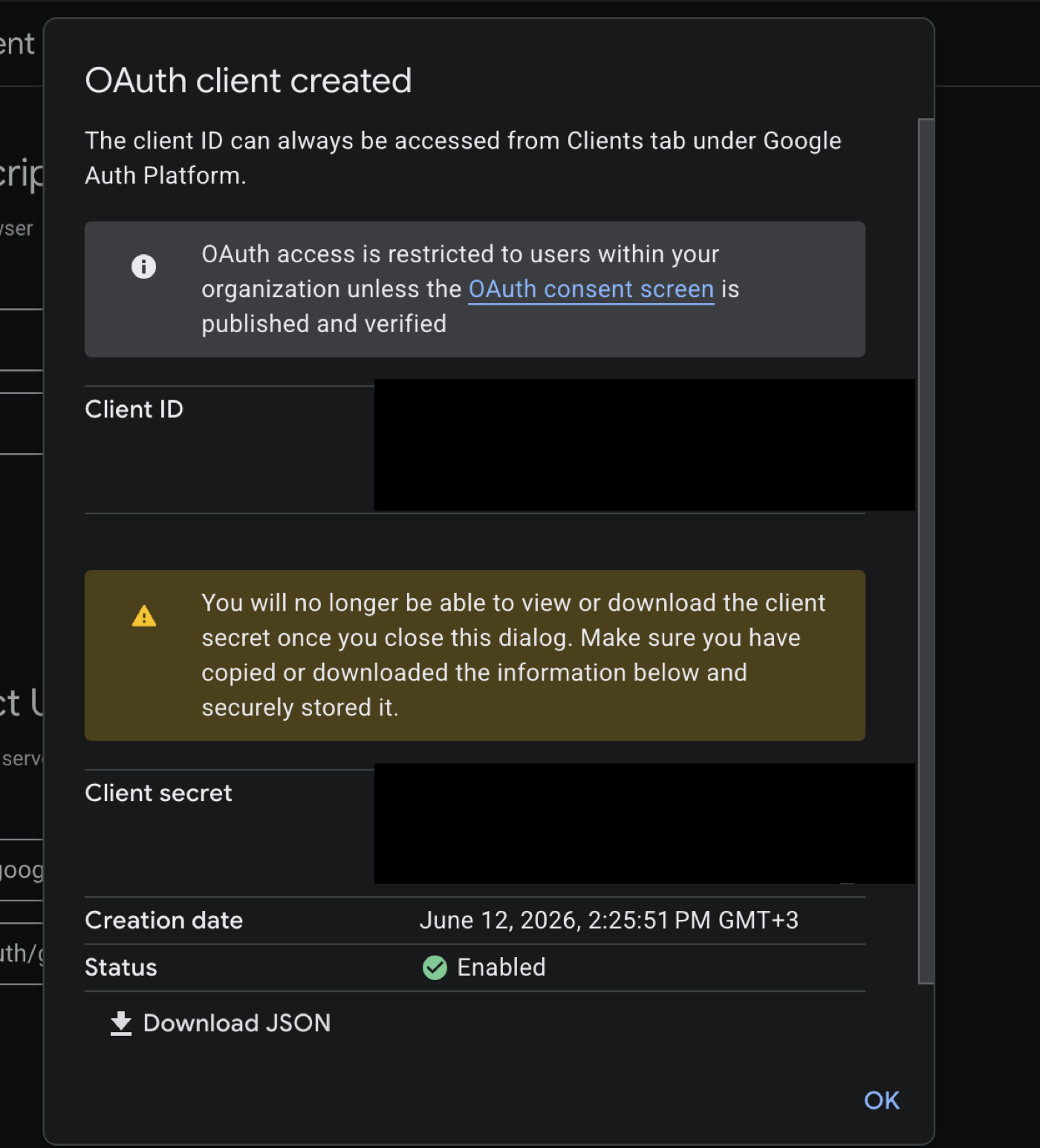
After creation, Google shows the Client ID and — once only — the Client Secret. Do not paste these into chat. Store them only through Outloop's secure setup flow.
Step 4: Set up OAuth consent
The OAuth consent screen must be configured before anyone can authorize access. Use a neutral, accurate
app name (for example Outloop Client Access)
and your business email for the support and developer contacts. Do not claim official Google
partnership anywhere in the consent copy.
Step 5: Get the Google Ads developer token
In the Google Ads manager account (MCC):
Tools & Settings → Setup → API Center → Developer Token
The developer token comes from Google Ads, not Google Cloud — missing this distinction is the most common setup failure. Do not paste the developer token into chat.
This token is your agency's. Google usually grants one developer token per company and states that if you use a third-party app or service, the developer of that app needs to get a token for the app. Outloop does not supply a shared developer token and you should never operate on another company's. Your agency owns the token, the Cloud project and the OAuth client; Outloop starts once those approved credentials are connected.
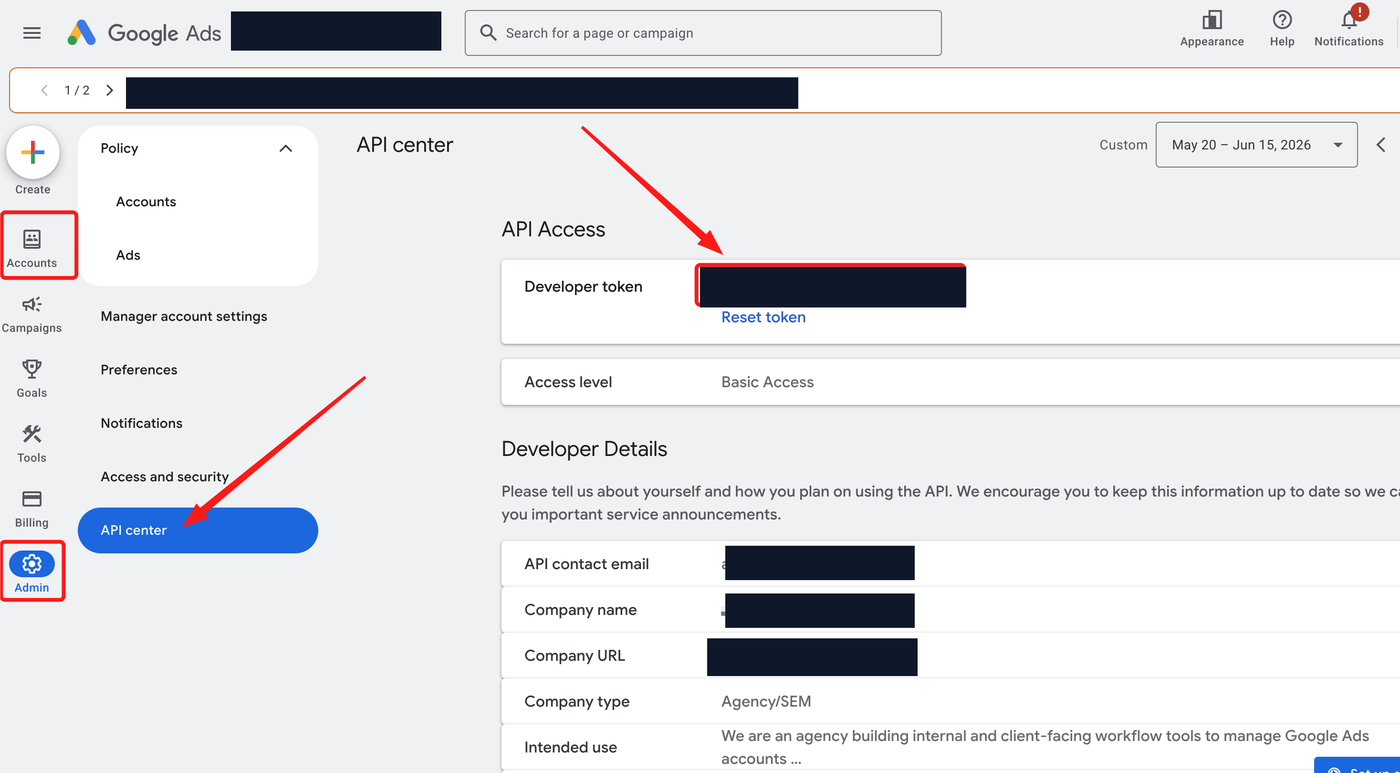
Step 6: Submit the API token application if needed
For full access levels, Google may require an API token application with tool-design documentation. Honest, typical answers for an agency tool:
Company type:   Agency/SEM
Use case:       Internal users only
Campaign types: Search, Performance Max, Display, Demand Gen, YouTube
Capabilities:   Account Management, Campaign Creation,
Campaign Management, Reporting, Keyword Planning If the tool is for your agency team and contractors, do not choose public/external users — and do not choose Account Creation unless the tool actually creates Google Ads accounts through the API.
Which Google account connects what
Three separate identities — keep them apart
Most failed Google Ads setups are one confusion: assuming the Google account that manages the Cloud project is also the account that can open the client's Google Ads account. It does not have to be, and often should not be.
- 1
The Google Cloud project and OAuth app
This owns the Client ID and Client Secret. It can belong to your agency or to your client — Outloop does not care which, and cannot tell the difference.
cloud-admin@agency.example— manages the Google Cloud project - 2
The connected Google account
This is the account you pick in Google's own chooser during the browser sign-in. It is the account that must actually own or be able to open the client's Google Ads account.
data-owner@client.example— is chosen at sign-in because it owns the client's Google Ads account - 3
Outloop workspace access
This decides which workspace may use the stored credential, which resources it may reach, and which capabilities agents get. It is set in the Access Profile, after the sign-in succeeds.
In that example, cloud-admin@agency.example
created the OAuth app once, and every connector after it reuses that app — but the account you
actually sign in as is data-owner@client.example,
because that is the identity Google Ads will check when an agent asks for a file.
- →If the app's audience is External and it is still in Testing, the account must be added as a Test user first.
- →If the audience is Internal, only accounts inside that Google Workspace organisation can sign in at all.
- →The Google Ads API must be enabled in the Google Cloud project the app belongs to.
- →The account must genuinely have access to the client's Google Ads account. A successful sign-in proves identity, not reach.
login-customer-id of the manager
account when you are acting through one, and the client
customer_id approved for that workspace.
Access levels and what you can do today
Google grants Google Ads API access in levels, and the level you hold decides which accounts you can reach and how many operations you get per day. Knowing this changes the order you work in — you do not need the top level to run a first proof.
| Level | Accounts | Operations / day | How you get it |
|---|---|---|---|
| Test Account Access | Test accounts only | 15,000 | Automatic on signup |
| Explorer Access | Test and production | 2,880 production | May be granted automatically after signup |
| Basic Access | Test and production | 15,000 | Application — Google states about 5 business days |
| Standard Access | Test and production | Unlimited | Application — Google states about 10 business days |
Explorer Access is the one most teams miss. It reaches real production accounts at a lower daily limit, which is usually enough for a read-only first proof. So apply early, then use the waiting time productively: finish the refresh token, collect client customer IDs, and map each workspace to the one account it may touch. Raise your level when real volume justifies it — applying for Standard before you need it just adds review to your critical path.
Google decides access levels and timelines. Outloop cannot apply on your behalf, accelerate a review, or guarantee an outcome. The levels, limits and review windows above are Google's own published figures — check Google's access levels documentation for the current position before you plan around them.
Google also runs a pilot for cloud-managed access levels, where a Google Cloud organization manages access and you can skip sending the developer token in each call. It is a pilot accepting applicants rather than a generally available feature, and it does not remove the developer token requirement — so set up the normal path above and treat that as a future option.
You only enter the Google OAuth app once
The first Google connector you set up asks for the Client ID and Client Secret from your Google Cloud OAuth client. Tick Save this Google OAuth app so other Google connectors can reuse it and every later Google connector — Gmail, Drive, Analytics GA4, Search Console and Merchant Center — picks it from the Google OAuth app dropdown with no Client Secret to re-enter. The saved app is then listed under Authentication Profiles. When a saved profile supplies the app, Outloop shows “Using <client-id>. Its Client Secret comes from the saved app — nothing to paste. This connector still signs in separately and gets its own access.”
Reusing the app does not mean sharing one login. Each connector still opens its own browser sign-in and gets its own refresh token, its own scopes and its own connected account — so you can revoke or re-authenticate one connector without touching the others.
Shared agency app or workspace-dedicated?
Which setup should I choose?
There are two reasonable answers for Google Ads, and the right one depends on who owns the Google Cloud infrastructure — not on how many clients you have.
Agency-global (shared OAuth app)
One OAuth app your agency owns, reused by every Google connector you add. This is the default and the right choice for most agencies.
- ✓Client ID and Client Secret entered once, then picked from a dropdown.
- ✓Every connector still runs its own Google sign-in.
- ✓Each one gets its own scopes, its own refresh token, its own connected account and its own revocation.
- ✓Reusing the app grants no data access by itself — workspace grants and Access Profiles stay explicit.
Workspace-dedicated
A separate OAuth client — or a separate Google Cloud project — for one workspace or one client.
- →The client owns the Google Cloud infrastructure and wants to keep owning it.
- →They need stronger administrative separation, or their own consent branding and audience rules.
- →They want separate quotas and their own lifecycle control.
- →The client insists on their own Google Cloud project, or runs their own manager account and developer token rather than yours.
A separate Google Cloud project is the strongest operational separation. A separate OAuth client inside the same project is lighter separation — useful, but the project is still shared.
Step 7: Add Google Ads access in Outloop
In Outloop, open API Keys & Access → Add an API key and choose Google Ads. The panel opens on Connect in your browser, with the Cloud Console detail in the collapsed Setup details — Google Cloud OAuth client, scopes and caveats and Before you connect disclosures. Check the Google OAuth app dropdown — a saved profile supplies the app with no Client Secret to re-enter.
Google Ads still needs values the browser sign-in cannot supply — the developer token and the account IDs are not OAuth values, so you enter them on the form as before. Altogether Outloop's Google Ads setup uses six things:
- •Client ID — from the Google Cloud OAuth client (Step 3).
- •Client Secret — from the Google Cloud OAuth client. Google may show it only once; if lost, create a new secret.
- •Refresh Token — minted for you by the browser connect in Step 8. Only needed by hand if you use Advanced — manual refresh token.
- •Developer Token — from the Google Ads API Center (Step 5).
- •Login customer ID — the MCC / manager account ID, digits only, no dashes.
- •Client customer ID — the specific Google Ads account this Outloop workspace is allowed to use, digits only, no dashes.
Expected configuration:
service: google_ads
auth_type: oauth_refresh_token
token_url: https://oauth2.googleapis.com/token
client_id: <CLIENT_ID>
client_secret: <CLIENT_SECRET>
refresh_token: <REFRESH_TOKEN>
developer_token: <DEVELOPER_TOKEN>
login_customer_id: <MCC_ID>          # digits only, no dashes
customer_id: <CUSTOMER_ID>           # digits only, no dashes
base_url: https://googleads.googleapis.com
At request time the broker injects the runtime headers host-side:
Authorization: Bearer <ACCESS_TOKEN>
developer-token: <DEVELOPER_TOKEN>
login-customer-id: <MCC_ID>
The agent never sees these headers.
Do not use the plain API key created in Google Cloud for Google Ads account access. Google Ads account access requires OAuth (client ID + client secret + refresh token) plus the developer token.
Step 8: Connect the account in your browser
Click Connect Google Ads in your browser. Google's own sign-in opens, you sign in with the account that has access to the MCC, and you approve the consent screen there. Outloop mints and stores the refresh token host-side — there is no token on your clipboard and none in a screenshot.
Outloop then shows Connected as the Google account you used. Check it before an agent touches a client account. Under Agents will be able to (change any time in the Access profile), practical capabilities are pre-checked and destructive ones are prefixed ⚠ and left unchecked. Click Confirm — this is the approved account.
MCC vs client customer ID
The MCC is the manager account — the account Outloop logs in through. The client customer ID is the specific Google Ads account this workspace is allowed to manage. For tenant-safe access, Outloop needs both:
login_customer_id = <MCC_ID>
customer_id       = <CUSTOMER_ID>
One MCC may access many accounts, but one Outloop workspace should only be mapped to the customer IDs it is allowed to use.
This is the whole multi-client problem in one picture. An agency has one identity — its own MCC, its own developer token, its own OAuth client — and many client accounts underneath it. Nothing about holding that credential decides which client an agent should touch on any given run. That decision has to be made somewhere, and if it is made inside the prompt, it is not really being made at all:
- →One agency MCC is connected to Outloop once.
- →Each client gets its own workspace, pinned to that client's customer ID.
- →An agent working in that workspace reads and acts on that account normally — without receiving the developer token, the client secret, or the refresh token.
- →A request pointed at a different client's customer ID is denied before any call reaches Google, so the mistake never becomes a change to a live account.
- →Both outcomes — the allow and the deny — land in a redacted local audit.
For a step-by-step version of that allow-then-deny sequence, see the multi-client walkthrough — an illustrative preview using demo data, not production evidence. The mechanism it shows is the one described here; the accounts in it are fictional. What agencies use agents for in Google Ads, and where the proof line sits today, is on AI agents for Google Ads.
Step 9: Map customer IDs to workspaces
OAuth is not the finish line — the Access Profile is
When Google Ads hands you back to Outloop, the connector is authenticated but not yet authorized. Agents cannot use it until you make the authorization decision yourself:
- OAuth connected
- Confirm the account
- Open the Access Profile
- Approve the client customer ID
- Choose capabilities
- Save the Access Profile
- Copy the proof prompt
In the Access Profile you set two things. Reach — the one approved entry under Approved customer ID that this workspace may use. And capabilities — what agents may actually do inside it, with anything destructive left off unless you turn it on.
This is the most important Outloop part. Example shape:
workspace_001
→ allowed Google Ads customer_id: <CUSTOMER_ID>
→ login_customer_id: <MCC_ID>
If another workspace tries to use that customer ID: deny before backend read. That is the wrong-client protection that makes one MCC safe to use across many client workspaces.
Step 10: Run a safe proof
The proof that matters is an account-scoped read against the customer ID mapped to this workspace, made under the correct MCC login context. Run it read-only:
{
  "tenant": "<WORKSPACE_ID>",
  "service": "google_ads",
  "verb": "api_bridge.request",
  "method": "POST",
  "path": "/v24/customers/<WORKSPACE_CUSTOMER_ID>/googleAds:search",
  "body": { "query": "SELECT customer.id FROM customer LIMIT 1" }
} Success criteria:
decision: allow / OK
HTTP 200
secret_exposed: false
the customer ID queried is this workspace's assigned customer ID
audit entry exists
Do not use listAccessibleCustomers as your success criteria.
In manager-account flows it may return only the MCC itself and omit a child customer that is perfectly reachable through the manager hierarchy. Its absence from that list proves nothing about whether the workspace customer is accessible — it is informational only. Verify with the account-scoped read above.
Then prove the boundary in the other direction. Ask for a customer ID that is not mapped to this workspace:
decision: deny
code: RESOURCE_ID_NOT_ALLOWED
denied before any backend read
secret_exposed: false
audit entry exists
A denial here is the point, not a failure. One agency MCC can technically reach every client account under
it; RESOURCE_ID_NOT_ALLOWED is Outloop refusing
the wrong client before the credential is ever used. Use this workspace's assigned customer ID — do not
retry with another account.
Put the API version in the request path. The Outloop bridge base URL is the host only
(https://googleads.googleapis.com), so the path must start with
/v24.
Correct: /v24/customers/<ID>/googleAds:search
Wrong: /customers/<ID>/googleAds:search (no version) or
/v24/v24/…
Your setup is verified when both the allow and the deny proof succeed through Outloop.
Offline conversions & Enhanced Conversions for Leads
The steps above let an AI worker read and build in the right client account. This section closes the other half of the loop: sending what happened after the click — the qualified lead, the booked meeting, the sale — back to Google Ads as an offline conversion, into the correct client account, through Google's Data Manager API.
SUCCESS status. Ordinary Google Ads access on this page is
unaffected.
1. What offline conversions do
Google sees the ad click. Your CRM and sales process know what happened next — and Google does not, unless you tell it:
- →a lead that reached Qualified;
- →a booked meeting or an opportunity;
- →a sale, with its value;
- →any other downstream outcome your team has decided is worth counting.
An offline conversion sends that outcome back to Google Ads. It gives Google a better feedback signal than the form fill alone: which clicks turned into business, not just into leads. Your workflow defines the conversion event. Outloop does not decide which leads are valuable; it makes sure the conversion you defined reaches the right client account, and nothing else.
What Google does with the signal depends on how the conversion action is set up in Google Ads. A primary conversion action can be used by Smart Bidding to optimise; a secondary one is recorded for measurement and does not affect bidding. Google's own guidance adds that newly created conversions can appear in reporting before they are used for bidding. Better data is a reasonable expectation; better performance is not something Outloop — or this guide — can promise.
-
Your workflow
CRM / lead outcome
Your system of record says what happened after the click: qualified, booked, won.
-
Your agent runtime
Outloop AI worker
Reads the approved outcomes and prepares the conversion you defined. Never sees a credential.
-
Outloop policy
Approved client workspace
Pinned conversion customer and allowed conversion actions. Anything else is refused before Google.
-
Google
Google Data Manager
Receives the upload, returns a request id, processes it asynchronously.
-
Google Ads
Google Ads conversion signal
Reported on the conversion action. Used for bidding only if you made that action a primary goal.
Close the loop: Google Ads offline conversions with Outloop
1:35 · Open video full size
Recorded on Outloop 1.44.0 with demonstration workspaces and synthetic Google Ads data; the setup sequence is time-compressed.
Read the transcript
Google Ads knows who clicked. But the most important signal often happens later: when a lead becomes qualified, books a meeting, or actually buys. If that outcome never gets back to Google Ads, the ad platform is optimizing with an incomplete picture. With Outloop, the AI worker can take an approved downstream outcome and send the correct offline conversion back to Google Ads. Inside each client workspace, choose the Google Ads account that owns the conversion, and approve the conversion actions that worker is allowed to use. (Demo workspace, synthetic data; time compressed.) Outloop supports the normal click ID path, and Enhanced Conversions for Leads when a click ID is not available. Never paste raw customer data into chat. Once the setup is done, this can become part of the worker's normal workflow: read the approved outcome, use the correct client workspace, upload the conversion, and check Google's result. Outloop keeps the agency boundary in place. The worker can only use the Google Ads account, manager account and conversion actions approved for that workspace. A request for another client's account is blocked before it reaches Google. Google now receives the business outcome, not just the initial click. That gives your measurement, and potentially your bidding strategy, a much better downstream signal. Used for bidding when the conversion is a primary goal. Connect the outcome back to the ad.
2. Two ways Google can match a conversion
Every event needs at least one identifier Google can match against the ad interaction:
A. Click identifiers
gclid, gbraid or
wbraid — captured from the landing-page URL (auto-tagging must be on)
and stored with the lead in your CRM.
B. Enhanced Conversions for Leads
Provider-ready SHA-256 hashes of the email address and/or phone number, and supported name-and-address identifiers — no click ID required when that data is enough for Google to match.
Supported by the contract · not real-provider verifiedOutloop never hashes, normalises or rewrites customer data. Google's contract is exact: email and phone must be normalised (lower-case and trimmed email; phone in E.164) and then SHA-256 hashed, in the hex or Base64 encoding the request declares. For an address, Google requires the hashed given and family name plus the plain-text country code and postal code. Outloop checks that the values you send already have that shape — it refuses an obviously plain email or phone number before your credential is touched — and forwards them unchanged.
3. Google Cloud: enable Data Manager and add its scope
Offline conversions do not go through the Google Ads API. In the same Google Cloud project that owns your OAuth app, enable a second API and make sure the OAuth app offers a second scope:
APIs to enable:  Google Ads API
                  Google Data Manager API

Scopes:           https://www.googleapis.com/auth/adwords
https://www.googleapis.com/auth/datamanager The full walkthrough is in Set up one reusable Google Cloud OAuth app. Data Manager does not use your Google Ads developer token, and Outloop never sends it there.
adwords
only, and Outloop shows Permission needed until you re-authorise it
(step 4). New Google Ads connections request both scopes from the start.
4. Configure offline conversions in Outloop
In Outloop, choose the client workspace, then open API Keys → Google Ads. Under Permissions & capabilities you will find Offline conversions · Data Manager. On a connection made before the feature, it reads Permission needed:
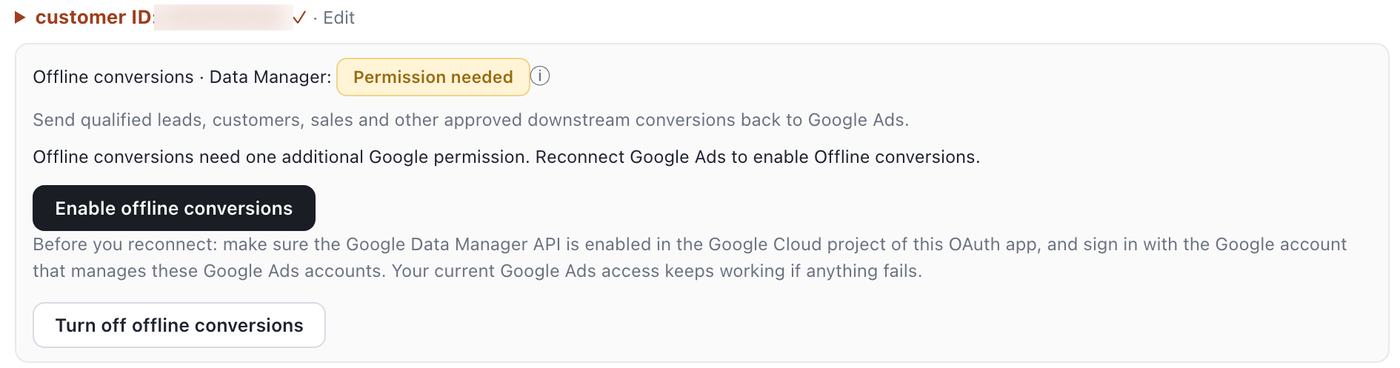
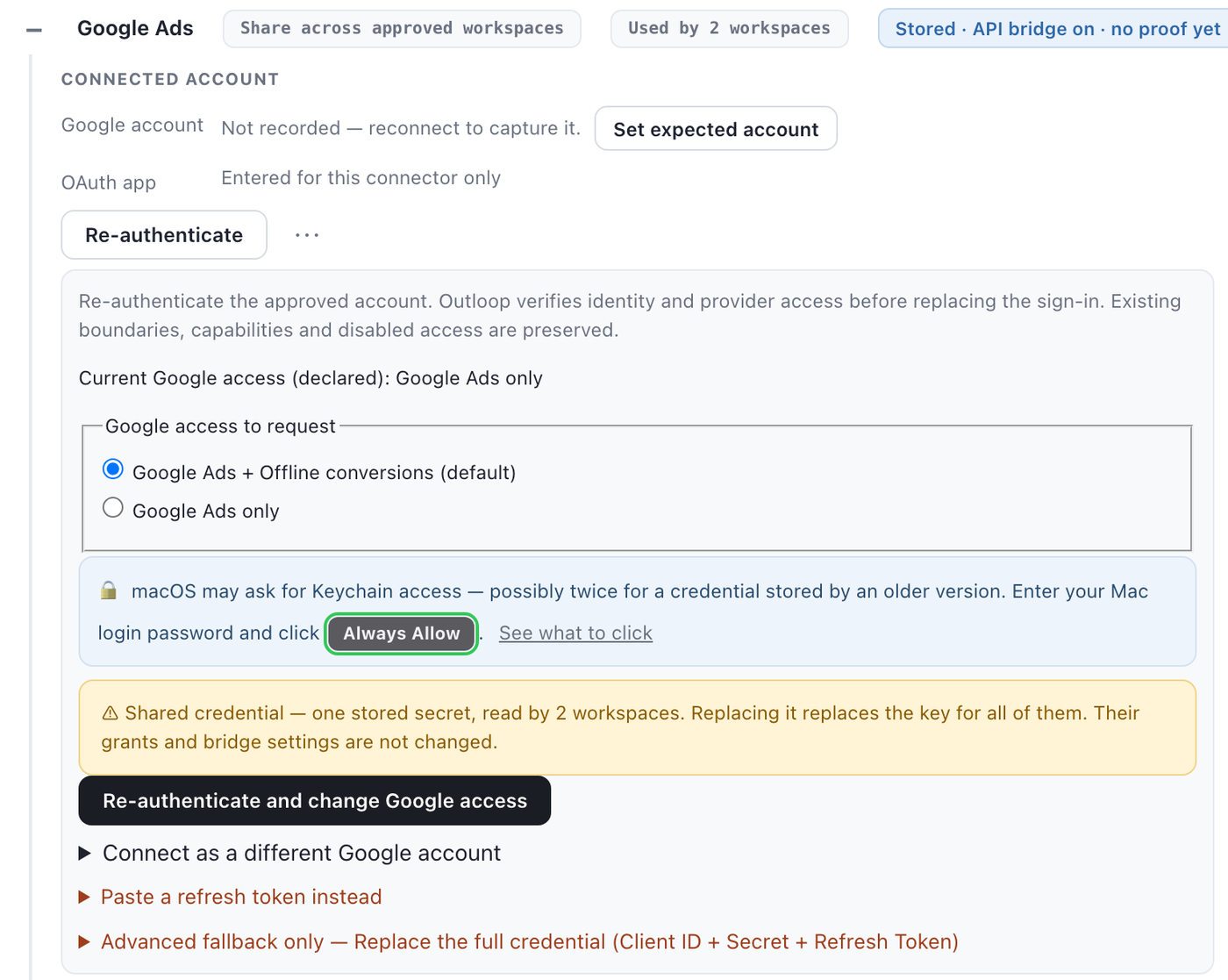
Click Enable offline conversions. Outloop opens the re-authentication panel with Google Ads + Offline conversions (default) selected. Click Re-authenticate and change Google access and sign in with the Google account that manages these Google Ads accounts. Before it replaces anything, Outloop checks that the new sign-in still reaches every Google Ads account your workspaces are pinned to; if it does not, your current connection is kept.
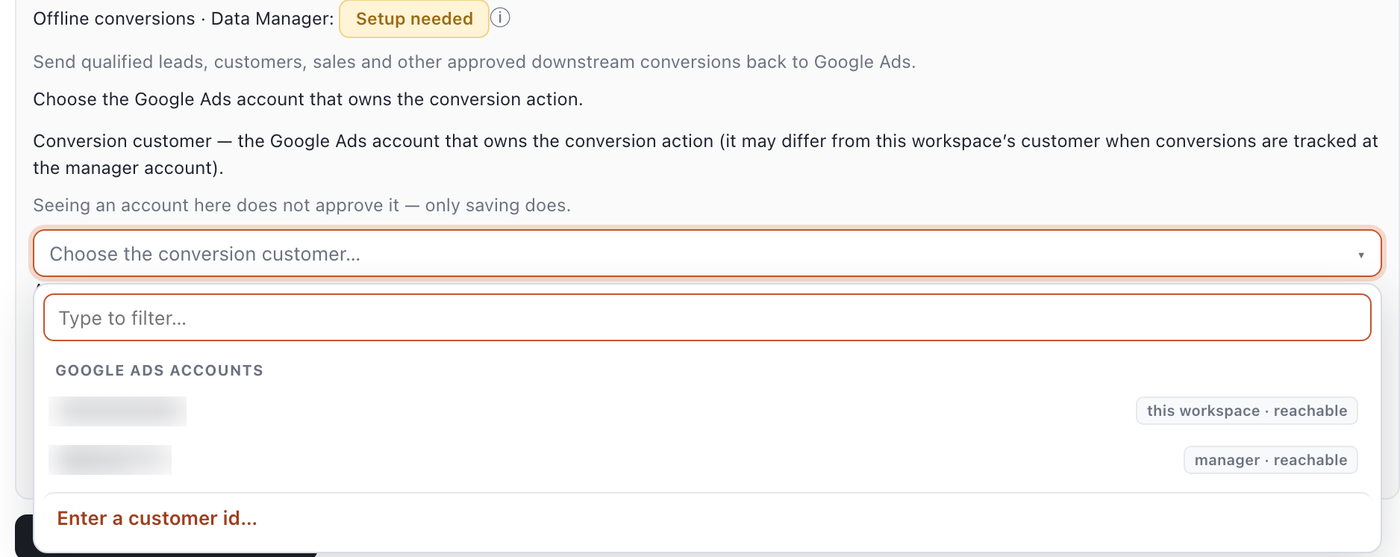
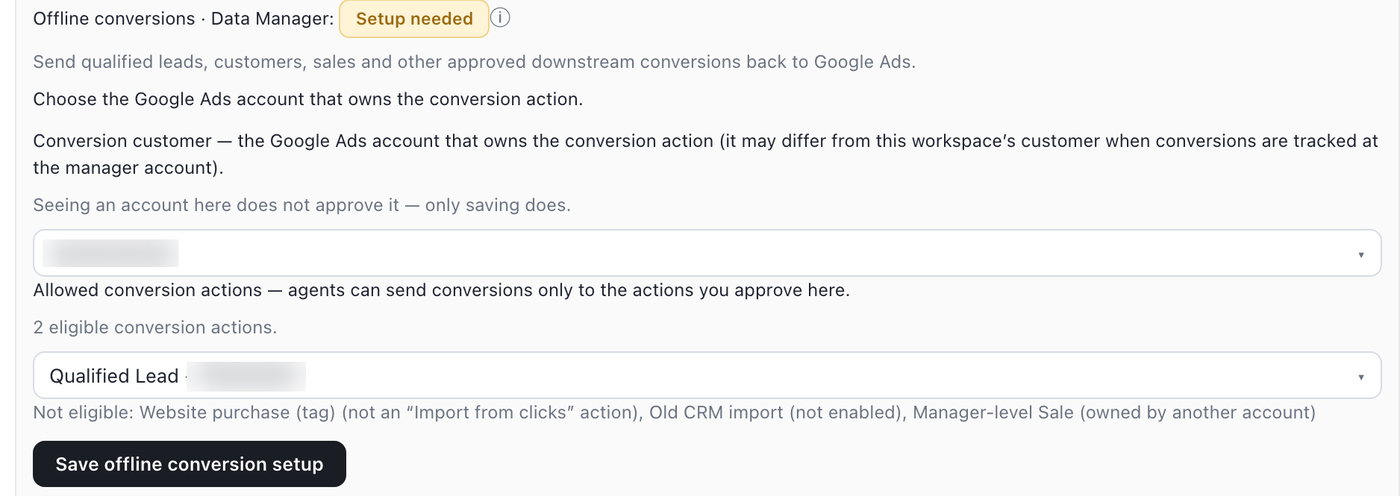
Then choose the conversion customer — the Google Ads account that owns the conversion action. It is often the client account itself; it can be a different account when conversions are tracked at the manager level. Seeing an account in the list does not approve it; only saving does.
Next, pick the allowed conversion actions. Outloop lists only the actions it can use — enabled, owned by that conversion customer, and of the click-import type — and tells you why any other action is not eligible. Click Save offline conversion setup; Outloop re-checks every action with Google Ads before it saves.
Finally click Check readiness. Outloop asks Google whether this connection can reach Data Manager, without sending a conversion. When it can, the row reads Ready:
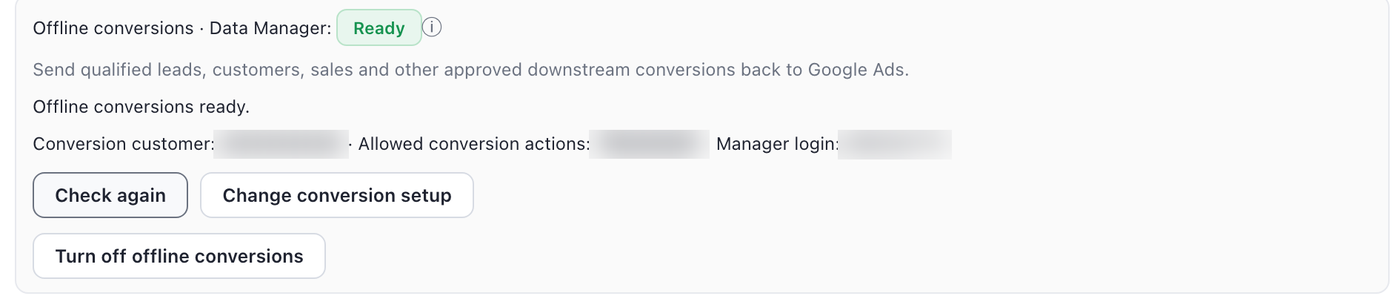
Outloop screens from Outloop 1.44.0 on demonstration workspaces with synthetic Google Ads accounts; account and action IDs are blurred.
- ✓Reached through an MCC? Outloop uses the manager account your Google Ads connection already uses — shown as Manager login. There is no second manager to approve.
- ✓Each workspace has its own mapping. Several workspaces can share one Google OAuth credential, and each still saves its own conversion customer and actions. A workspace never inherits another's.
- ✓Access level decides it. Full API access includes offline conversions. Read-only access never uploads. Under a custom access profile, offline conversions (and, separately, Enhanced Conversions user data) are switched on explicitly.
5. Create the conversion action in Google Ads
Data Manager sends a conversion to a specific conversion action, and that action must be a click-import
action (Google's API calls the type UPLOAD_CLICKS;
its conversion source is Website (Import from clicks)). Google's
current flow starts here:
Goals → Summary → Create conversion action → Choose data sources to measure conversions → Conversions offline
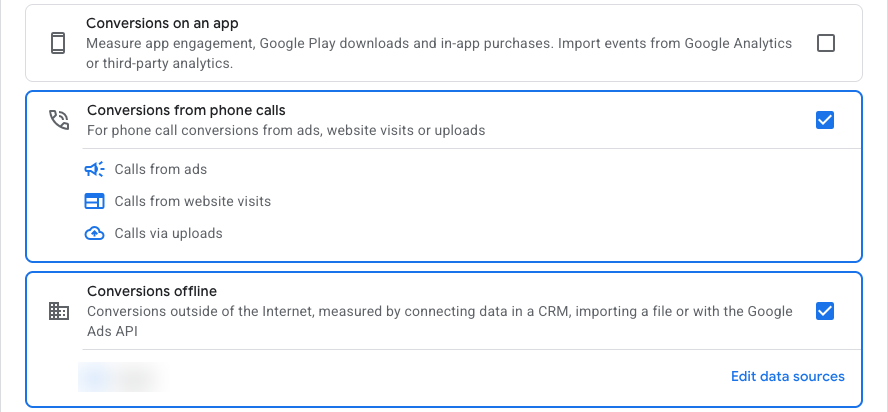
Tick Conversions offline and continue. Google then asks for a data source — you can choose to set one up later, because the API is your source — and a conversion category (for example Qualified lead or Purchase). Create the action in the account that should own it: the client account, or the manager account if you use cross-account conversion tracking. That account is the conversion customer you choose in Outloop, and Outloop's action picker will show the new action once Google reports it as an enabled click-import action.
6. Turn on enhanced conversions (for the hashed-data path)
Only needed for path B. Enhanced conversions is a Google Ads account setting that the account owner turns on, after accepting Google's customer data terms — a Google prerequisite, not an Outloop permission. Google is moving accounts between two layouts, so check which one you see:
Most accounts today:  Goals → Settings → Enhanced conversions for leads
                       → Turn on enhanced conversions for leads → Save

Newer layout:          Goals → Settings → Customer data use
→ Turn on enhanced conversions → Agree and save 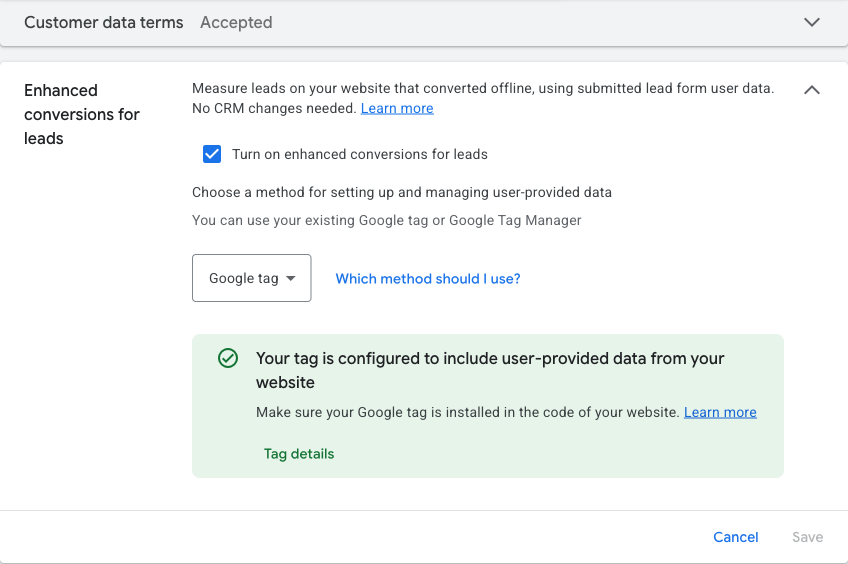
In the first layout, Google also asks you to choose a method for managing user-provided data and offers Google tag or Google Tag Manager. That picker is about how your website captures form data. Google's help says that since April 2026 it accepts user-provided data from website tags, Data Manager and API connections at the same time, and that the method picker is being retired in favour of a single on/off switch — so an upload through Data Manager does not depend on which option is shown there. Confirm Customer data terms reads Accepted.
After you switch it on, allow time for Google to apply the setting to Data Manager before concluding anything
is wrong — Google's error for an account that is not yet enabled is
DESTINATION_ACCOUNT_NOT_ENABLED_ENHANCED_CONVERSIONS_FOR_LEADS.
7. Give your AI worker the recurring job
Once the workspace reads Ready, the workflow can be a plain instruction in that client's workspace:
Every day, review the approved CRM outcomes for this workspace.
For leads that reached the Qualified stage, send the approved Google Ads
offline conversion. Use the workspace's configured conversion action.
Preview what will be sent first (validate only).
After upload, check the Data Manager request status and report failures.
Never include raw email addresses or phone numbers — hashed values only.
What happens on each run:
- The agent reads the approved source — your CRM or a sheet the workflow already uses.
- It applies your definition of the conversion event (here: stage = Qualified).
- It works in the correct Outloop workspace for that client.
- Outloop checks the pinned conversion customer and the allowed conversion action.
- A validate-only request previews the batch; the real upload goes to Data Manager.
- The agent records the returned request id and later reads the processing status.
- Allow, deny and result land in the redacted local audit.
The requests the agent drops look like this (placeholders only):
{
  "tenant": "<WORKSPACE_ID>",
  "service": "google_ads",
  "verb": "api_bridge.offline_conversion_validate",
  "destinations": [{
    "operatingAccount": { "accountType": "GOOGLE_ADS", "accountId": "<CONVERSION_CUSTOMER_ID>" },
    "productDestinationId": "<CONVERSION_ACTION_ID>"
  }],
  "events": [{
    "eventTimestamp": "<RFC 3339 time of the outcome>",
    "eventSource": "WEB",
    "transactionId": "<YOUR STABLE CRM OUTCOME ID>",
    "conversionValue": 120.0,
    "currency": "USD",
    "adIdentifiers": { "gclid": "<GCLID STORED WITH THE LEAD>" }
  }]
}
Swap the verb for api_bridge.offline_conversion_upload
to send it for real. Whether a request is a preview or an upload is decided by the verb, never by a field the
agent can flip. There is no loginAccount in the
example on purpose: Outloop names the approved manager itself. For path B, the event carries
userData with the hashed identifiers instead of (or
as well as) a click ID, and the request declares "encoding": "HEX"
or "BASE64".
8. Accepted is not the same as processed
A successful upload means Google accepted the request. Google processes it afterwards. Per Google's diagnostics guide, wait about 30 minutes before the first status check; processing can finish that quickly or take up to 24 hours. The agent reads the status with the request id Outloop returned:
{
  "tenant": "<WORKSPACE_ID>",
  "service": "google_ads",
  "verb": "api_bridge.offline_conversion_status",
  "request_id": "<REQUEST_ID FROM THE UPLOAD RESULT>"
} A result the agent can act on, with no identifier values in it:
upload:  decision: allow · HTTP 200 · accepted: true
         request_id: <returned> · receipt_recorded: true
         secret_exposed: false
status:  request_status: PROCESSING | SUCCESS | PARTIAL_SUCCESS | FAILED
terminal: true once SUCCESS, PARTIAL_SUCCESS or FAILED Only the workspace that sent a request can read its status. Google's prerequisites and data errors come back as the provider condition they are, with guidance — never disguised as an Outloop permission problem.
9. How client accounts stay separate
- ✓The OAuth credential stays in the macOS Keychain. It is used on the wire host-side; the agent never receives it, and no developer token is ever sent to Data Manager.
- ✓Each workspace is pinned to its own conversion customer and its own list of allowed conversion actions.
- ✓The manager account is the one the connection already uses. A different manager is refused.
- ✓A wrong account, a wrong conversion action or a wrong manager is denied with
RESOURCE_ID_NOT_ALLOWEDbefore any credential read or call to Google — one foreign destination rejects the whole request. - ✓Click IDs, transaction IDs and every Enhanced Conversions value — hashes included — are kept out of Outloop's audit, receipts and dashboard. Those record identifier types and counts only.
Separate capability: Outloop 1.44.0 can also add people to and remove them from Customer Match audiences through Data Manager, on the workspace's approved accounts only, with removal behind the destructive-actions setting. That is audience management, not conversion measurement, and it is not covered by this guide.
10. Troubleshooting offline conversions
CUSTOMER_RESOURCE_PIN_REQUIRED — the workspace has no conversion customer or no allowed conversion action saved yet. Choose both in Outloop and click Save offline conversion setup.SCOPE_NOT_ALLOWED / Permission needed — the connection predates the Data Manager scope. Click Enable offline conversions and re-authorise; ordinary Google Ads access keeps working meanwhile.RESOURCE_ID_NOT_ALLOWED) — the request named an action or account this workspace has not approved, or an action owned by a different account. Use an action owned by the approved conversion customer; do not retry with another one.PERMISSION_DENIED — the Google account you signed in with cannot write conversions to that account. Check that it has access to the conversion customer, and that the client account is linked under the manager your connection uses.DESTINATION_ACCOUNT_NOT_ENABLED_ENHANCED_CONVERSIONS_FOR_LEADS, or a terms-not-signed error) — turn on enhanced conversions in Google Ads, accept the customer data terms, and retry after Google has applied the setting.NOT_FOUND or "created too recently" — confirm the action exists and is enabled, then give Google time (Google advises 4–6 hours after creation) before concluding the Outloop setup is wrong.Official references: Data Manager — send offline conversions · request status · set up offline conversions (Google Ads Help) · enhanced conversions settings.
Production readiness checklist
Your Google Ads setup is production-ready when all are true:
- ✓OAuth refresh works.
- ✓Developer token and
login_customer_idare present. - ✓
customer_idis mapped to the workspace. - ✓An account-scoped read on the workspace
customer_idreturns HTTP 200 under the correct MCC login context. - ✓A request naming an unapproved
customer_idis denied withRESOURCE_ID_NOT_ALLOWEDbefore any backend read. - ✓No secrets appear anywhere.
- ○Optional — if the workspace sends offline conversions: the Data Manager API is enabled, Offline conversions reads Ready, and one validate-only request is accepted before the first real upload.
Advanced — manual refresh token
Skip this if the browser connect in Step 8 worked. It stays documented because it still works, and because some teams prefer to mint the refresh token themselves — for example when the machine running Outloop cannot open a browser session as the Google account that holds MCC access. In the Outloop panel it sits behind the collapsed Advanced — manual refresh token disclosure; paste the token there and click Save pasted refresh token.
Generate the refresh token with OAuth Playground
Google Ads needs a refresh token — the long-lived OAuth token Outloop stores locally so it can mint short-lived access tokens host-side. For manual setup, the simplest way to get one is Google's OAuth Playground.
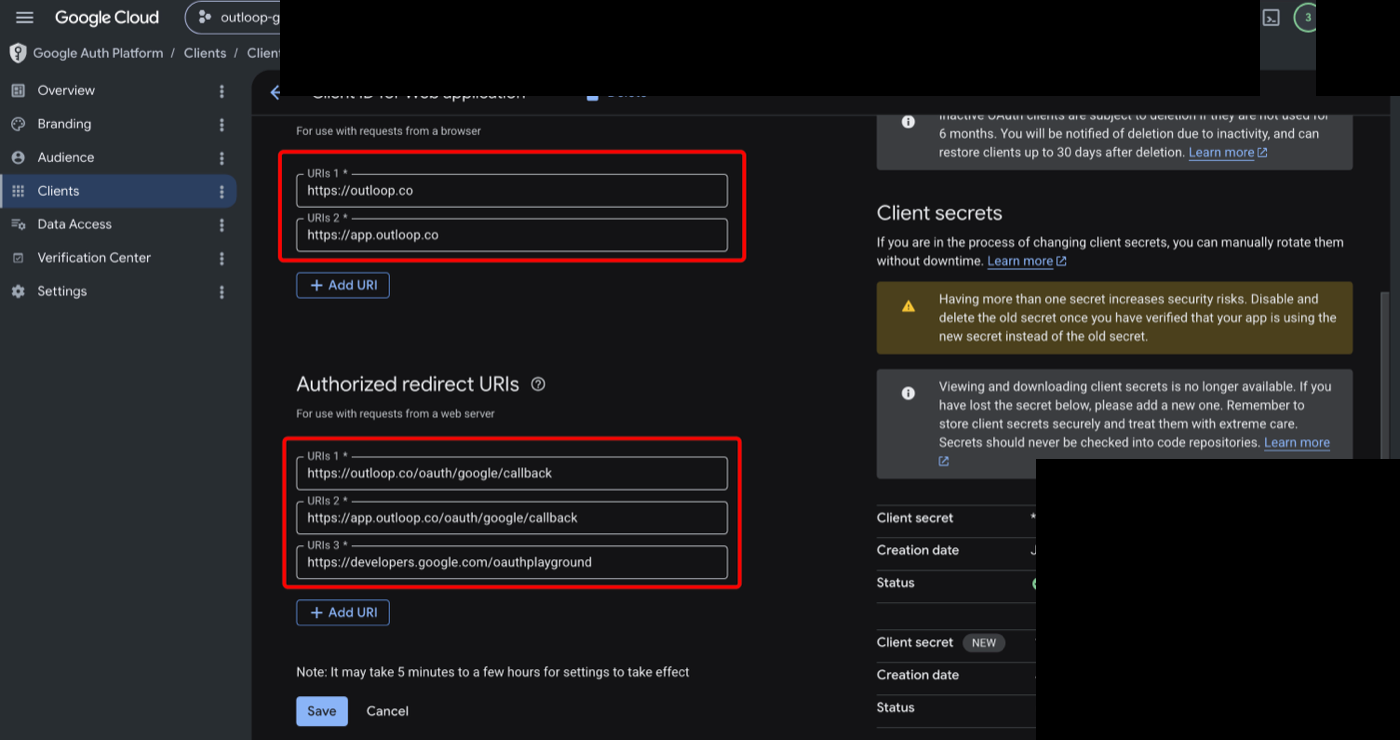
Add OAuth Playground as a redirect URI
In Google Cloud:
APIs & Services → Credentials → OAuth 2.0 Client IDs → your Web application client
Under Authorized redirect URIs, add
https://developers.google.com/oauthplayground
and save. This fixes the common redirect_uri_mismatch error.
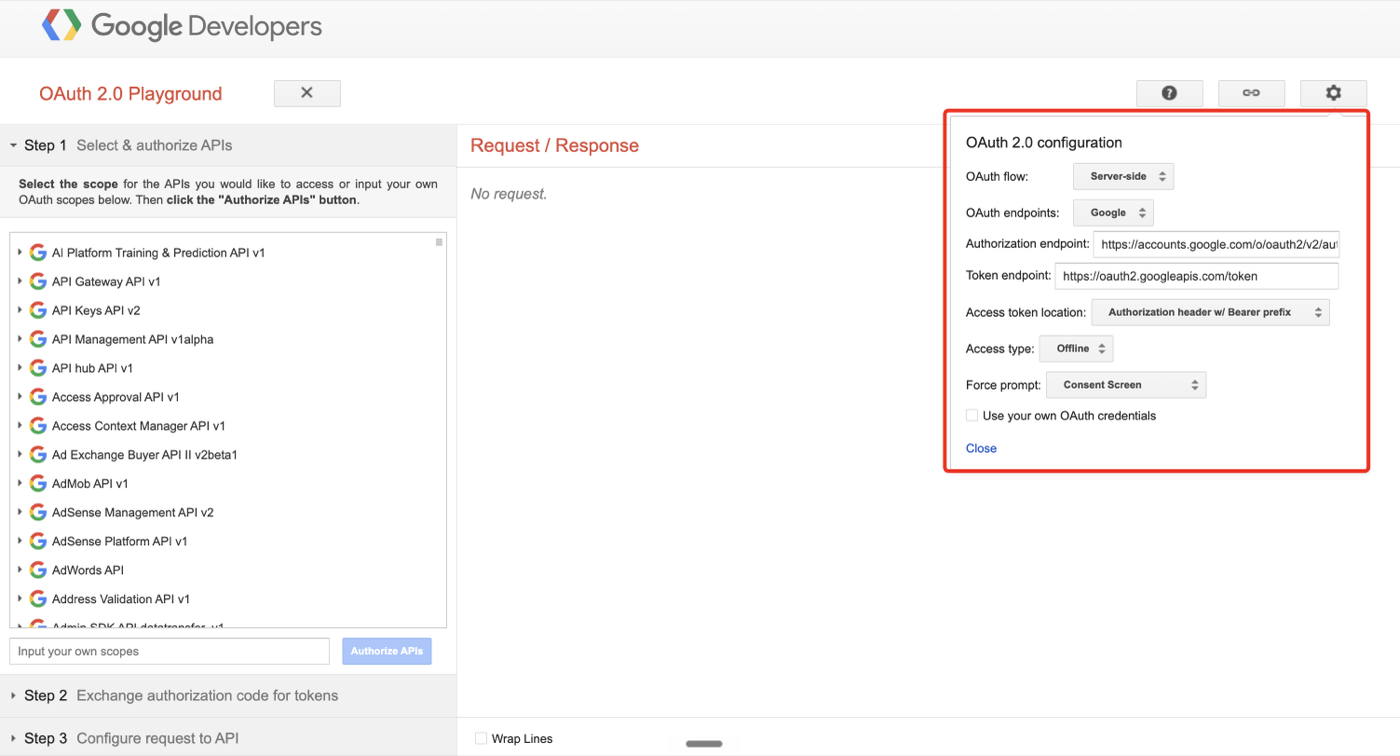
Open OAuth Playground settings
Go to https://developers.google.com/oauthplayground
and click the gear icon. Set:
OAuth flow:              Server-side
OAuth endpoints:         Google
Access token location:   Authorization header w/ Bearer prefix
Access type:             Offline
Force prompt:            Consent Screen
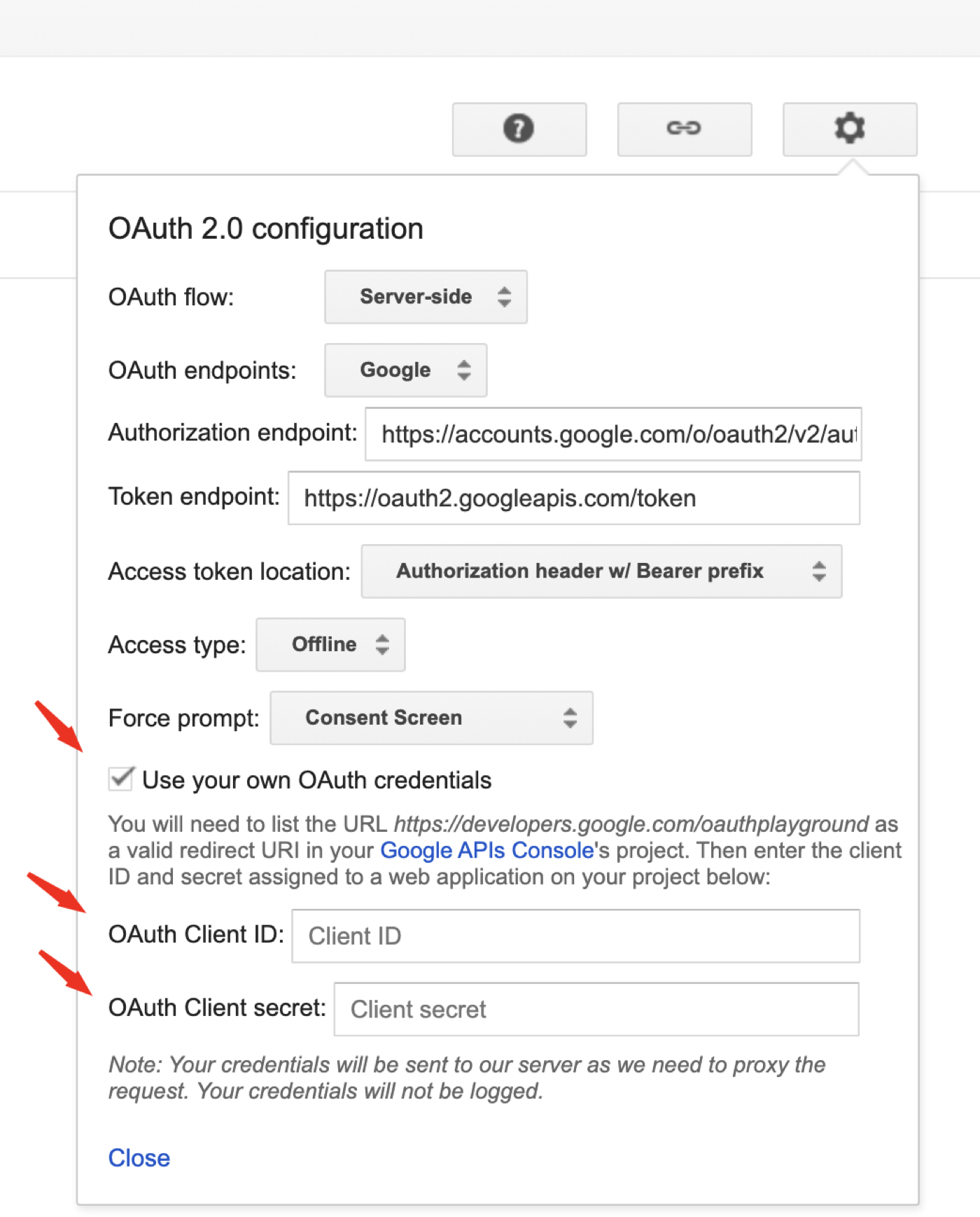
Use your own OAuth credentials
In the same settings panel, check Use your own OAuth credentials and paste the OAuth Client ID and OAuth Client Secret from the same Google Cloud client you created for Outloop. Do not paste these values into chat, docs, tickets, screenshots, or project files.
This is the step most people miss. If Use your own OAuth credentials stays unchecked, the Playground issues a token for Google's shared demo client and your refresh token will not work with your app. Tick it and paste your own Client ID and Client Secret before authorizing.
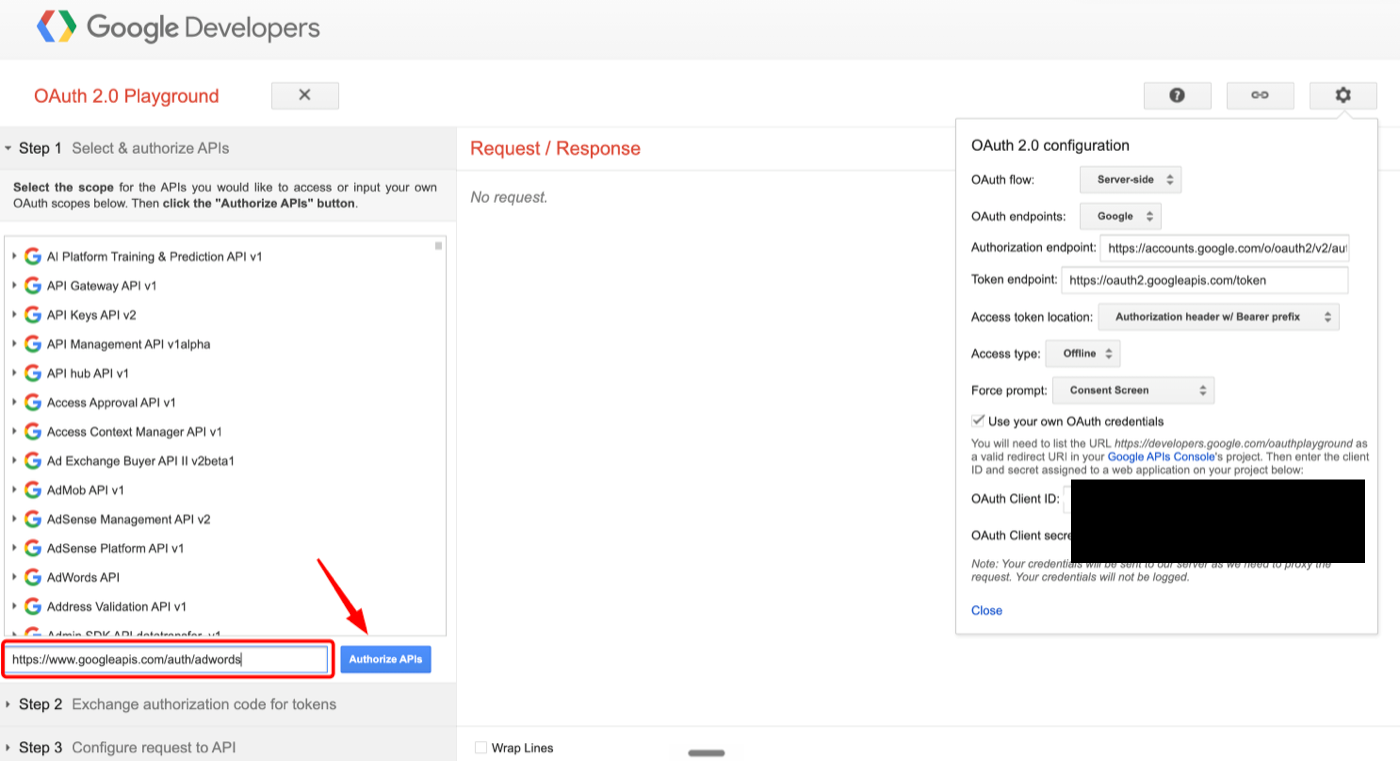
Add the Google Ads scope
Close the settings panel. In Step 1, paste the scope. For ordinary Google Ads work the Ads scope is enough:
https://www.googleapis.com/auth/adwords
If this workspace will send offline conversions, request the Data Manager scope in the same authorisation — both on one line, separated by a space:
https://www.googleapis.com/auth/adwords https://www.googleapis.com/auth/datamanager
A refresh token only carries the scopes granted when it was issued. A token minted with
adwords alone will not start working for Data
Manager because you later added the scope in Google Cloud — mint a new one with both scopes, or use
Enable offline conversions in Outloop to re-authorise in the browser.
Click Authorize APIs and sign in with the Google account that has access to the MCC / Google Ads accounts.
Exchange authorization code for tokens
After authorization, open Step 2 and click
Exchange authorization code for tokens. Copy only the
refresh_token and paste only the refresh token
into Outloop.
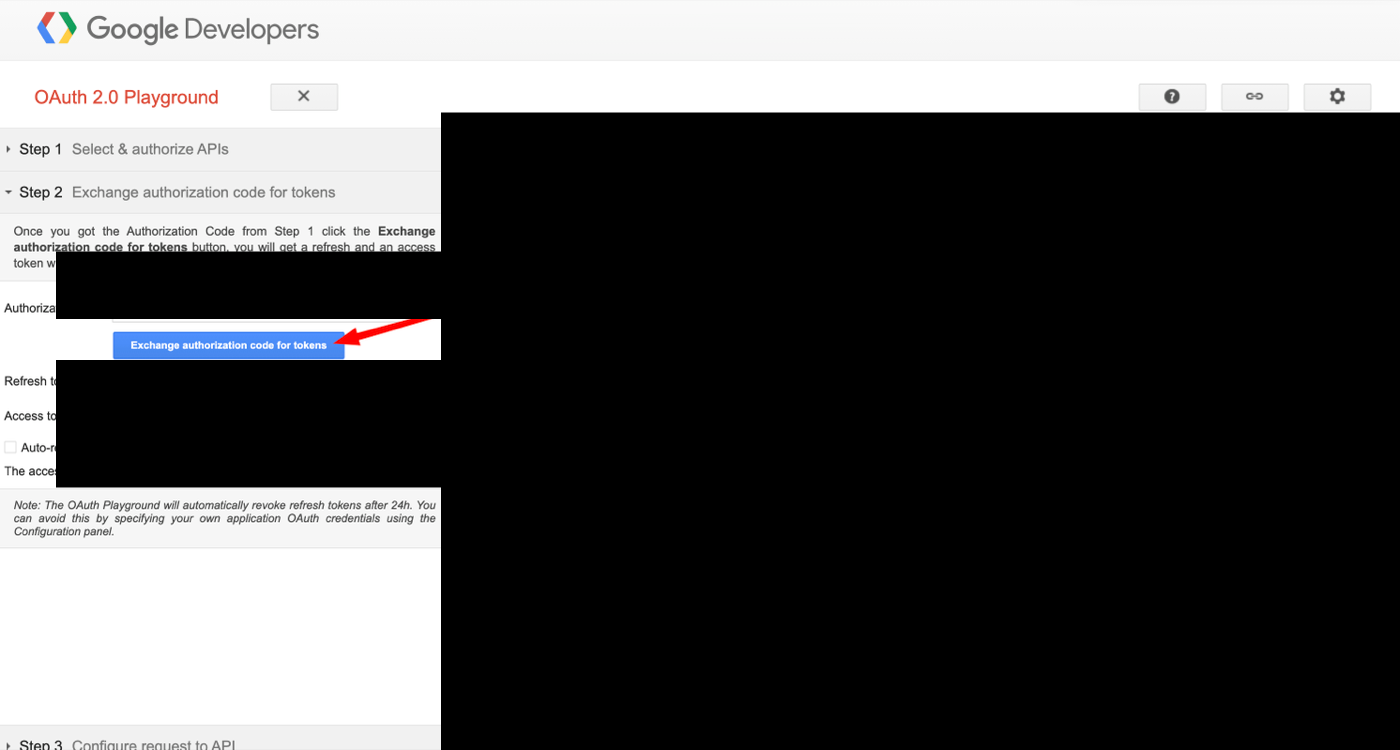
The refresh token is sensitive. Do not paste it into chat, project files, docs, screenshots, logs, or generated artifacts.
If no refresh token is returned, the access type was not Offline or consent was not forced — see common errors. Once Outloop has the refresh token, it exchanges it for short-lived access tokens host-side; the raw refresh token never leaves your machine and the agent never sees it.
Changing the account or the credential later
Changing the account or the credential later
Three controls on the Google Ads connector look similar and do different things. Picking the wrong one is the most common way a working connector gets broken on purpose.
Re-authenticate
Reuses the OAuth app you already selected and refreshes the authorization for the account that is already connected.
When: Use it when the refresh token expired or was revoked and you want the same account back.
Safety: It must not quietly become an account switch. If Outloop finds a different account at the other end, it reports the mismatch and keeps the previous token.
Connect as a different Google account
Keeps the same Client ID and Client Secret and opens Google's account chooser so you can pick another identity.
When: Use it when the wrong account was connected, or when the client moved the data to a different Google account.
Safety: The stored token is replaced only after Outloop positively verifies that the newly connected identity is the one you intended. A mismatch, a missing identity, a failed verification or a cancelled sign-in all leave the previous credential exactly as it was.
Replace the full credential
Swaps the OAuth app itself — a different Google Cloud project, Client ID or Client Secret.
When: Use it when the OAuth app is changing hands, or a client is moving the connector onto their own Cloud project.
Safety: This is not the same as choosing another Google data account. Confirm with "Sign in and replace" only when you actually mean to change the app.
What is verified vs what we don't claim
Outloop's rule is that a capability is only called proven when it was actually run through Outloop on a real account and passed. For Google Ads:
- Proven Account-scoped reads (
googleAds:search) against the workspace's pinned customer ID, under the agency's MCC login context — run through Outloop on real client accounts. - Proven Wrong-client refusal: a request naming a customer ID the workspace is not pinned to is denied with
RESOURCE_ID_NOT_ALLOWEDbefore the credential is used — on a real agency MCC. - Proven Creating image and YouTube video assets in a real client account through Outloop.
- Full Ads API Changes — campaigns, ad groups, ads, budgets, assets and status — go through the same bridge as every
:mutatecall, scoped to the pinned client account and audited. Removals stay behind the workspace's destructive-actions setting. - Pending Offline conversions through Google Data Manager (Outloop 1.44.0): validation accepted by Google through Outloop; a real upload has not yet reached Google's final
SUCCESSstatus. Details. - Pending Enhanced Conversions for Leads (hashed email, phone, name and address): implemented to Google's contract, not yet verified with a successful Google result.
- Your proof The allow-and-deny pair in the checklist above confirms your setup on your own machine. The multi-client walkthrough uses demo data so it can show the sequence without exposing a client account.
Google Ads API through Outloop vs the Google Ads MCP server
Google publishes an open-source
Google Ads MCP server
(github.com/googleads/google-ads-mcp), announced in
October 2025. If you want an agent to ask questions about a Google Ads account, it is a
reasonable thing to reach for, and it needs the same developer token and OAuth setup this guide walks
you through. Google publishes no GA, beta or preview label for it, so neither do we.
Two things about it decide whether it fits agency work, and both come from Google's own documentation.
First, the current release is read-only — Google's docs say it
"cannot modify bids, pause campaigns, or create new assets." Second, and more important if you run many
clients: the manager account is fixed per server instance, set
through the GOOGLE_ADS_LOGIN_CUSTOMER_ID
environment variable, while the client account is supplied per prompt
— Google's own example is "How many active campaigns do I have for customer id 1234567890."
That is the honest split. The MCP server exposes the capability; which client account it lands on is decided in the conversation. Outloop decides it in policy instead — the workspace is pinned to its customer ID, and a request naming a different one is denied before any call reaches Google. Google also notes plainly that "the MCP Server will expose your data to the Agent or LLM that you connect to it." These are different jobs, and an agency can reasonably want both.
| Dimension | Google Ads API through Outloop | Google Ads MCP server (official) |
|---|---|---|
| Status here | Live, proof is yours to run Bridge path is live; this guide gives you the allow-and-deny criteria rather than publishing our own proof. | Not connected here Open source and published by Google; not connected or tested in this workspace. |
| Credential handling | Never seen by the agent Developer token, client secret and refresh token stay in the macOS Keychain; used on the wire host-side. | Local server config Developer token and OAuth client are configured on the MCP server you run. |
| Which client account is used | Pinned per workspace Workspace is mapped to its customer ID; a request naming another is denied before any backend read. | Named in the prompt Manager account is set per server instance via GOOGLE_ADS_LOGIN_CUSTOMER_ID; the client customer ID is supplied conversationally. |
| Write operations | Full Ads API Campaigns, ads, budgets, assets and status changes run through the bridge on the pinned client account, audited; removals sit behind the destructive-actions setting. | Read-only today Google: it "cannot modify bids, pause campaigns, or create new assets." |
| Audit trail | Local audit log Every request written locally with decision, HTTP status, and secret_exposed:false. | Not per-workspace No local per-client audit; Google warns the server exposes your data to the connected agent or LLM. |
Common mistakes
- ✕Creating a plain Google Ads "API key" and expecting it to work.
- ✕Pasting only
client_idand treating it as a token. - ✕Skipping the developer token or
login_customer_id. - ✕Using the wrong MCC.
- ✕Storing the refresh token in project files.
- ✕Letting the agent choose any customer ID.
Browser sign-in troubleshooting
Google shows an account chooser
Expected. Outloop asks Google for the chooser on purpose, so a sign-in can never silently reuse whichever account your browser happened to be logged into. Pick the account that owns or can open the client's Google Ads account — which is often not the account that manages the Google Cloud project.
“Google hasn’t verified this app”
This appears because the OAuth app is your own and has not been through Google's verification. If it is your app and you trust it, expand Advanced and continue. If you do not know who owns the app, stop — that warning is doing its job, and clicking past an unknown app is not a routine step.
Which audience the app uses decides who can get that far at all. An External app in Testing only admits accounts added as Test users. An Internal app only admits accounts inside its Google Workspace organisation. For customer-facing production use, complete Google's verification rather than living in Testing.
The wrong Google account got connected
Use Connect as a different Google account on the connector. It keeps the same Client ID and Client Secret and reopens Google's chooser. The stored token is only replaced once Outloop verifies the new identity is the intended one — if it does not match, Outloop reports the mismatch and keeps the previous credential. Nothing is lost by trying.
A credential that works but sits on the wrong account is deliberately not marked runtime-verified for that workspace. Working and correct are different things.
BACKEND_AUTH_FAILED during connect
Google rejected the sign-in, so the new credential failed Outloop's safe verification. The important part: the previous credential is unchanged. Do not delete the connector, the OAuth app or the workspace as a first move. Check, in this order — that you signed in as the account that can reach the client's Google Ads account; that the account is admitted by the app's audience (a Test user on an External+Testing app); and that the API is enabled in the right Cloud project. Then try the connect again.
Reconnecting never asked for the Client ID and Secret
Expected. Disconnecting a Google Ads credential does not delete your saved Google OAuth app profile — that is a separate object, kept on purpose so later connectors do not re-enter a Client Secret. Outloop reused it. If you specifically want a different app, pick another saved profile from the Google OAuth app dropdown, or create a new one and save it alongside. This is reuse working, not a stale credential silently retained.
“Copy workspace run prompt” is not available
The Access Profile has not been saved yet. Open the Access Profile, choose the reach and the capabilities, and click Save Access Profile — the run prompt becomes available once the authorization is recorded. OAuth succeeding is not the same as the workspace being authorized, and this is the step that closes the gap.
The connection stops working after about a week
If the OAuth app's audience is External and its publishing status is still Testing, Google expires refresh tokens for that app after roughly seven days. Two honest options: publish the app to In production, or use an Internal audience if everyone signing in is inside your Google Workspace organisation. Publishing may require Google's verification review depending on the scopes the app requests — that is Google's process and its outcome and timing are not ours to promise.
Common errors and fixes
redirect_uri_mismatch
Meaning: the OAuth Playground redirect URI is missing from Google
Cloud. Fix: add
https://developers.google.com/oauthplayground
to Authorized redirect URIs on your OAuth client (Step 7.1).
No refresh_token returned
Meaning: the consent did not use Offline access, or consent was not forced. Fix: in OAuth Playground settings set Access type: Offline and Force prompt: Consent Screen, then authorize again.
404 on a Google Ads request
Meaning: the path has no API version, a stale version, or a doubled
one (/v24/v24/…). The bridge base URL is the host
only, so the version belongs in the path. Fix: use
/v24/customers/<ID>/googleAds:search.
Google Ads API key does not work
Meaning: a plain API key was created in Google Cloud. Fix: Google Ads account access needs OAuth Client ID + Client Secret + Refresh Token + Developer Token — a plain API key cannot manage accounts.
The Outloop value
Google gives the API access. Outloop makes it usable safely across clients:
One agency MCC can manage many client accounts.
Outloop maps each customer_id to the right workspace
and blocks wrong-client account use.
Related: AI agent API key management · wrong-client access · Meta Ads API setup · Zoho CRM setup · running agents on client ad accounts.
Rotate or revoke access
- →Move a workspace off a client account — change the approved
customer_idand save. The workspace's reach changes immediately; the credential is untouched. - →Rotate the OAuth token — use Re-authenticate on the connector. Same Google account, fresh authorization. The developer token is unaffected.
- →Rotate the developer token — regenerate it in your manager account's API Center and update it on the connector. This is a separate credential with its own lifecycle, and rotating it affects every Google Ads connection using it.
- →Revoke everything for this connector — remove the Google Ads credential in Outloop, then revoke Outloop's access for that account at myaccount.google.com/permissions. Do both: removing the local credential does not revoke the grant at Google.
- →Off-boarding a client — also unlink the client account from your manager account in Google Ads. Revoking on your side does not end the manager-account link on theirs.
Official Google documentation
- →Google Ads API overview — prerequisites, the developer token, and the manager-account model.
- →Developer token access levels — test, basic and standard access, and what each permits.
- →Request headers and call structure —
developer-tokenandlogin-customer-id. - →Data Manager API — Google Ads offline conversions — destinations, identifiers, hashing and consent.
- →Data Manager API — set up access — enabling the API and the
datamanagerscope. - →Using OAuth 2.0 to access Google APIs — refresh-token behaviour, including the Testing-status expiry.
Outloop is available with setup guides and product support for agency teams. Outloop is an independent tool and is not affiliated with or endorsed by Google. See the security model.
Is this for you?
A good fit if…
- Your agency manages several Google Ads accounts under a manager (MCC) account.
- You want an agent to read and build only in the right client account.
- You have, or can obtain, a Google Ads developer token and OAuth consent.
You may not need Outloop if…
- You manage one Google Ads account and never share the login.
- You only need reporting that an existing connector already delivers well.
- You cannot obtain a developer token or OAuth consent for your agency.
Run Google Ads agents without handing over OAuth secrets.
Outloop is available with setup guides and product support for AI agencies, operators, and dev shops.