Learn · Setup guides
Connect WhatsApp Cloud API to Outloop
Let your agent do the setup
Copy this task into Claude Code or another agent with browser access. It will follow the guide and ask you when access or information is missing.
Read or select the prompt
Help me complete connect whatsapp cloud api to outloop using https://outloop.co/guides/connect-whatsapp-cloud-api-to-outloop.

Open that guide in your browser, read its full setup steps and linked official provider instructions, then perform the setup step by step using the tools available to you. If the guide cannot be opened, ask me for its contents before proceeding.

Identify the correct client Workspace, account, domain and environment before making changes. Inspect the current setup and preserve working settings. Ask me only for missing information, necessary authorization or access. Use an approved login-recovery tool when available. Otherwise, if a login such as GoDaddy, Google Admin or Microsoft 365 is required, ask me to sign in through the browser and resume after I finish. Never ask me to paste passwords, tokens, private keys or recovery codes into chat. Have me enter credentials directly into the authorized product form when needed.

Follow this guide’s actual provider-specific scopes, account identifiers, setup order and verification steps. Grant only the access required for the task. Keep secrets in the intended credential entry/storage path. Ask before creating paid resources, broadening permissions, rotating working credentials, publishing content or making destructive changes. Verify a bounded read-only operation in the intended client account before claiming the connection works. Do not launch campaigns, send messages or change production content merely to test authentication.

Continue through each supported step. If a human-only action or unavailable tool blocks progress, explain the exact action needed and resume when I complete it. Report what changed, what verification actually passed, and anything pending. Never claim completion based only on a success toast or a proposed command.
Last updated:
In short
Connect WhatsApp Cloud API without exposing tokens to your agents.
Outloop lets your agents use approved WhatsApp Cloud API access through a secure local bridge. The access token stays in your local secret store, and agents call the API through Outloop without seeing the raw token. You connect it with a WABA ID, a Phone Number ID, the Graph API version, and a Meta access token.
What this setup gives you
Agents that need WhatsApp Cloud API access — to read phone-number details, check templates, or send
approved messages — usually get a raw token pasted into a tool, a chat, or a
.env file. With Outloop, the token stays in
your local secret store and the agent requests the action through the API Bridge instead, so it never
sees the raw token.
.env files, project folders, or generated artifacts. The token's only
destination is the Outloop API key field.
What you need before starting
- ✓Access to Meta Business Manager.
- ✓A WhatsApp Business Account.
- ✓A connected WhatsApp phone number.
- ✓A Meta access token with the required WhatsApp permissions.
- ✓Outloop installed locally.
- ✓A project or workspace connected in Outloop.
1. Find your WhatsApp Business Account ID
Open Meta Business Settings and go to Accounts → WhatsApp accounts. Select the WhatsApp Business Account you want to connect, and copy the ID shown next to the account name. This is your WhatsApp Business Account ID, also called the WABA ID.
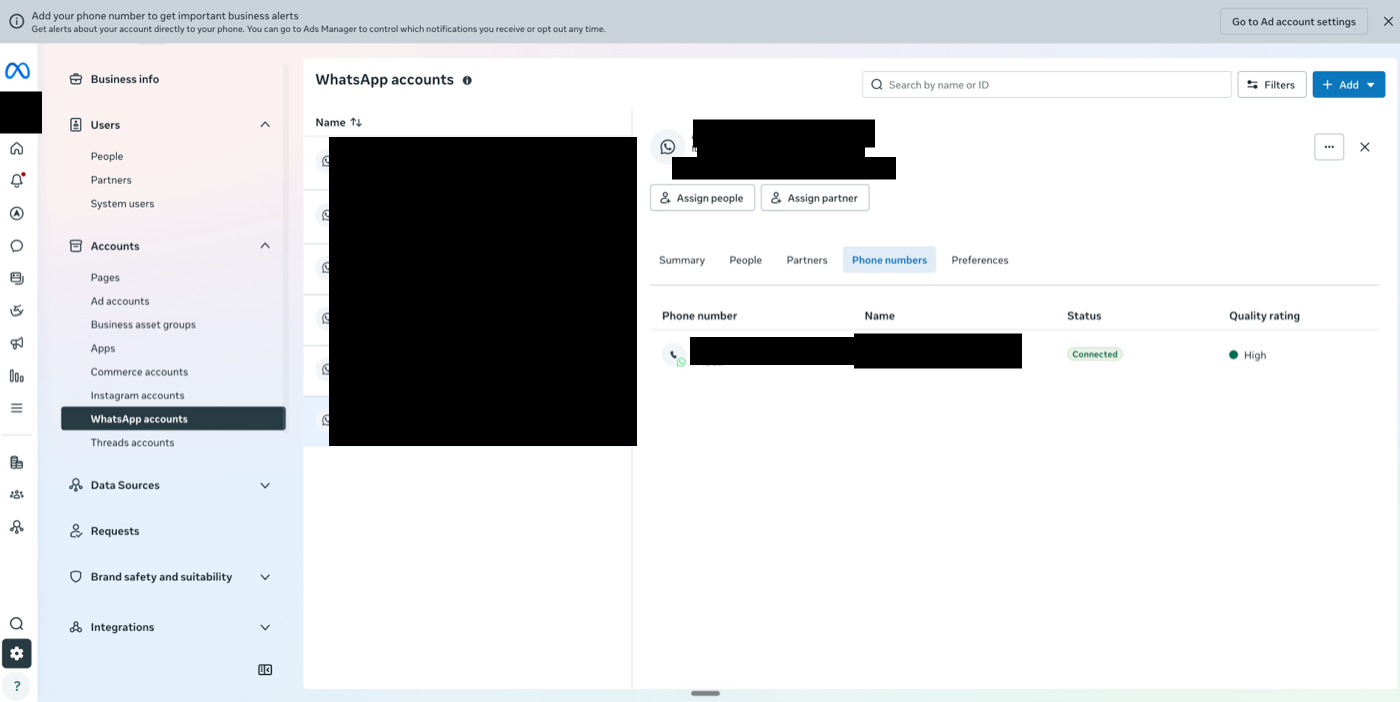
Example field in Outloop: WhatsApp Business Account (WABA) ID.
2. Find your Phone Number ID
Open WhatsApp Manager and go to Phone numbers. Select the connected WhatsApp number. At the top of the phone number details panel, find Phone number ID and copy that value into Outloop.
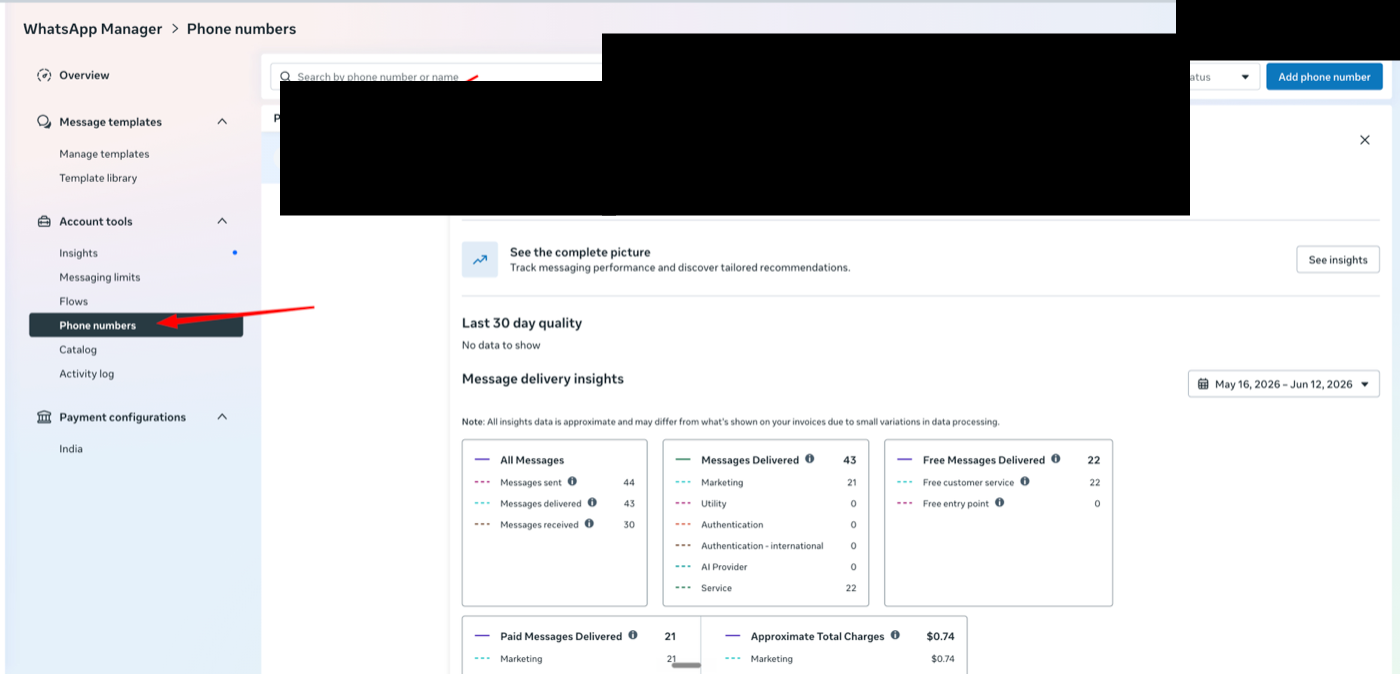
Example field in Outloop: Phone Number ID.
3. Set the Graph API version
In Outloop, use the Graph API version field. The default version is:
v25.0
Do not include the version inside the base URL. Outloop uses the Meta Graph API host and builds the request path safely.
4. Create or use a Meta access token
Use a Meta access token that has access to the selected WhatsApp Business Account and phone number. Do not paste this token into:
- ✕ChatGPT, Claude, or Cursor
- ✕Project files or
.envfiles - ✕Screenshots, documentation, or agent instructions
Paste the token only into the Outloop API key field.
5. Add the credential in Outloop
In Outloop, choose WhatsApp Cloud API and fill in:
- ✓WABA ID
- ✓Phone Number ID
- ✓Graph API version
- ✓Access token
Then click Add API Key. Outloop stores the token locally and does not show it again.
6. Run a safe read test
After saving the credential, run a read-only test first. The safe test should call:
GET /v25.0/<WABA_ID>/phone_numbers
A successful proof should show:
decision: allow
HTTP 200
audit entry exists
secret_exposed: false
7. What counts as a real Outloop proof
A connection is only verified if the request goes through Outloop. A valid proof must include:
- ✓An Outloop API Bridge request
- ✓An audit entry
- ✓decision: allow
- ✓An HTTP success
- ✓
secret_exposed: false
8. Meta App Review note (optional)
Some Meta features require additional App Review or API testing activity before approval. If Meta asks for testing traffic or a usage description, complete those requirements inside Meta's developer dashboard.
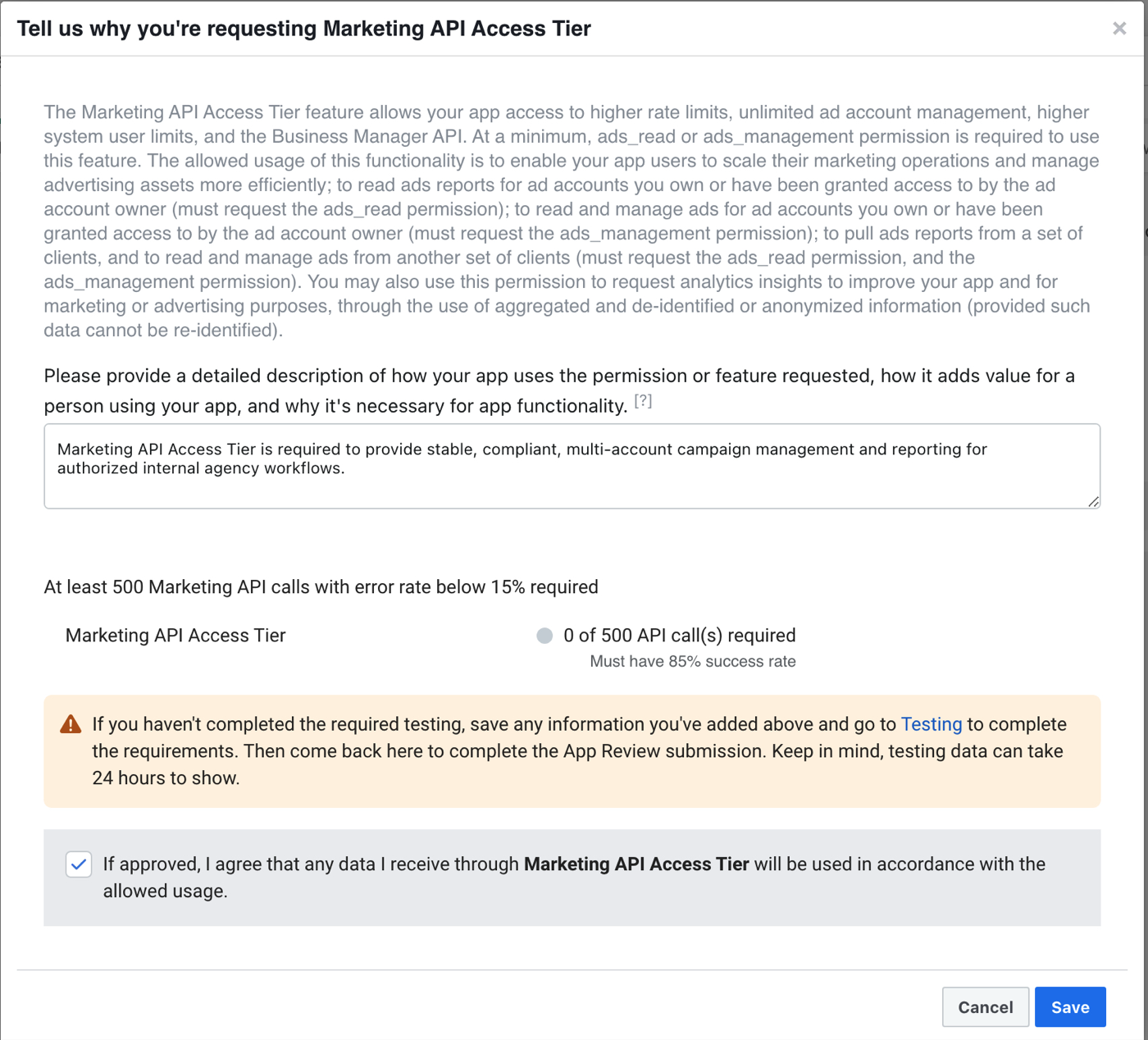
This is separate from storing the token in Outloop. Outloop can help run approved API requests safely, but Meta still controls permissions, review, rate limits, and feature approval.
9. Troubleshooting
If the test fails, check:
- →The WABA ID is correct.
- →The Phone Number ID is correct.
- →The Graph API version is valid.
- →The token has access to the selected WhatsApp Business Account.
- →The token has the required WhatsApp permissions.
- →The project/workspace in Outloop is the correct tenant.
- →The request path starts with
/v25.0/and does not includehttps://graph.facebook.com.
Outloop is available with setup guides and product support for agency teams. Outloop is an independent tool and is not affiliated with or endorsed by Meta or WhatsApp. See the security model, or the Meta Ads API setup guide.
Once the read test succeeds, your agent can use WhatsApp Cloud API through Outloop — without seeing the raw token.
Outloop is available with setup guides and product support for AI agencies, operators, and dev shops.