Learn · Setup guides
Connect Google Ads API to Outloop
Last updated:
In short
Google Ads API does not use a normal API key for account management. A production agency setup needs Google Cloud OAuth credentials, a Google Ads developer token, a refresh token from user consent, the MCC login_customer_id, and a customer ID mapping for each client account.
Outloop stores the sensitive parts locally — client secret, refresh token, developer token — mints access tokens host-side, and injects the required headers at request time. The agent never sees any of them, and a workspace that tries to use another client's customer ID is denied before any backend read.
Why Google Ads setup is different
Google Ads is not a "paste one API key" service. Real account access needs multiple parts:
client_id          = Google Cloud OAuth app identity
client_secret      = OAuth app secret
refresh_token      = long-lived OAuth token after consent
developer_token    = Google Ads API access token from API Center
login_customer_id  = MCC / manager account ID
customer_id        = the client ad account ID
These should not be pasted into generic API-key fields — Google Ads needs a dedicated OAuth-aware setup flow, which is how Outloop handles it.
Never paste API keys, access tokens, refresh tokens, client secrets, developer tokens, Authorization
headers, or customer secrets into chat, screenshots, docs, .env files,
project folders, or generated artifacts.
Google Ads API: direct setup vs Outloop-managed setup
Google Ads API gives agencies powerful access, but it is not a simple API-key setup. A direct setup means the agent or workflow must handle OAuth credentials, refresh tokens, developer tokens, MCC routing, customer IDs, request headers, and tenant safety. Outloop keeps that sensitive setup host-side and gives the agent a safer way to request Google Ads actions without seeing the secrets.
| Workflow area | Direct Google Ads API setup | With Outloop | Why it matters |
|---|---|---|---|
| Credential setup | You manage OAuth client ID & secret, refresh token, developer token, MCC login-customer-id, and each client's customer ID. | ✓ Stored once through Outloop's secure setup flow. | The agent never handles raw OAuth or developer-token details. |
| Secret exposure | Tokens and headers can leak into project files, chat, logs, or .env files. | ✓ Sensitive values stay local; runtime headers are injected host-side. | The agent gets the result, not the secrets. |
| Multi-client access | One MCC can reach many accounts, so you must block wrong customer IDs manually. | ✓ Each workspace is mapped to its allowed Google Ads customer ID. | Wrong-client access is blocked before a backend read. |
| Agent workflow | The agent must build API calls, headers, token refresh, and account routing. | ✓ The agent requests a specific action through the bridge. | Workflows become simpler and less fragile. |
| API headers | The workflow must attach Authorization, developer-token, and login-customer-id correctly. | ✓ Outloop injects the required headers at request time. | Fewer setup mistakes and fewer broken runs. |
| Tenant safety | Every project needs custom guardrails to avoid crossing accounts. | ✓ Workspace-to-customer-ID mapping is part of the access layer. | Safer for agencies managing multiple clients. |
| Proof & verification | You build your own proof, audit, and secret-leak checks. | ✓ Expected proof is clear: allow decision, HTTP 200, secret_exposed=false, accessible customer returned, audit entry exists. | Easier to know when the setup is actually runtime-ready. |
| Daily operations | More technical setup keeps falling back on the human operator. | ✓ The agent works through approved workspace access without asking for secrets again. | Keeps the operator out of the runtime loop. |
You manage OAuth client ID & secret, refresh token, developer token, MCC login-customer-id, and each client's customer ID.
✓ Stored once through Outloop's secure setup flow.
The agent never handles raw OAuth or developer-token details.
Tokens and headers can leak into project files, chat, logs, or .env files.
✓ Sensitive values stay local; runtime headers are injected host-side.
The agent gets the result, not the secrets.
One MCC can reach many accounts, so you must block wrong customer IDs manually.
✓ Each workspace is mapped to its allowed Google Ads customer ID.
Wrong-client access is blocked before a backend read.
The agent must build API calls, headers, token refresh, and account routing.
✓ The agent requests a specific action through the bridge.
Workflows become simpler and less fragile.
The workflow must attach Authorization, developer-token, and login-customer-id correctly.
✓ Outloop injects the required headers at request time.
Fewer setup mistakes and fewer broken runs.
Every project needs custom guardrails to avoid crossing accounts.
✓ Workspace-to-customer-ID mapping is part of the access layer.
Safer for agencies managing multiple clients.
You build your own proof, audit, and secret-leak checks.
✓ Expected proof is clear: allow decision, HTTP 200, secret_exposed=false, accessible customer returned, audit entry exists.
Easier to know when the setup is actually runtime-ready.
More technical setup keeps falling back on the human operator.
✓ The agent works through approved workspace access without asking for secrets again.
Keeps the operator out of the runtime loop.
Outloop is an independent tool and is not affiliated with or endorsed by Google.
Step 1: Create a dedicated Google Cloud project
Use a project reserved for API access — for example
outloop-google-apis — kept separate from any
website or product infrastructure projects. It holds three things: the enabled Google Ads API, the OAuth
consent screen, and the OAuth client credentials.
Step 2: Enable Google Ads API
APIs & Services → Library → Google Ads API → Enable
Step 3: Create OAuth client credentials
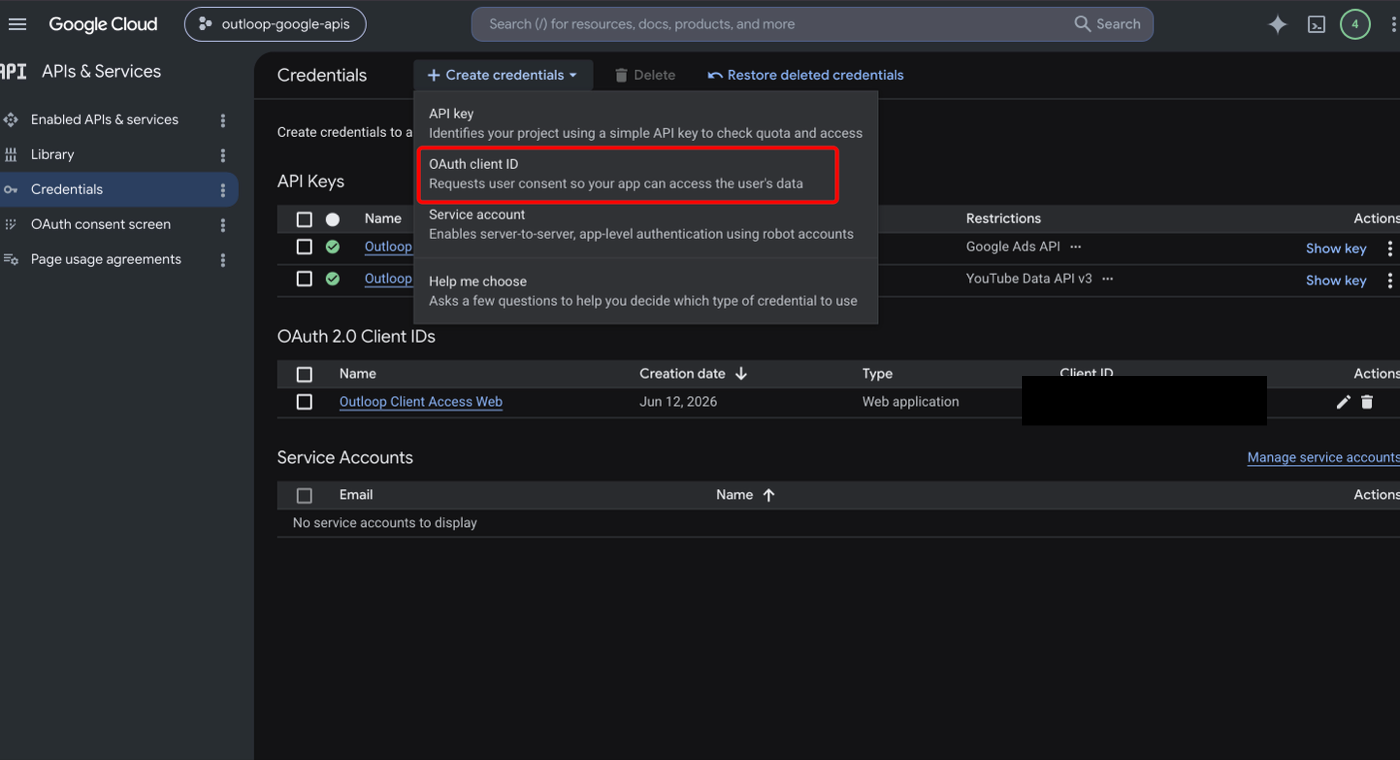
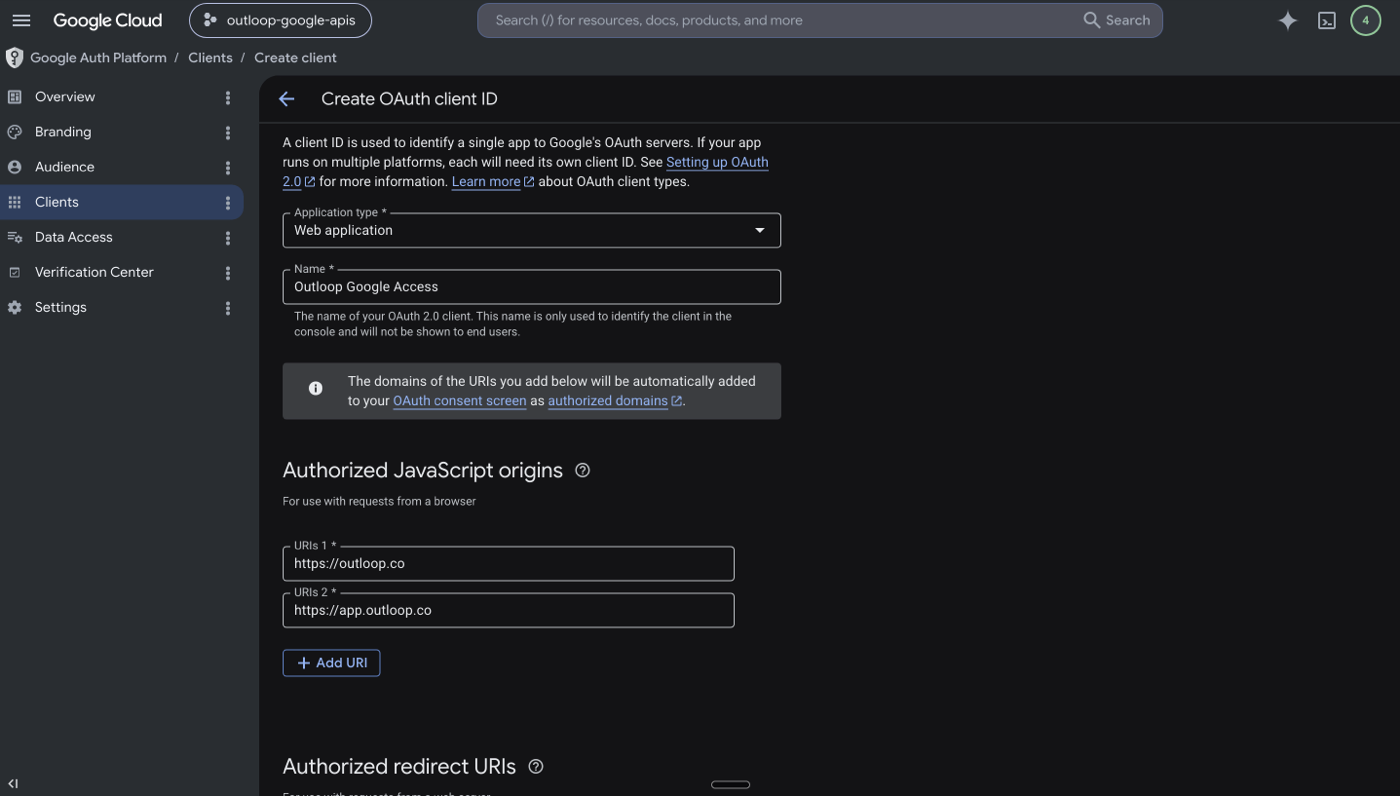
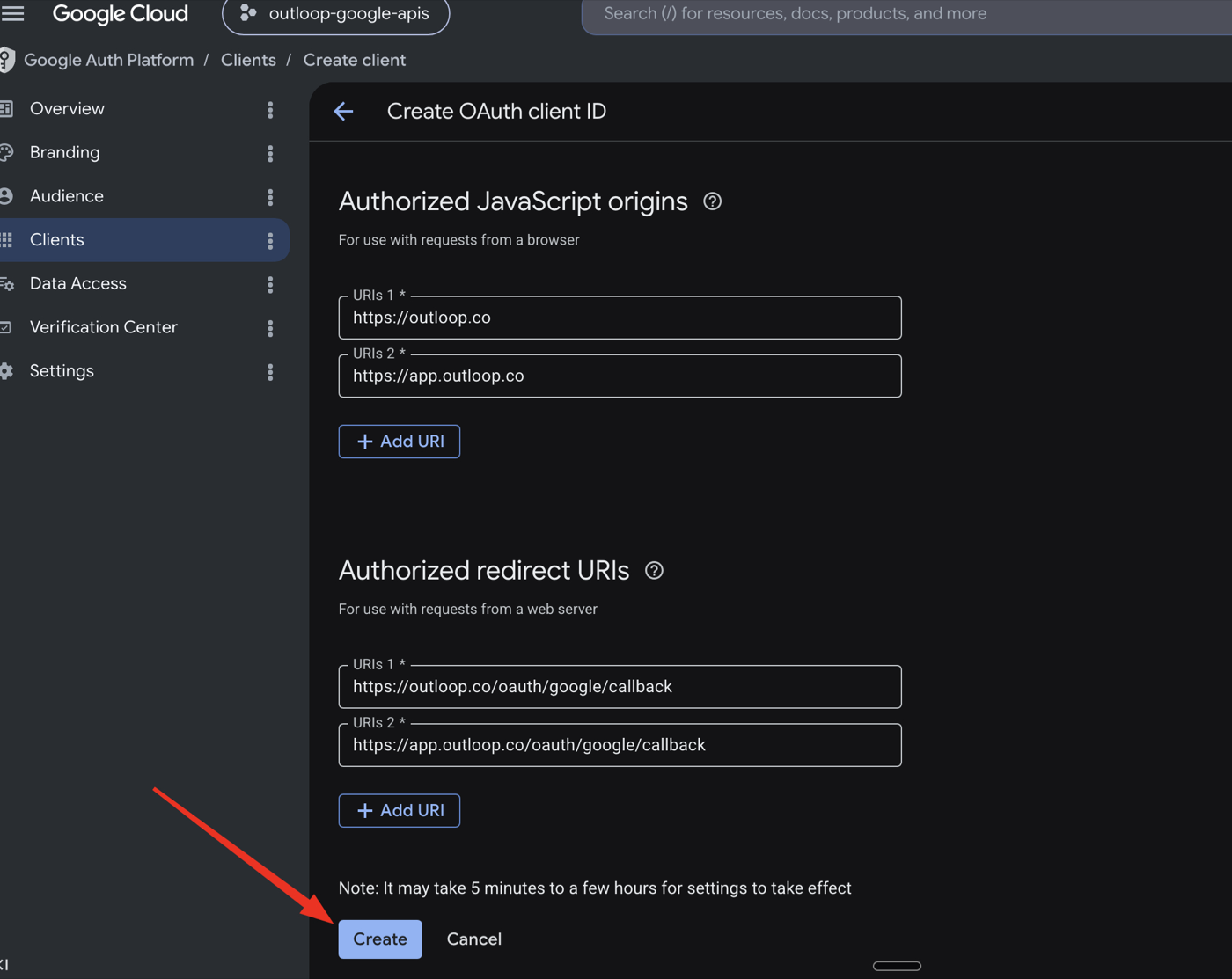
APIs & Services → Credentials → Create credentials → OAuth client ID, application type Web application, with your own authorized origins and redirect URIs (the Outloop setup flow will tell you the exact callback URL to register).
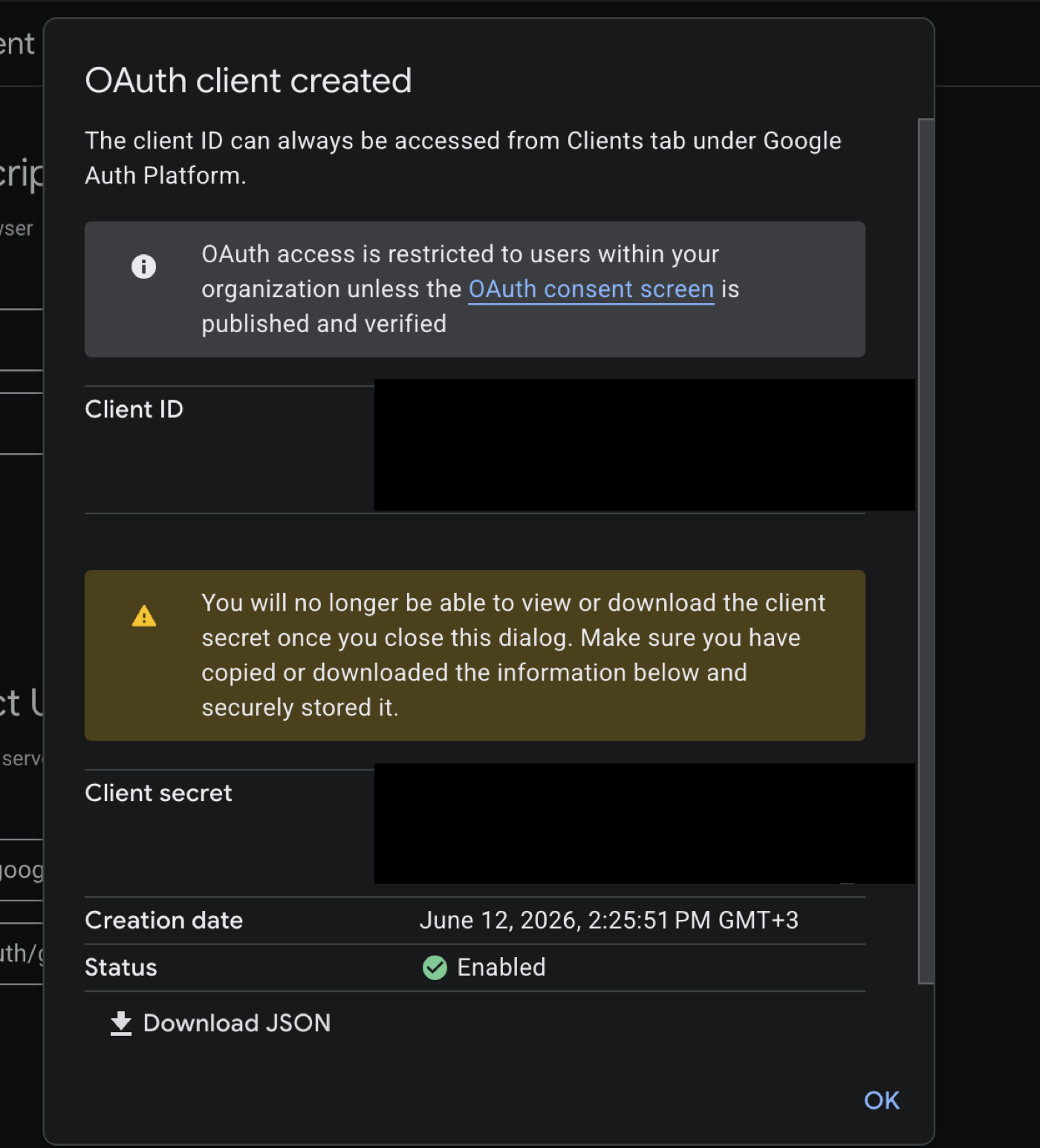
After creation, Google shows the Client ID and — once only — the Client Secret. Do not paste these into chat. Store them only through Outloop's secure setup flow.
Step 4: Set up OAuth consent
The OAuth consent screen must be configured before anyone can authorize access. Use a neutral, accurate
app name (for example Outloop Client Access)
and your business email for the support and developer contacts. Do not claim official Google
partnership anywhere in the consent copy.
Step 5: Get the Google Ads developer token
In the Google Ads manager account (MCC):
Tools & Settings → Setup → API Center → Developer Token
The developer token comes from Google Ads, not Google Cloud — missing this distinction is the most common setup failure. Do not paste the developer token into chat.
Step 6: Submit the API token application if needed
For full access levels, Google may require an API token application with tool-design documentation. Honest, typical answers for an agency tool:
Company type:   Agency/SEM
Use case:       Internal users only
Campaign types: Search, Performance Max, Display, Demand Gen, YouTube
Capabilities:   Account Management, Campaign Creation,
                Campaign Management, Reporting, Keyword Planning
If the tool is for your agency team and contractors, do not choose public/external users — and do not choose Account Creation unless the tool actually creates Google Ads accounts through the API.
Step 7: Generate the OAuth refresh token with OAuth Playground
Google Ads needs a refresh token — the long-lived OAuth token Outloop stores locally so it can mint short-lived access tokens host-side. For manual setup, the simplest way to get one is Google's OAuth Playground.
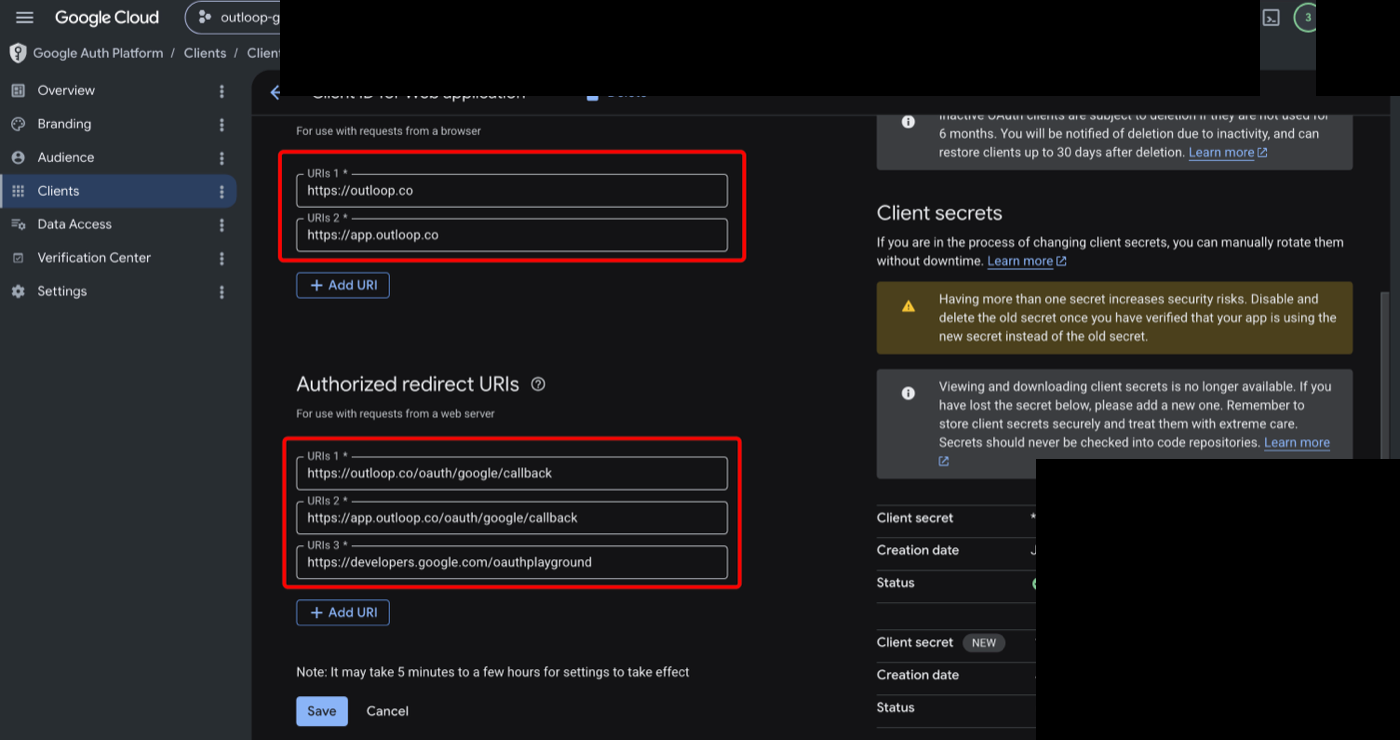
7.1 Add OAuth Playground as a redirect URI
In Google Cloud:
APIs & Services → Credentials → OAuth 2.0 Client IDs → your Web application client
Under Authorized redirect URIs, add
https://developers.google.com/oauthplayground
and save. This fixes the common redirect_uri_mismatch error.
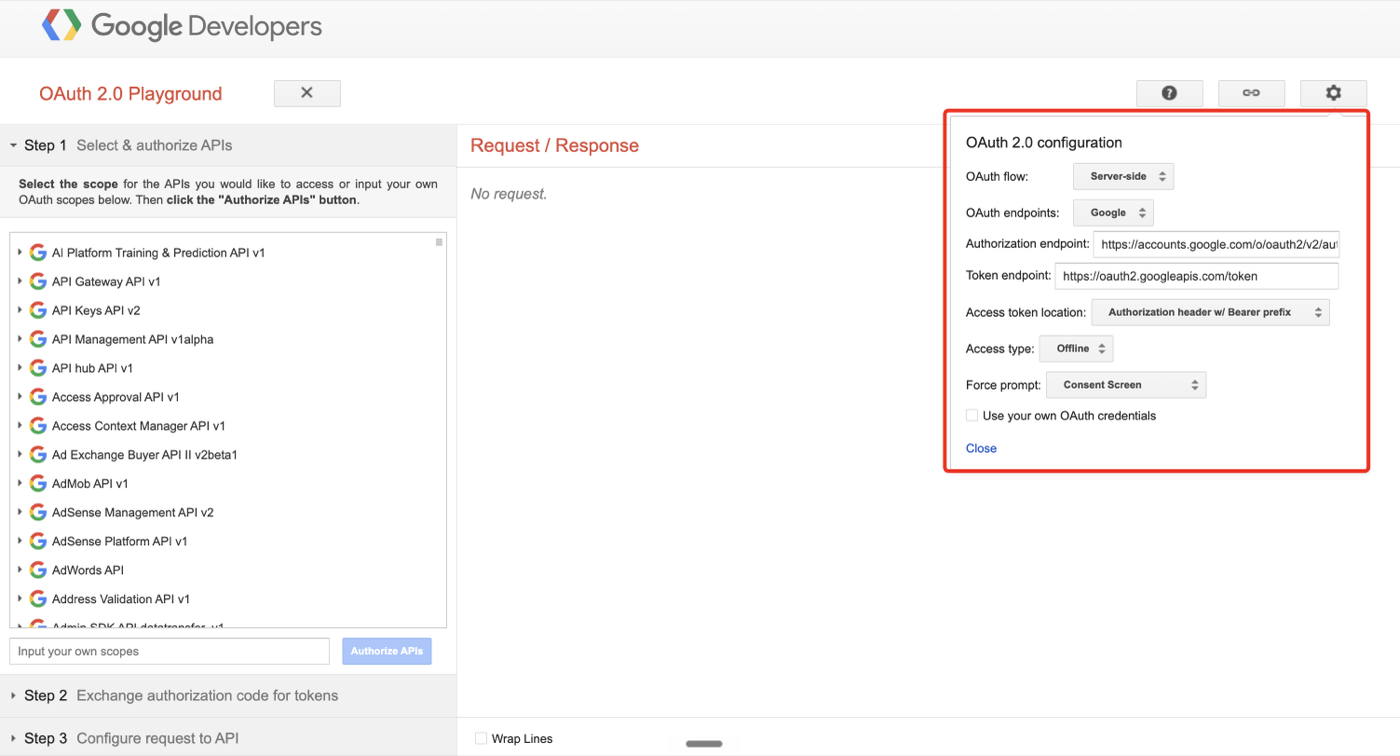
7.2 Open OAuth Playground settings
Go to https://developers.google.com/oauthplayground
and click the gear icon. Set:
OAuth flow:              Server-side
OAuth endpoints:         Google
Access token location:   Authorization header w/ Bearer prefix
Access type:             Offline
Force prompt:            Consent Screen
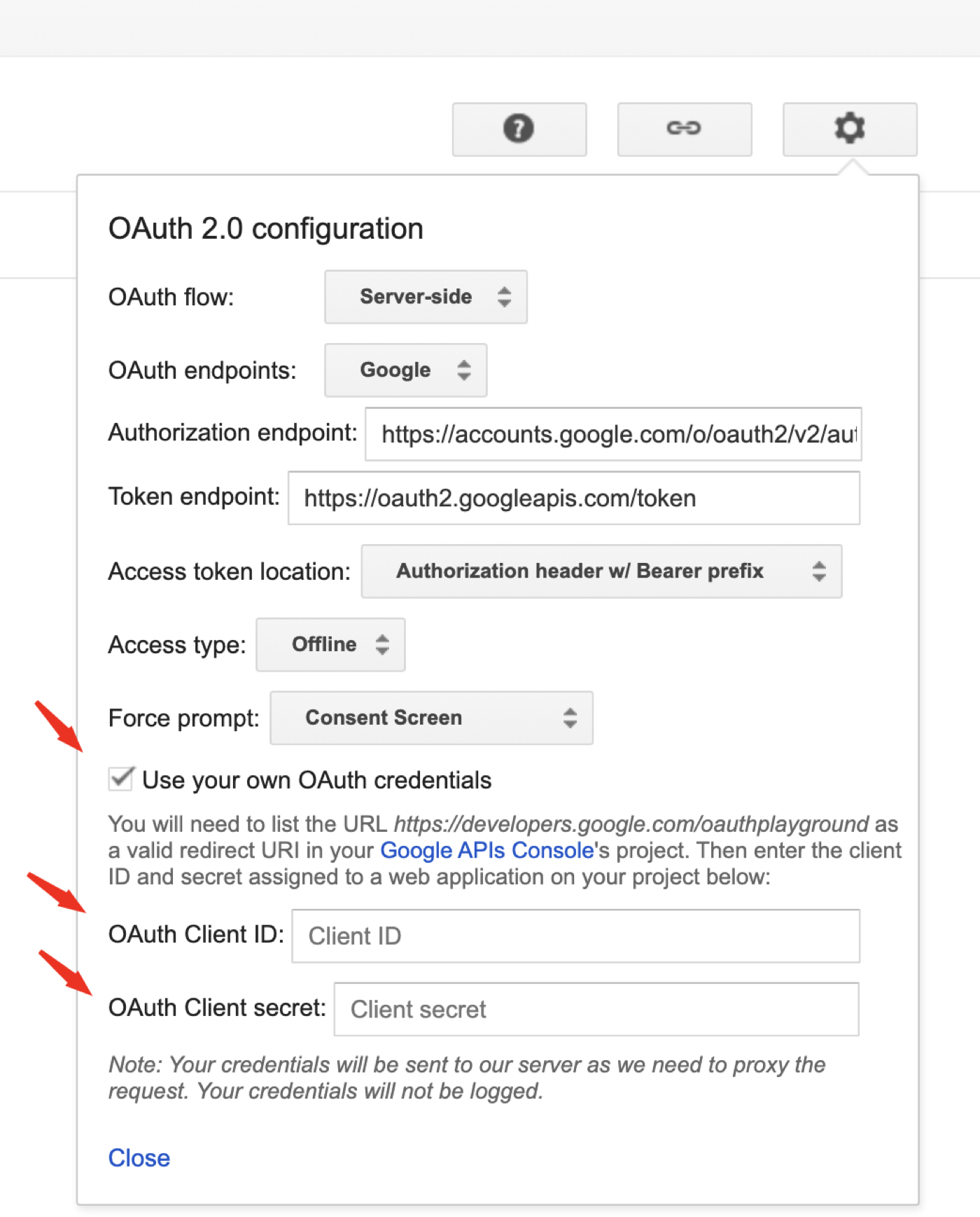
7.3 Use your own OAuth credentials
In the same settings panel, check Use your own OAuth credentials and paste the OAuth Client ID and OAuth Client Secret from the same Google Cloud client you created for Outloop. Do not paste these values into chat, docs, tickets, screenshots, or project files.
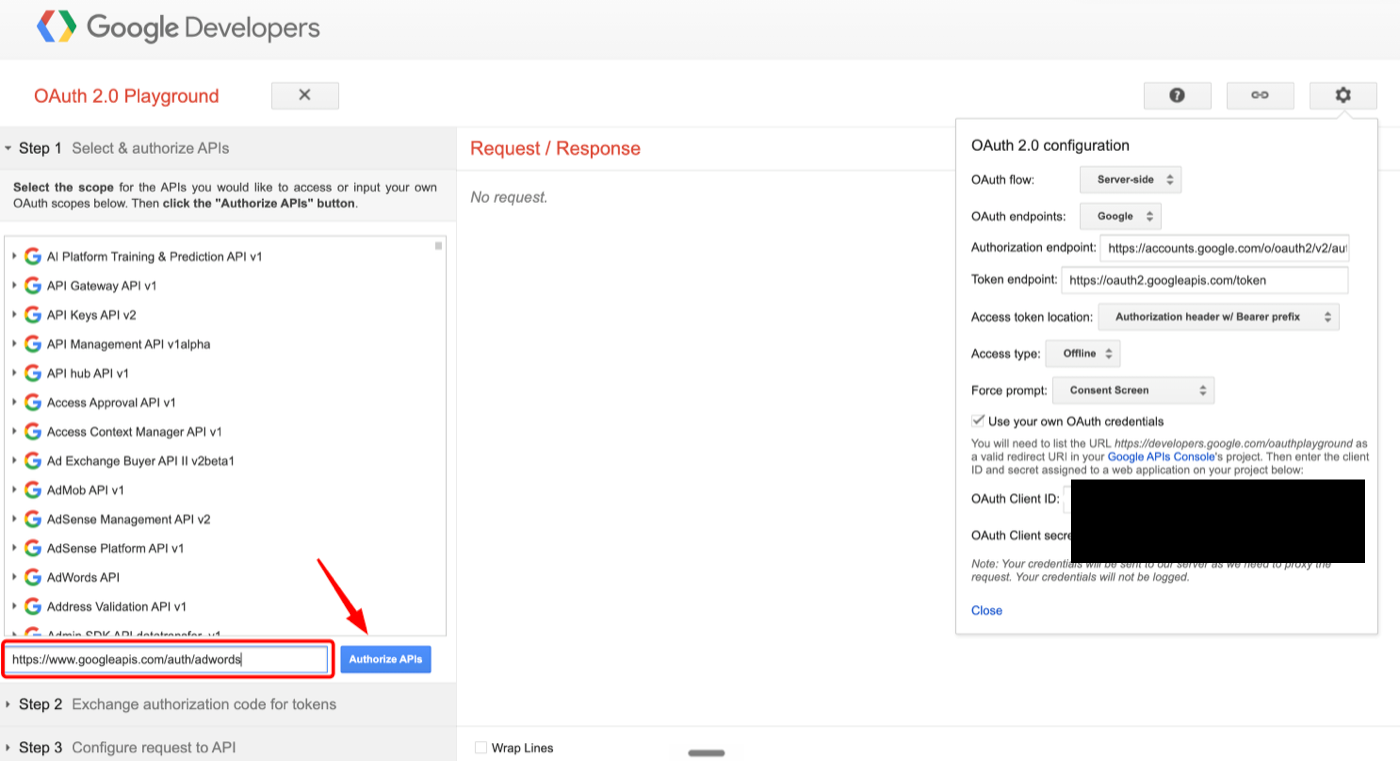
7.4 Add the Google Ads scope
Close the settings panel. In Step 1, paste this scope:
https://www.googleapis.com/auth/adwords
Click Authorize APIs and sign in with the Google account that has access to the MCC / Google Ads accounts.
7.5 Exchange authorization code for tokens
After authorization, open Step 2 and click
Exchange authorization code for tokens. Copy only the
refresh_token and paste only the refresh token
into Outloop.
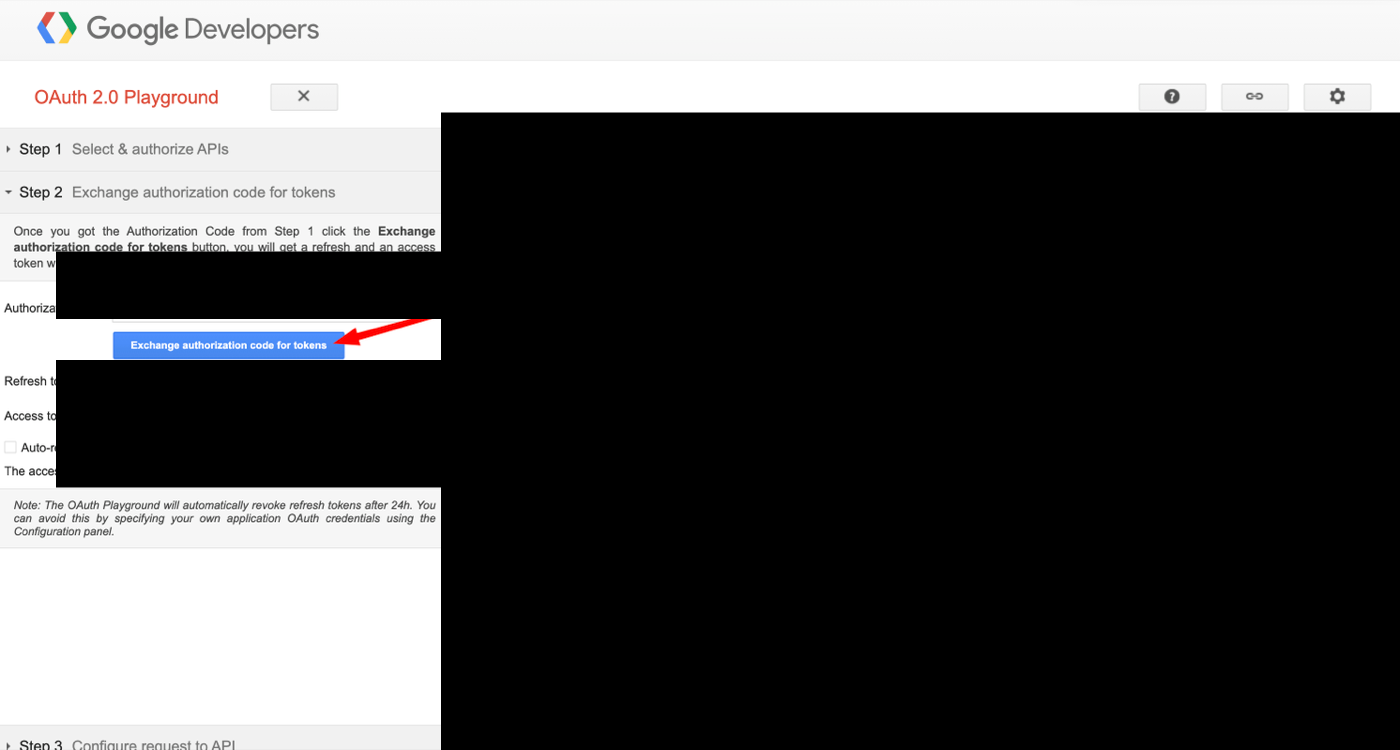
The refresh token is sensitive. Do not paste it into chat, project files, docs, screenshots, logs, or generated artifacts.
If no refresh token is returned, the access type was not Offline or consent was not forced — see common errors. Once Outloop has the refresh token, it exchanges it for short-lived access tokens host-side; the raw refresh token never leaves your machine and the agent never sees it.
Step 8: Add Google Ads access in Outloop
Outloop's Google Ads setup collects six things. What each one is and where it comes from:
- •Client ID — from the Google Cloud OAuth client (Step 3).
- •Client Secret — from the Google Cloud OAuth client. Google may show it only once; if lost, create a new secret.
- •Refresh Token — from OAuth Playground Step 2 (Step 7.5).
- •Developer Token — from the Google Ads API Center (Step 5).
- •Login customer ID — the MCC / manager account ID, digits only, no dashes.
- •Client customer ID — the specific Google Ads account this Outloop workspace is allowed to use, digits only, no dashes.
Expected configuration:
service: google_ads
auth_type: oauth_refresh_token
token_url: https://oauth2.googleapis.com/token
client_id: <CLIENT_ID>
client_secret: <CLIENT_SECRET>
refresh_token: <REFRESH_TOKEN>
developer_token: <DEVELOPER_TOKEN>
login_customer_id: <MCC_ID>          # digits only, no dashes
customer_id: <CUSTOMER_ID>           # digits only, no dashes
base_url: https://googleads.googleapis.com
At request time the broker injects the runtime headers host-side:
Authorization: Bearer <ACCESS_TOKEN>
developer-token: <DEVELOPER_TOKEN>
login-customer-id: <MCC_ID>
The agent never sees these headers.
Do not use the plain API key created in Google Cloud for Google Ads account access. Google Ads account access requires OAuth (client ID + client secret + refresh token) plus the developer token.
MCC vs client customer ID
The MCC is the manager account — the account Outloop logs in through. The client customer ID is the specific Google Ads account this workspace is allowed to manage. For tenant-safe access, Outloop needs both:
login_customer_id = <MCC_ID>
customer_id       = <CUSTOMER_ID>
One MCC may access many accounts, but one Outloop workspace should only be mapped to the customer IDs it is allowed to use.
Step 9: Map customer IDs to workspaces
This is the most important Outloop part. Example shape:
workspace_001
→ allowed Google Ads customer_id: <CUSTOMER_ID>
→ login_customer_id: <MCC_ID>
If another workspace tries to use that customer ID: deny before backend read. That is the wrong-client protection that makes one MCC safe to use across many client workspaces.
Step 10: Run a safe proof
The first proof should be read-only. Use the list-accessible-customers endpoint:
/customers:listAccessibleCustomers
Do not include /v24 in the request path. The Outloop bridge base URL
already includes /v24, so adding it yourself produces a
/v24/v24/… path and a 404.
Correct: /customers:listAccessibleCustomers
Wrong: /v24/customers:listAccessibleCustomers
Correct request envelope example:
{
  "tenant": "<WORKSPACE_ID>",
  "service": "google_ads",
  "verb": "api_bridge.request",
  "method": "GET",
  "path": "/customers:listAccessibleCustomers"
}
Success criteria:
decision: allow / OK
HTTP 200
secret_exposed: false
accessible customer returned
audit entry exists
Do not mark Google Ads runtime-verified until this proof succeeds through Outloop.
Production readiness checklist
Do not mark Google Ads runtime-verified until all are true:
- ✓OAuth refresh works.
- ✓Developer token and
login_customer_idare present. - ✓
customer_idis mapped to the workspace. - ✓Safe read proof returns HTTP 200.
- ✓Wrong customer/workspace test is denied before backend read.
- ✓No secrets appear anywhere.
Common mistakes
- ✕Creating a plain Google Ads "API key" and expecting it to work.
- ✕Pasting only
client_idand treating it as a token. - ✕Skipping the developer token or
login_customer_id. - ✕Using the wrong MCC.
- ✕Storing the refresh token in project files.
- ✕Letting the agent choose any customer ID.
Common errors and fixes
redirect_uri_mismatch
Meaning: the OAuth Playground redirect URI is missing from Google
Cloud. Fix: add
https://developers.google.com/oauthplayground
to Authorized redirect URIs on your OAuth client (Step 7.1).
No refresh_token returned
Meaning: the consent did not use Offline access, or consent was not forced. Fix: in OAuth Playground settings set Access type: Offline and Force prompt: Consent Screen, then authorize again.
404 on /v24/v24/…
Meaning: the request path included
/v24, but the bridge base URL already has it.
Fix: use
/customers:listAccessibleCustomers, not
/v24/customers:listAccessibleCustomers.
Google Ads API key does not work
Meaning: a plain API key was created in Google Cloud. Fix: Google Ads account access needs OAuth Client ID + Client Secret + Refresh Token + Developer Token — a plain API key cannot manage accounts.
The Outloop value
Google gives the API access. Outloop makes it usable safely across clients:
One agency MCC can manage many client accounts.
Outloop maps each customer_id to the right workspace
and blocks wrong-client account use.
Related: AI agent API key management · wrong-client access · Meta Ads API setup · Zoho CRM setup.
Outloop is in commercial beta (controlled design-partner prep). Outloop is an independent tool and is not affiliated with or endorsed by Google. See the security model.
Run Google Ads agents without handing over OAuth secrets.
Outloop is accepting qualified AI agencies, operators, and dev shops into commercial beta.