Learn · Setup guides
Connect Meta Ads API to Outloop
Last updated:
In short
Meta Ads API access for an agency usually requires a Meta app, the Marketing API use case, a verified Business Portfolio, permissions such as ads_read, ads_management, and often business_management, plus a system user token or approved access token.
Outloop stores the token locally and lets agents request approved Meta Ads actions without seeing the raw token. Each agent workspace is mapped to only the ad accounts it may use, wrong-client access is blocked before any call, and every request is audited.
What this setup gives you
Meta Ads is one of the clearest Outloop use cases for agencies. Without a runtime access layer, the common pattern looks like this:
The unsafe pattern
Create token
Paste token into chat
Save token in a .env file
Tell the agent which ad account to use
Hope it does not use the wrong client
The safer pattern
Create approved Meta access
Store token locally
Map ad accounts to the right workspace
Agent requests Meta Ads access through Outloop
Outloop injects the token host-side
Outloop audits the request
Agent never sees the raw token
What you need before starting
- ✓A Meta Business Portfolio (business verification completed if required).
- ✓A Meta developer app with the Marketing API use case.
- ✓Ad account access.
- ✓A system user or access token with the required permissions.
- ✓Outloop installed locally.
Never paste API keys, access tokens, refresh tokens, client secrets, developer tokens, Authorization
headers, or customer secrets into chat, screenshots, docs, .env files,
project folders, or generated artifacts.
Step 1: Create a Meta app
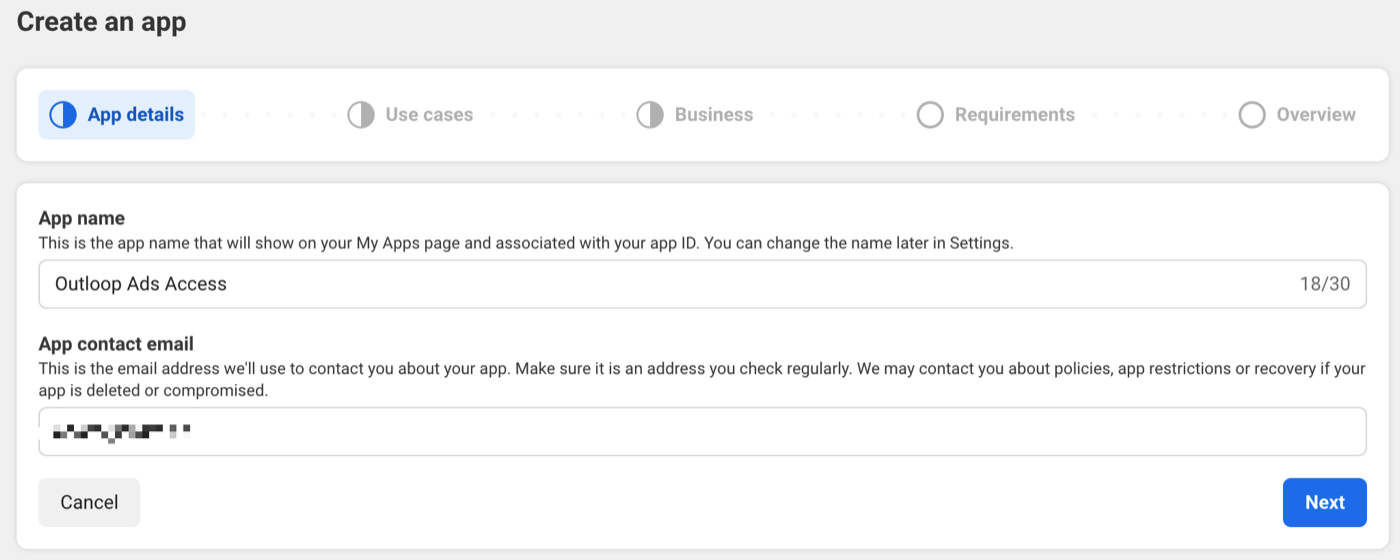
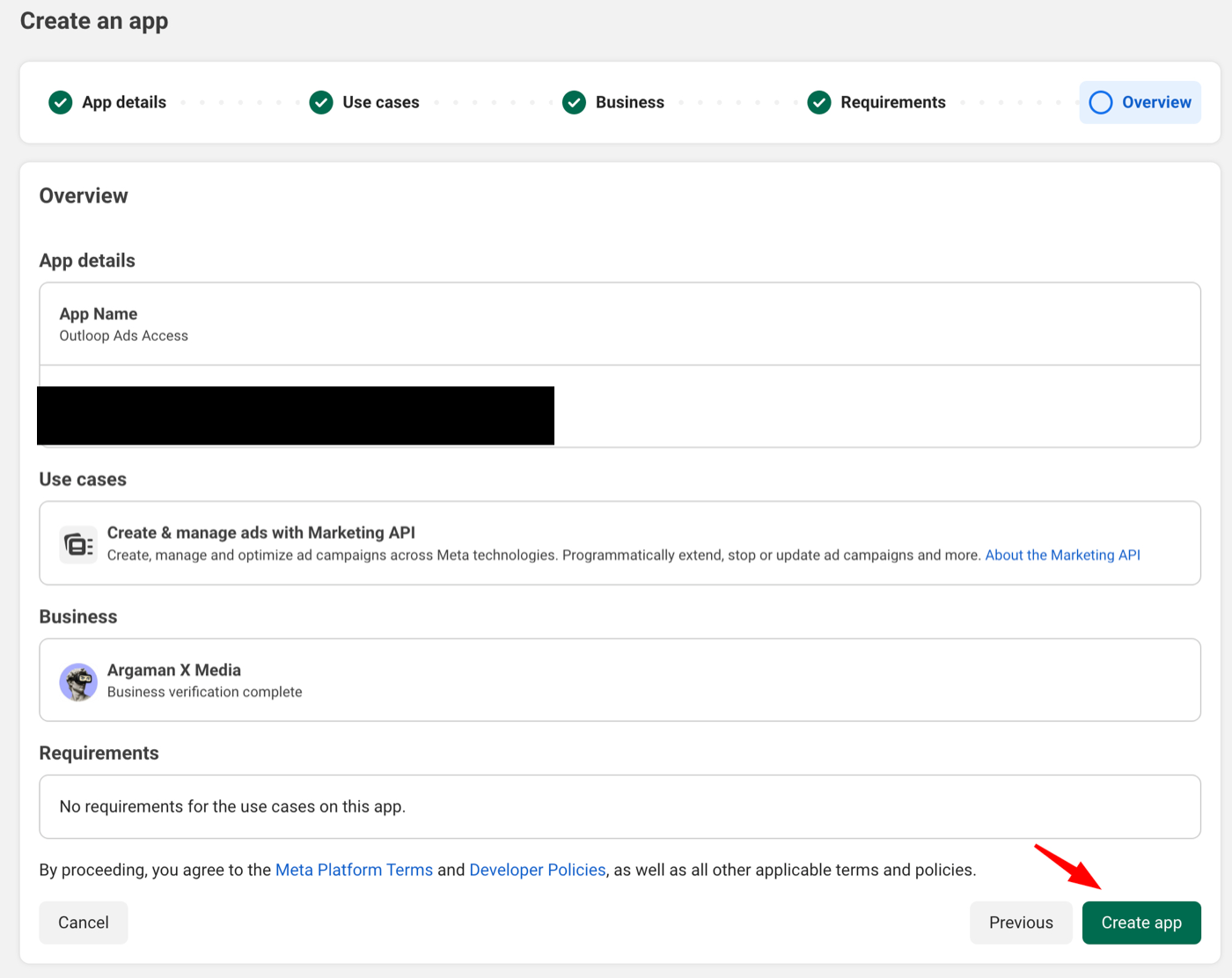
In Meta for Developers: My Apps → Create app. Use a neutral app
name — for example Outloop Ads Access — and
your business email as the contact address. Avoid names that include Meta trademarks or confusing
platform names.
Step 2: Choose the Marketing API use case
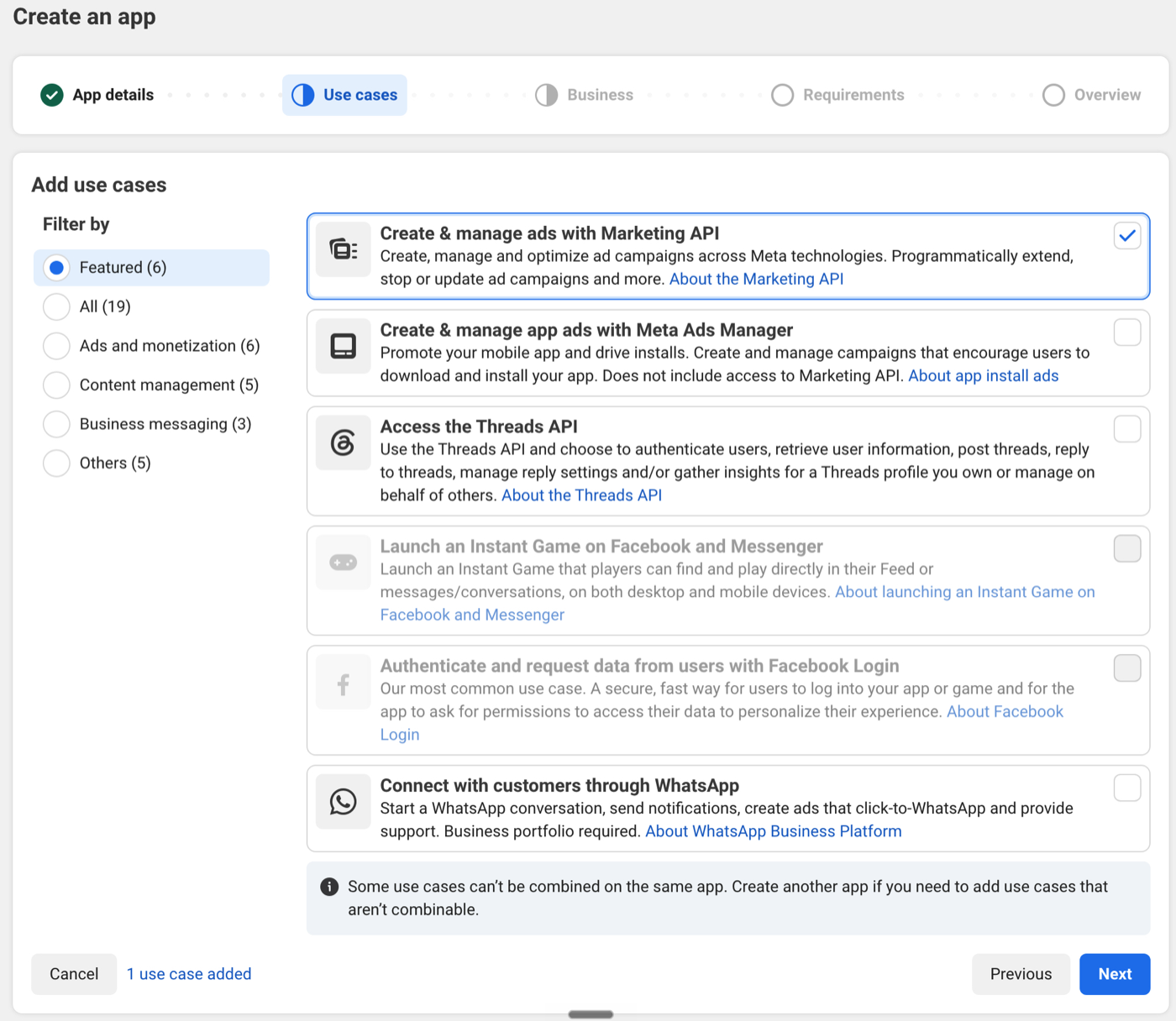
Choose "Create & manage ads with Marketing API". This is the correct use case for creating, managing, reading, and optimizing ads through the Meta Marketing API.
Step 3: Connect the correct Business Portfolio
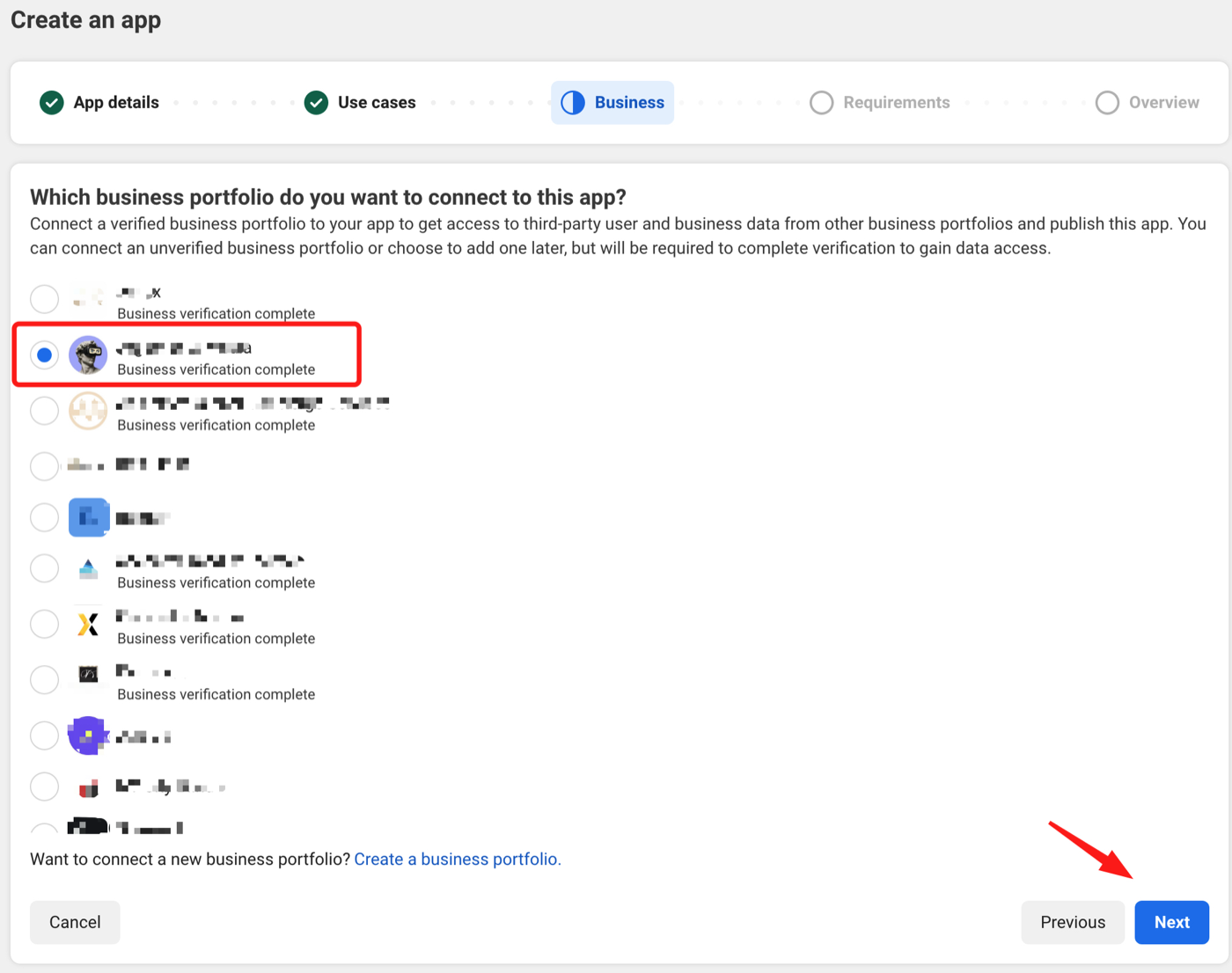
Choose the verified business portfolio that owns or manages the ad accounts. For an agency this should usually be the agency business portfolio, not a client portfolio. The portfolio is where the app is connected, system users are managed, ad account access is assigned, and app review / access verification are handled.
Step 4: Review requirements and create the app
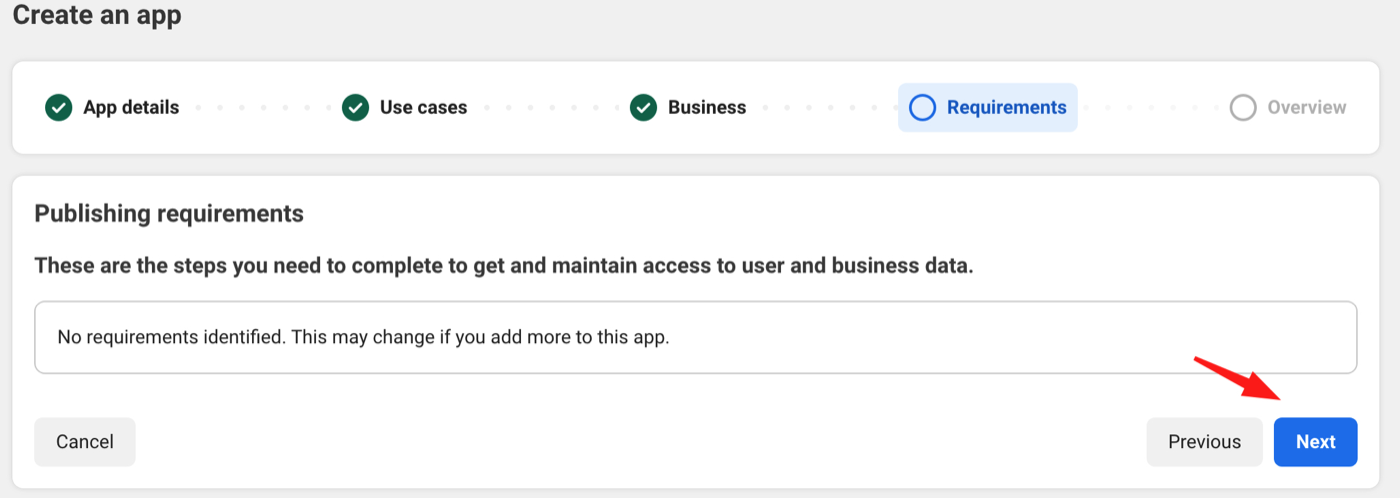
If the requirements screen says no requirements, continue. On Overview, review the app name, app email, use case, business portfolio, and requirements — then create the app.
Step 5: Customize Marketing API permissions
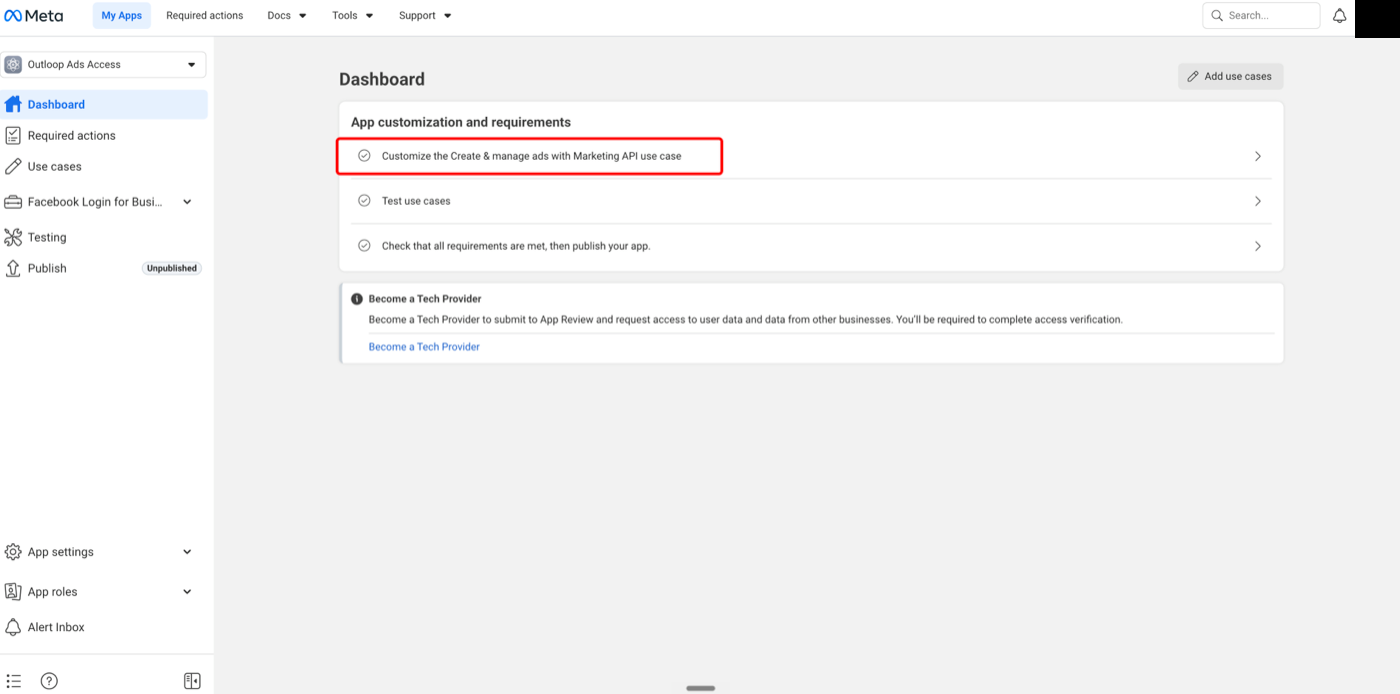
Inside the app dashboard: Use cases → Customize → Create & manage ads → Permissions and features. Core permissions to prepare:
ads_read              # read-only reporting
ads_management        # campaign creation and edits
business_management   # business portfolio / asset flows
Use the minimum required permission for the job — if the workflow only reads reporting data,
ads_read is enough.
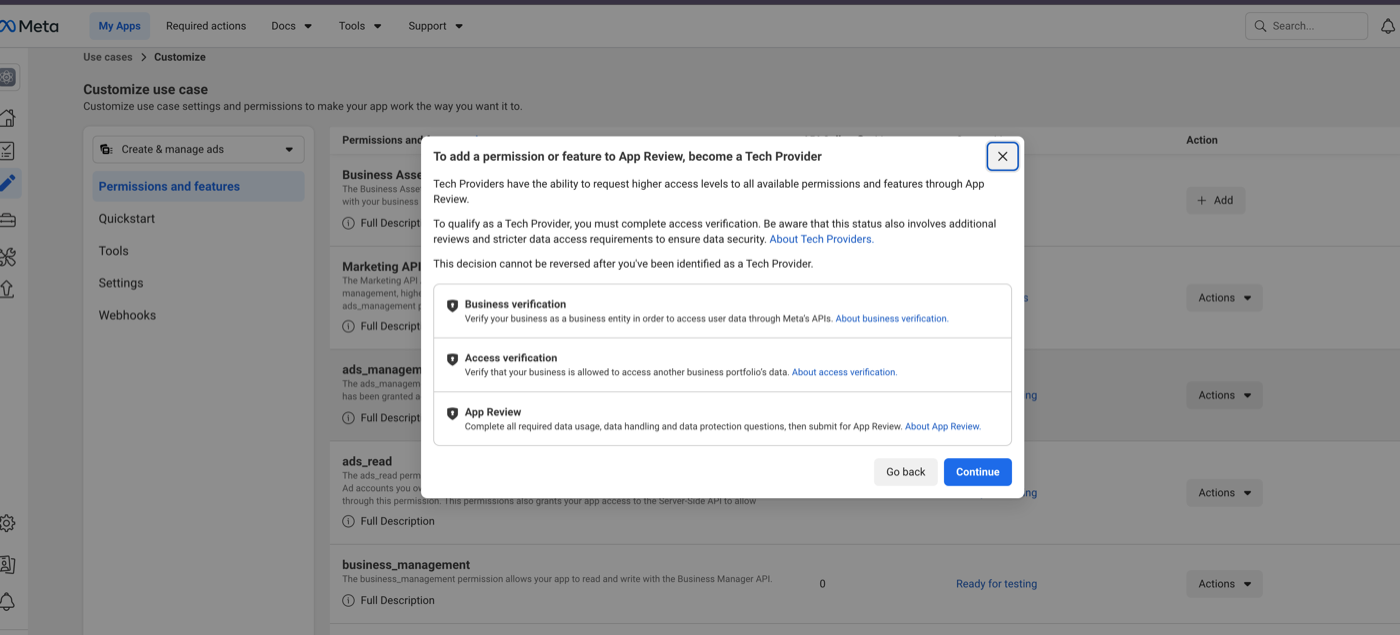
For higher access levels and data from other businesses, Meta may require Tech Provider verification and App Review — plan for it, but it is not needed for first internal proofs.
Step 6: Prepare system user access
In Meta Business Settings: Users → System users. Create or use a
dedicated system user for automation — a name like
<YourAgency> Marketing API works well;
if Meta blocks a name, use a neutral business name. Do not delete existing system users unless you know
what they control. If the business has reached the admin system-user limit, create an Employee system
user and assign assets explicitly.
Step 7: Assign assets
Assign only the assets needed: Assign assets → Ad accounts → select the ad accounts → Manage ad accounts / Full control if needed. The Outloop principle for agencies:
A broad system user token may exist,
but Outloop must restrict each workspace to the correct ad account IDs.
Step 8: Generate a token
Generate a system user token for the app (Outloop Ads Access),
selecting the permissions you prepared. Do not paste this token into
chat, docs, project files, or tickets — its only destination is Outloop's secure setup flow in
the next step.
Step 9: Add Meta Ads access in Outloop
In Outloop: API Keys & Access → Add key / Add access → Service: Meta Ads. Expected configuration:
service: meta_ads
base_url: https://graph.facebook.com
auth_scheme: bearer_token
credential_type: access_token
allowed_ad_accounts:
  - act_<account_id>
workspace_mapping:
  workspace_001:
    allowed_ad_accounts:
      - act_<account_id>
Outloop stores the token locally in the secure backend and never shows it again. The workspace mapping is the part that makes the access tenant-safe — see wrong-client access in agent loops.
Step 10: Run a safe proof
The first proof should be read-only:
GET /me/adaccounts            # list accessible ad accounts
GET /act_<AD_ACCOUNT_ID>/campaigns   # prove one account
Success criteria:
decision: allow
HTTP 200
secret_exposed: false
correct ad account
audit entry exists
Never paste API keys, access tokens, refresh tokens, client secrets, developer tokens, Authorization
headers, or customer secrets into chat, screenshots, docs, .env files,
project folders, or generated artifacts.
Production readiness checklist
Do not mark Meta Ads runtime-verified until all of these are true:
- ✓Token is valid and permissions are correct.
- ✓Ad account access is assigned in Business Settings.
- ✓Workspace / ad account mapping is configured in Outloop.
- ✓First safe read-only proof succeeds.
- ✓No raw token appears in logs, audit, files, screenshots, or agent output.
Common mistakes
- ✕Pasting the token into chat or saving it in
.env. - ✕Using the same ad account mapping for every workspace.
- ✕Treating a token as safe just because it works.
- ✕Letting an agent choose arbitrary ad account IDs.
- ✕Publishing screenshots with token values.
- ✕Deleting existing system users without knowing what they run.
The Outloop value
Meta gives the agency API access. Outloop makes that access tenant-safe:
One agency may manage many ad accounts.
But each agent workspace should only reach the ad account it is allowed to use.
Related: AI agent API key management · Outloop for AI agencies · Google Ads API setup · Zoho CRM setup · WhatsApp Cloud API setup.
Outloop is in commercial beta (controlled design-partner prep). Outloop is an independent tool and is not affiliated with or endorsed by Meta. See the security model.
Run Meta Ads agents without handing over tokens.
Outloop is accepting qualified AI agencies, operators, and dev shops into commercial beta.