Learn · Setup guides
Connect any custom API to Outloop
Last updated:
In short
Use Custom API Bridge when a service is not yet a built-in Outloop connector.
You set the service name, approved host, auth model, allowed methods, and a safe first proof path. Outloop stores the key locally in macOS Keychain, binds the bridge to the approved host, and the agent uses the API through Outloop without ever seeing the raw secret — every request checked against the workspace and policy, and audited.
What Custom API Bridge does
Custom API Bridge connects an API that is not yet a built-in Outloop connector. You choose the service name, the approved API host, the auth model, the allowed methods, a safe first proof path, and the workspace that may use it. Outloop stores the secret locally in macOS Keychain — the agent never sees the raw key. When the agent needs the API, it requests access through Outloop, which checks the workspace, service, host, auth model, and bridge settings before the request runs.
Use it when:
- ✓the service has a normal REST API;
- ✓you have an API key or bearer token and know the base URL;
- ✓you can choose a safe read endpoint for the first proof;
- ✓the agent needs practical API access, not raw secret access.
.env files, project folders, or
generated prompts.
What you need before starting
- 1.API key or token — e.g. a PostHog Personal API Key.
- 2.API base URL — the root host, e.g.
https://us.posthog.com. - 3.Auth model — e.g. Bearer token in the Authorization header.
- 4.Safe proof path — a read-only endpoint, e.g.
/api/projects/<PROJECT_ID>/heatmaps/?limit=1. - 5.Workspace — the client/project workspace that should use this API.
- 6.Optional static headers — non-secret only. Never put Authorization, bearer tokens, cookies, or API keys in static headers.
Example values: PostHog
We use PostHog as the worked example because it exposes behavior data — heatmaps, clicks, and session-recording metadata — that an agent can answer questions about (which page gets the most clicks, where users drop off, which sessions to review). Set the bridge with:
Service name:   posthog
Base URL (US):  https://us.posthog.com
Base URL (EU):  https://eu.posthog.com
Self-hosted:    https://your-posthog-domain.com
Auth model:     Bearer token
Safe proof path: /api/projects/<PROJECT_ID>/heatmaps/?limit=1
Replace <PROJECT_ID> with the real numeric
project id — for example /api/projects/488483/heatmaps/?limit=1.
Recommended PostHog Personal API Key scopes are heatmap:read,
session_recording:read,
insight:read, and
query:read; the minimum for the first heatmap
proof is just heatmap:read. A useful second proof
is /api/projects/<PROJECT_ID>/session_recordings/?limit=1
(scope session_recording:read).
1. Add the custom API in Outloop
In the Outloop Mac app, open Add an API key, type the service name
(here, posthog), and pick the scope. Use
Agency-global / shared when one key should be assigned to several
approved workspaces, or workspace-dedicated when the key belongs to
one client. Tick the workspace that should use it — do not save with zero workspaces selected. Then fill the
Custom API fields and keep the host and path separate.
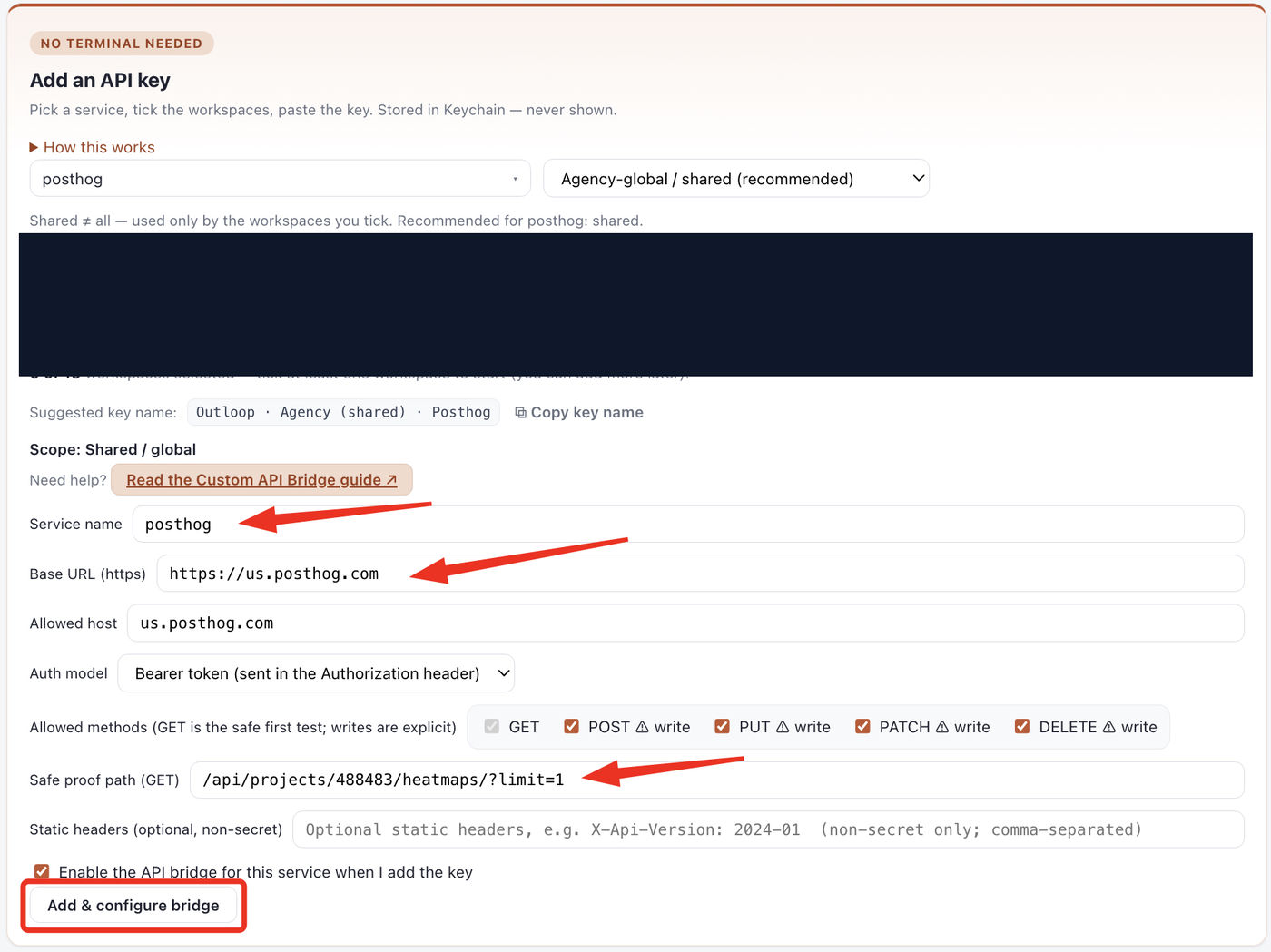
- →Base URL is the root API host (
https://us.posthog.com), not the full endpoint. - →Safe proof path starts with
/and does not include the domain. - →Static headers must not contain secrets — non-secret headers only (e.g. an API-version header).
- →GET is the safe first test. Writes are explicit and should be used only after the operator approves them and the key has the right permissions.
2. Paste the API key
Paste the API key into the Outloop field and click Add & configure bridge. Outloop stores the key locally in macOS Keychain and configures API Bridge for the approved host. The key is masked and never shown again.

.env, .txt,
.creds.local, GitHub, project folders, website forms, or Cloud pages. Only the
Outloop Mac app.
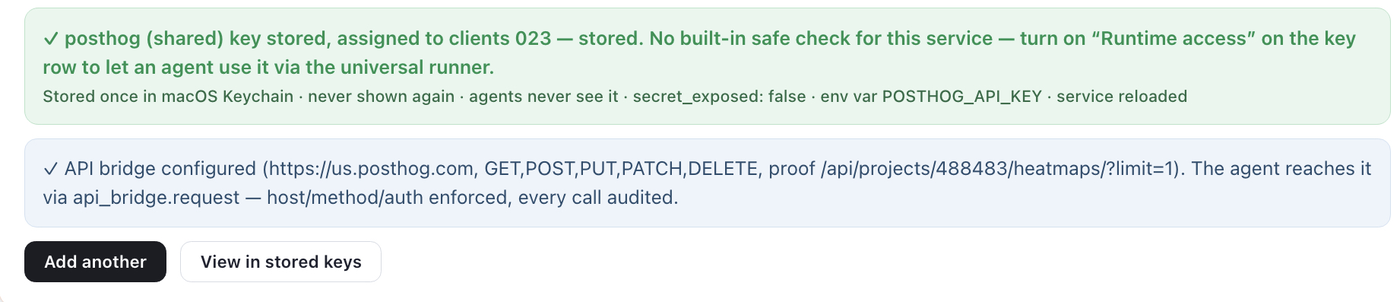
3. View the stored key
After saving, click View in stored keys. The row confirms the key is
Stored, the API bridge is on,
and Secret exposed: false. The key is saved
locally and the agent still cannot see it — it can only use the approved bridge path.
4. Copy the workspace run prompt
On the key row, the bridge is bound to the approved host with the approved methods. Click Copy workspace run prompt and paste it into the correct agent workspace. (For a read-only first run you can click Restrict to read-only first.)
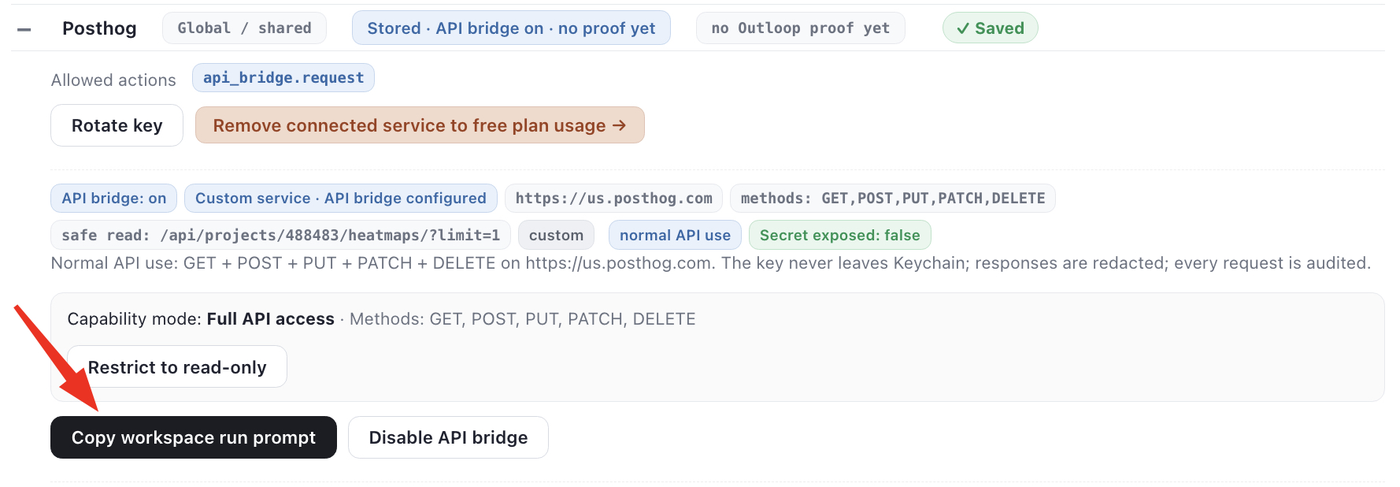
The run prompt tells the agent to:
- ✓use the Outloop API Bridge with the approved service name;
- ✓not ask for the API key, and not search for
.envor credential files; - ✓not print Authorization headers;
- ✓stop on a denial and report the Outloop denial code.
5. Run the first proof
The first proof is a safe GET. For PostHog:
GET /api/projects/<PROJECT_ID>/heatmaps/?limit=1
A successful, verified Outloop proof looks like this:
decision: allow
code: OK
HTTP status: 200
service: posthog
secret_exposed: false
runtime-verified: yes
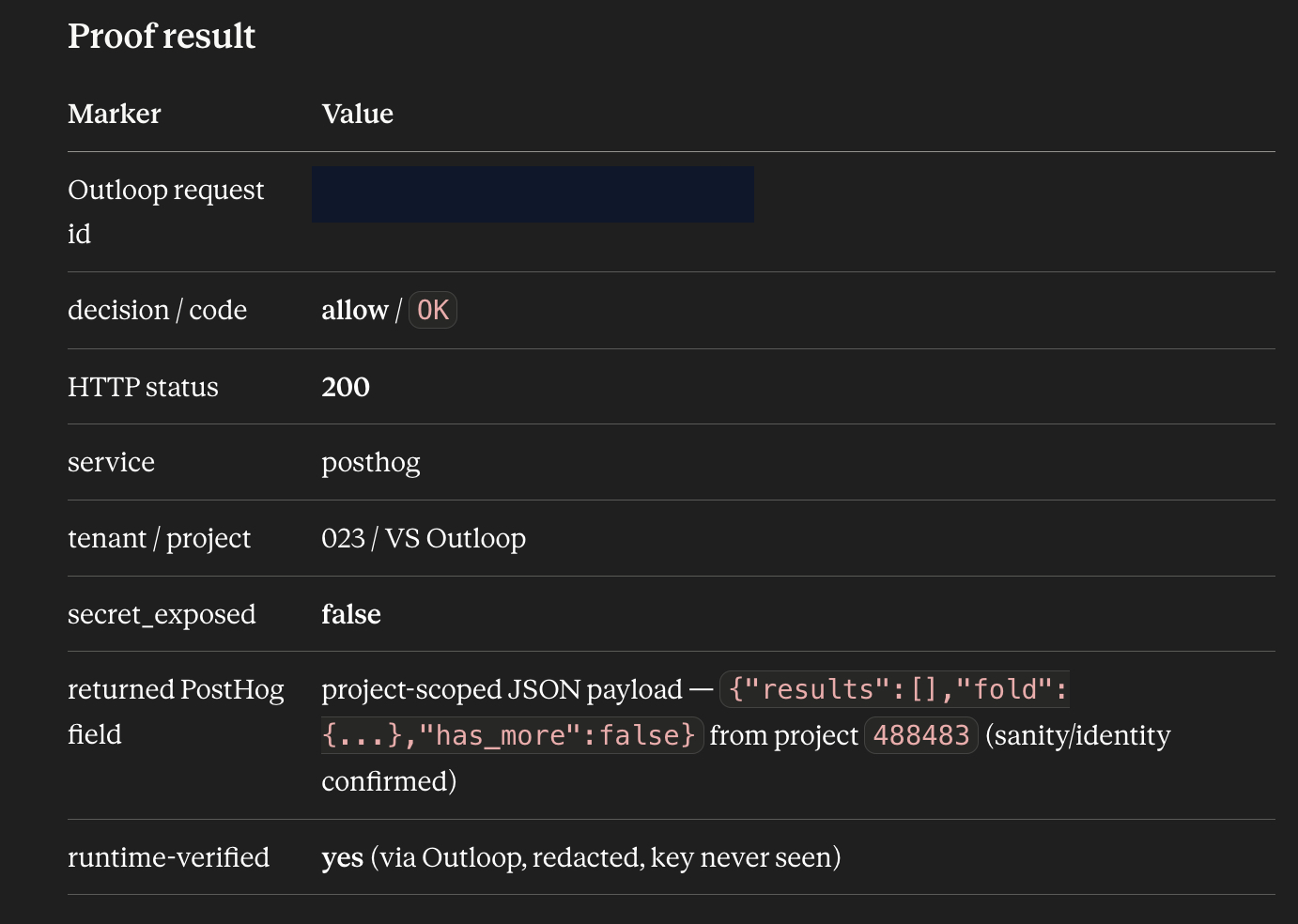
The proof confirms Outloop accepted the request, the approved host was used, the key stayed in Keychain, the provider returned a real response, the agent did not see the secret, and the request was audited.
What counts as real Outloop proof
A connector is not proven just because the API works somewhere else. A result from an MCP connector, a
provider SDK, a CLI, a browser session, or a found key proves nothing about Outloop. Real Outloop proof
requires an Outloop route with an audit entry, decision allow, an HTTP success where applicable, and
secret_exposed:false — with no raw credential visible.
- Verified PostHog read access through Outloop:
GET /api/projects/<PROJECT_ID>/heatmaps/?limit=1returned HTTP 200 with decision allow, an audit entry, andsecret_exposed: false. - Supported, not verified yet Custom-API write actions (POST/PUT/PATCH/DELETE): permitted through bridge policy when enabled, but not runtime-verified until a safe write proof succeeds.
Troubleshooting
Empty safe proof path
Do not leave it empty — the run prompt can't make its first GET. Add a safe read endpoint, e.g. /api/projects/488483/heatmaps/?limit=1. The safe proof path is only the first verification request; it does not make the API read-only forever.
Angle brackets in the path
Angle brackets are placeholders — remove them for the real value.
/api/projects/488483/heatmaps/?limit=1Wrong:
/api/projects/<488483>/heatmaps/?limit=1 Base URL includes the full path
Keep the host and path separate. The base URL is just the host; the endpoint goes in the safe proof path.
https://us.posthog.com/api/projects/488483/heatmaps/?limit=1Correct: Base URL
https://us.posthog.com · Safe proof path /api/projects/488483/heatmaps/?limit=1 Wrong region
PostHog has different hosts: https://us.posthog.com for US Cloud, https://eu.posthog.com for EU Cloud, or your exact self-hosted domain. Do not use wildcard hosts.
HTTP 401
Likely a wrong, expired, or revoked key, the wrong value, a project key used instead of a Personal API Key, or a missing Bearer auth model. Confirm you created a Personal API Key, set Auth model to Bearer token, and rotate the key with Rotate key if it may have been exposed.
HTTP 403
The key likely lacks the required scope or project access, or the project id is wrong. For PostHog heatmaps confirm scope heatmap:read; for recordings metadata confirm session_recording:read.
HTTP 404
Usually a wrong project id, endpoint path, region, or a typo in the trailing path. Check the base URL and the safe proof path, then replace <PROJECT_ID> with the real numeric project id.
The agent asks for the API key again
The agent isn't following Outloop instructions. Copy the workspace run prompt again and paste it into the correct workspace. The prompt must tell the agent to use the Outloop API Bridge, not ask for API keys, not read .env / .creds.local / .key / .pem files, not print Authorization headers, and stop on an Outloop denial.
The agent tries MCP, an SDK, curl, or a provider CLI
That is not Outloop proof. For this proof, do not use provider SDKs, MCP connectors, direct CLI commands, browser connectors, or copied keys — use Outloop only. A connection is verified only when the request goes through Outloop and returns an audited result with decision allow, an HTTP success, and secret_exposed:false.
Full access, but the safe proof is a GET
That is expected. The safe proof is the first test and is a GET so it doesn't change provider data. After it succeeds, the operator can allow normal methods — GET, POST, PUT, PATCH, DELETE — when the workflow needs them. CONNECT and TRACE are always blocked.
Proof succeeded but the dashboard says “no proof yet”
Refresh the stored-key row and check the latest audit/proof state. If the proof ran in an agent workspace, the agent result should show decision allow, HTTP 200, and secret_exposed:false. The dashboard may show proof only after the local audit state refreshes. Do not re-paste the API key unless you are rotating it.
Security rules for Custom API Bridge
Never put raw secrets in chat, docs, screenshots, GitHub, .env, .txt, .creds.local, logs, the dashboard DOM, generated prompts, project files, localStorage, or sessionStorage.
Never add Authorization, bearer tokens, API keys, cookies, session tokens, refresh tokens, or passwords to Static headers. Static headers are for non-secret provider headers only — for example a version header:
X-Api-Version: 2024-01
Don't use static headers unless the provider requires them.
Privacy for behavior-analytics tools
For behavior tools — session replay, heatmaps, click tracking — be careful what the tool itself captures. Don't record API-key screens, billing or payment details, login or password fields, token fields, customer private data, or dashboard pages that may show sensitive account data. Use the provider's privacy controls and input/element masking before enabling broad recording. Behavior-analytics tools can capture sensitive UI if configured badly — mask sensitive inputs and elements first.
Outloop is available with guided onboarding for agency teams. Outloop is an independent tool and is not affiliated with or endorsed by PostHog or any provider named here. See the security model, the Calendly API setup guide, or AI agent API key management.
Connect your first API once. Prove it with secret_exposed:false.
Then let the agent use it without asking you for the key again. Outloop runs locally on your Mac.