Learn · Setup guides
Connect Google Analytics GA4 to Outloop
Last updated:
In short
Google Analytics GA4 uses OAuth, not an API key.
You enable the GA4 Admin and Data APIs, create one Google Cloud OAuth client, and exchange it for a refresh token. Outloop stores the OAuth credential locally in macOS Keychain, pins it to the numeric GA4 Property ID, and lets agents use it only through the API Bridge — minting short-lived access tokens host-side, so the agent never sees the Google token.
What this setup gives you
You will enable the GA4 APIs in Google Cloud, create a Google OAuth client, generate a refresh token, copy the numeric GA4 Property ID into Outloop, and run a first proof through your agent. Outloop stores the credential locally and uses it through the API Bridge — the agent never sees the Google refresh token or access token.
client_secret, refresh_token,
access_token, Authorization header, or Bearer token. Their only destination is
the Outloop Mac app — never Outloop Cloud, the website, chat, docs, or .env files.
What you need before starting
- ✓Access to a Google Cloud project.
- ✓Access to the relevant GA4 property.
- ✓Outloop installed and activated, with a workspace selected.
- ✓The Google Analytics Admin API and Google Analytics Data API enabled (Step 1).
1. Enable the two GA4 APIs
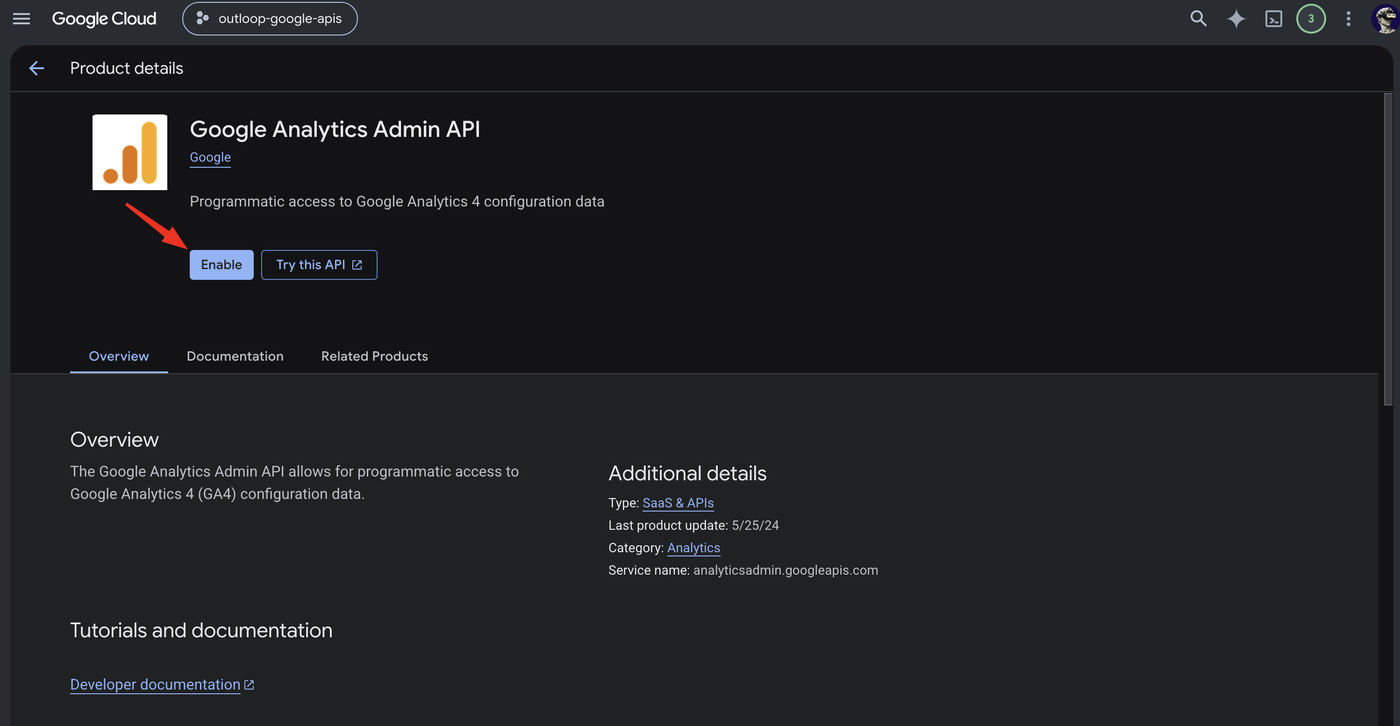
In Google Cloud Console, open APIs & Services → Library, search Google Analytics Admin API, and click Enable. This is the configuration API (account and property summaries).
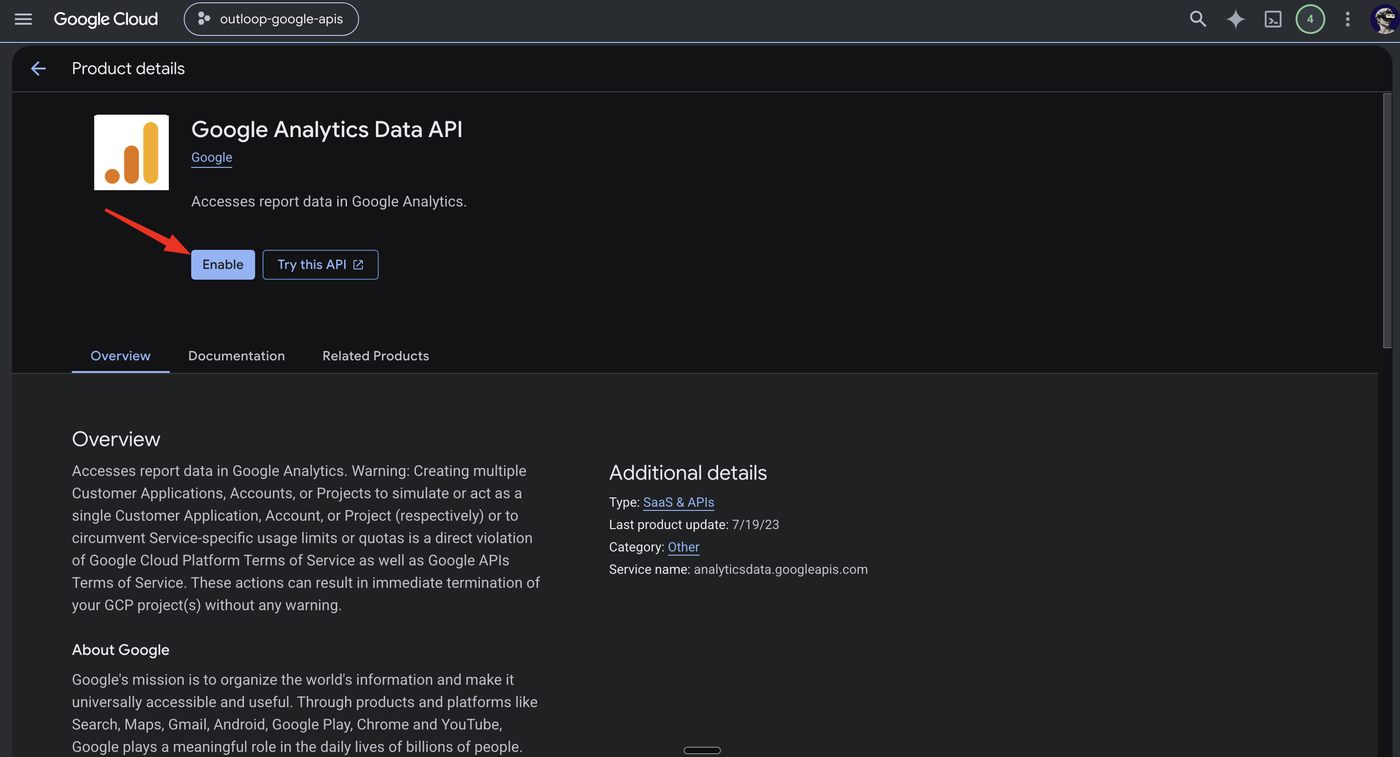
Go back to the Library, search Google Analytics Data API, and click Enable. This is the report-data API.
2. Create an OAuth client
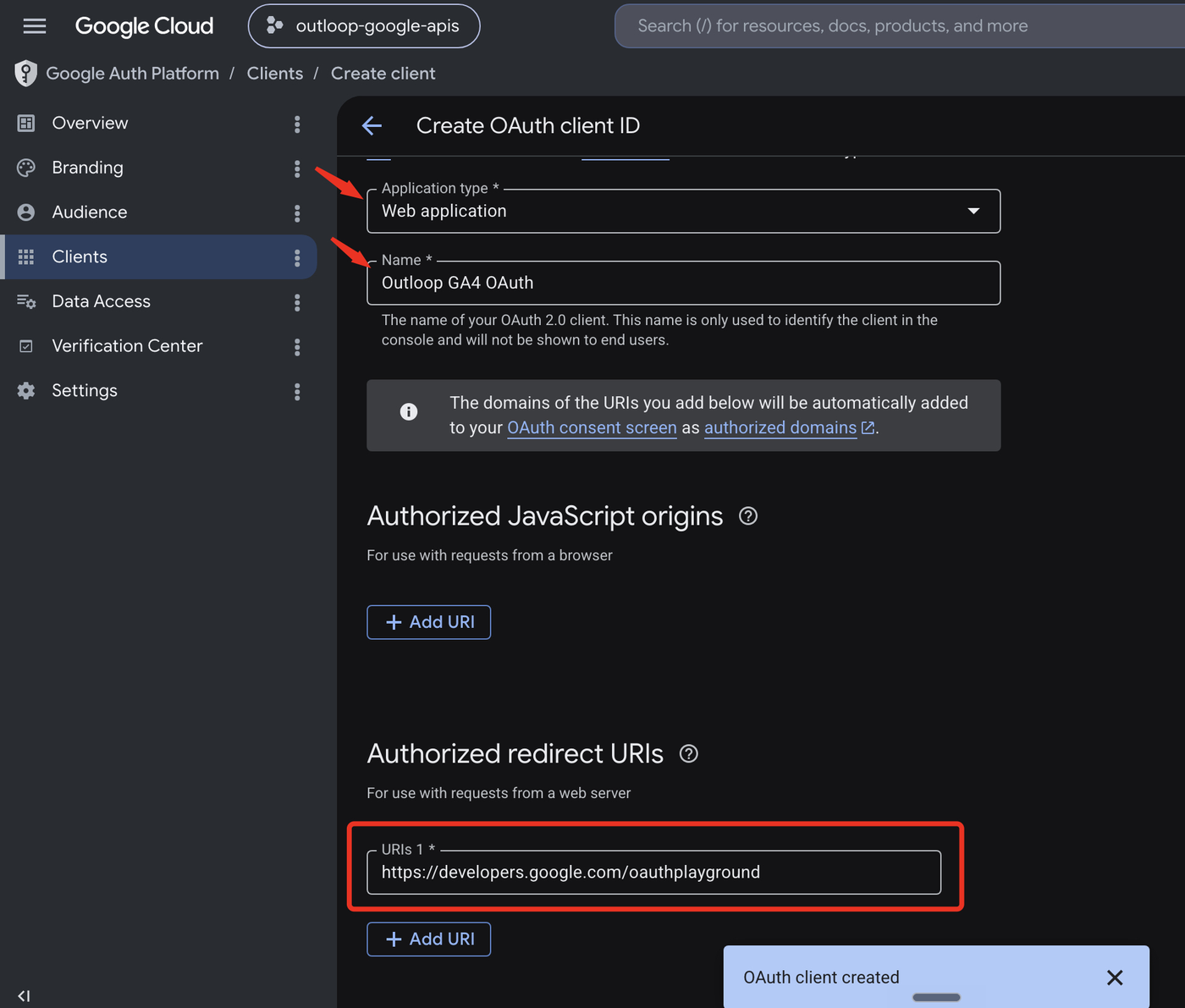
In Google Auth Platform → Clients, create a new OAuth client. Choose Application type: Web application, name it Outloop GA4 OAuth, leave Authorized JavaScript origins empty, and under Authorized redirect URIs add the OAuth Playground URL:
https://developers.google.com/oauthplayground
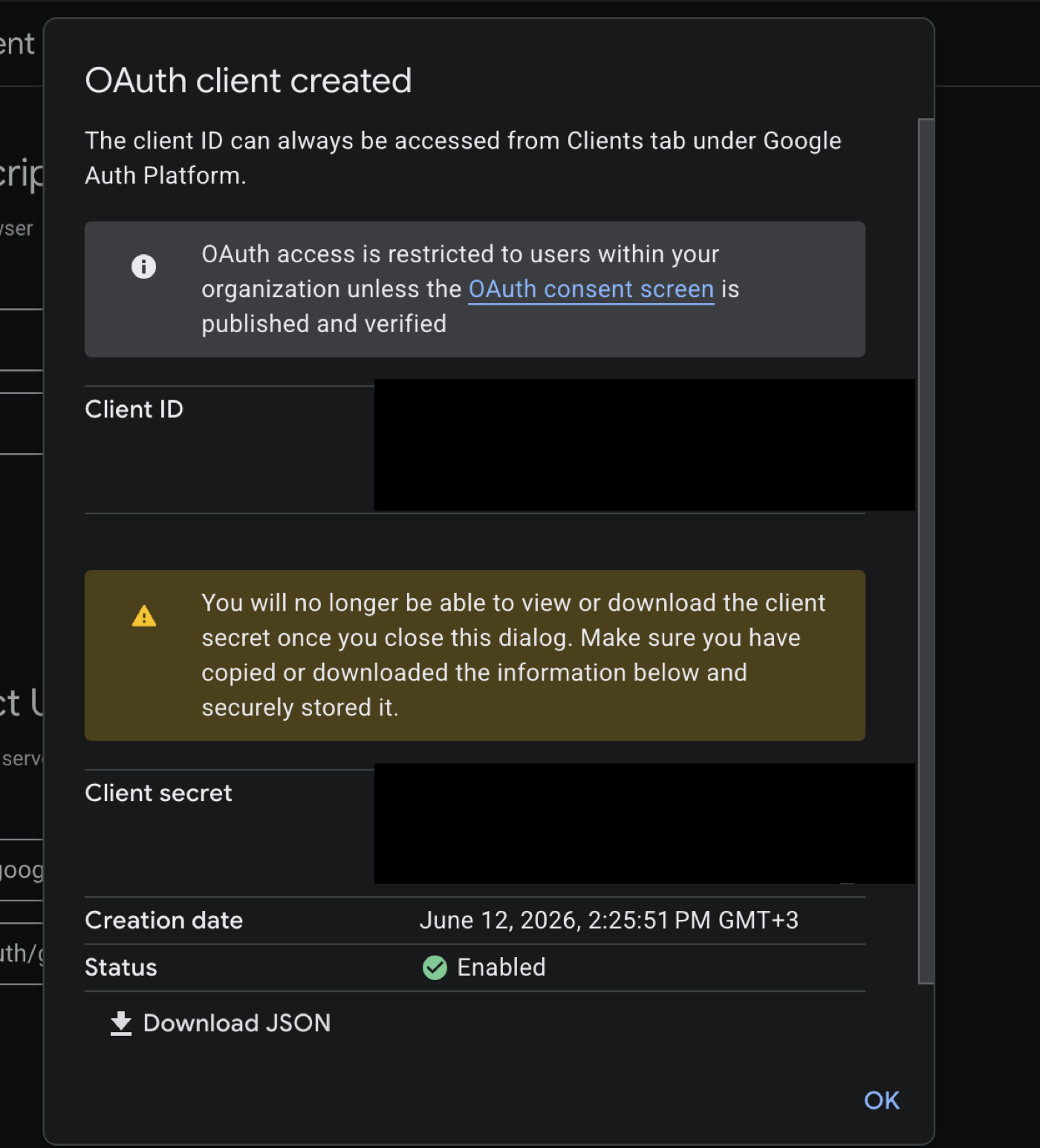
Click Create, then copy the Client ID and Client secret from the dialog.
3. Get a refresh token (OAuth Playground)
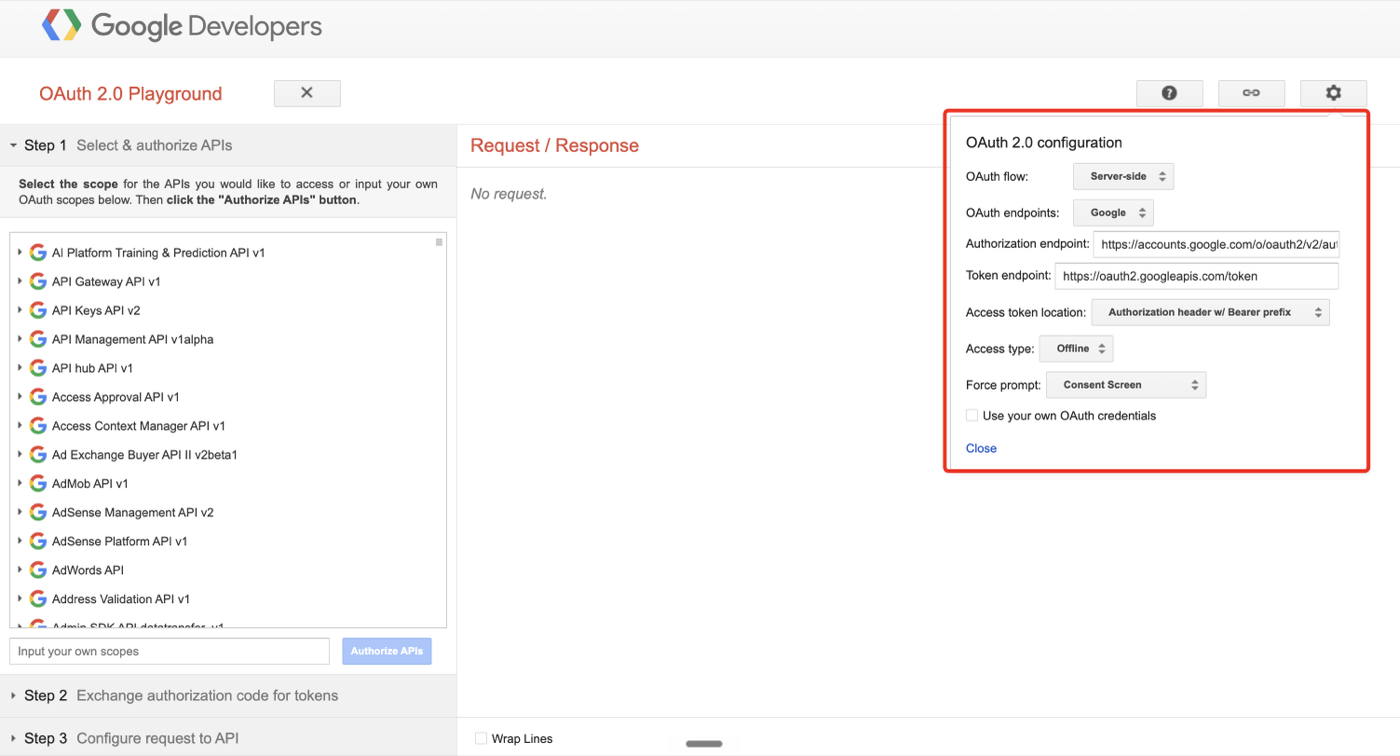
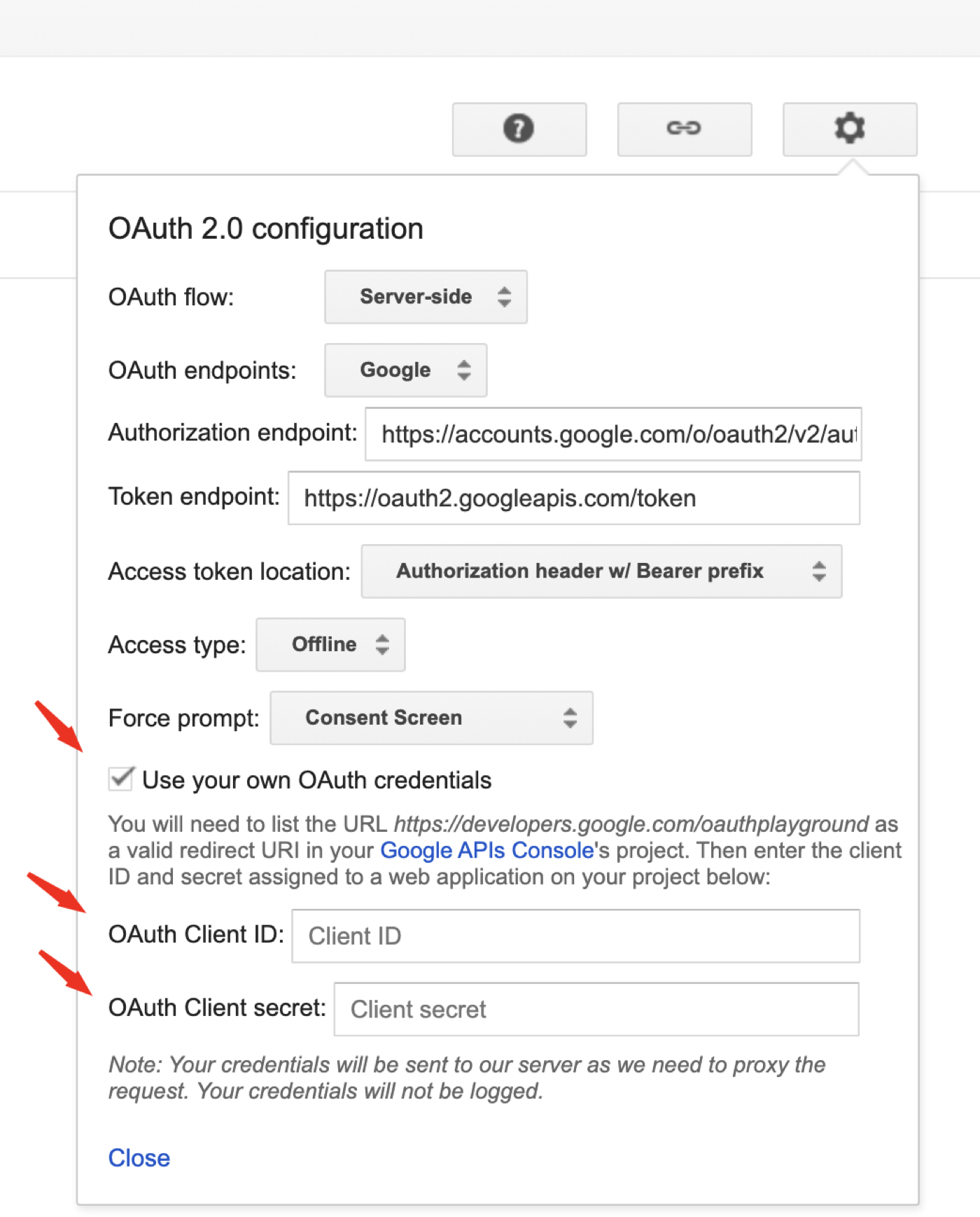
Open developers.google.com/oauthplayground, click the gear icon, and set: OAuth flow Server-side, Access type Offline, Force prompt Consent Screen, and check Use your own OAuth credentials. Paste the Client ID and Client secret (do not screenshot the pasted secret).
In Step 1, paste the Analytics scopes into Input your own scopes and click Authorize APIs:
https://www.googleapis.com/auth/analytics.readonly   (read-only, recommended for the first proof)

# or, for approved GA4 Admin writes:
https://www.googleapis.com/auth/analytics.edit
https://www.googleapis.com/auth/analytics
analytics.edit +
analytics only if you want approved GA4 Admin write
actions. Outloop still keeps deletes and Measurement Protocol blocked by runtime policy.
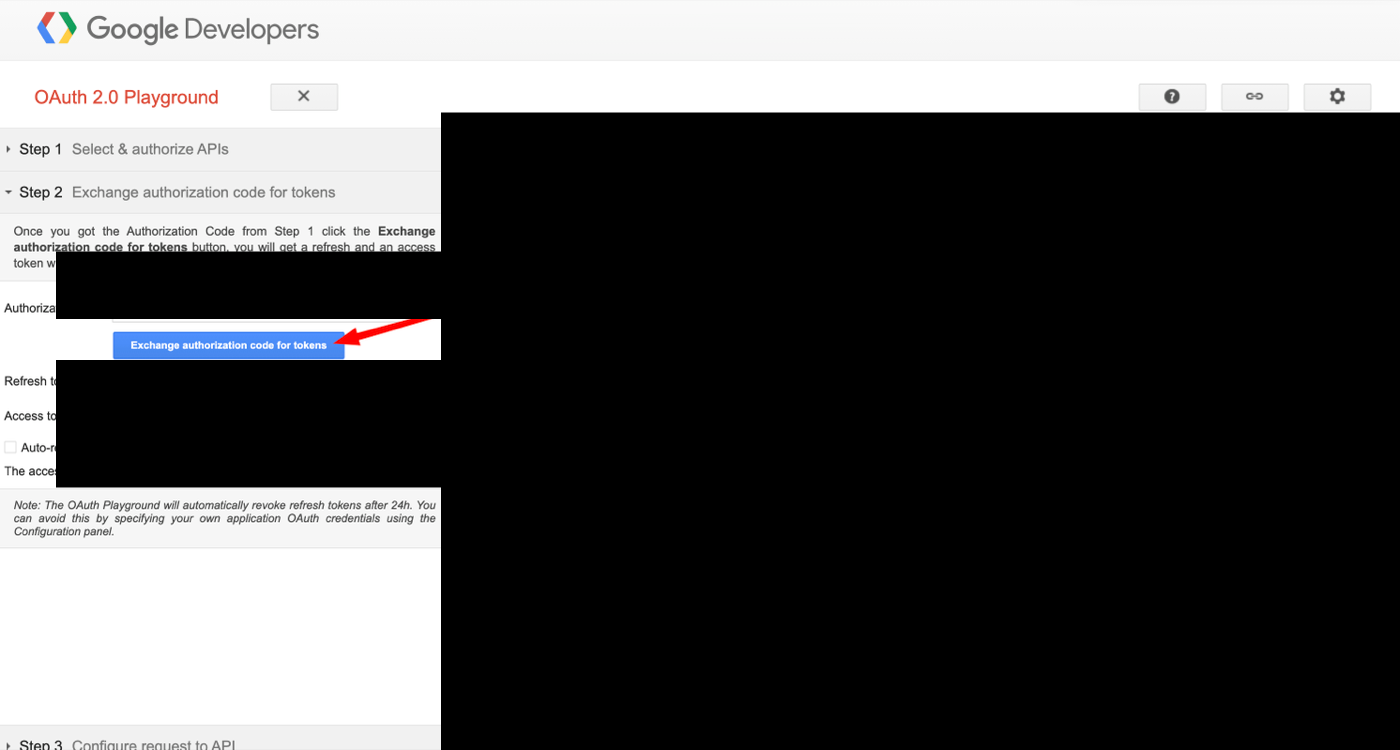
After approving the Google consent screen, OAuth Playground returns to Step 2. Click
Exchange authorization code for tokens and copy the
refresh_token (do not screenshot or publish it).
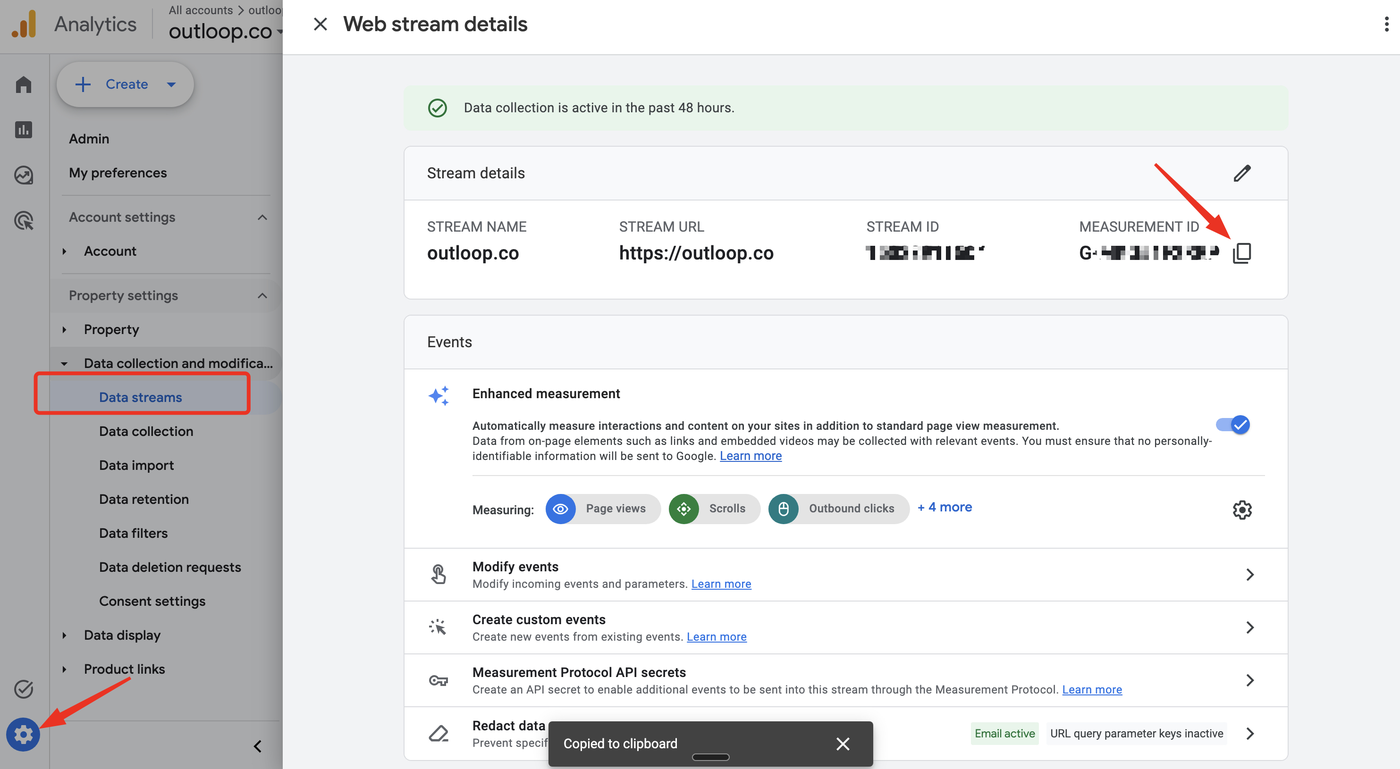
4. Find the numeric GA4 Property ID
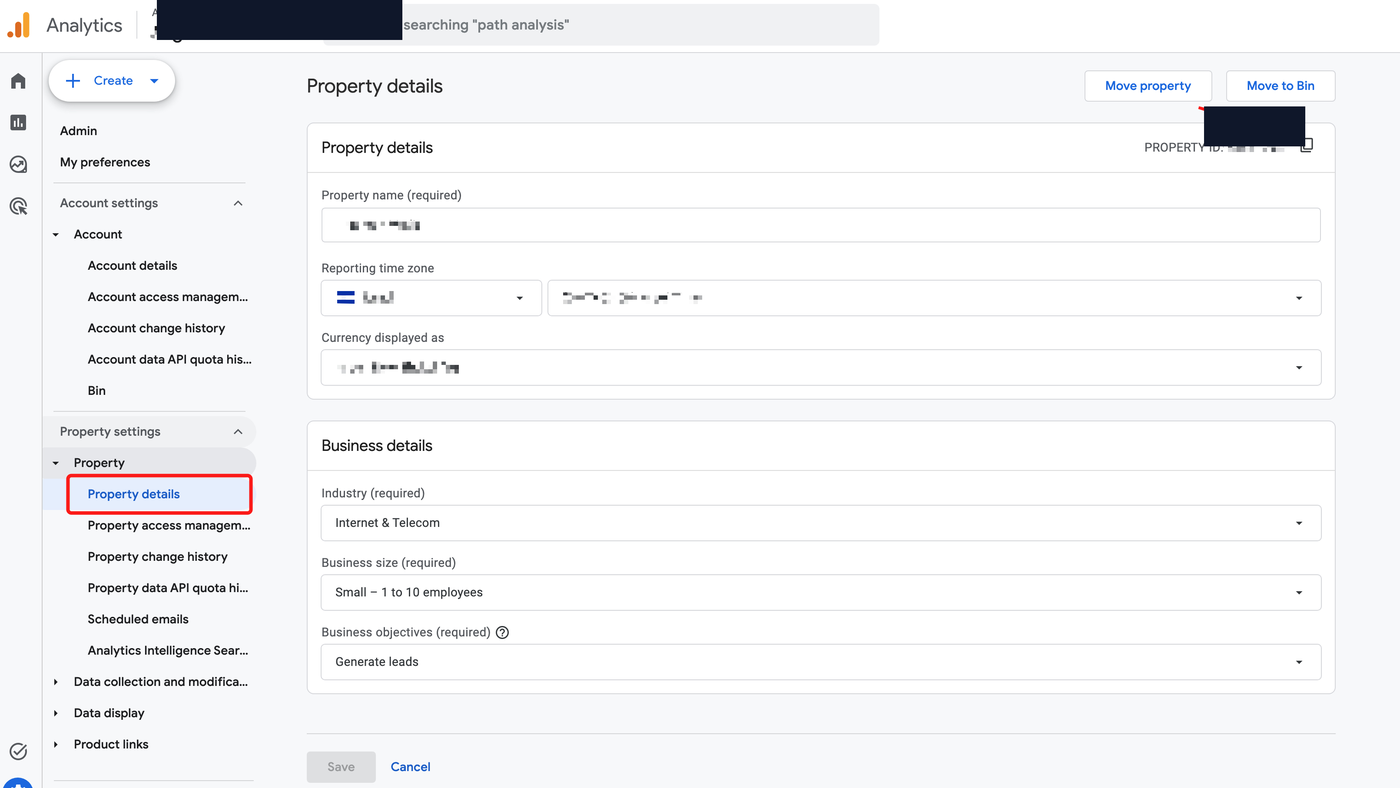
Outloop needs the numeric Property ID — not the
G-… Measurement ID. In Google Analytics, open
Admin → Property details. The numeric
PROPERTY ID is at the top right — click the copy icon to copy it.
Correct (numeric Property ID):  540642806
Wrong (Measurement ID):         G-XXXXXXXXXX
G-… Measurement ID — that belongs to the web stream tag, not the API. Go to
Property details and copy the numeric Property ID instead.
5. Add Google Analytics GA4 in Outloop
In Outloop, open API Access → Add an API key and choose Google Analytics GA4. Use Agency-global / shared when the same Google user can access multiple GA4 properties and you want to grant workspaces over time — tick the workspace that should use it. Outloop still pins runtime use to the specific numeric GA4 Property ID you enter.
6. Fill the OAuth fields and set up
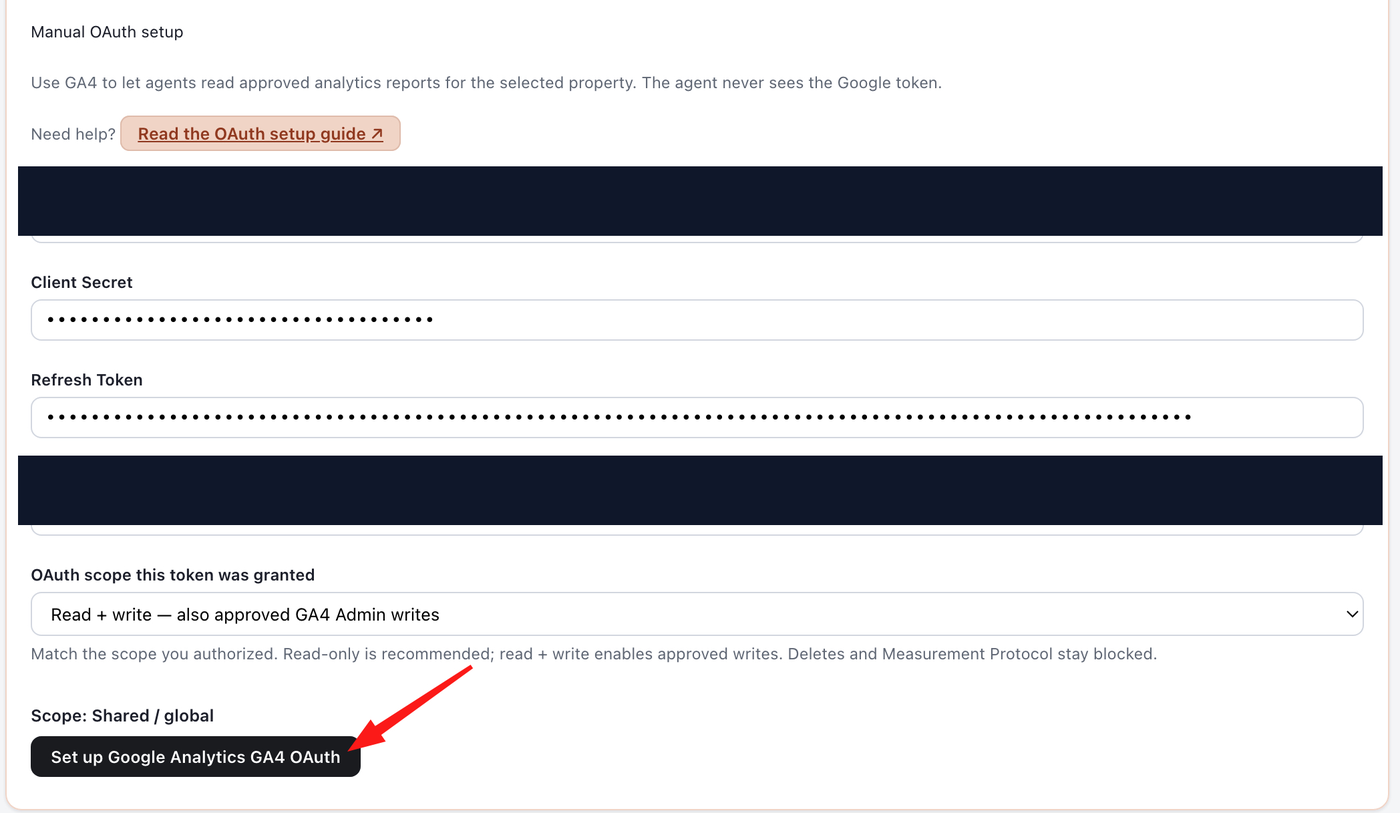
Paste the values you collected, then click Set up Google Analytics GA4 OAuth:
- →Client ID and Client Secret from Google Cloud.
- →Refresh Token from the OAuth Playground.
- →GA4 property ID — the numeric ID only (e.g.
540642806), never theG-…Measurement ID. - →OAuth scope — match the scope you authorized. Read-only is recommended; Read + write enables approved GA4 Admin writes (deletes and Measurement Protocol stay blocked).
7. View the stored key
Outloop confirms the credential is stored in macOS Keychain with
secret_exposed: false. Click
View in stored keys to open the key row and copy the workspace run prompt.

8. Run the first proof
Paste the workspace run prompt into your agent. The first proof verifies GA4 access through Outloop with a read of your account and property summaries:
GET /v1beta/accountSummaries
A successful, verified Outloop proof looks like this:
decision / code: allow / OK
HTTP status: 200
service: google_analytics
secret_exposed: false
GA identity: accountSummaries[].propertySummaries[].property = properties/PROPERTY_ID
runtime-verified: yes
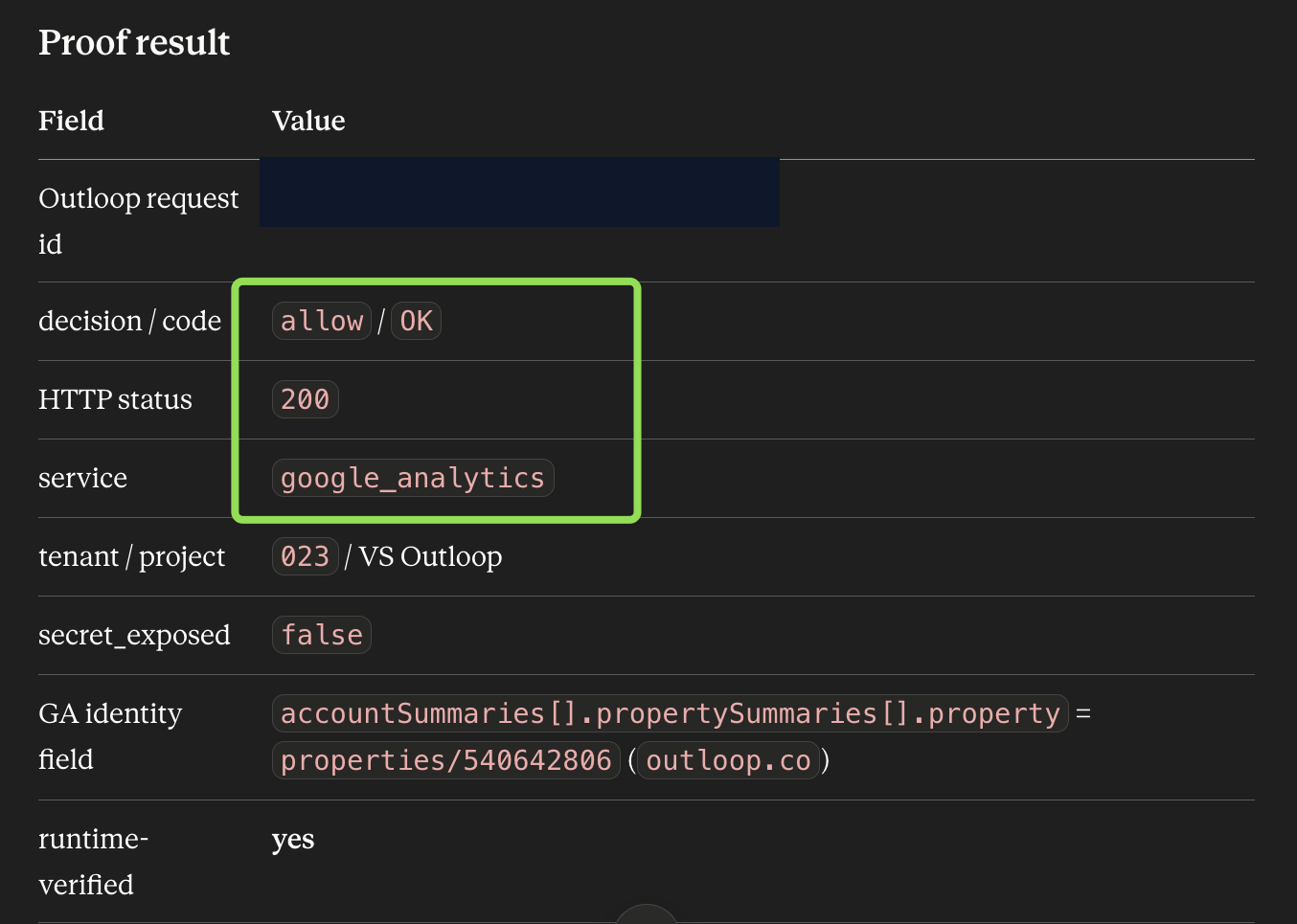
The setup is complete when the proof shows runtime-verified: yes
and secret_exposed: false. Your agent can now use
Google Analytics GA4 through Outloop; the Google OAuth credential stays in macOS Keychain, and the agent never
sees the refresh token or access token.
Verified vs not claimed yet
- Verified GA4 read access through Outloop:
accountSummariesreturned HTTP 200 with decision allow, an audit entry, the property identity (properties/{property_id}), andsecret_exposed: false. - Supported, not verified yet GA4 Admin write actions under the wider
analytics.editscope: permitted through bridge policy when authorized, but not runtime-verified in this guide.
Troubleshooting
I pasted a value that starts with G-
That is the Measurement ID, not the GA4 Property ID. Go to Admin → Property details and copy the numeric Property ID (e.g. 540642806).
I do not see a refresh token
In the OAuth Playground, confirm Use your own OAuth credentials is checked, Access type is Offline, Force prompt is Consent Screen, and the redirect URI in Google Cloud is exactly https://developers.google.com/oauthplayground. Then authorize again.
The proof returns 403
Usually the Google user who created the refresh token does not have access to that GA4 property, or the wrong OAuth scope was authorized. Confirm the user's GA4 access and that the scope in Outloop matches the scope you authorized in the OAuth Playground.
The proof shows a config issue
Check that both the Admin API and the Data API are enabled, the client ID and secret are correct, the refresh token is pasted, the Property ID is numeric, and the scope in Outloop matches the scope authorized in the OAuth Playground.
Adding another GA4 property
Reuse the same Google Cloud project and OAuth client if the same Google user has access. In Outloop, add another Google Analytics GA4 entry or assign the shared connector to the right workspace, and always pin the correct numeric GA4 Property ID.
Outloop is available with guided onboarding for agency teams. Outloop is an independent tool and is not affiliated with or endorsed by Google. See the security model, the Google Search Console setup guide, or the Google Ads API setup guide.
Once the read proof succeeds, your agent can use Google Analytics GA4 through Outloop — without seeing the OAuth token.
Outloop is available with guided onboarding for AI agencies, operators, and dev shops.