Learn · Setup guides
How to Connect Google Drive API and Shared Drives to AI Agents with Outloop
Last updated:
In short
Google Drive uses OAuth, not an API key — and Outloop keeps the whole OAuth credential away from the agent.
You enable the Google Drive API, add a Drive scope, create one Google Cloud OAuth client, and exchange it for a refresh token in the OAuth Playground. Outloop stores the credential in macOS Keychain, pins each workspace to an optional Drive folder or Shared Drive, and agents use approved Drive access through the API Bridge without ever seeing the client secret, refresh token, or access token.
What this setup gives you
You will enable the Google Drive API in Google Cloud, add a Drive scope, create an OAuth client for the OAuth Playground, generate a refresh token, and store the credential in Outloop — with an optional Drive folder and Shared Drive pin per workspace. After that, AI agents get full approved Google Drive and Shared Drive access through Outloop: the OAuth credential stays in macOS Keychain, is used on the wire host-side, and never appears to the agent, in chat, logs, repos, or project files.
client_secret, refresh_token,
access_token, authorization code, or Authorization header. Their only
destination is the Outloop Mac app — never Outloop Cloud, the website, chat, docs, or
.env files. Every screenshot in this guide has the credential fields redacted.
What you need before starting
- ✓Access to a Google Cloud project.
- ✓A Google account with access to the Drive content — for Shared Drives, that account must be a member of the Shared Drive.
- ✓Outloop installed and activated, with a workspace selected.
1. Enable the Google Drive API
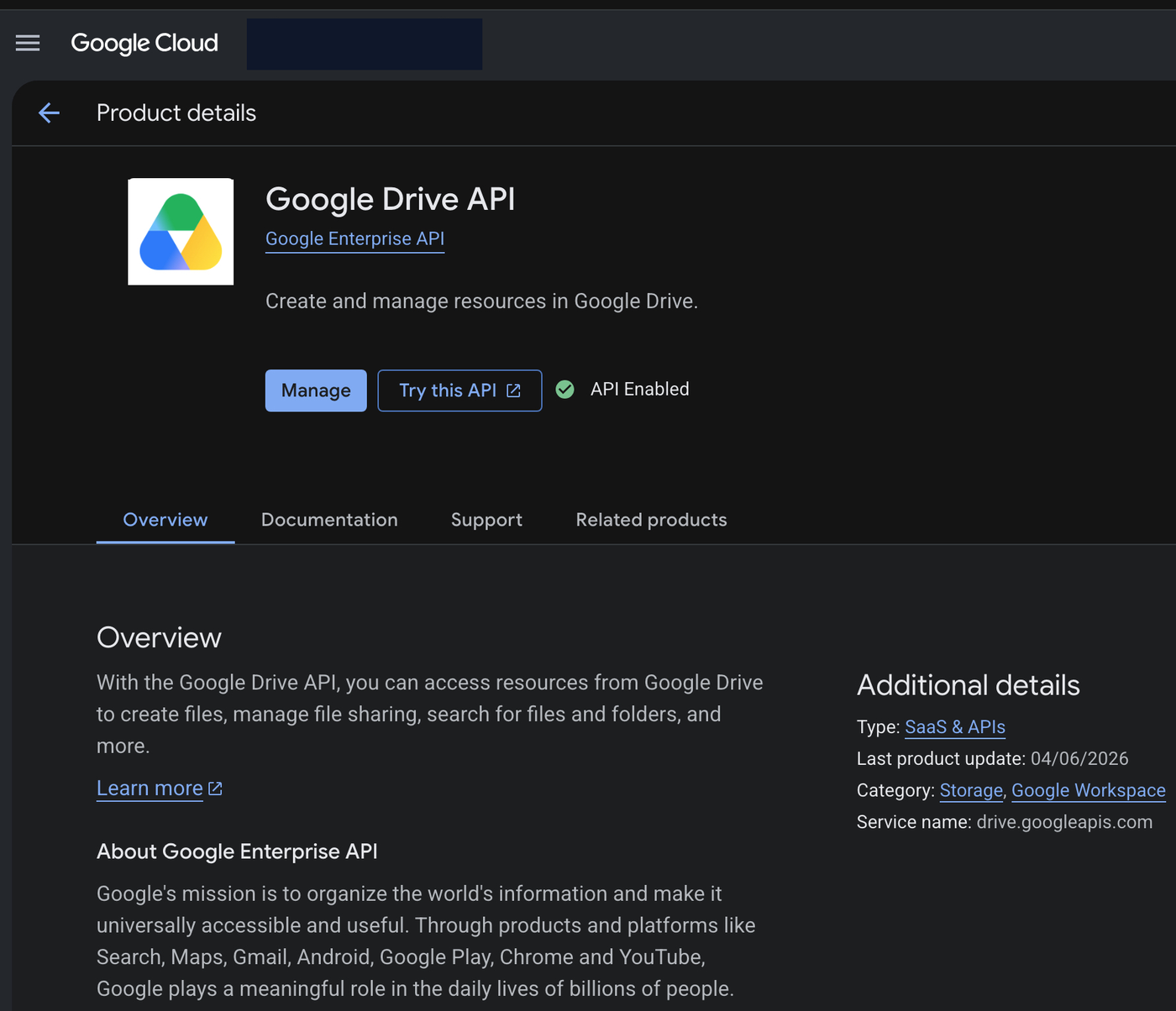
In Google Cloud Console, open APIs & Services → Library, search
Google Drive API, and click
Enable. The product page confirms with a green
API Enabled badge (service name
drive.googleapis.com).
2. Add the Drive scope
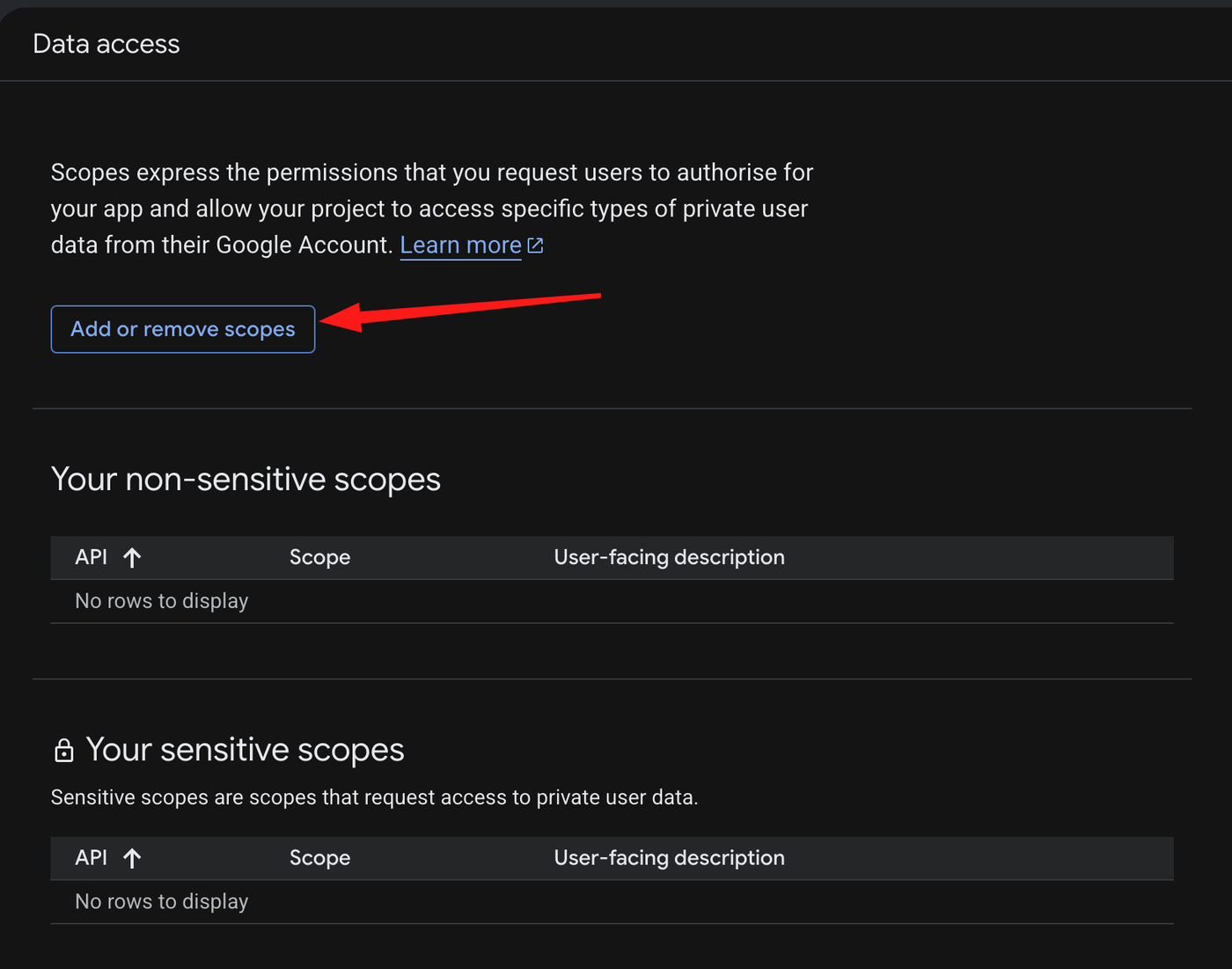
In Google Auth Platform → Data access, click Add or remove scopes.
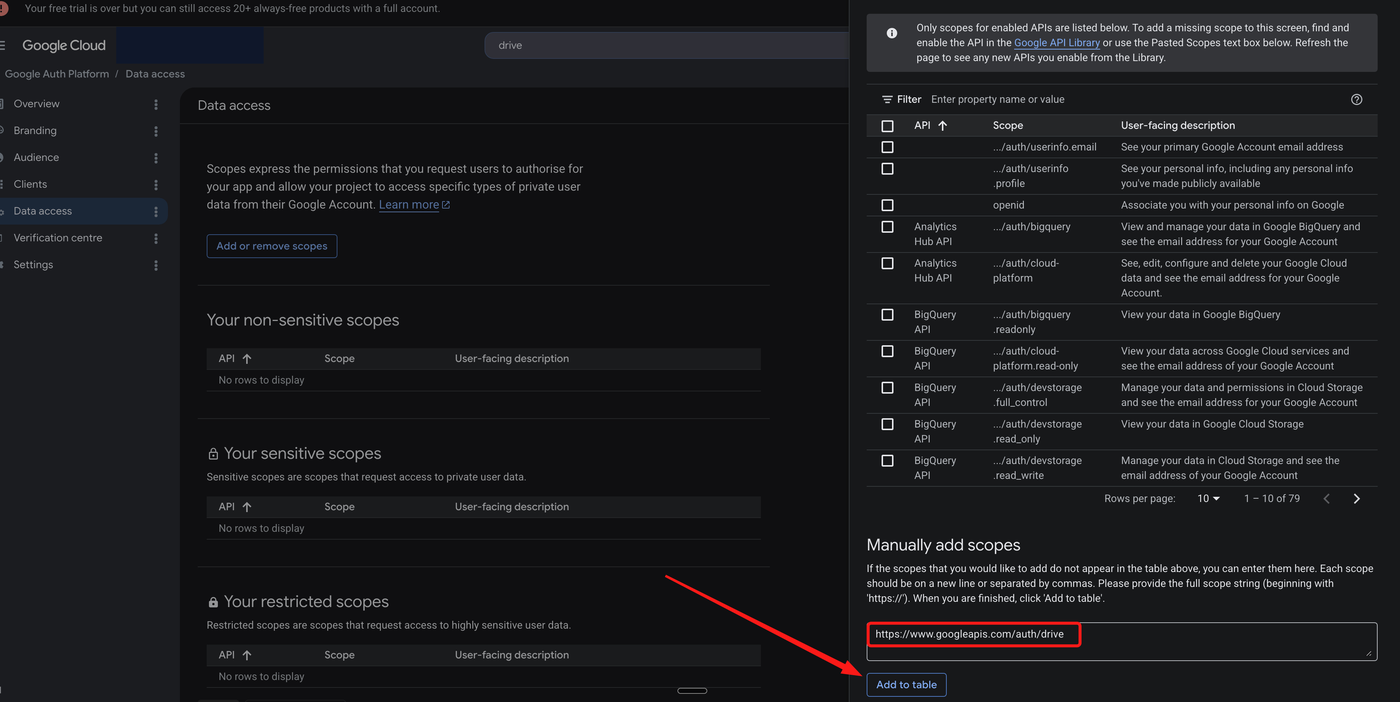
In the panel, scroll to Manually add scopes, paste the full Drive scope, and click Add to table, then Update:
https://www.googleapis.com/auth/drive
auth/drive scope lets agents work with existing
files and Shared Drive content, and Google classes it as a restricted scope. If your agents only
need files they create or open themselves, the narrower
auth/drive.file scope is Google's recommended
tier — Outloop's default mode. Whichever you authorize here must match the scope tier you pick in Outloop
in step 5.
3. Create the OAuth client
In Google Auth Platform → Clients, create a new OAuth client. Choose Application type: Web application, give it a recognisable name, and under Authorised redirect URIs add the OAuth Playground URL:
https://developers.google.com/oauthplayground
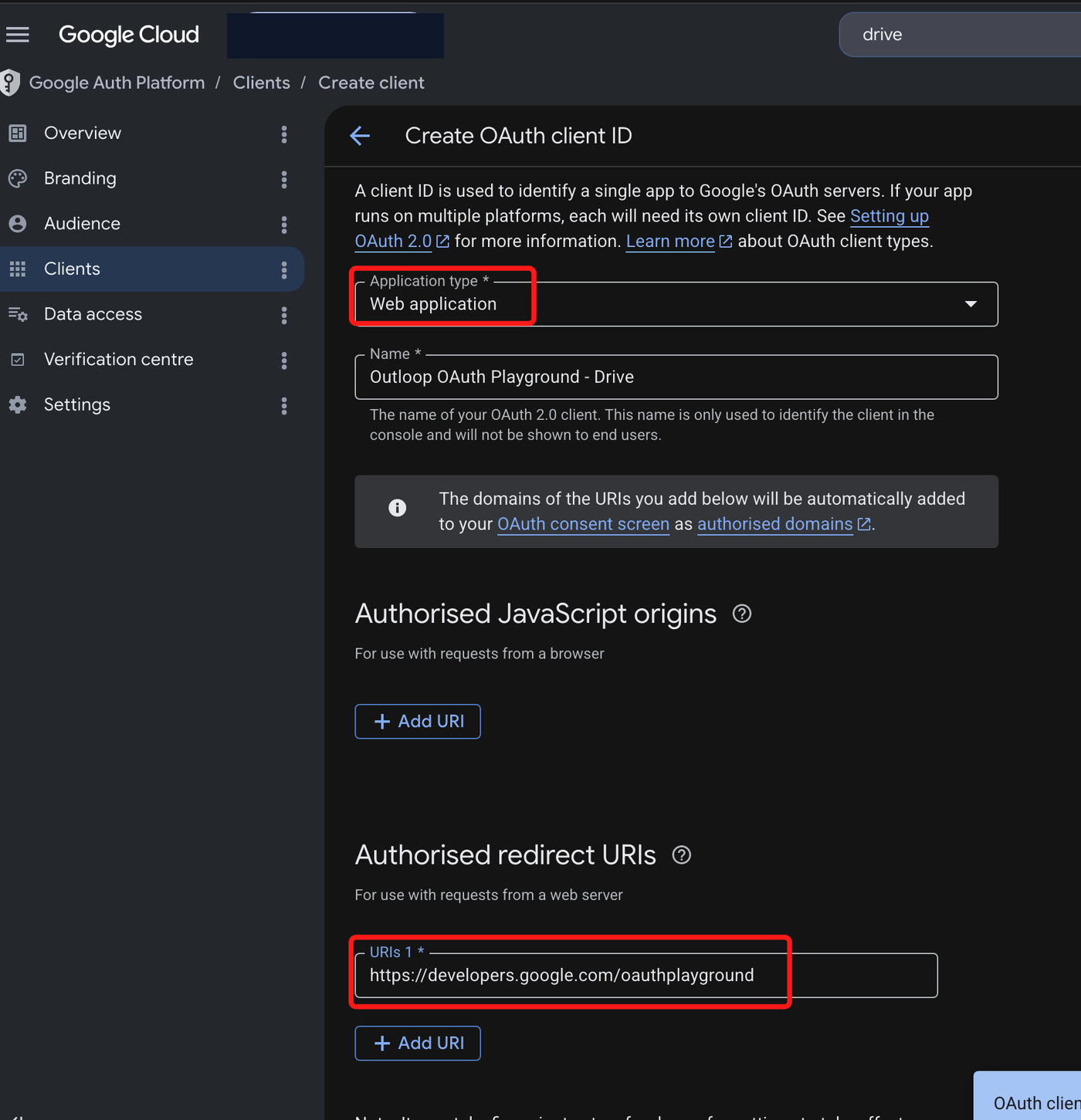
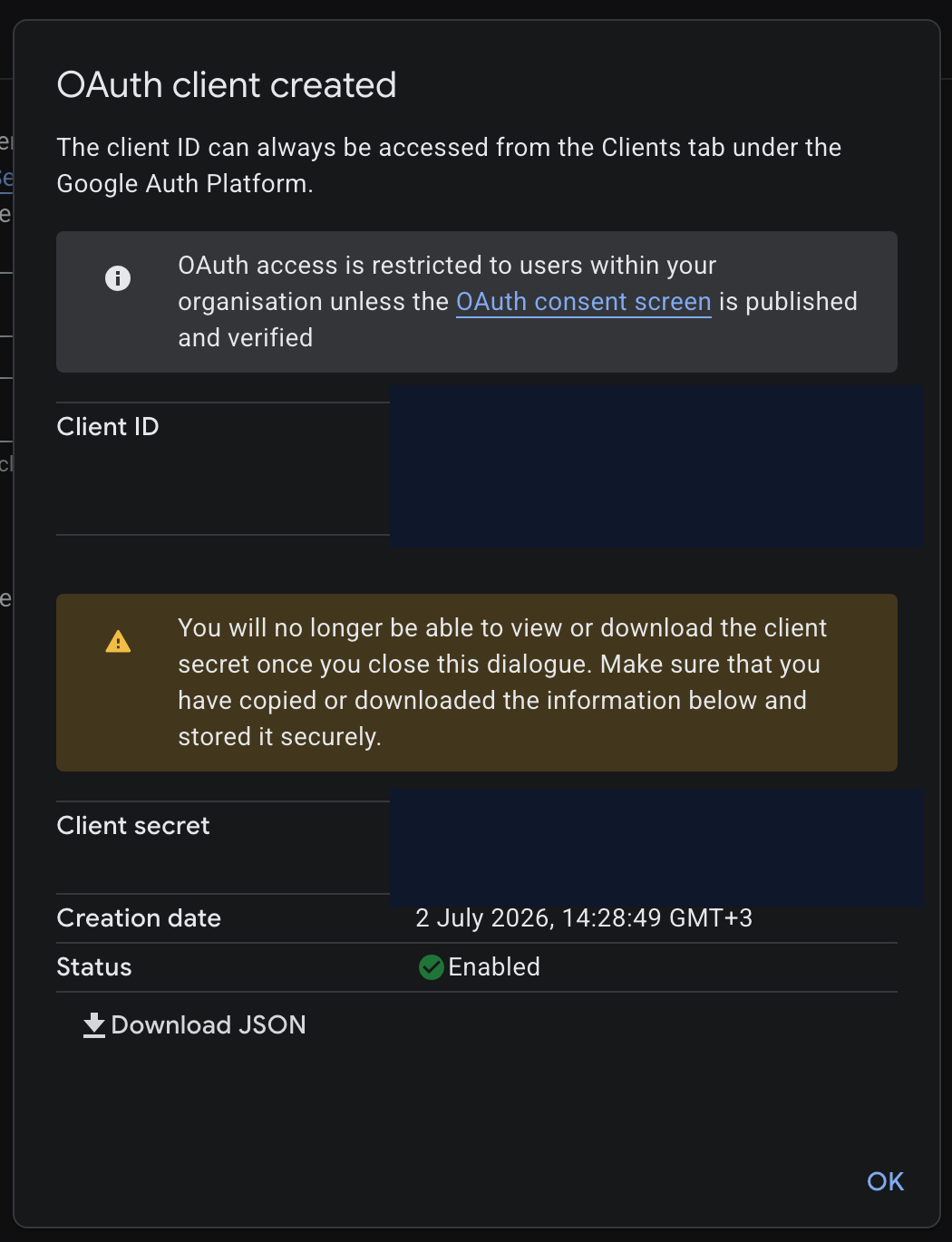
Click Create. The confirmation dialog shows the Client ID and Client secret — copy both now.
4. Get a refresh token (OAuth Playground)
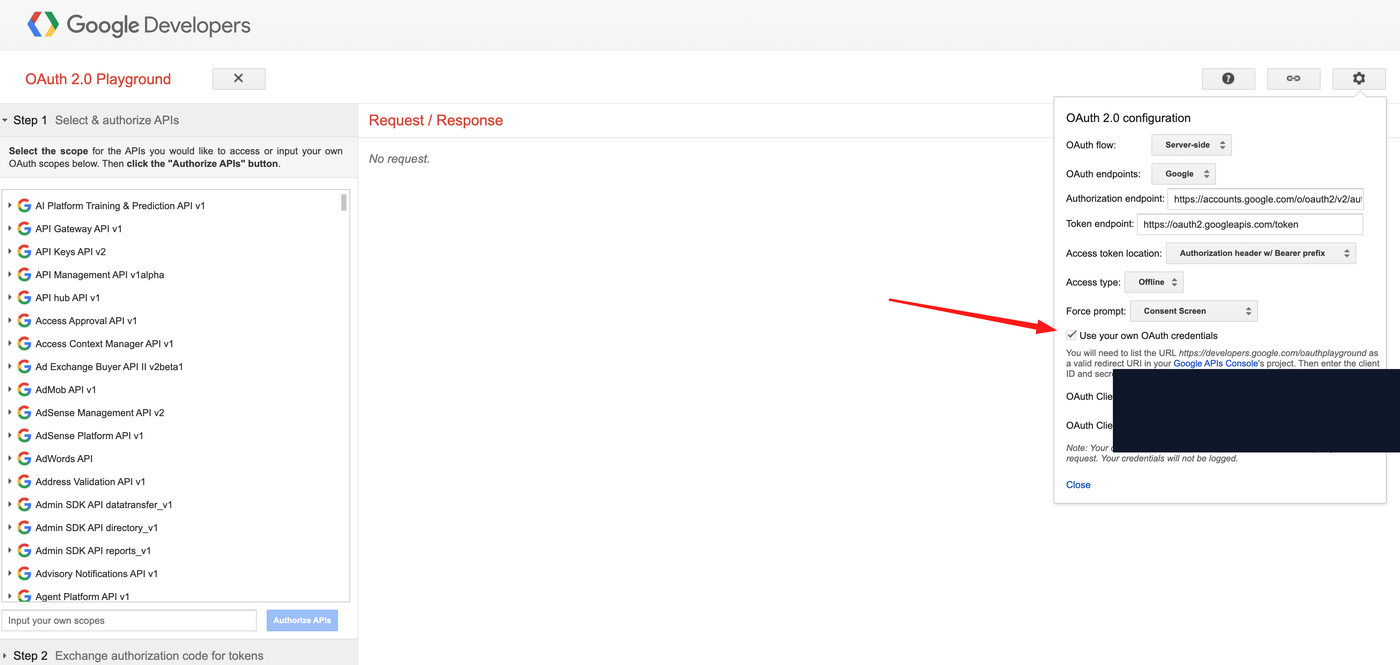
Open developers.google.com/oauthplayground, click the gear icon, and set: Access type Offline, Force prompt Consent Screen, and check Use your own OAuth credentials. Paste the Client ID and Client secret from step 3 (do not screenshot the pasted values).
In Step 1, paste the Drive scope you added
(https://www.googleapis.com/auth/drive) into
Input your own scopes and click
Authorize APIs. Sign in with the Google account that has access to
the Drive content and approve the consent screen.
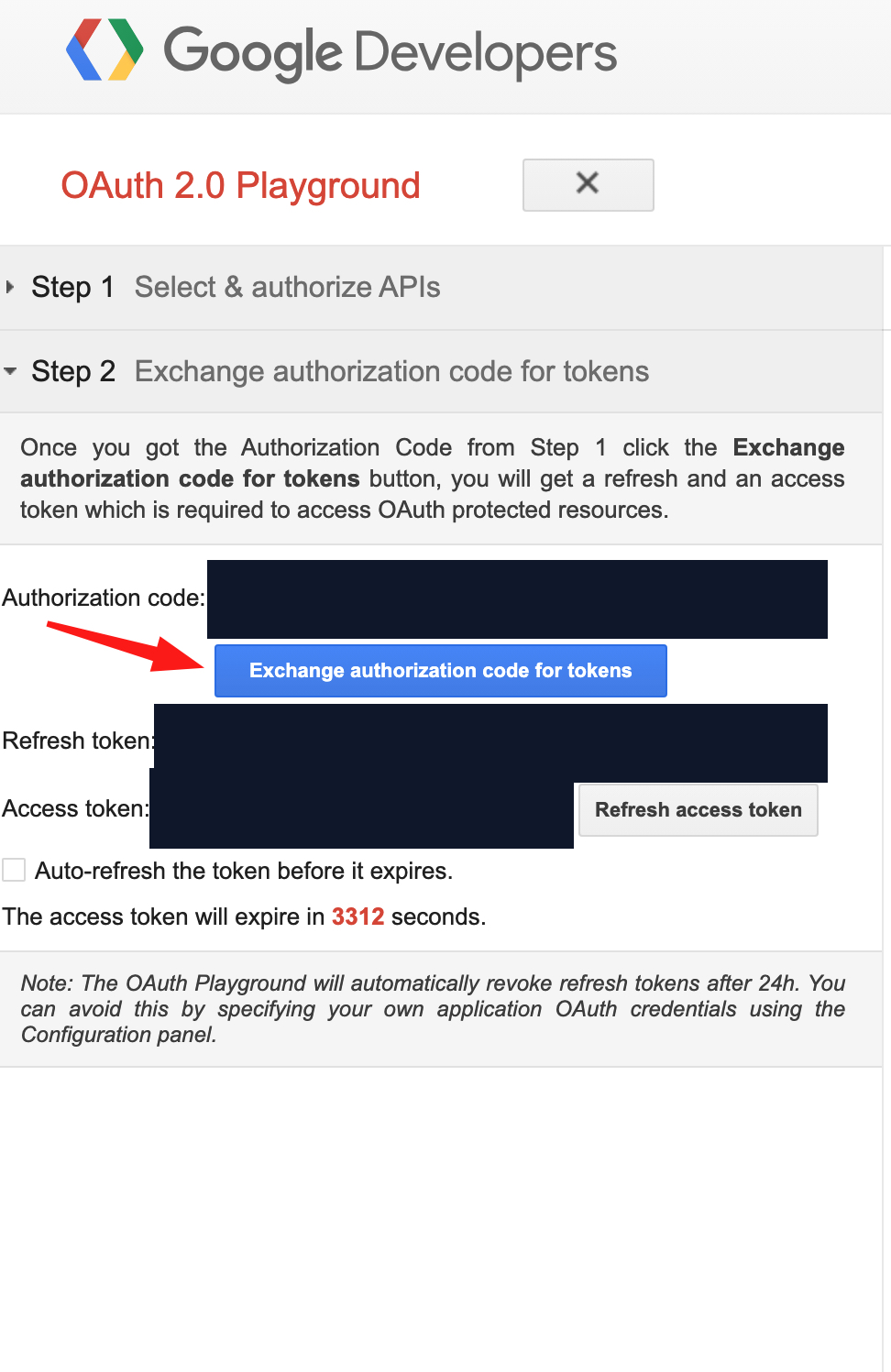
The Playground returns to Step 2 with an authorization code. Click
Exchange authorization code for tokens and copy the
refresh_token (do not screenshot or publish it —
the access token you can ignore; Outloop mints its own).
5. Add Google Drive in Outloop
In Outloop, open API Keys & Access → Add an API key and choose Google Drive from the Google Workspace Pack. Pick the workspace scope — Workspace-dedicated for one client, or shared if several workspaces will use the same Google account (shared is recommended for Google Drive).
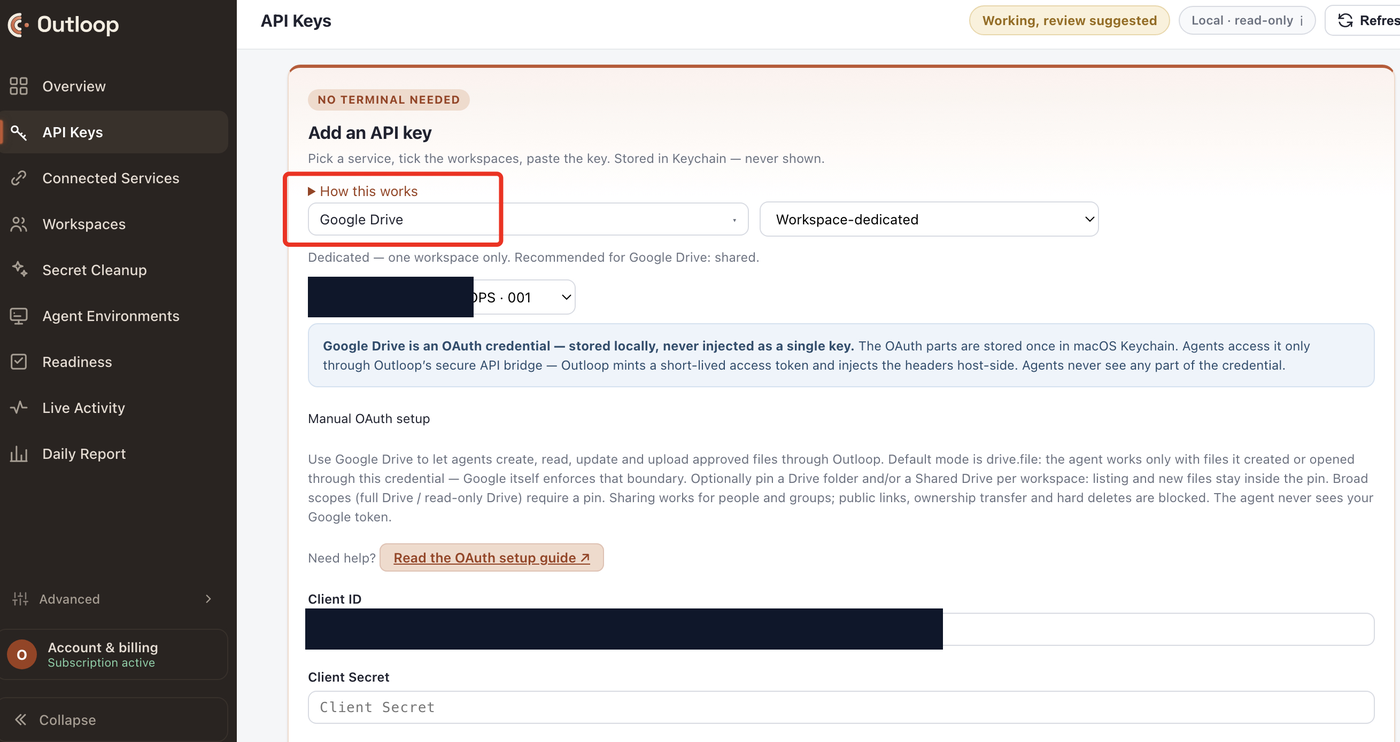
Under Manual OAuth setup, paste the values you collected, then click Set up Google Drive OAuth:
- →Client ID and Client Secret from Google Cloud (step 3).
- →Refresh Token from the OAuth Playground (step 4).
- →Drive folder ID — optional; from the folder URL, bounds the workspace to one folder.
- →Shared Drive ID — optional; bounds the workspace to one Shared Drive (step 6).
- →OAuth scope this token was granted — must match what you authorized in the Playground.
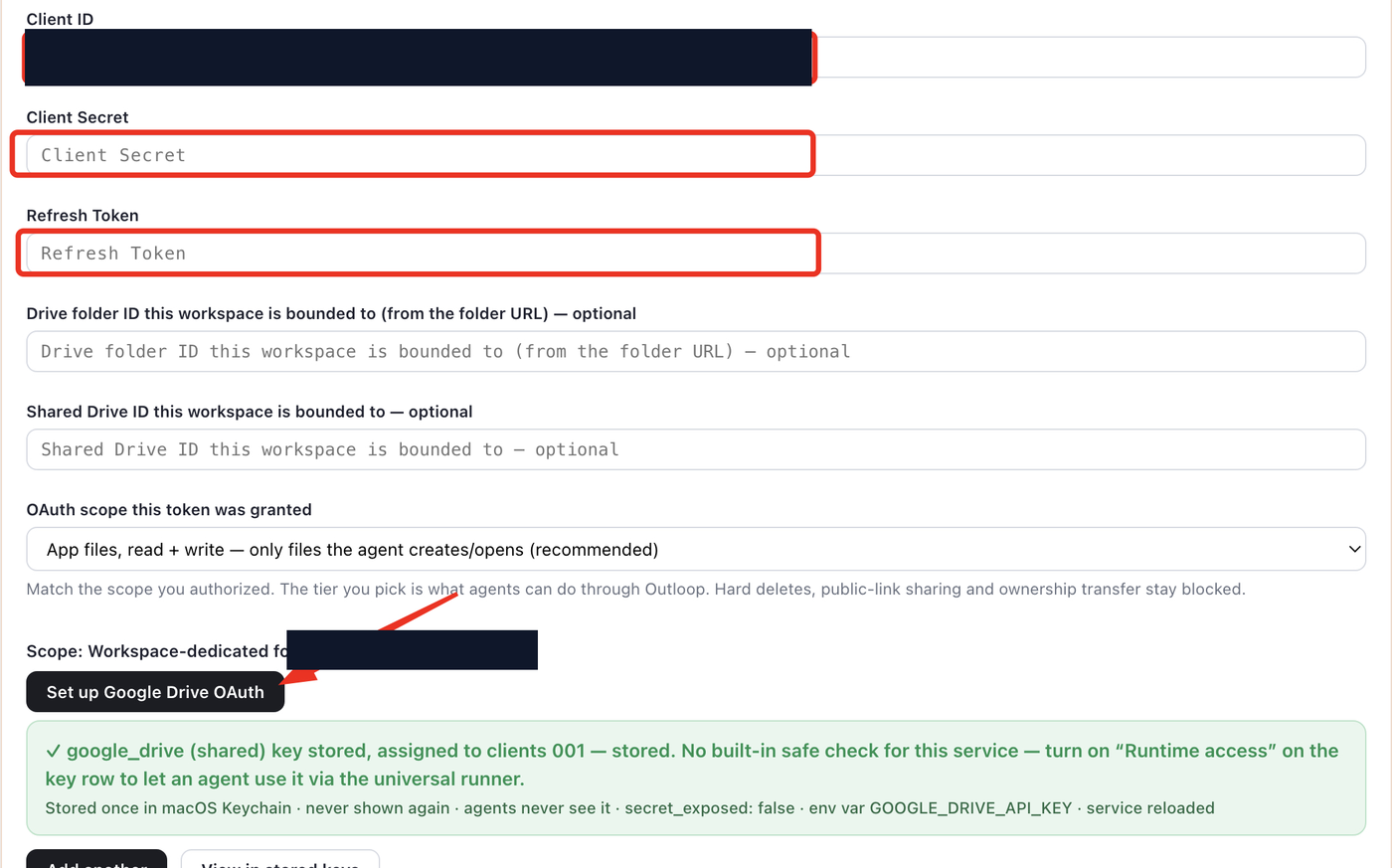
secret_exposed: false. Turn on
Runtime access on the key row to let agents use it.
6. Shared Drives: pin the boundary
Outloop supports Google Shared Drives when the connected Google user has access to the Shared Drive — Shared Drive membership is enforced by Google itself, so a credential from a user who is not a member cannot reach it.
- →Use
shared_drive_idto set the Shared Drive boundary for the workspace: listing and new files stay inside that Shared Drive. - →Optionally add
drive_folder_idfor a folder inside the Shared Drive when the workspace should be narrower than the whole drive. - →The IDs come from the Drive URL: open the Shared Drive (or folder) in your browser and copy the ID segment after
/drive/folders/.
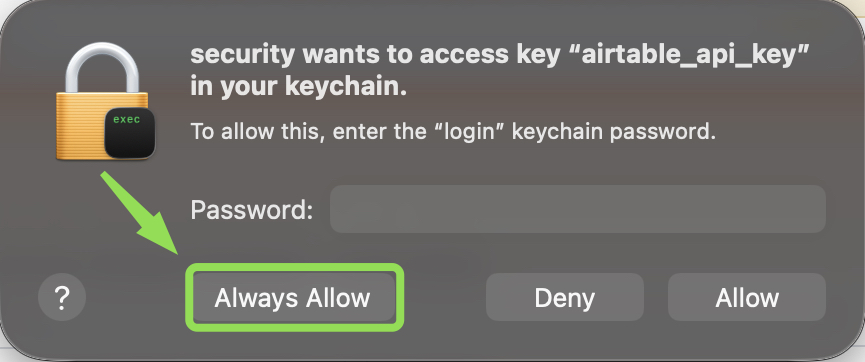
7. macOS Keychain: click Always Allow
The first time Outloop reads a stored credential from macOS Keychain, macOS shows a permission dialog naming the key being read. Click Always Allow. If you click Allow instead, macOS asks again on every read — and if the prompt is dismissed, runtime access can fail even though the credential is stored correctly.
8. Real proof: copy into a Shared Drive
This setup was verified with a real write through Outloop: an agent asked Outloop to copy a test image into a team Shared Drive. The request went through the API Bridge, the credential was used on the wire host-side, and the copy succeeded:
POST /drive/v3/files/{fileId}/copy?supportsAllDrives=true
HTTP 200
secret_exposed: false
The copied file appeared inside the pinned team Shared Drive, and the audit entry shows the allow decision
with secret_exposed: false — the agent used the
credential's capability without ever seeing the credential.
GET /drive/v3/about?fields=user
confirms access without changing any data. A proof only counts when it goes through Outloop and returns
secret_exposed: false — a result from an MCP, an
SDK, or the Drive UI proves nothing about Outloop access.
What the Drive API can do through Outloop
Under the authorized scope, the Drive API v3 covers the full file lifecycle. Shared Drive operations use the
same endpoints with supportsAllDrives=true (and
driveId +
includeItemsFromAllDrives=true when listing).
Reads
- ✓Search and list files and folders (
files.list), including inside a Shared Drive. - ✓Read metadata (
files.get), download content, and export Google Docs/Sheets/Slides to standard formats.
Writes
- ✓Create and upload files (
files.create), update content and metadata (files.update), move between folders. - ✓Copy files (
files.copy) — including into a Shared Drive, as verified above. - ✓Share to specific people and groups (
permissions.create).
Blocked by Outloop runtime policy
- ✕Public-link sharing ("anyone with the link").
- ✕Ownership transfer.
- ✕Hard deletes.
Verified vs not claimed yet
- Verified Copying a test image into a team Shared Drive through Outloop:
POST /drive/v3/files/{fileId}/copyreturned HTTP 200 withsecret_exposed: falseand an audit entry. - Supported, not verified yet The rest of the Drive API v3 surface (search, download, export, upload, update, sharing to people/groups): supported by the API and permitted through bridge policy under the authorized scope, but not runtime-verified in this guide.
- Not claimed Public-link sharing, ownership transfer, and hard deletes are blocked by runtime policy — this guide makes no claim that agents can perform them through Outloop.
Google Drive API through Outloop vs the Drive MCP
Google offers a remote Google Drive MCP server (currently part of the Google Workspace Developer Preview Program) with eight tools for searching, reading, creating, copying, and downloading files. MCP can be a useful path; the comparison below is specific to Google Drive and to what is actually live in this workspace.
| Area | Drive API through Outloop | Google Drive MCP |
|---|---|---|
| Live in this workspace | Live now The API path is the only Google Drive path connected here. | Not connected here Google offers a remote Drive MCP server (Google Workspace Developer Preview), but it is not connected in this workspace. |
| Verified in this guide | Verified in this guide Proven with a real Shared Drive copy through Outloop (HTTP 200, secret_exposed: false). | Not verified here |
| Auth model | OAuth client + refresh token stored in macOS Keychain; Outloop mints short-lived access tokens host-side. | OAuth 2.0 session between the AI application and Google; token handling depends on the client. |
| Raw secret exposure to the agent | Secret-safe The credential is used on the wire; the agent never sees the client secret, refresh token, or access token. | Depends on the connector/OAuth session model. |
| Audit trail | Audited Every API Bridge request is auditable through Outloop. | Not through Outloop. |
| Workspace / client routing | Workspace-scoped Folder and Shared Drive pins bound each workspace; wrong-client access is blocked by policy. | Not through Outloop. |
| Read actions | Full Drive API v3 reads under the authorized scope: files.list, files.get, downloads and exports, Shared Drive listing. | search_files, list_recent_files, read_file_content, download_file_content, get_file_metadata, get_file_permissions. |
| Write actions | Drive API v3 writes under the authorized scope and runtime policy: upload, update, copy, move, sharing to people/groups. Public links, ownership transfer, and hard deletes stay blocked. | create_file and copy_file are documented; the toolset is narrower than the raw API. |
Troubleshooting
The refresh token stops working after 7 days
If the OAuth consent screen's publishing status is Testing with an External user type, Google revokes refresh tokens after 7 days. In Google Auth Platform → Audience, publish the app to In production (or use an Internal user type in a Google Workspace organisation), then generate a new refresh token in the Playground and update it in Outloop.
I do not see a refresh token in the Playground
Confirm Use your own OAuth credentials is checked, Access type is Offline, Force prompt is Consent Screen, and the redirect URI in Google Cloud is exactly https://developers.google.com/oauthplayground. Then authorize again.
Requests fail with 403 or "File not found" on a Shared Drive
Usually the connected Google user is not a member of that Shared Drive, or the request is missing supportsAllDrives=true. Confirm the user's Shared Drive membership and that the shared_drive_id pinned in Outloop is the right one.
The agent can create files but cannot read existing ones
The credential was authorized with the drive.file scope, which only covers files the agent created or opened through this credential. For existing files and Shared Drive content, authorize the full auth/drive scope (step 2), generate a new refresh token, and match the scope tier in Outloop.
Runtime access fails even though the key is stored
Check the macOS Keychain prompt was answered with Always Allow (step 7) and that Runtime access is turned on for the Google Drive key row in Outloop.
Outloop is available with guided onboarding for agency teams. Outloop is an independent tool and is not affiliated with or endorsed by Google. See the security model, the Google Analytics GA4 setup guide, or the Google Search Console setup guide.
Once the proof succeeds, your agents can use Google Drive and Shared Drives through Outloop — without seeing the OAuth credential.
Outloop is available with guided onboarding for AI agencies, operators, and dev shops.