Learn · Setup guides
How to Connect a YouTube Private Channel to AI Agents with Outloop
Last updated:
In short
YouTube writes need OAuth, not just an API key — and Outloop keeps the whole OAuth credential away from the agent.
You add the YouTube scopes, create one Google Cloud OAuth client, and connect the channel from inside Outloop's browser sign-in. Outloop stores the OAuth parts locally in macOS Keychain and, after you save an Access Profile, agents can upload videos, thumbnails and captions, edit metadata, and manage playlists for the one approved channel — only through the secure API Bridge, without ever seeing the Client Secret, refresh token, or access token.
What this setup gives you
You will add the YouTube OAuth scopes in Google Cloud, create one OAuth client, and connect the channel from inside Outloop. After that, AI agents can run real channel work — upload videos, upload thumbnails, upload captions, update metadata, and manage playlists — bound to the one channel you approved. Outloop stores the OAuth credential locally and lets agents reach YouTube only through the secure API Bridge; the raw credential never appears to the agent, in chat, logs, repos, or project files.
client_secret, refresh_token,
access_token, or authorization code. Their only destination is the Outloop Mac app —
never Outloop Cloud, the website, chat, docs, tickets, or .env files. Every
screenshot in this guide has the credential and identity fields redacted.
What you need before starting
- ✓A Google Cloud project with the YouTube Data API v3 enabled and the OAuth consent screen configured.
- ✓A YouTube channel your Google account owns or manages (a Brand Account channel works — it appears as its own identity in the Google chooser).
- ✓The channel's UC Channel ID (starts with
UC) — not the@handle. - ✓Outloop installed and activated, with a workspace selected.
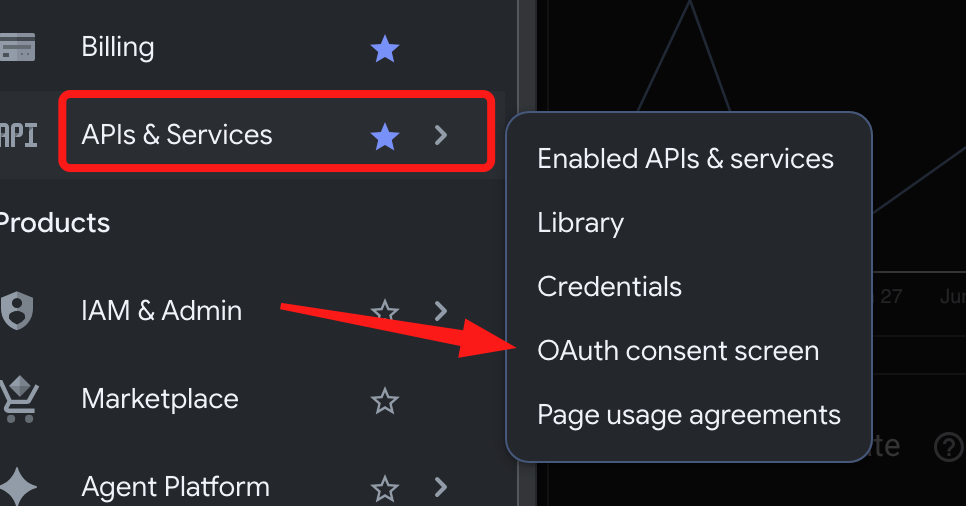
Open Google Cloud Console → APIs & Services → OAuth consent screen (this is the Google Auth Platform). If the YouTube Data API is not enabled yet, enable it first under APIs & Services → Library — the scope panel only lists scopes for APIs that are already on.
1. Add the YouTube OAuth scopes
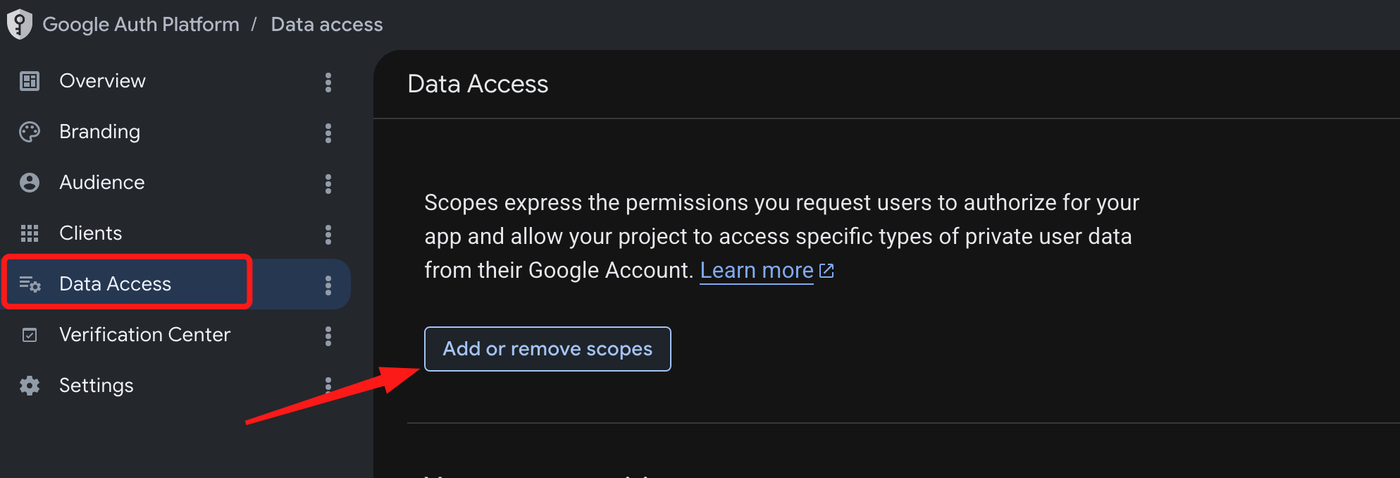
In Google Auth Platform → Data Access, click Add or remove scopes.
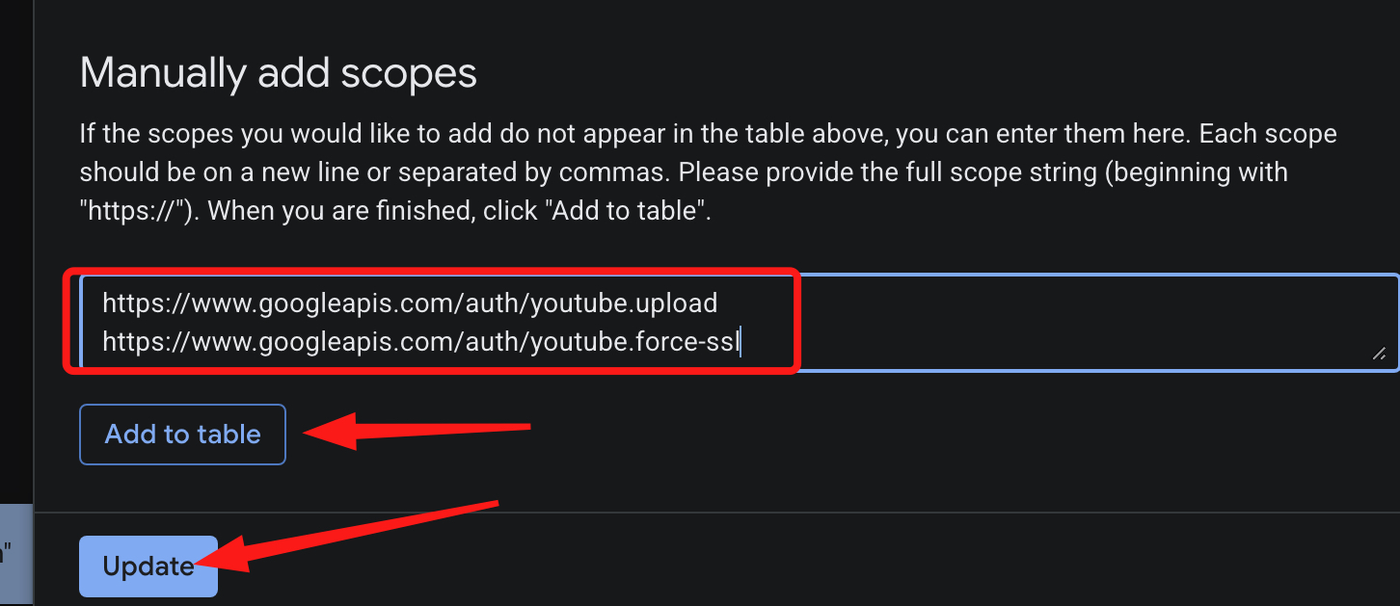
In Manually add scopes, paste the YouTube scopes for the access level you want (each on its own line), click Add to table, tick them, then Update. For full channel management:
https://www.googleapis.com/auth/youtube
https://www.googleapis.com/auth/youtube.upload
https://www.googleapis.com/auth/youtube.force-ssl
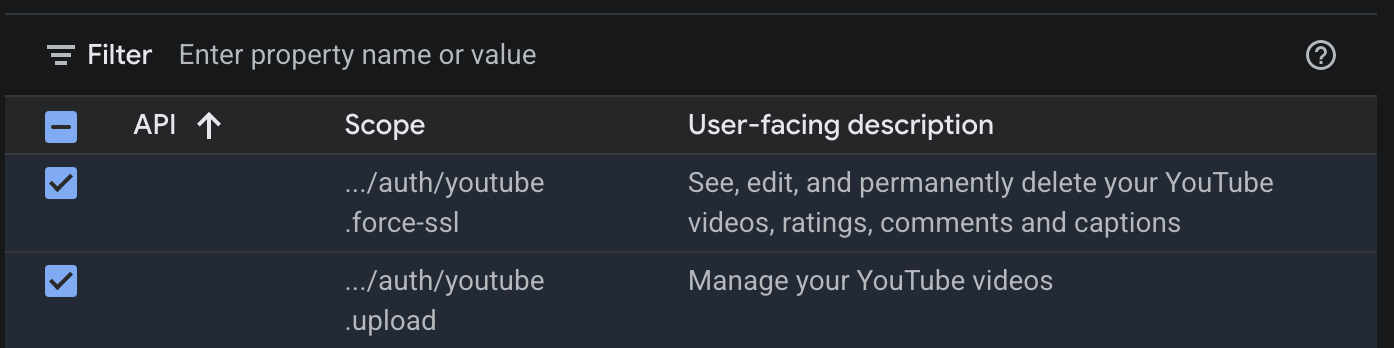
youtube — manage the account (playlists, metadata);
youtube.upload — upload and manage videos;
youtube.force-ssl — captions and edit operations
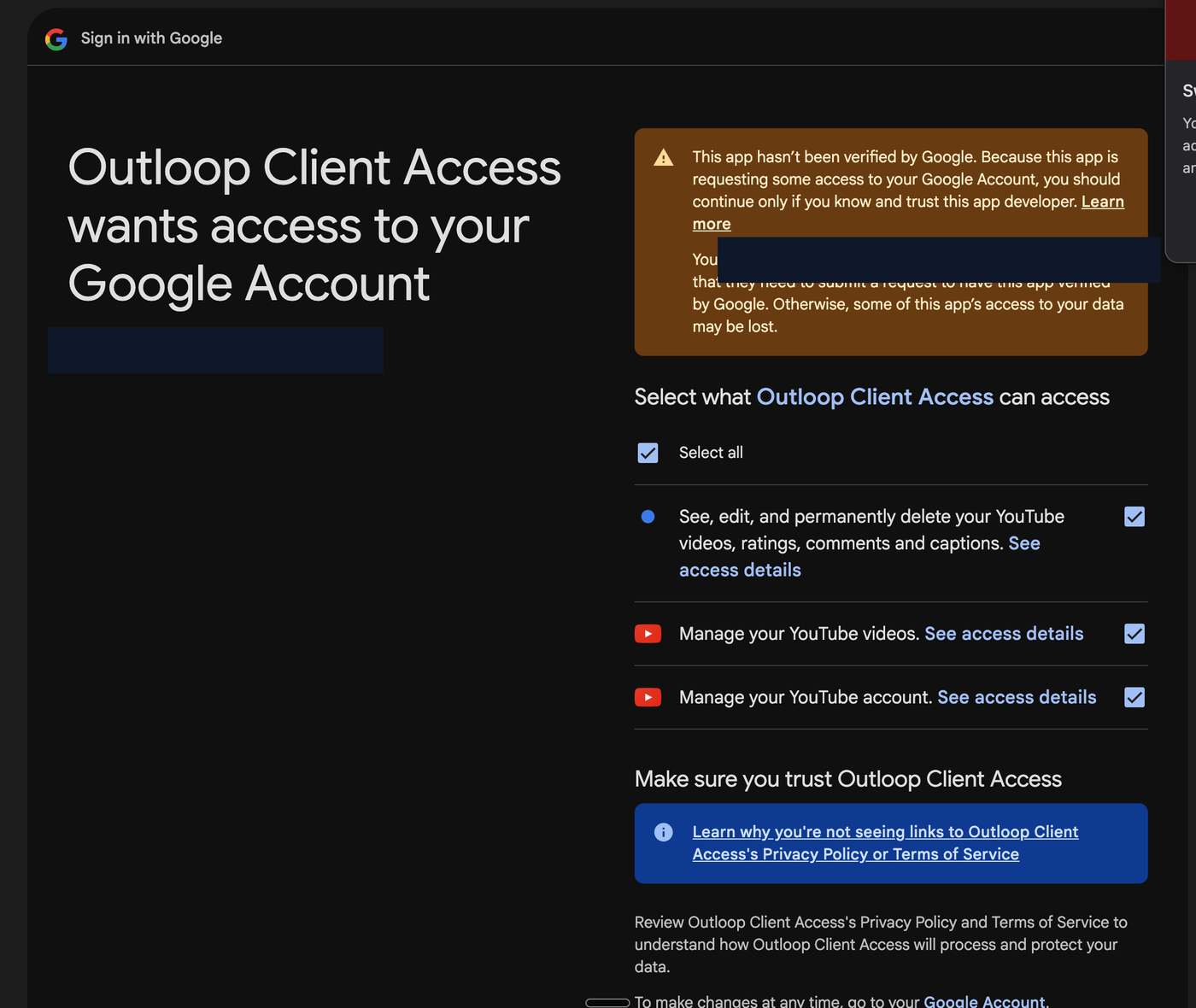
(Google describes it as "see, edit, and permanently delete your YouTube videos, ratings, comments and captions").
Authorize only the subset your agents actually need — a narrower scope is a smaller blast radius, and deletes stay
blocked in Outloop regardless of scope unless you explicitly enable them.
2. Create the OAuth client + redirect URIs
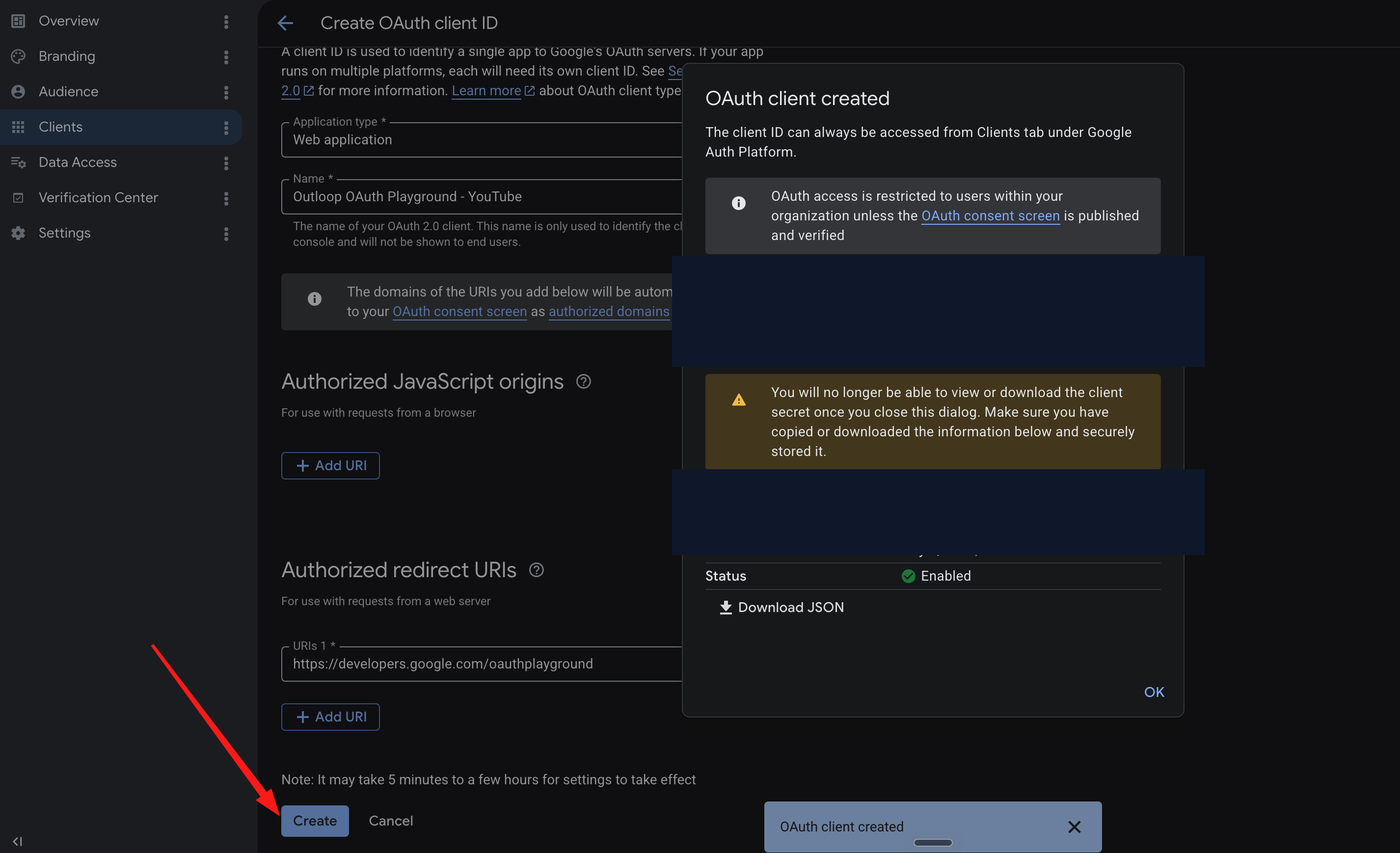
In Google Auth Platform → Clients, create a new OAuth client. Choose Application type: Web application and give it a recognizable name (for example Outloop OAuth Playground - YouTube). Under Authorized redirect URIs add both of these:
http://127.0.0.1:44317/oauth2/callback
https://developers.google.com/oauthplayground
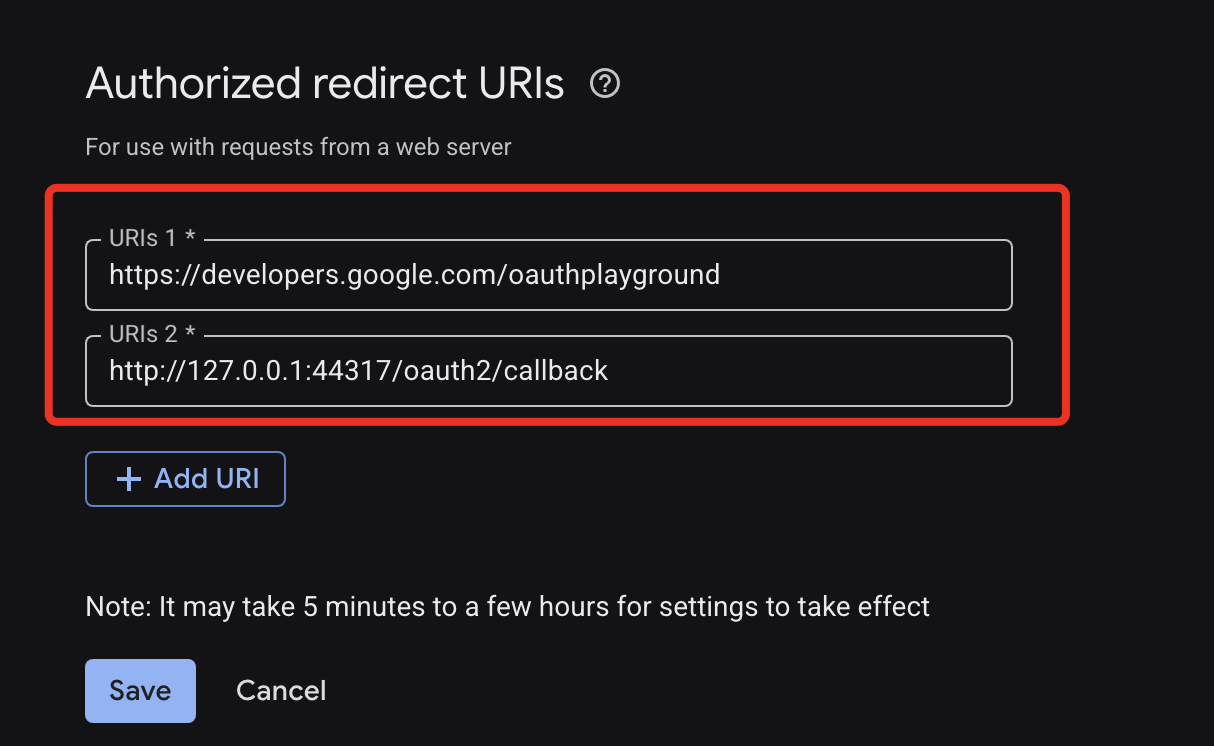
127.0.0.1:44317/oauth2/callback URL is Outloop's local loopback callback for the
recommended native browser flow; the oauthplayground URL is only needed for the
advanced fallback. Add both under Authorized redirect URIs — do not add them under Authorized
JavaScript origins.
Click Create. The confirmation dialog shows the Client ID and Client secret — copy both now; the secret is not shown again after you close the dialog.
3. Find your UC Channel ID
Open YouTube → Settings → Advanced settings and copy the
Channel ID that starts with UC.
Outloop binds the workspace to this exact channel.
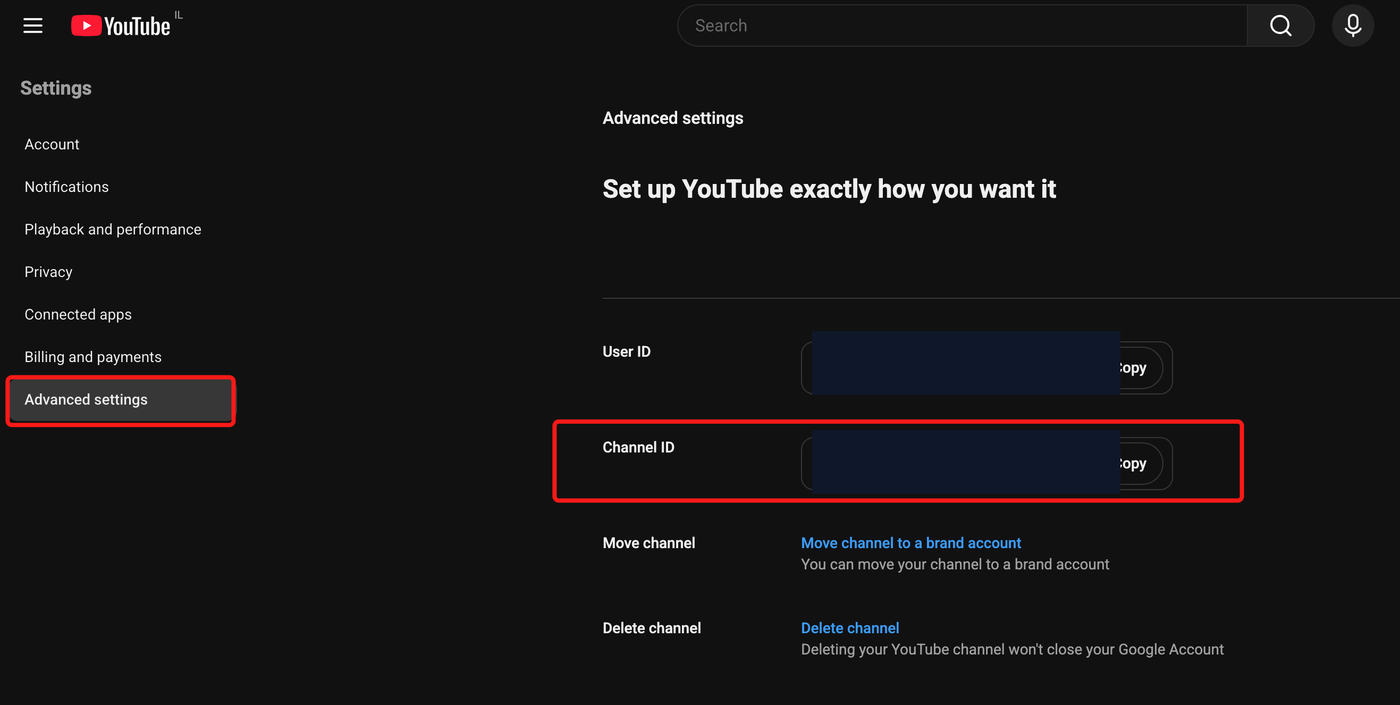
UC… ID is what Outloop uses to
bound the workspace and to run mine=true owner reads.
4. Add YouTube Private Channel in Outloop
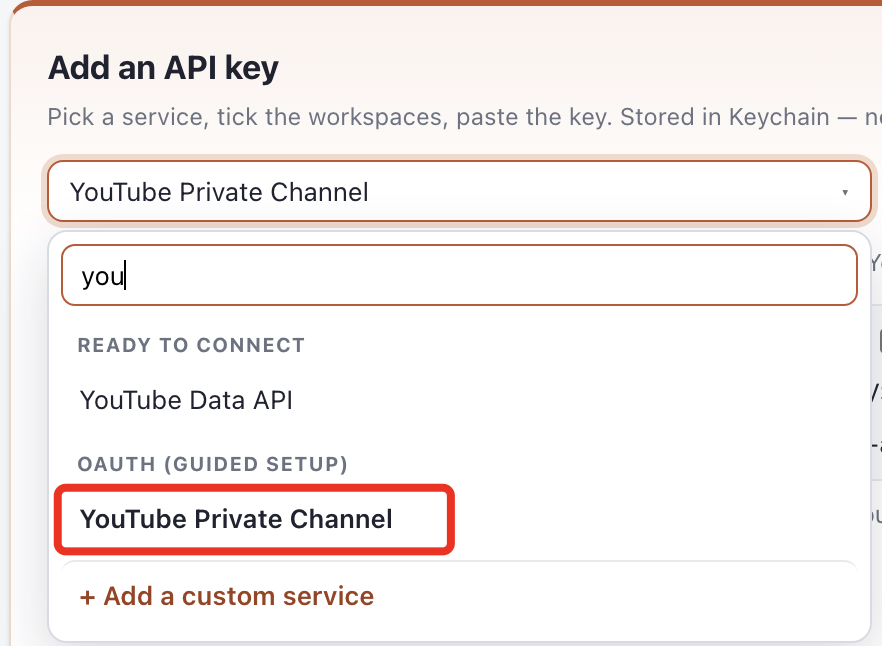
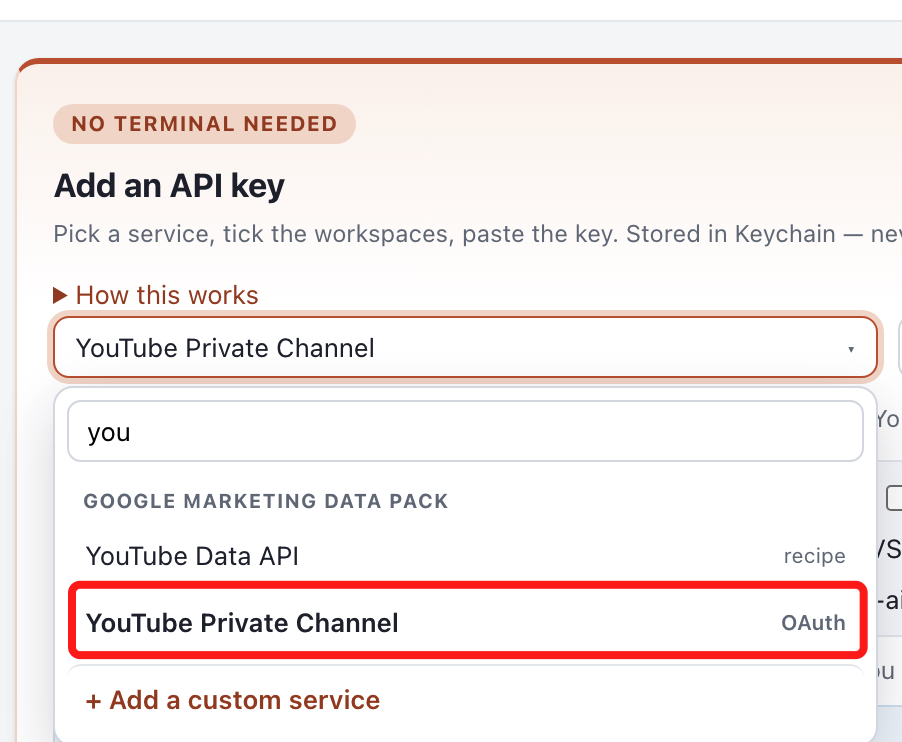
In Outloop, open API Keys & Access → Add an API key, type you, and choose YouTube Private Channel under OAuth (guided setup) — not the plain YouTube Data API key entry. This is the OAuth service that runs the browser sign-in.
5. Connect the account in your browser (recommended)
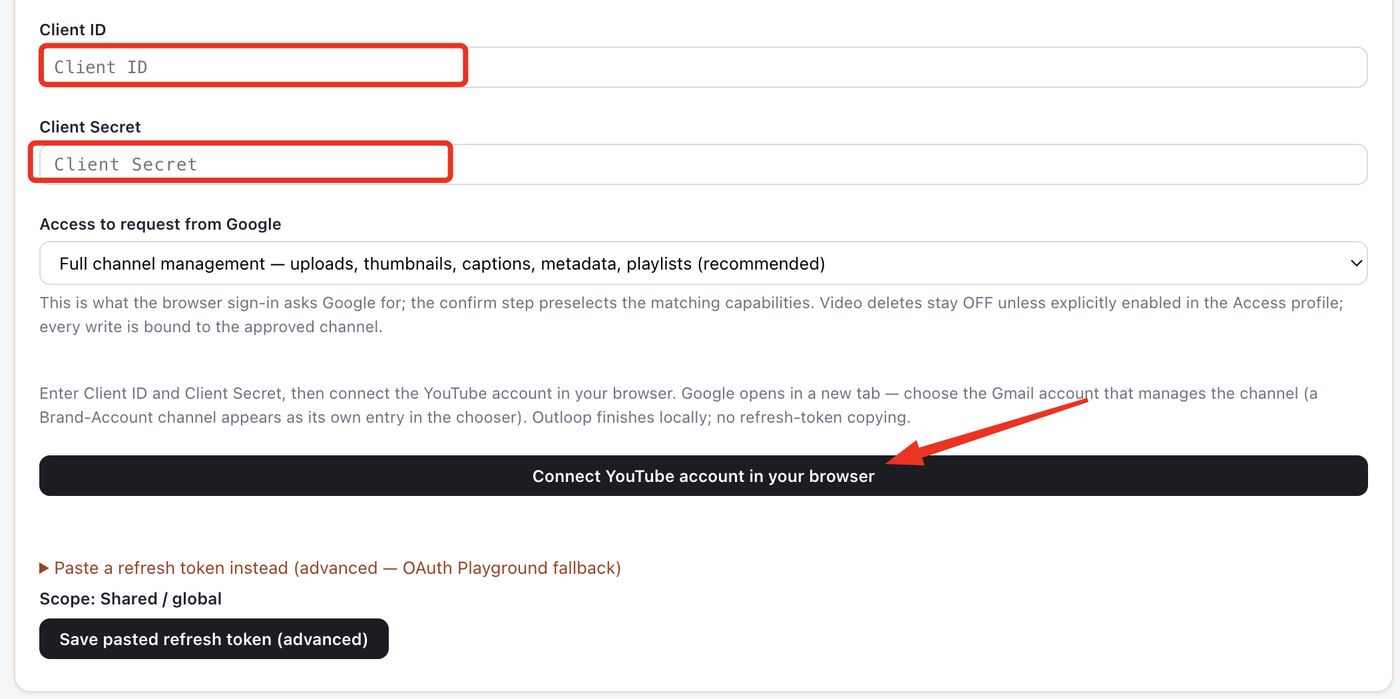
This is the recommended path — no refresh-token copying. Paste the Client ID and Client Secret from step 2, choose Full channel management — uploads, thumbnails, captions, metadata, playlists under Access to request from Google, then click Connect YouTube account in your browser.
Google opens in a new tab. Choose the Google account that manages the channel (a Brand Account channel appears as its own entry), and on the consent screen select all the requested YouTube permissions.
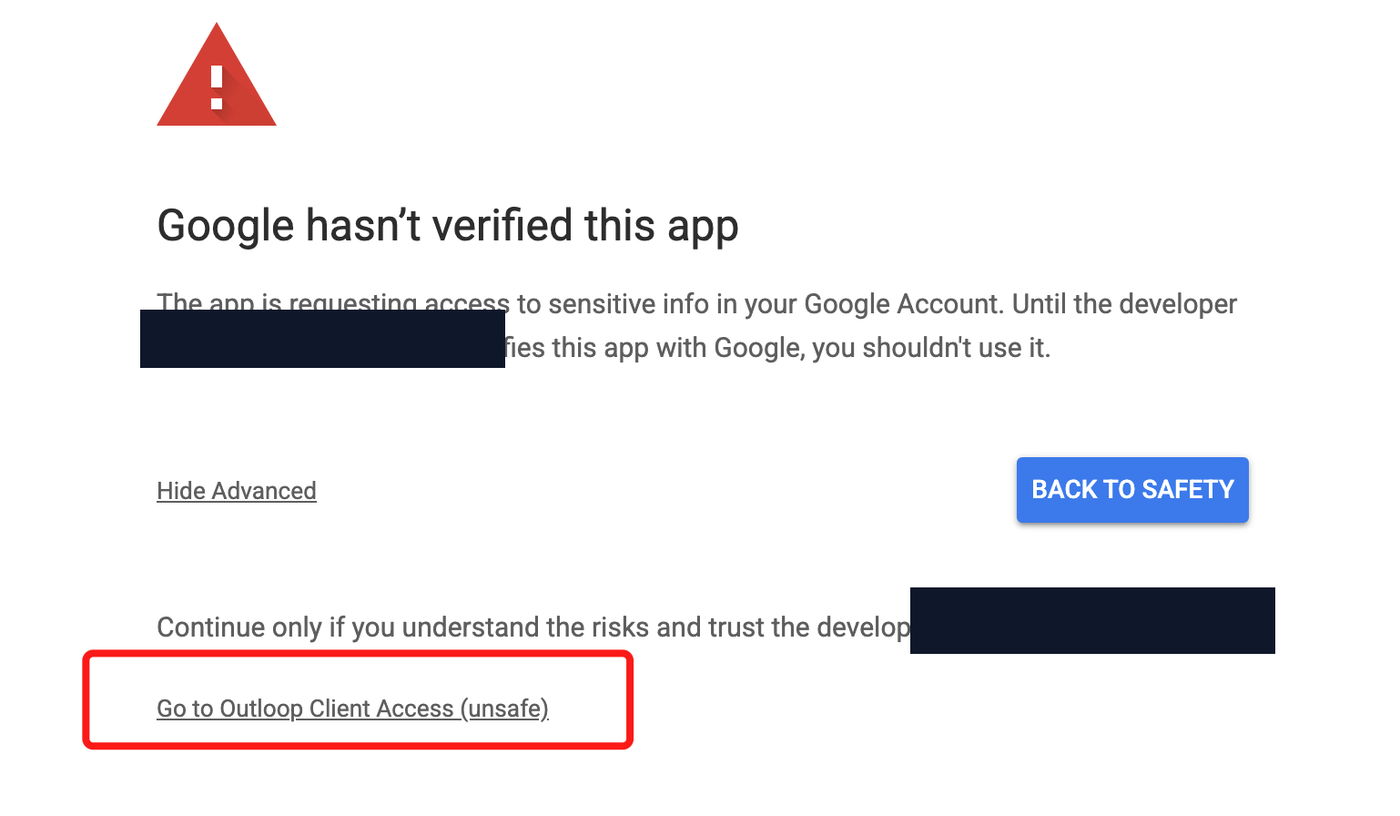
Because your OAuth app is your own and not Google-verified, Google shows "Google hasn't verified this app." For your own internal setup, click Advanced, then Go to Outloop Client Access (unsafe) — continue only because this is your Google Cloud app and you trust it. For customer-facing production use, complete Google's verification instead.
Google returns to your Mac on the local 127.0.0.1:44317
callback and Outloop finishes the exchange locally — you never copy a refresh token.
6. Save the Access Profile + copy the run prompt
Back in Outloop, set the Access Profile — this is what the agent can do after access is approved, without Outloop asking again for each action inside the approved boundary. Confirm the UC channel ID for the workspace, then choose your capabilities. Recommended defaults:
- ✓Upload videos, Upload thumbnails, Upload captions, Update video details — on.
- ✓Playlist management — optional; turn on only if agents manage playlists.
- ✕Delete videos — off by default. Leave it off unless you explicitly need destructive access, and treat it as a deliberate destructive gate.
Click Save access profile (activate), then Copy workspace run prompt to hand your agent the exact instructions for this channel.
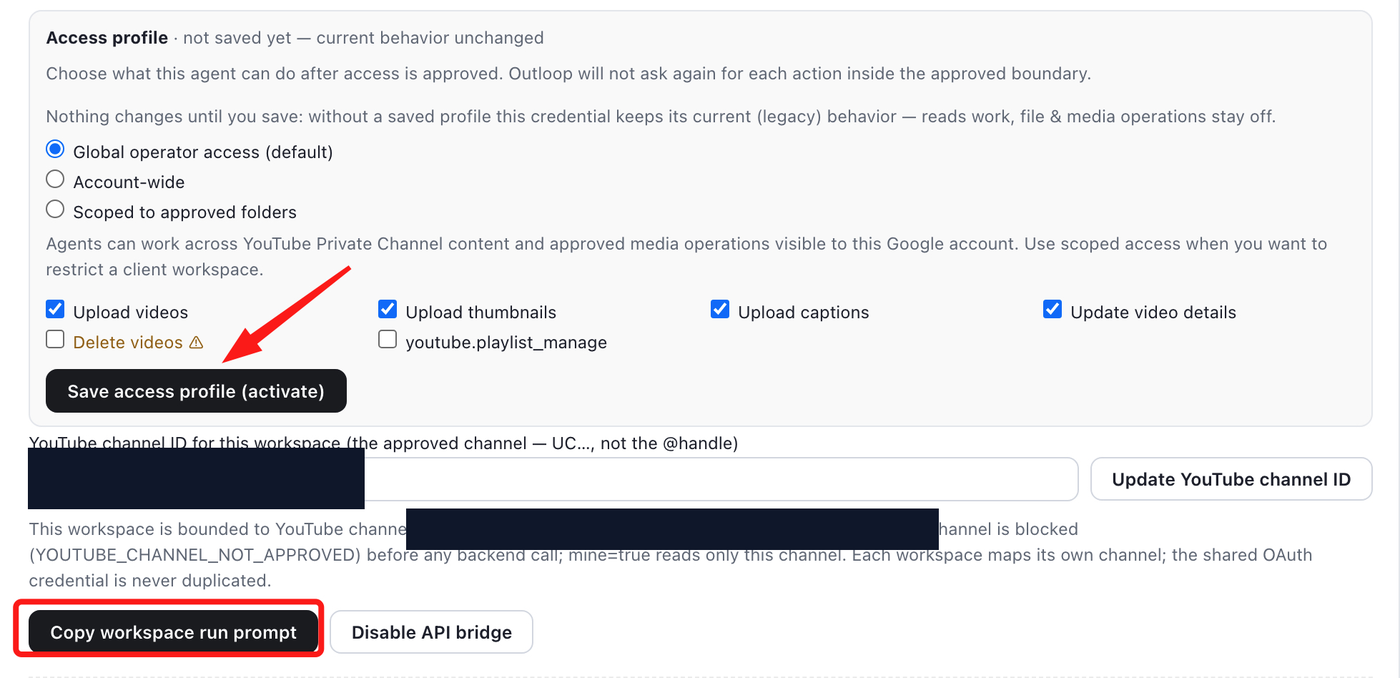
YOUTUBE_CHANNEL_NOT_APPROVED) before any backend call,
and the shared OAuth credential is never duplicated across workspaces.
7. What is proven — the credential is stored, not exposed
Outloop confirms the credential is stored locally and hidden from agents. The stored-key message reports the
credential in macOS Keychain with secret_exposed: false
and an injected env var used host-side — agents never see it:
service: youtube  (alias youtube_data_oauth, shared)
stored in: macOS Keychain
secret_exposed: false
agents never see it: yes
next: turn on Runtime access on the key row

Turn on Runtime access on the YouTube key row, then have the agent run one safe read-only call through the bridge to confirm the credential works end-to-end without exposing it — the safest first proof is an owner channel read, which changes nothing:
GET /youtube/v3/channels?part=snippet&mine=true
expect: HTTP 200 · decision: allow · secret_exposed: false
8. Give the agent a real file to work with
Uploads operate on real files. Save the video (and any thumbnail PNG/JPG) into the connected project folder or an approved staging folder, then point the agent at it. Inline chat images and pasted clips are not valid upload sources — a YouTube thumbnail must be a real image file.
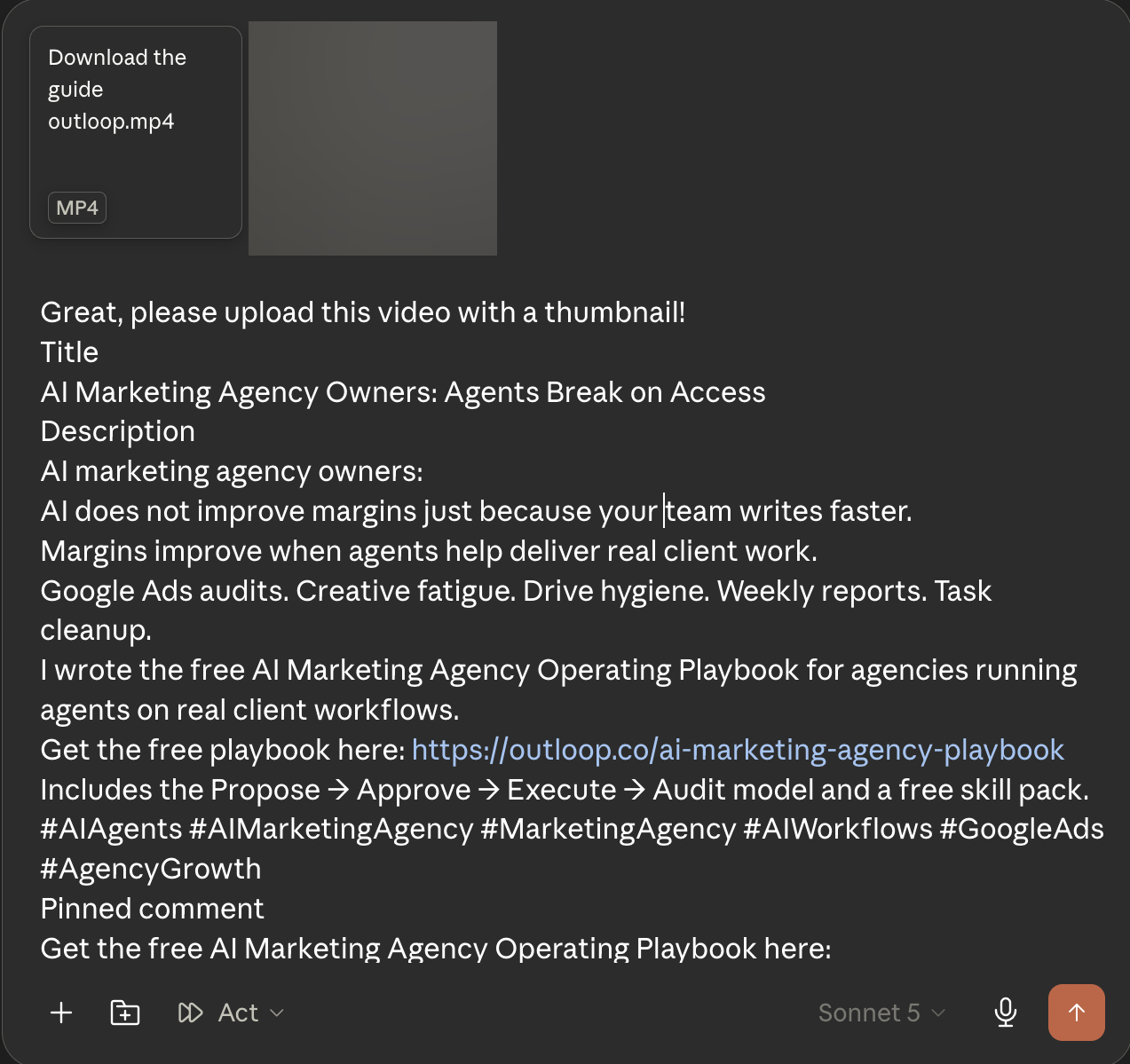
After setup, you can ask your agent something like:
Upload this video to my approved YouTube channel.
Use this title, this description, and this thumbnail file.
Keep it private unless I explicitly say public.
MEDIA_SOURCE_NOT_ALLOWED).
Advanced fallback: OAuth Playground refresh token
Use this only if the native browser flow above does not work for you, or if support asks. The normal path is Connect YouTube account in your browser.
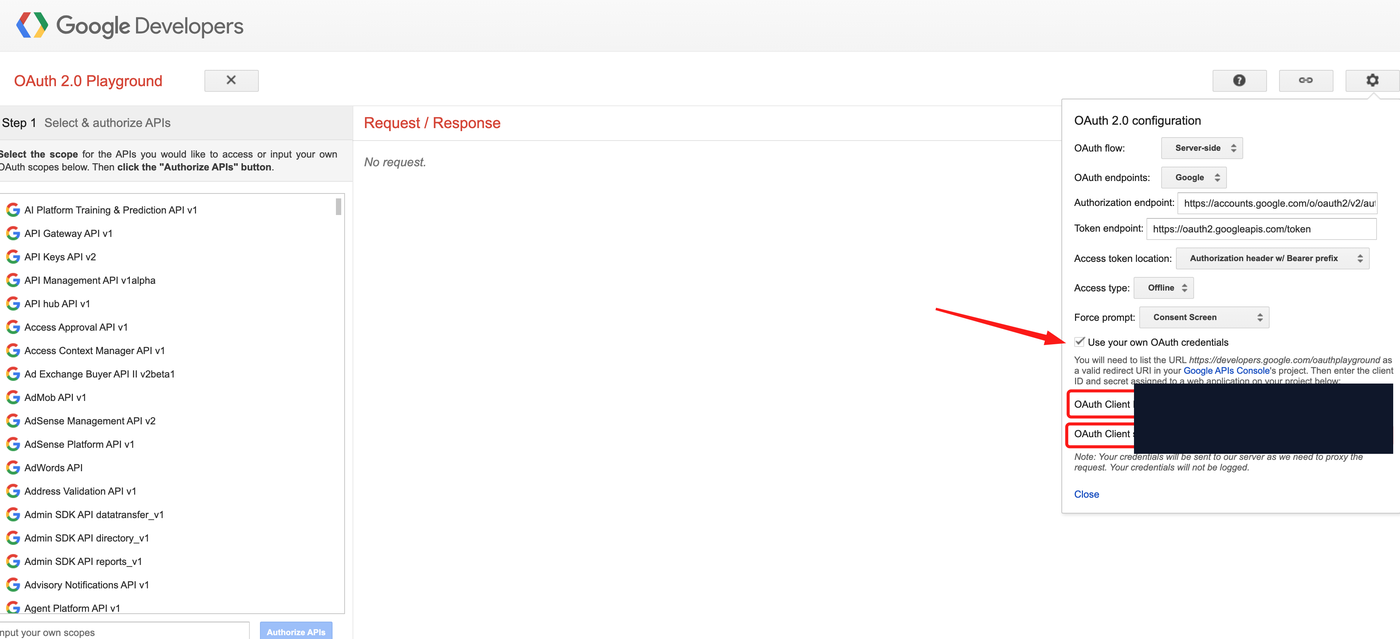
Open developers.google.com/oauthplayground, click the gear icon, and configure:
- →Check Use your own OAuth credentials and paste the Client ID and Client Secret from step 2 (do not screenshot the pasted values).
- →Set Access type: Offline and Force prompt: Consent Screen.
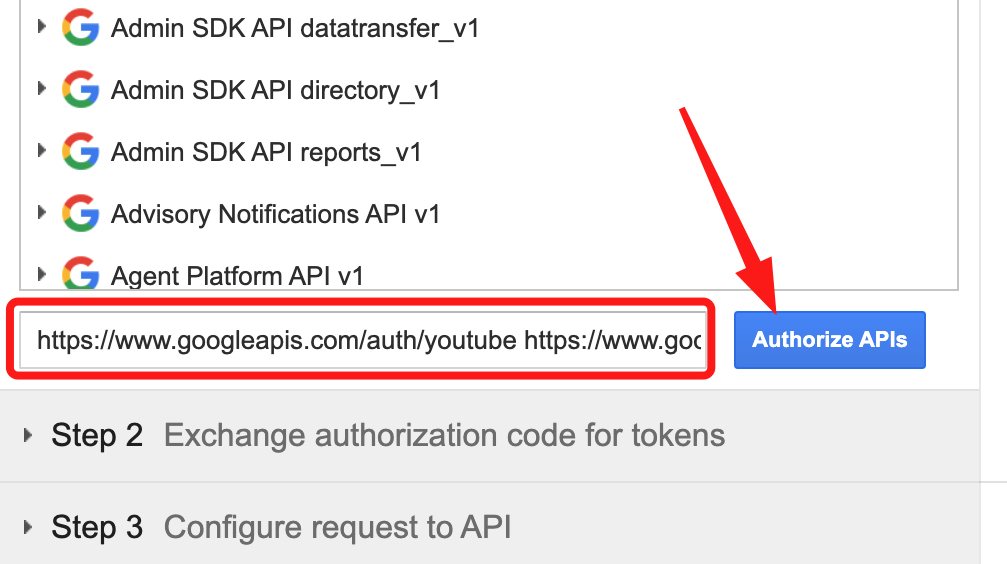
In Step 1, paste the YouTube scopes into Input your own scopes and click Authorize APIs:
https://www.googleapis.com/auth/youtube
https://www.googleapis.com/auth/youtube.upload
https://www.googleapis.com/auth/youtube.force-ssl
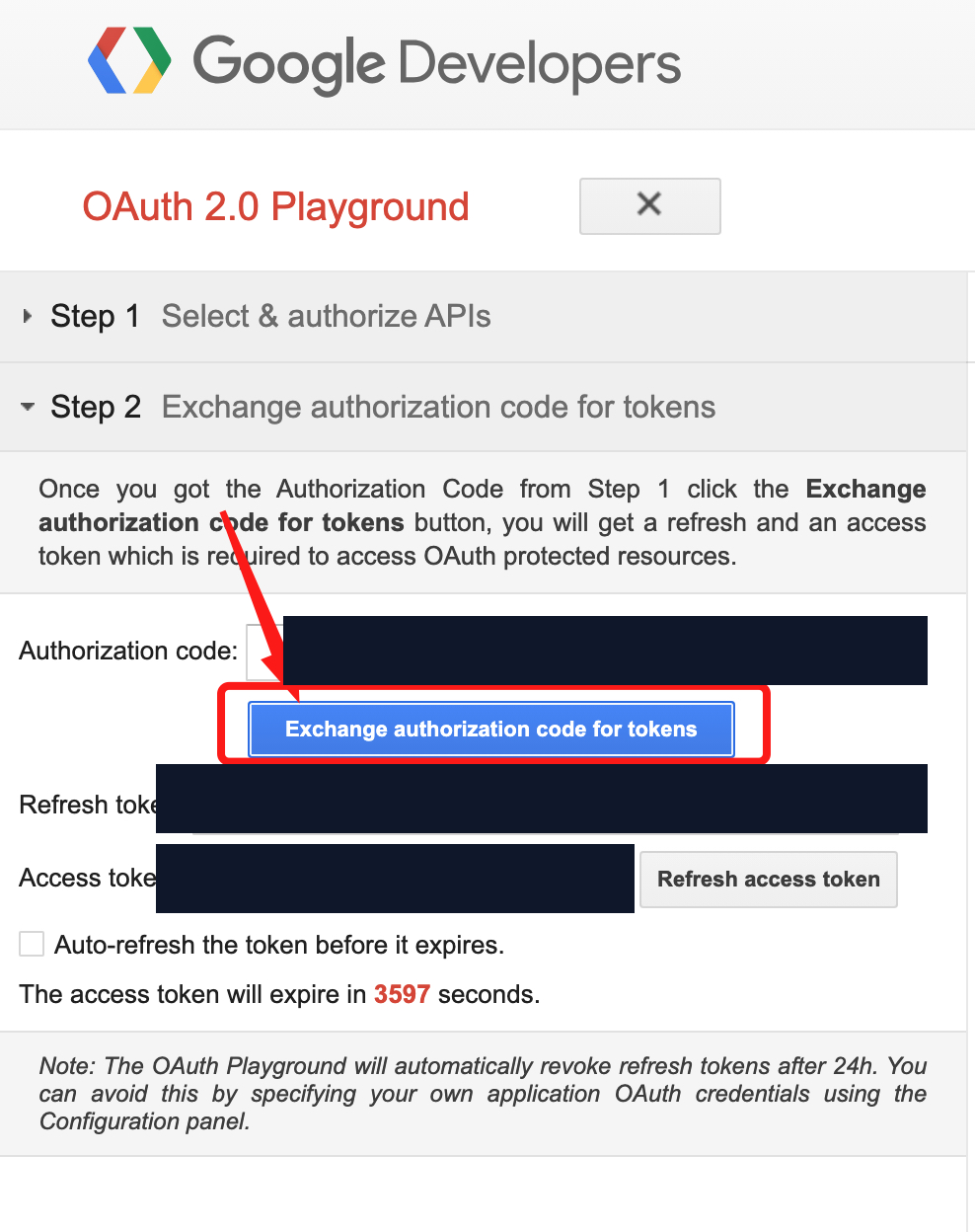
Sign in with the Google account that manages the channel and approve the permissions. In
Step 2, click
Exchange authorization code for tokens and copy only the
refresh_token.
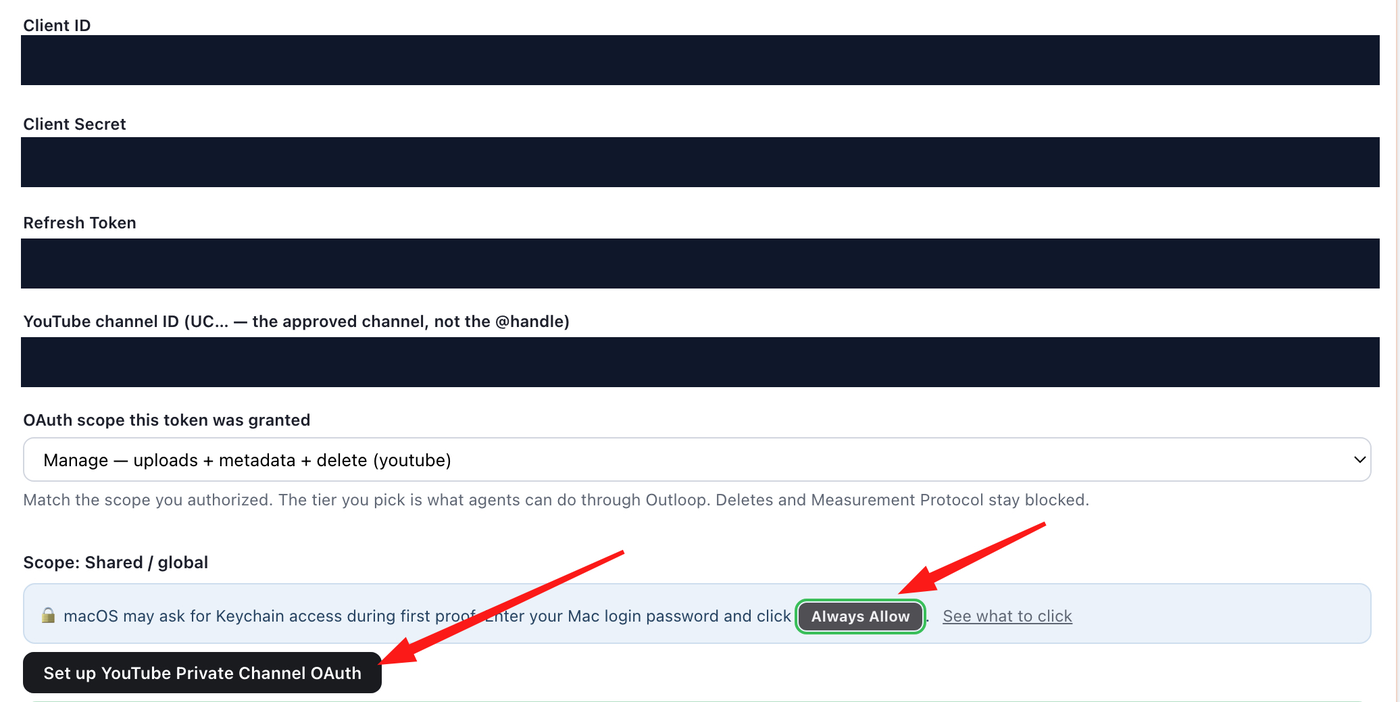
In Outloop, expand Paste a refresh token instead (advanced — OAuth Playground fallback), paste the refresh token, paste the UC channel ID, and set OAuth scope this token was granted to match what you authorized. Click Set up YouTube Private Channel OAuth. When macOS asks for Keychain access, click Always Allow so agents can use the credential reliably at runtime.
What the agent never sees
- ✓Agents never see the OAuth Client Secret, refresh token, access token, or Authorization header.
- ✓Outloop mints short-lived access tokens host-side and injects the header itself — the credential is used on the wire, never handed to the agent.
- ✓Every runtime request is audited, and results are redacted; the stored-credential proof reports
secret_exposed: false. - ✓Every write is bound to the one approved UC channel; a different channel is blocked before any backend call.
- ✓Deleting videos stays blocked unless you explicitly enable it as a destructive action in the Access Profile.
What the YouTube API can do through Outloop
Reads
- ✓Channel, video, playlist and caption reads under the authorized scope (
channels.list,videos.list,playlists.list,captions.list), includingmine=trueowner reads of the approved channel.
Writes (gated by scope + Access Profile)
- ✓Upload videos (
videos.insert, resumable upload) underyoutube.upload. - ✓Set custom thumbnails (
thumbnails.set) and insert/update captions (captions.insert) underyoutube.force-ssl. - ✓Update title, description, privacy and other metadata (
videos.update) and manage playlists (playlists,playlistItems) when enabled, underyoutube.
Blocked or manual
- ✕Deleting videos (
videos.delete) — off by default; only when explicitly enabled as a destructive action. - ✕Pinning a comment is a YouTube Studio manual action; comment posting is not promised through this setup unless the product explicitly adds a comment-manage capability.
- ✕Inline chat images are not valid thumbnail files; files outside the approved workspace/staging folder can be blocked.
Verified vs not claimed yet
- Verified Credential storage through Outloop: the YouTube OAuth credential is stored in macOS Keychain with
secret_exposed: false, injected host-side, and never shown to the agent. - Supported, not verified yet YouTube reads and writes through the bridge (channel read, upload, thumbnail, caption, metadata, playlist) are supported by the API and permitted under the authorized scopes and the saved Access Profile, but are not runtime-verified with an HTTP 200 in this guide. The safest first proof is the read-only
channels?mine=truecall; the safest first write is a private test upload you can delete manually. - Not claimed Video deletes, comment posting/pinning, and any action on a channel other than the approved UC channel are blocked or manual — this guide makes no claim that agents perform them through Outloop.
YouTube API through Outloop vs a YouTube MCP
Google publishes no official YouTube MCP server. A number of community MCP servers exist — most focused on transcripts, search, and video metadata, a few claiming uploads or analytics — but they are unofficial and none is connected in this workspace. The comparison below is specific to YouTube and to what is actually set up here.
| Area | YouTube API through Outloop | YouTube MCP (community) |
|---|---|---|
| Live in this workspace | Live now The API path is the only YouTube path connected here. | Not connected here Google publishes no official YouTube MCP; community servers exist but none is connected in this workspace. |
| Official server | Google YouTube Data API v3 — first-party, documented. | No official MCP Only unofficial community MCP servers exist; capabilities and support vary by project. |
| Credential storage | Secret-safe OAuth client + refresh token stored in macOS Keychain; Outloop mints short-lived access tokens host-side. Stored-credential proof: secret_exposed: false. | Depends on the community server and how it handles OAuth — often a token pasted into the MCP config or environment. |
| Raw secret exposure to the agent | Secret-safe The credential is used on the wire; the agent never sees the Client Secret, refresh token, access token, or Authorization header. | Varies; many community servers hold the token in-process. |
| Audit trail | Audited Every API Bridge request is auditable through Outloop, with redacted results. | Not through Outloop. |
| Channel / client routing | Channel-scoped The credential is bound to one approved UC channel per workspace; a request naming a different channel is blocked (YOUTUBE_CHANNEL_NOT_APPROVED). | Not through Outloop. |
| Read actions | Full YouTube Data API v3 reads under the authorized scope: channels, videos, playlists, captions, and mine=true owner reads. | Most community servers focus on transcripts, search, and video metadata. |
| Write actions | Upload videos, set thumbnails, insert captions, update metadata/privacy, and manage playlists — each gated by the authorized scope and the saved Access Profile. Deletes stay off unless explicitly enabled. | A few community servers claim upload/analytics; most are read-only. Unverified here. |
Troubleshooting
redirect_uri_mismatch
Add the exact Authorized redirect URI to the OAuth client in Google Cloud: http://127.0.0.1:44317/oauth2/callback for the native flow, and https://developers.google.com/oauthplayground for the fallback. It can take a few minutes for changes to take effect.
The OAuth Playground token expires within 24 hours
Check Use your own OAuth credentials in the Playground gear settings and paste your own Client ID and Secret — otherwise the Playground revokes refresh tokens after 24 hours. Better: use the native Outloop Connect YouTube account in your browser flow, which stores the token locally with no copying.
The refresh token stops working after 7 days
Your Google Cloud OAuth app is likely in Testing mode, which revokes refresh tokens after 7 days. In Google Auth Platform → Audience, publish the app to In production for stable internal use, then generate a new token and update it in Outloop. Broader public use may still require Google verification.
Google says the app is not verified
Expected for YouTube scopes on an unverified consent screen. For your own internal setup, click Advanced → Go to Outloop Client Access and continue only if you trust the app (it is your own Google Cloud project). For customer-facing production, complete Google's verification.
No channel found / wrong channel
You authenticated with a Google account that does not own or manage a channel, or with the wrong identity. Re-authenticate with the Gmail or Brand Account that manages the approved channel. Outloop blocks a credential bound to a different channel (YOUTUBE_CHANNEL_NOT_APPROVED).
Port 44317 is busy
Close old Google OAuth tabs, wait ~20 seconds, and retry the browser connect. If it persists, restart Outloop and try again.
A thumbnail or video will not upload
Save the thumbnail as a real PNG or JPG and the video as a real file inside the connected project folder or approved staging folder — do not paste them inline in chat. Files outside the approved boundary can return MEDIA_SOURCE_NOT_ALLOWED.
A write returns 403
Usually the authorized scopes do not cover the request (for example, an upload with only a read scope), or the scope tier picked in Outloop does not match what you authorized. Re-authorize with the right YouTube scopes and match the tier.
Outloop is available with guided onboarding for agency teams. Outloop is an independent tool and is not affiliated with or endorsed by Google or YouTube. See the security model, the Google Drive setup guide, the Gmail setup guide, or the Google Ads setup guide.
Once the credential is stored, your agents can upload and manage the approved YouTube channel through Outloop — without ever seeing the OAuth token.
Outloop is available with guided onboarding for AI agencies, operators, and dev shops.