Guides · Setup
How to Connect Microsoft 365 Mail to AI Agents with Outloop
Last updated:
Planning to send instructions to your AI worker by email? Set up sender-domain authentication and test a fresh request. Mailbox API access and trusted email intake are separate. Confirm automatic intake support for your connector and installed version.
In short
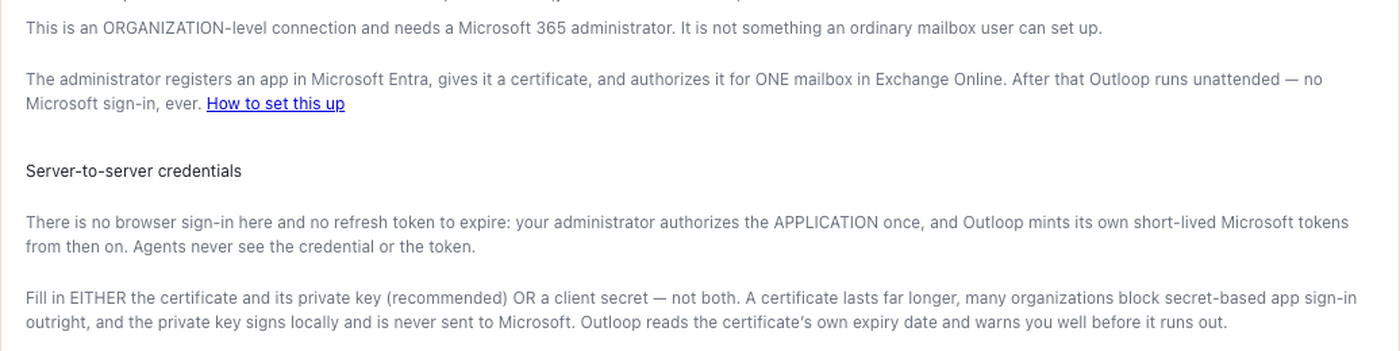
There are two ways to connect Microsoft 365 mail to Outloop: unattended app access, which uses a certificate and no user sign-in, and delegated Outlook, which uses a person's Microsoft login.
For autonomous AI workers, use Microsoft 365 Mail — Unattended App Access. Your administrator authorizes one mailbox once, and Outloop mints its own short-lived Microsoft tokens from then on. There is no sign-in to expire and no refresh token to babysit. Delegated Outlook remains available when a user-bound login is specifically required.
Two ways to connect Microsoft mail
Outloop exists to take the human out of routine agent operation. That single idea decides which of these two paths you should pick.
1. Microsoft 365 Mail — Unattended App Access Recommended · Verified
A certificate-based application, authorized by your Microsoft 365 administrator for exactly one mailbox. No user signs in. Nothing expires on a ninety-day timer. Outloop obtains its own Microsoft access tokens and renews them itself. This is the path we recommend for anything an agent runs on its own, and it is the path this guide walks end to end.
2. Delegated Outlook Mail Alternative · Not runtime-verified
The classic Microsoft sign-in: a person authenticates in a browser and Outloop holds the resulting user-bound credential. Choose it only when you specifically need the agent to act as a particular signed-in person. It carries the lifecycle costs the first path removes.
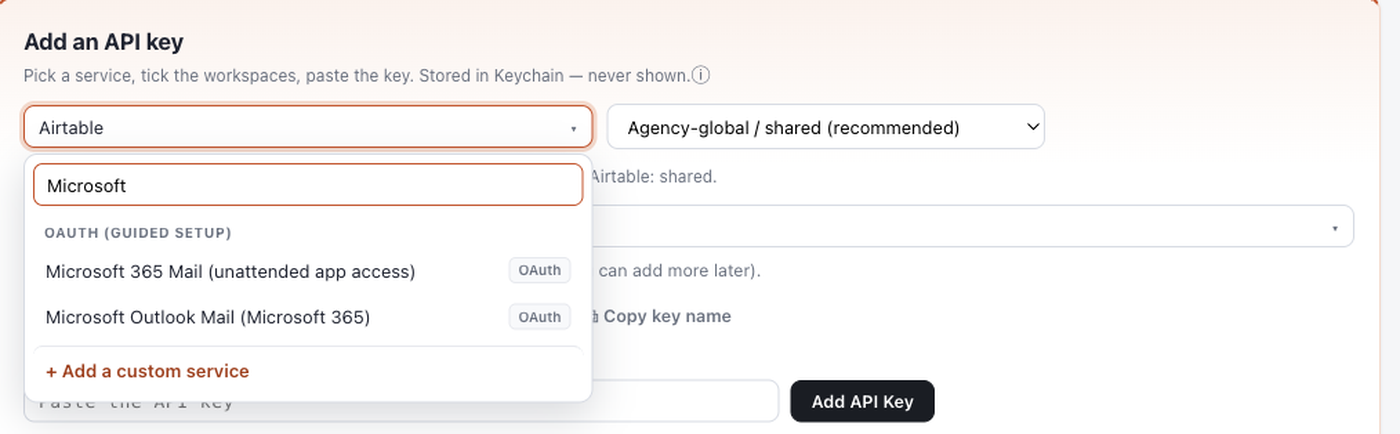
The comparison that should decide it
| Unattended App Access (recommended) | Delegated Outlook Mail (alternative) | |
|---|---|---|
| Routine login required | None, ever | A person signs in, and again whenever the credential lapses |
| Human dependency | None after the one-time admin setup | Tied to one person's account, password and MFA |
| Authentication type | Certificate-based application credentials (OAuth client credentials) | Delegated user OAuth with a rotating refresh token |
| Mailbox scope | One mailbox, pinned by Outloop and scoped in Exchange | Whatever the signed-in user can reach, plus Outloop's pin |
| Best use case | Autonomous AI workers; shared info@ / support@ / leads@ desks | Acting as a specific named person's mailbox |
| Runtime verification status | Live verified through Outloop Real certificate proof, 2026-08-30 | Not independently runtime-verified Supported and shipped; no runtime proof has been run |
Everything from here to “When delegated Outlook is the right choice” is the recommended path.
What unattended access gives you
Outloop already connected to Microsoft 365 Outlook by signing a person in. That works, but the connection belongs to a person: Microsoft rotates the sign-in behind the scenes, it lapses after about ninety days of quiet, and a password change or a new Conditional Access policy ends it. Each time, an agent stops mid-task and somebody has to go and sign in again. For an assistant meant to run overnight, that is the wrong shape.
Application permissions remove the whole class. Microsoft's own documentation is explicit: “refresh tokens will never be granted with this flow.” There is nothing to expire from inactivity, nothing a password change revokes, and no MFA or Conditional Access re-prompt.
Concretely, on one named mailbox:
- ✓Read, search and browse folders.
- ✓Send, reply, reply-all and forward — unattended.
- ✓Attachments, through Outloop's file runtime.
- ✓Token renewal with nobody present — proven at 8h42m apart on a one-hour token, app closed.
- ✓A certificate whose expiry Outloop reads from the certificate itself and warns about in advance, so replacing it is scheduled work rather than a discovery.
What you need
- ✓A Microsoft 365 administrator. This is an organization-level connection; an ordinary mailbox user cannot set it up.
- ✓The mailbox the agent will use. A shared mailbox works and needs no licence.
- ✓Permission to run Exchange Online PowerShell — the Exchange half has no admin-centre UI.
- ✓A certificate (public
.cer/.pemplus its private key). Self-signed is fine. - ✓Outloop 1.25.0 or later on the Mac that runs the agents.
Mail.Read /
Mail.ReadWrite / Mail.Send in Entra
and scope it to one mailbox in Exchange, you have scoped nothing. Microsoft
states it directly: “the union of an unscoped Mail.Read grant from Microsoft Entra and a
resource-scoped Mail.Read grant in Application RBAC results in no effective resource scoping.”
Do the Exchange RBAC assignment and grant no org-wide
Mail.* consent in Entra.
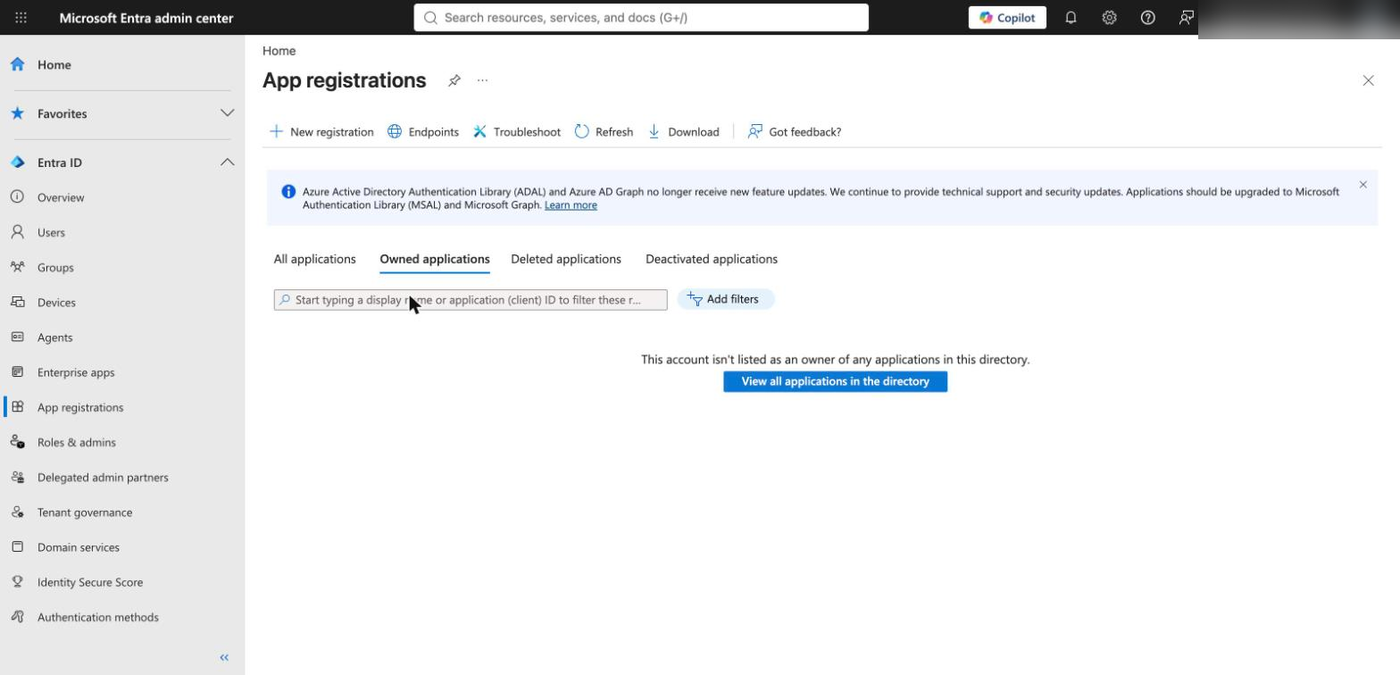
1. Open App registrations in Microsoft Entra
Entra admin centre → Identity → Applications → App registrations → + New registration.
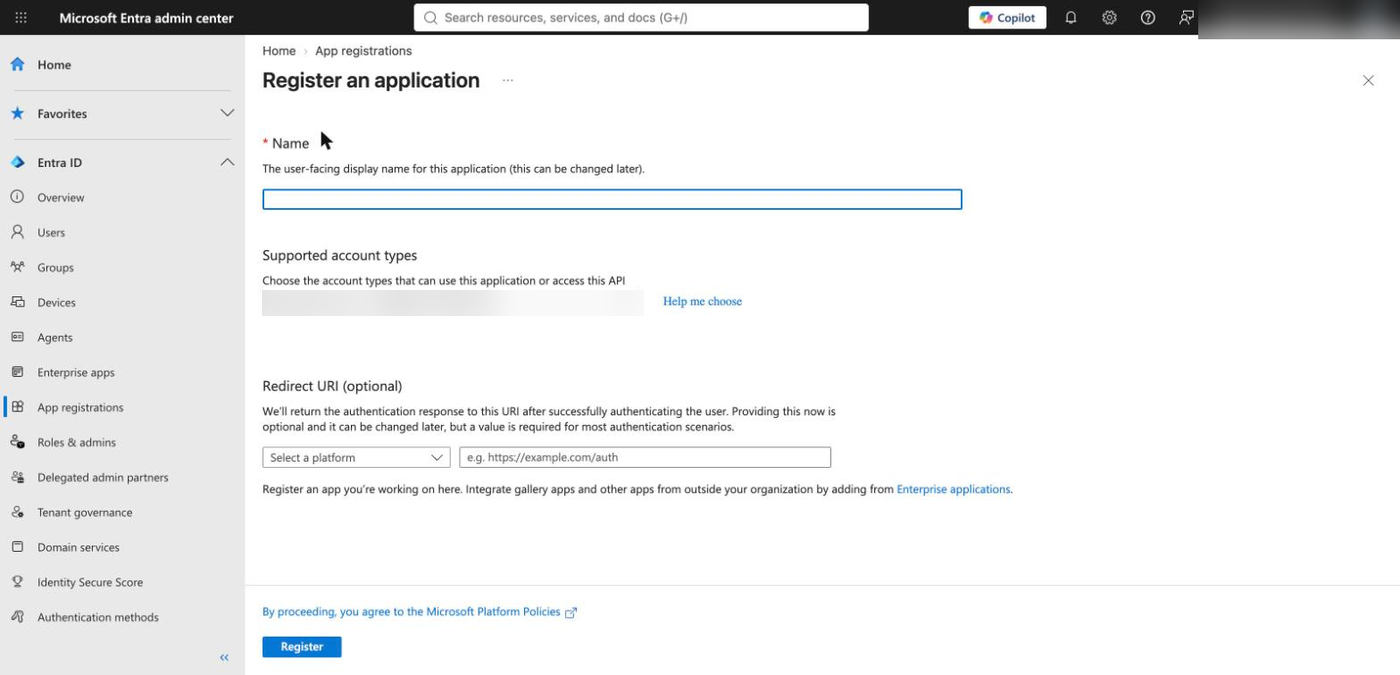
2. Register it as single tenant, with no redirect URI
Name it something recognisable, for example Outloop mailbox agent. Under
supported account types choose Accounts in this organizational directory
only (single tenant). Leave the redirect URI empty —
this application never signs a user in, so it needs no reply URL and no platform.
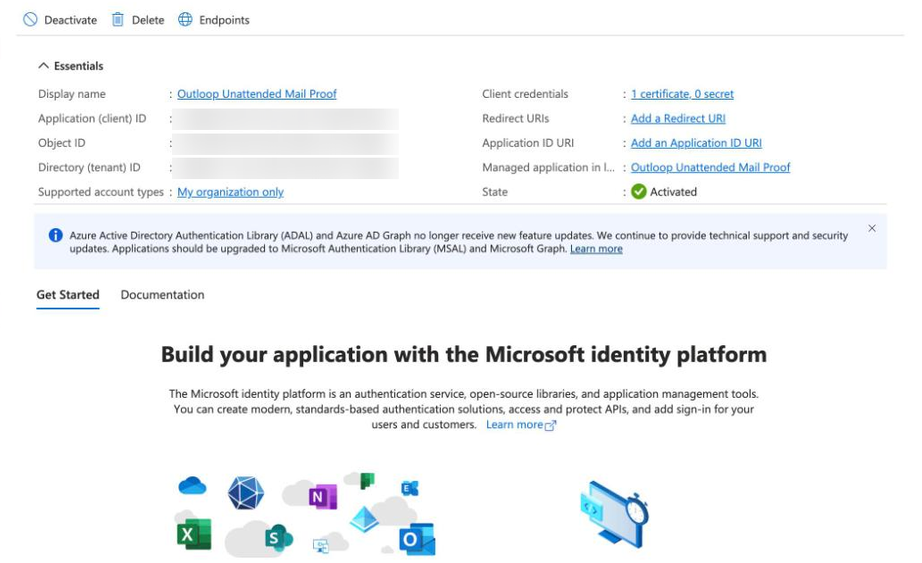
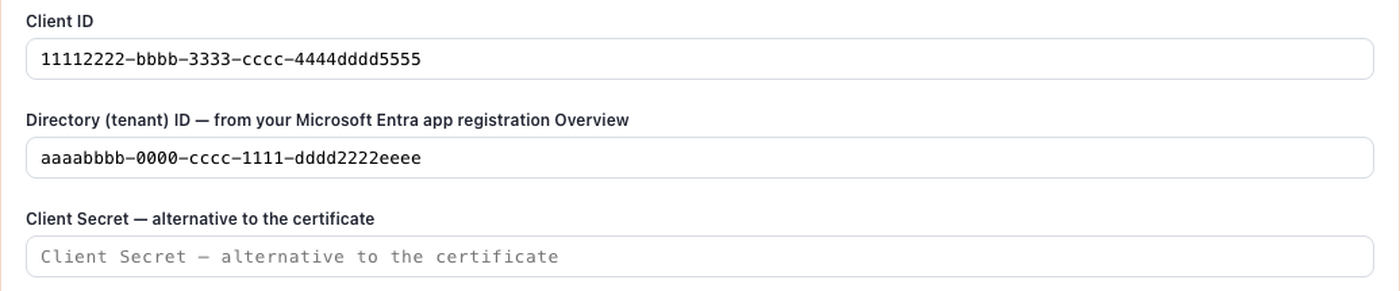
3. Copy the client ID and tenant ID
After registering, the Overview blade carries the two values Outloop needs: Application (client) ID and Directory (tenant) ID. It also confirms what you are building — client credentials showing 1 certificate, 0 secret, and supported account types My organization only.

4. Choose certificate authentication
Open Certificates & secrets. Use the Certificates tab, not Client secrets.
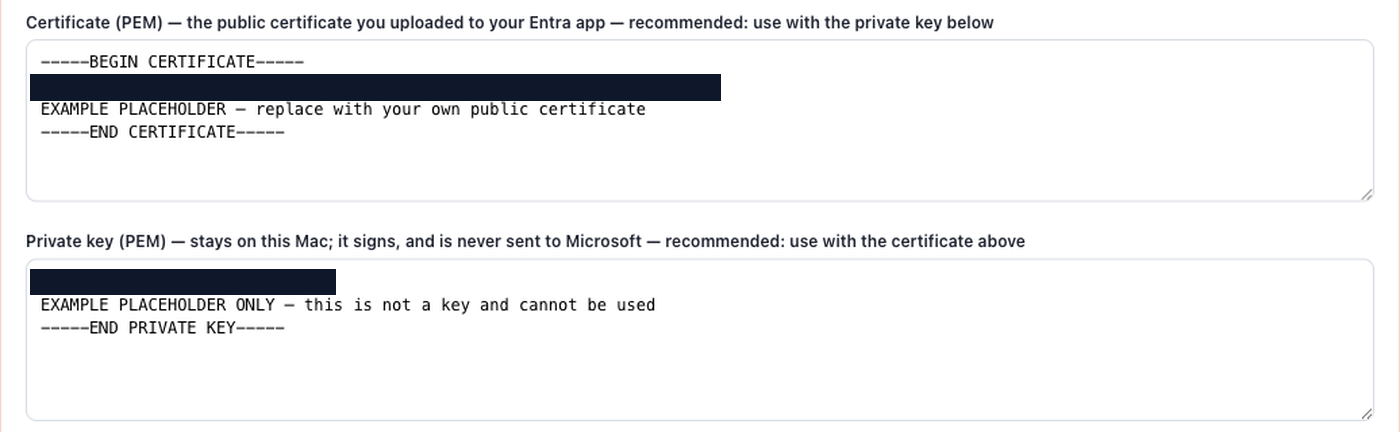
Why certificate over secret: Entra caps app client secrets at 24 months and the portal default is far shorter; a growing number of tenants block secret-based app authentication outright; and a secret is a bearer credential — anyone who obtains it can use it. A certificate's private key only signs a short-lived assertion. It is never transmitted to Microsoft, and in Outloop it never leaves your Mac.
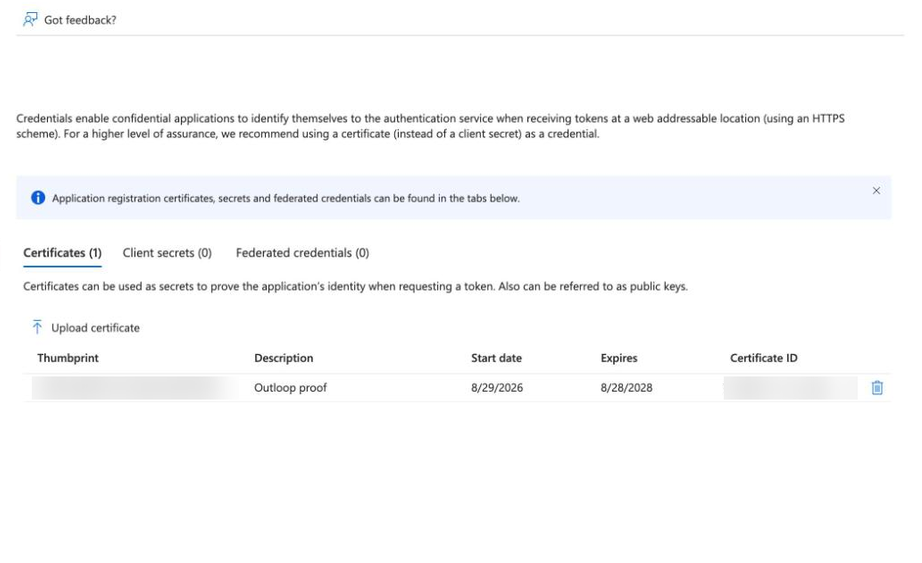
If you need a self-signed pair, this produces one valid for two years:
openssl req -x509 -newkey rsa:2048 -keyout outloop-m365.key -out outloop-m365.cer \
  -days 730 -nodes -subj "/CN=Outloop mailbox agent"
-nodes flag produces an unencrypted key. Keep it somewhere safe and
delete your copy once Outloop has stored it in the Mac Keychain.
5. Upload the public certificate
Upload certificate accepts .cer,
.pem or .crt — the
public half only. Your private key stays with you.
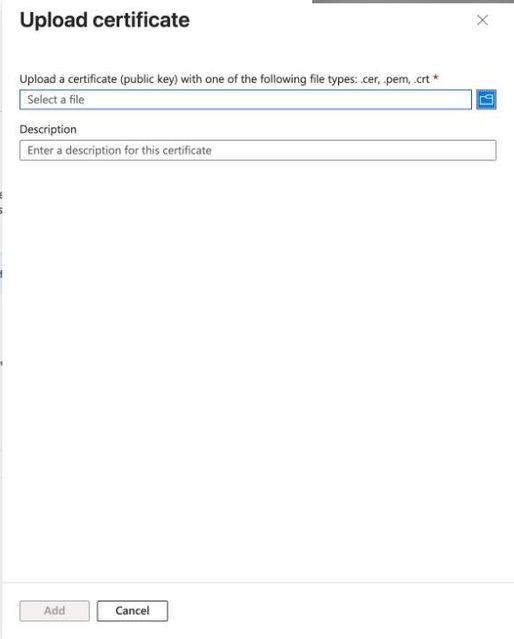
Leave the Client secrets tab empty. If both a certificate and a secret are present, Outloop refuses the credential as ambiguous rather than guessing which one you meant.
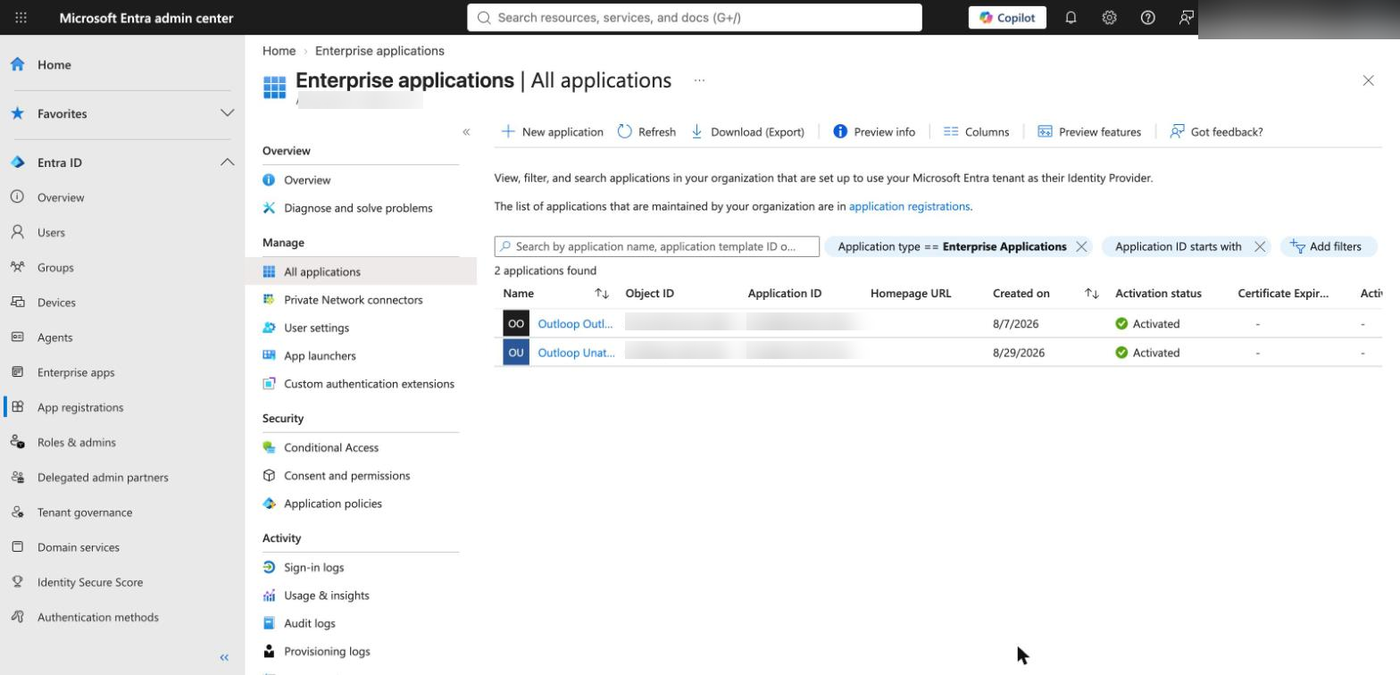
6. Find the app under Enterprise applications
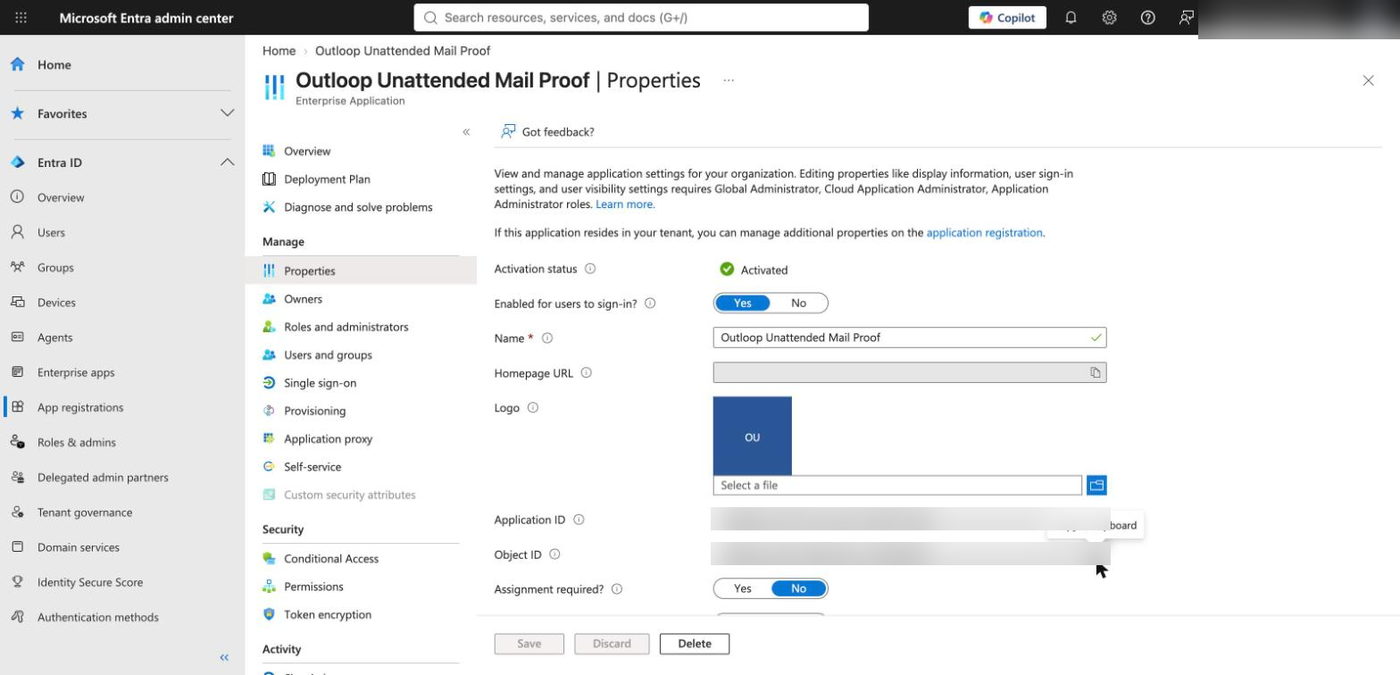
Exchange does not use the ID from App registrations. Open
Enterprise applications → All applications and find the same app
there; this list carries the Object ID that
New-ServicePrincipal needs.
7. Point Exchange at the application
Everything from here is Exchange Online PowerShell; there is no admin-centre UI for it. You need membership of Organization Management (or a delegating assignment for the Application RBAC roles), and the Exchange Administrator role in Entra.
Install-Module ExchangeOnlineManagement -Scope CurrentUser
Connect-ExchangeOnline -UserPrincipalName admin@yourtenant.onmicrosoft.com

New-ServicePrincipal -AppId <Application (client) ID> `
                     -ObjectId <Object ID from Enterprise applications> `
-DisplayName "Outloop mailbox agent" 8. Scope access to exactly one mailbox
New-ManagementScope -Name "Outloop AI mailbox" `
  -RecipientRestrictionFilter "PrimarySmtpAddress -eq 'shared.mailbox@yourtenant.onmicrosoft.com'"

New-ManagementRoleAssignment -App <Object ID> -Role "Application Mail.ReadWrite" `
  -CustomResourceScope "Outloop AI mailbox"

New-ManagementRoleAssignment -App <Object ID> -Role "Application Mail.Send" `
  -CustomResourceScope "Outloop AI mailbox"
Match the roles to the tier you will pick in Outloop.
Application Mail.ReadWrite does not include sending — Microsoft documents that split and
Outloop enforces the same one. For read-only, assign
Application Mail.Read alone.
Verify it, and verify the negative case too:
Test-ServicePrincipalAuthorization -Identity "Outloop mailbox agent" `
  -Resource shared.mailbox@yourtenant.onmicrosoft.com | Format-Table

Test-ServicePrincipalAuthorization -Identity "Outloop mailbox agent" `
  -Resource someone.else@yourtenant.onmicrosoft.com | Format-Table
The approved mailbox must return InScope True; any other mailbox must return InScope False. Both halves matter — the second is what proves the scope is real.
Test-ServicePrincipalAuthorization bypasses that cache, which is why it is
what to trust while you wait.
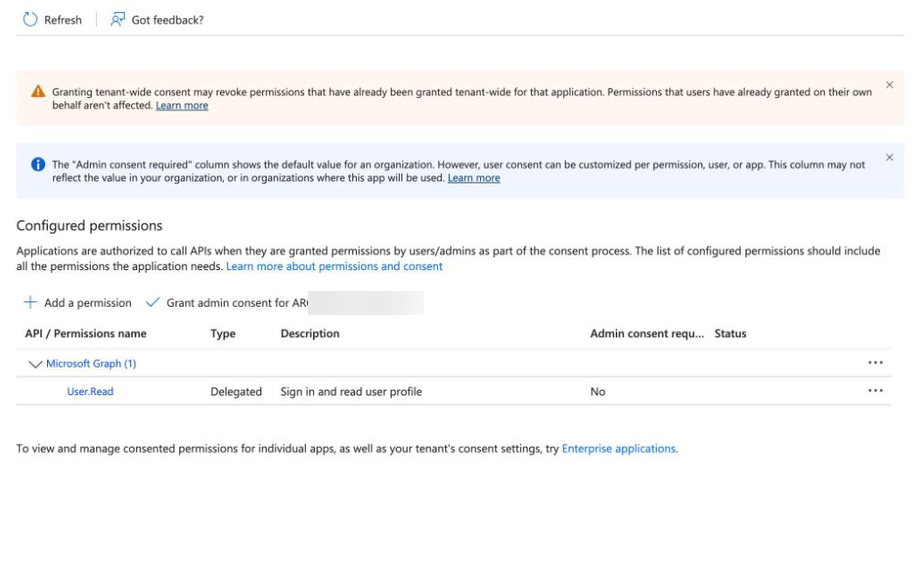
9. Confirm you did NOT grant org-wide consent
Back in Entra → your app → API permissions. There should be
no application Mail.* permission here.
If one is present, remove it. This is the union trap, and it is the single most common way a
mailbox-scoped setup silently becomes tenant-wide.
10. Add the connector in Outloop
Outloop → API Keys → Add an API key → Microsoft 365 Mail (unattended app access).
Fill in the client ID and the tenant ID from step 3:
Then the certificate and its private key. The private key signs locally and is never sent to Microsoft; it goes straight into the macOS Keychain over loopback and is never echoed back, never written into your project folders, never placed in the policy file, and never shown to an agent:
Finally, the one mailbox this workspace may reach, and the scope tier matching the Exchange roles you assigned:

11. Check the bounds
The saved connector is bounded to graph.microsoft.com, to the
/v1.0/ path prefix, and to the methods Outloop allows.
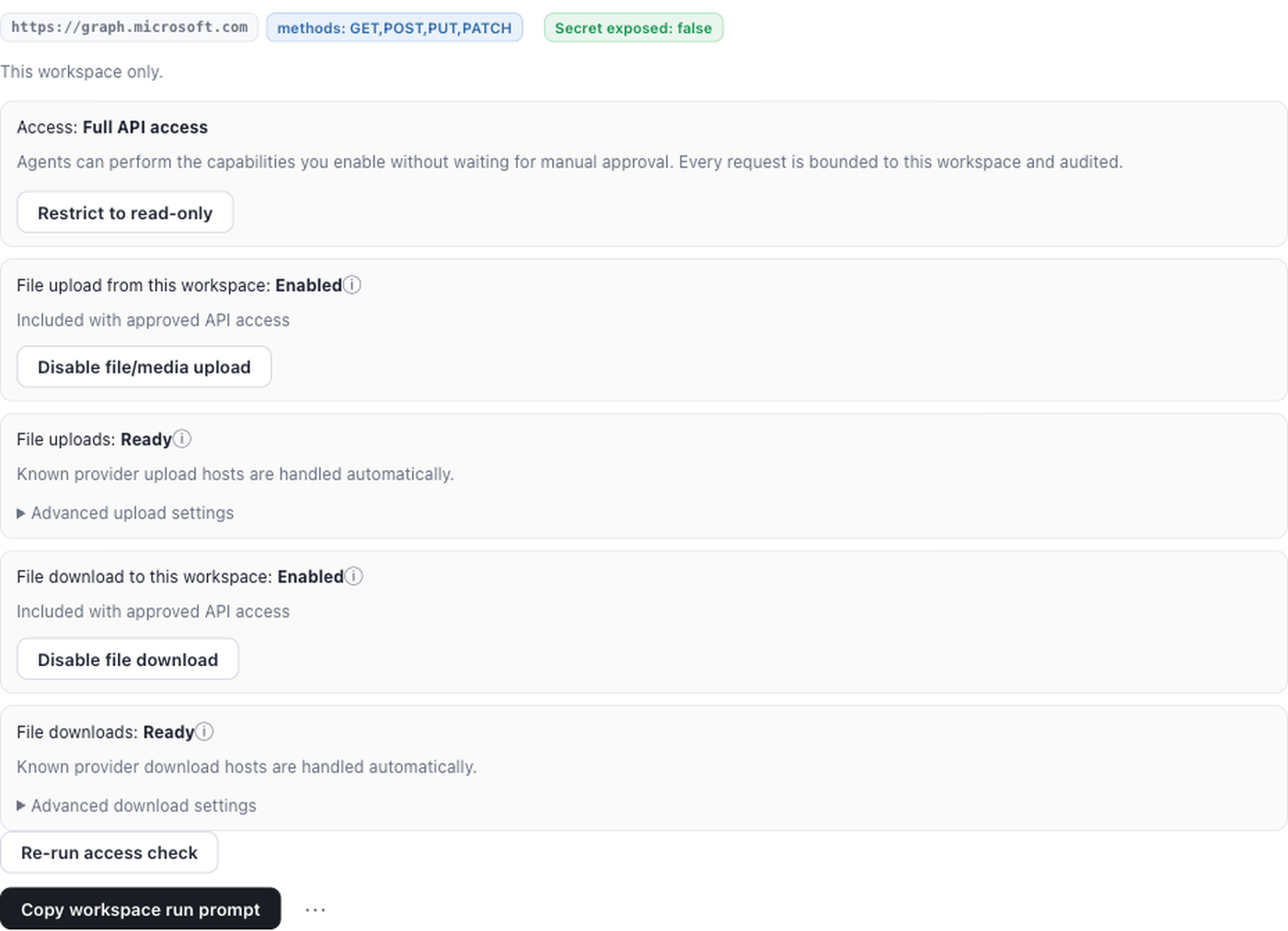
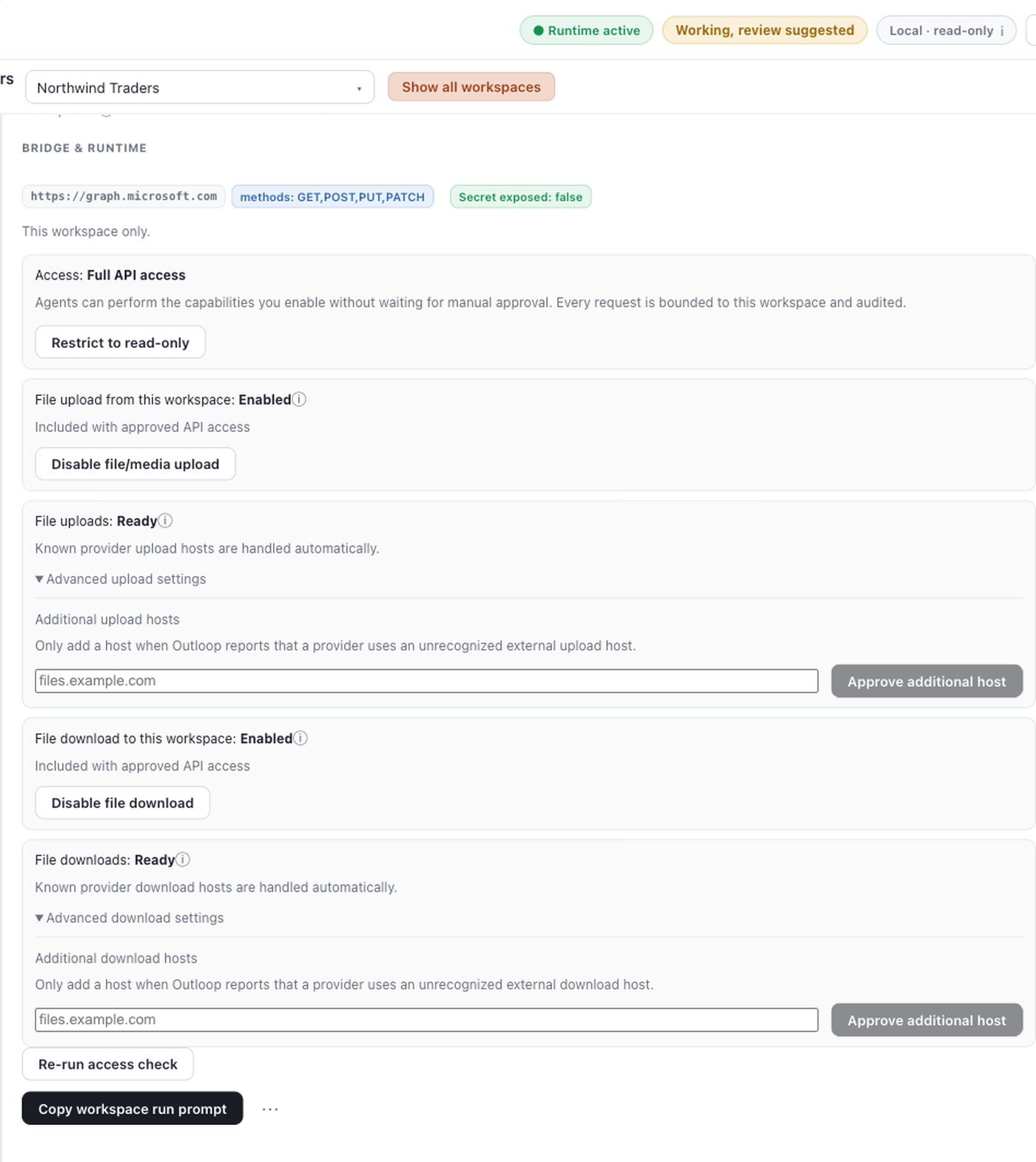
Note what is not there: no DELETE.
Deletion is refused structurally on this connector, not by a switch you could turn on. There is no
destructive-actions toggle to find.
The first safe proof
The first call is always a read, against the pinned mailbox's inbox folder — a route
Mail.Read covers. Runtime access turns on only if it succeeds.
GET /v1.0/users/{pinned-mailbox}/mailFolders/inbox

decision:         allow
http_status:      200
token_source:     mint
secret_exposed:   false
runtime_verified: yes The isolation property is proven by the negative case, which costs nothing to run:
GET /v1.0/users/someone.else@yourtenant.onmicrosoft.com/mailFolders/inbox

decision:        deny
code:            RESOURCE_ID_NOT_ALLOWED
http_status:     null          <- no Microsoft call was made at all
secret_exposed:  false
http_status: null is the point. The request was refused
before the credential was read and before Microsoft was
contacted.
Once the proof passes, the key row reads Runtime verified · API bridge , and the certificate's own expiry appears as Valid until 2028-08-28 (your date will differ) — Outloop reads it off the certificate rather than asking you to type it.
Full API capabilities and write actions
- Verified Live verified through Outloop — actually run in a real tenant and passed: read and search the pinned mailbox; browse folders; send, reply, reply-all and forward unattended (HTTP 202); add an attachment (draft 201, attach 201); unattended token renewal after natural expiry; foreign mailbox denied pre-provider; non-mail Graph routes denied pre-credential.
- Supported, not verified yet Drafts, moving and organizing messages, and mailbox folder management under the full workflow tier; large attachments through upload sessions (Microsoft's known issue 13644 affects shared and delegated mailboxes — not verified here, so do not assume it).
- Not supported
Deletion of any kind (
allowed_methodsisGET,POST,PUT,PATCH); mailbox rules and automatic-forwarding changes; Calendar, OneDrive, SharePoint, Teams and directory reads — a mail connection stays a mail connection; more than one mailbox.
What is verified vs what is not claimed
Tested here: everything in the verified list above, on the installed app against a live Microsoft 365 tenant with a certificate credential, on 2026-08-30. Twenty-one audit lines, zero secret exposures, leak scan clean.
Not claimed:
- ✕That Outloop can verify your Microsoft-side scope. It cannot. Reading Entra consent or Exchange RBAC would need
Application.Read.All, which this connector deliberately never requests. Provider scope is declared by your administrator; the mailbox pin is what Outloop enforces. - ✕That revocation is instant. If your administrator removes the RBAC assignment, an already-minted access token stays valid until it expires — up to about an hour.
- ✕That the delegated Outlook connector is proven. It is a separate connector with a separate credential, and no runtime proof has been run for it. Nothing on this page verifies it.
When delegated Outlook is the right choice
Delegated Outlook Mail is worth choosing in one situation: when the agent must act as a specific signed-in person — replying from their address, working their drafts and folders — rather than from a shared mailbox.
Selecting it in Outloop shows a visibly different setup: instead of a certificate, it offers Connect in your browser, because the credential is obtained by a person signing in.
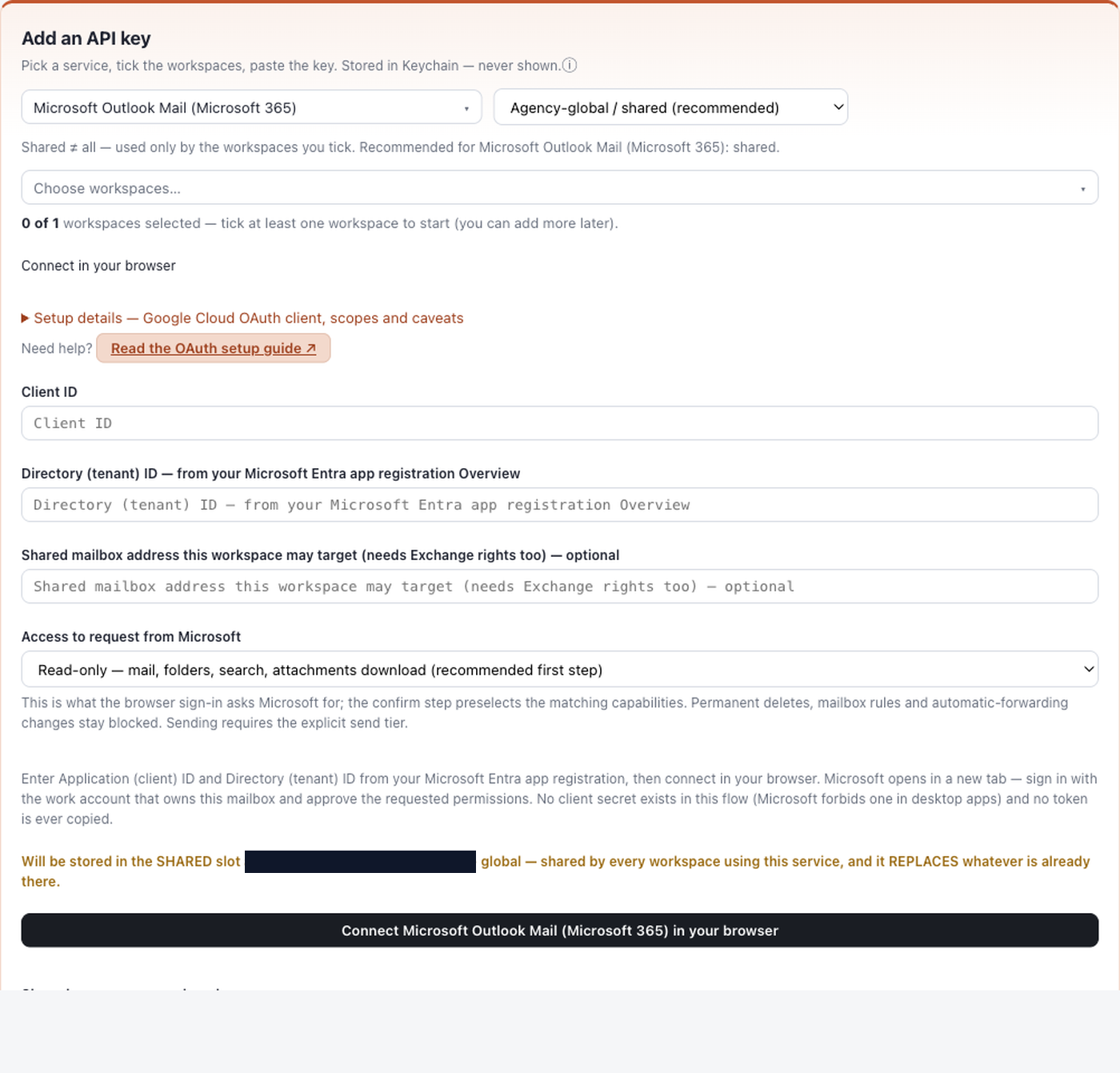
What you take on by choosing it:
- ✕A person must sign in, and sign in again whenever the credential lapses.
- ✕Microsoft rotates the underlying token; roughly ninety days of inactivity expires it.
- ✕A password change, an admin revocation, a Conditional Access change or an MFA re-enrolment all end it, and the only repair is interactive.
- ✕The credential carries that person's identity and dies with their account.
The two connectors are separate service ids with separate credentials, grants and proof state, so a workspace may hold both at once while you change over. Outloop never migrates one to the other.
Microsoft Graph through Outloop vs a Microsoft 365 MCP server
| Area | Graph through Outloop | Microsoft 365 MCP (community) |
|---|---|---|
| Provenance | This connector, shipped in Outloop 1.25.0. | No official Microsoft first-party Graph mail MCP. The prominent option is a third-party MIT project. |
| Authentication | Certificate-based app-only. No user. | Device-code interactive sign-in by default, with refresh tokens cached locally. |
| Survives unattended | Proven: 8h42m re-mint with nobody present. | A user sign-in that can lapse — the class this connector exists to remove. |
| Mailbox boundary | Enforced pre-credential by Outloop's pin, plus Exchange RBAC. | Client-side flags and parameters. |
| Surface | Mail routes only; non-mail Graph refused. | 300+ tools across most of Graph. |
| Audit | Every request audited, response redacted, secret_exposed:false. | Not applicable here. |
| Status here | Live verified through Outloop Real certificate proof, 2026-08-30. | Not connected here Not verified in this guide. |
When something is refused
- →
RESOURCE_ID_NOT_ALLOWED— the request named a mailbox other than the pinned one. Working as intended; no Microsoft call was made. - →
CUSTOMER_RESOURCE_PIN_REQUIRED— no mailbox is pinned for this workspace yet. Set it on the key row. A shared credential deliberately does not copy one workspace's mailbox to another. - →HTTP 401 — an authentication failure. The certificate or client ID is wrong, or the certificate was removed from the app. This is the one status class that affects credential health.
- →HTTP 403 — authenticated fine, not authorized. Almost always the Exchange RBAC assignment: either it has not propagated yet (wait — 30 minutes to 2 hours) or the role does not cover the operation (
Mail.ReadWritedoes not send). Outloop deliberately does not treat a 403 as a broken credential, because replacing the credential would not fix it. - →
AADSTS700027/ certificate mismatch — the certificate and private key are not a pair. Outloop checks this locally when you add them, so you see it immediately rather than days later. - →
ACTION_NOT_RECOGNIZED— a non-mail Graph route. Calendar, OneDrive, Teams and directory reads are refused by design. - →Nothing happens for a minute or two after an Outloop update. Replacing the app bundle can make macOS block the first Keychain reads for about 90 seconds. Wait two minutes and retry.
Certificate expiry and rotation
Outloop reads the certificate's own notAfter date, shows it on the key row, and warns well before it lapses. Where
no reliable date exists, Outloop shows nothing rather than guessing.
To rotate: create a new certificate, upload it to the same Entra app (both can coexist), then use Rotate key on the Outloop key row to paste the new pair. Remove the old certificate from Entra afterwards. The tenant, client ID, mailbox pin and Exchange RBAC assignment are untouched.
Official documentation
- →RBAC for Applications in Exchange Online
- →OAuth 2.0 client credentials flow
- →Microsoft identity platform certificate credentials
- →Microsoft Graph mail API
Outloop is available with setup guides and product support for agency teams. Outloop is an independent tool and is not affiliated with or endorsed by Microsoft. See the security model for how credentials are stored and used, or the other connector setup guides.
Let an agent work the mailbox while you sleep.
One mailbox, one certificate, no sign-in to expire.