Ask OLLIE. An AI worker for each client Workspace.
Ask OLLIE uses AI agent Skills to work toward a requested outcome in a selected Outloop Workspace. Agencies can reuse the same methods across multiple clients while each Workspace keeps its own Context, approved accounts, resources and working rules.
Give it an outcome, such as a client report. The worker uses relevant Skills and authorized tools, verifies the output and records what happened. Configure and validate each client Workspace before relying on the result.

How does an AI worker handle multiple clients?
Select the client Workspace before starting work. Reusable Global Skills hold the method; that Workspace supplies client facts, authorized resources and preferences. A second client reuses the method with its own configuration. This is Workspace-scoped work, not a shared pool of client records.
Outloop currently runs on a company-controlled Mac. Supported engine capabilities differ. Workspace separation does not imply separate browser cookies in every mode: Managed Browser uses a shared profile, while configured Local Chrome profiles provide separate browser environments.
Current documented Stable 1.45.0 evidence covers manual and scheduled Routines with ready Claude Code and Codex engines. The newer integrated Ask/Work experience is a separate scope; the external-host Runtime Pack below is a versioned candidate, not proof of current in-app activation.
Ollie Runtime Pack 1.6.0-rc.4
External-host candidate archive, built September 10, 2026: package validated with 203 tests and S21 disagreements: 0. Desktop GUI installation and first-client live activation still need the documented smoke test.
Download the Ollie Runtime Pack ZIP · 320 KB- Archive SHA-256 — verify before installing
- 0f35c2716a31de1b338638fb09450252a7767220d05dd270e2d9a4df7ef21c7f
Last updated:
One execution layer. Reusable capabilities. Each client’s own truth.
- Ask OLLIE does the work
- Runtime resolves authority and the Workspace. The Dispatcher selects eligible work and prevents duplicates; the Operator works toward the requested outcome.
- Global Skills supply expertise
- They are reusable capabilities, not rigid workflows or eight separate autonomous agents. OLLIE may use one, combine several, use relevant parts, or complete missing steps with other authorized methods. No perfect Skill is required to keep working.
- Workspace Context supplies client facts
- Identity, recipients, permissions, accounts, resources, business formulas, commission percentages and communication rules stay in the active Workspace and its tenant bindings.
“Analyze Meta performance and prepare a profitability report” can combine marketing analysis, Meta platform knowledge and profitability expertise. Runtime handles ownership and any authorized report or email delivery.
Browse the audited Skills catalogFrom request to verified result
Architecture illustration — this explains the sequence; it is not a screenshot or live-run proof.
- 1.
Request or scheduled intake
Work arrives with a clear objective.
- 2.
Resolve Workspace + authority
Load live Context, permissions and resource bindings.
- 3.
Dispatcher
Identify eligible work and prevent duplicate execution.
- 4.
Operator understands the task
Choose Global Skills, combine them or use only the relevant parts.
- 5.
Execute through authorized tools
API / Outloop, permitted MCP, Browser / Computer Use or another authorized technique.
- 6.
Verify
Read back actual output and confirm the requested outcome.
- 7.
Complete + report
Deliver results, record evidence and name any remaining dependency.
- 8.
Learn
Reflective proposes reusable learning; approval updates one canonical Skill.
How Ollie works inside a client workspace
- Inputs: email (Gmail or Outlook), project management, a team request, or a meeting follow-up.
- The Outloop Workspace supplies identity, live context, goals and KPIs, rules, permissions, work state, approval policy, tenant isolation and audit.
- The Ollie Worker understands the requested outcome, reuses complete or partial Skill logic, and plans the safest permitted path.
- The Operator selects Installed Skills as reusable expertise. Execution uses authorized tools: Outloop API, permitted MCP, Browser / Computer Use or another technique. Skills are not a transport.
- Verification: live read-back, evidence, duplicate prevention. secret_exposed: false.
- Team control: the task is updated, an internal draft is prepared, and approval is required before anything client-facing. The default policy is draft_for_internal_approval.
One Ollie operating system. Outloop gives every client workspace separate context, access, rules and work state.
The Operator selects Global Skills as expertise. Tools execute under Workspace authority. This is an architecture illustration, not evidence of a live run.
If one method fails, keep solving the task.
OLLIE is designed to complete the authorized task. A failed method does not by itself mean the task is blocked: METHOD_FAILED != TASK_BLOCKED.
Normal recovery follows API / Outloop → permitted MCP → appropriate Browser / Computer Use → another authorized technique → human escalation when genuinely required. Available routes depend on the live Workspace policy; an explicit denial is never bypassed.
- When three safe, meaningful options exist, target at least three materially different approaches in total, including the original. Stop immediately when approach 1 or 2 succeeds. Do not perform a pointless third attempt; three is not a maximum if another strong option remains.
- Recovery is not permission to repeat a side effect. Never send the same email, create the same ad or update the same record three times. An uncertain write requires read-back before another possible write.
- Reconstruct missing presentation structure from real evidence when possible. Never invent missing permissions, identities, recipients, formulas, commission percentages or material client facts.
- Complete independent parts while a dependency is blocked. Verify actual completion before reporting success, and name the precise remaining owner action.
These rules belong to Runtime’s canonical recovery owner. Business Skills consume them.
Email requests stay connected to the work.
One verified email thread stays linked to one PM task. OLLIE preserves the original Subject as the task title as closely as the PM system allows; later messages update that task.
The occurrence owner closes the loop with an internal teammate in the same thread. If work is incomplete, the reply explains what is blocked, exactly what the teammate needs to provide, and what OLLIE can still complete now. An authorized internal status reply does not require client-send approval.
If a message or file includes several clients, OLLIE uses only the active client’s confidently separated portion. If it cannot separate the information safely, it asks the internal sender for that client’s information separately, without copying other clients’ data.
An inconvenient Excel attachment is a reason to try practical authorized file, spreadsheet, conversion or browser methods before requesting another format. Readiness applies to each action: a pending client send does not cancel independent safe work or permitted internal communication.
Who decides what the client hears
Ollie does the work. The team keeps the client-facing boundary. These are two different permissions, and only the first one comes with the request.
- Work completed.
- Is client communication required?
- If no: update the internal task; nothing leaves the workspace; the task closes.
- If yes: prepare an internal draft — prepared, not sent.
- The team reviews it. Requested changes revise the same draft, with no new thread and no new task.
- Only an approval opens the gate. Until then the draft cannot be sent.
- Send in the original email thread.
- Verify provider evidence.
- The task then waits for the client, or closes.
The draft reaches the gate and stops. Nothing crosses it without a named person.
Default policy
draft_for_internal_approval
Nothing seeds a standing approval. Approval is for the client-facing and high-risk boundary — not for every normal action Ollie is already permitted to take.
An authentic request authorizes Ollie to perform permitted work. It does not automatically authorize:
- A client-facing send
- Increased spend
- An irreversible action
- A legal or compliance exception
- A policy bypass
- Cross-workspace access
A successful API response is not proof a message was sent. A verified client send requires real provider evidence — a sent message id or its equivalent.
How the message itself is written
Whether a message may be sent and how it is written are two separate controls. Context decides the voice; the runtime decides the markup.
-
Voice comes from Context
Outloop Context defines language, tone, signature, greeting and the client-specific communication rules.
-
Email-safe markup
The runtime enforces structured, email-safe HTML rather than whatever a model happened to emit.
-
Hebrew
Rendered right-to-left with lang="he".
-
English
Rendered left-to-right with lang="en".
-
Mixed-language content
Stays readable — a Latin product name inside a Hebrew sentence does not break the direction of either.
-
Proof of send
Gmail and Outlook sends both require provider read-back evidence.
draft_for_internal_approval remains the default throughout. None of this rendering behaviour changes who approves a client-facing message.
Install once. Verify in the next client’s Workspace.
The ZIP contains eight complete Skills, installation and compatibility guides, tests, a manifest and checksums. It does not install Outloop, grant access or arm a schedule on import.
Runtime prerequisites — dependencies first
- 1. ask-ollie-authority-core
- 2. outloop-access-fallback
- 3. email-lifecycle-core
- 4. ask-ollie-workspace-bootstrapper
ask-ollie-authority-core
public-2.5-rc.4 · 2 filesAuthority and permission boundaries.
Runtime Core · Candidate · local validation
Read ask-ollie-authority-core documentationComponent integrity
382cccd126f4be5513d1911e70ada5182583b5214708ec91206159fd905582f1
outloop-access-fallback
public-2.5-rc.3 · 2 filesAuthorized recovery, route discovery and resource verification.
Runtime Core · Candidate · local validation
Read outloop-access-fallback documentationComponent integrity
50d32e5cd70b19d744d842430b768c50b2c9a8f766047a6f8fe990160af63e24
email-lifecycle-core
public-2.3-rc.4 · 5 filesRecipient identity, communication policy and stored-copy delivery evidence.
Runtime Core · Candidate · local validation
Read email-lifecycle-core documentationComponent integrity
5a2609f24e1d5d10a72bee9d8527e0f80bbcca124182d628b6652666205fb5ec
ask-ollie-workspace-bootstrapper
3.8.1-rc.4 · 24 filesWorkspace bootstrap and generated Dispatcher / Operator.
Runtime Core · Candidate · local validation
Read ask-ollie-workspace-bootstrapper documentationComponent integrity
c3b7ae197c30a040cda5de347645927236ed1277e844bc934d024571879c3be3
reflective-skill-updater
2.2.0-rc.1 · 2 filesPropose approved, tenant-neutral learning to one canonical owner.
Runtime learning capability · Candidate · local validation
Read reflective-skill-updater documentationComponent integrity
c9a0337b51c6a84450b7e210e733fe8888daebc3e73453d267fb9638595e2f31
monthly-media-plan-status-report
1.1.0-rc.1 · 4 filesCompare planned media with measured delivery.
Optional Global Business Skill · Candidate · local validation
Read monthly-media-plan-status-report documentationComponent integrity
de6e192c3b3705864cb84f084b611a4d33810bb74881c534b91c85ddd4f63d7f
monthly-agency-profitability-report
1.1.0-rc.1 · 4 filesCalculate agency profitability from approved formulas and client inputs.
Optional Global Business Skill · Candidate · local validation
Read monthly-agency-profitability-report documentationComponent integrity
9b0fcc59b0c7652c2e6c76c496fd426e004258ffd698d2d8f66ded4dc6fe9901
crm-bmby-browser-reader
1.1.0-rc.3 · 4 filesRead Bmby with the approved Source Label binding.
Optional Global Platform Skill · Candidate · local validation
Read crm-bmby-browser-reader documentationComponent integrity
3ea97faa978b8dcecc3753b9a4bd88db292a2249029faea9eb785a0eb9580fb2
Claude Desktop / Cowork
Use the supported custom-plugin upload route for the whole ZIP. Local manifest validation passed for rc.4; CLI discovery of all eight Skills was recorded for rc.3 only. GUI import, enabled installation and the new client’s host execution remain unproven.
OpenAI / ChatGPT
Supported Work/Codex surfaces use extracted local or repository marketplace installation. Historical rc.3 CLI discovery returned an empty inventory; GUI import remains unproven. A normal cloud chat cannot reach the Local Bridge just because a Mac path is named.
Default schedule and approved deviations
Requested default: every two hours, 08:00–20:00, Sunday–Friday in the verified Workspace timezone. Cron shape: <mm> 8,10,12,14,16,18,20 * * 0-5. Resolve the minute from approved staggering and preserve explicitly authorized alternatives; verify saved timing and actual next runs.
A schedule may be armed only after the Workspace and host folder resolve, host access exists, intended schedule and scope are known, scheduling permission and capability are available, and duplicate-dispatcher checks pass. Preserve only explicitly authorized, runtime-verified deviations. Otherwise record the correct pending state and exact owner action.
An accepted Bridge request that is still running is pending work, not a missing connection. Runtime uses its supported claim / ownership / cycle / execution identity model. Client activation requires actual installed-byte read-back and the controlled and autonomous tests in SMOKE_TEST.md.
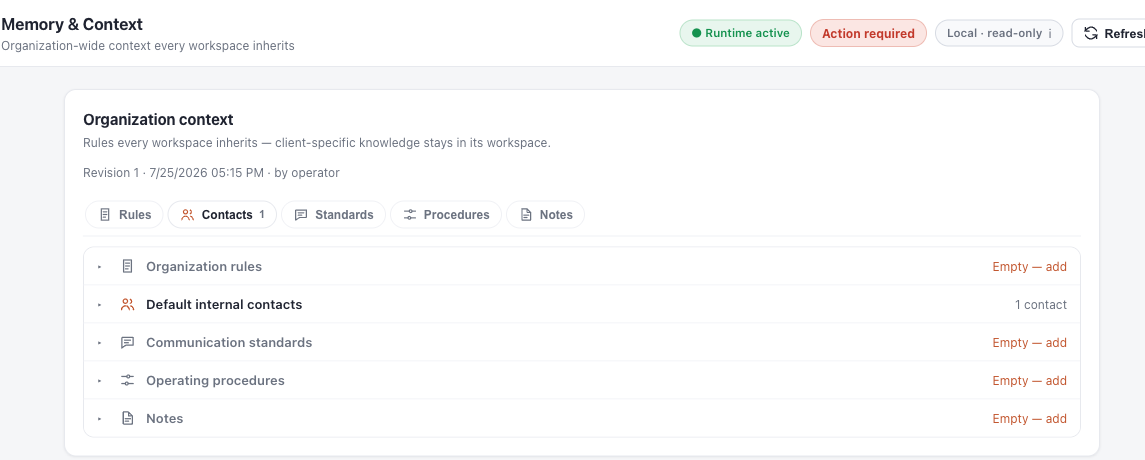
Inside Outloop
Real product screenshots from the existing documentation, cropped and redacted for public use. These show the Context, learning review and runtime health interfaces; they are not proof of an rc.4 installation or client run.


What has been proven
The 1.6.0-rc.4 package passed 203 tests and the S18–S22 consistency checks, with S21 disagreements: 0. The website serves the release owner’s unchanged ZIP. This proves package-level readiness; it does not prove GUI installation, a live provider send or first-client scheduled execution.
Rollback keeps the prior release available at its original URL. Follow ROLLBACK.md; do not activate two dispatchers for the same work.