Set up the Google application identity for Outloop on your Mac, connect each service with the right Google account, and understand when Google verification is needed.
Choose the path that applies to you
| Your situation | What you do | Who handles Google verification? |
|---|---|---|
| Outloop supplies a supported OAuth application for your onboarding | Use the connection flow supplied by Outloop. Confirm the displayed application, account and requested permissions. | The operator of that application. You do not create a project merely to authorize your Google account. Availability of this managed onboarding route must be confirmed with Outloop. |
| Your agency or business manages its own Google OAuth infrastructure | Follow the project-owner steps below. Use your own project, branding, domain and contact details. | Your designated project/application owner, with Outloop supplying accurate product and data-flow information. |
| You already have working Google connections | Inventory the existing project and Client IDs first. Add and test a suitable Desktop client separately when needed. | The existing owner. Do not delete or replace working clients just to match this guide. |
This guide covers the native macOS flow: Outloop opens your system browser and receives Google's response on your Mac. A server-mediated website login is a different architecture and can legitimately use a Web client. Creating a Desktop client, granting account access, allowing the app in Google Workspace, publishing to Production and obtaining Google's verification are separate steps.
How the pieces fit
Google Cloud project
  Branding + Audience + Data Access declarations + enabled APIs
  └── Desktop OAuth client for AI workflows
      └── Saved Google OAuth app in Outloop
          ├── Gmail connection → its account, token, scopes and workspace grant
          ├── Drive connection → its account, token, scopes and workspace grant
          └── Other connections → separate authorization and resource boundaries
Reusing an application identity saves setup work. It does not combine all Google accounts into a universal token or authorize every workspace. The account that owns the Cloud project can differ from the account you connect to Gmail or Drive. A Shared credential and a Dedicated credential must still follow the workspace's explicit access policy.
Before you begin
Have an installed, supported Outloop build; a Google account authorized to administer the intended Cloud project; access to the Google accounts and resources you intend to connect; and a list of the actual capabilities you need. For an externally distributed application, also prepare a public application website, privacy policy, support address, domain ownership and a responsible verification contact.
Use synthetic mail, files and calendars for your first test. Keep an inventory of existing Client IDs and connection owners. Do not record a credential-entry session, send a downloaded OAuth JSON file to support, or commit it to your website repository.
For the native Desktop setup described here, select Desktop app. Confirm compatibility with your installed Outloop release before changing a working setup. Google's desktop flow supports system-browser authorization and a local loopback callback. Outloop's inspected flow uses PKCE S256 and http://127.0.0.1:44317/oauth2/callback. A Desktop client does not offer the Web client's “Authorized redirect URIs” editor; do not add a public callback server to make that field appear. Google desktop OAuth documentation
1. Select the right Google Cloud project
Open Google Cloud Console in the intended administrator account. Use the project selector to choose your existing canonical project, or create a project when your organization has no appropriate one. Confirm the project name and ID before editing anything.
Use one production project for compatible Google integrations, with separate development/testing infrastructure. Do not create a production project per API. Different deployment types or AI versus ordinary interactive workflows can still require different Client IDs inside the same project.
Checkpoint: you know the project owner and the exact project ID. Examples in screenshots belong to Outloop's demonstration configuration; do not copy that project's identity into your own setup.
2. Enable the APIs you actually use
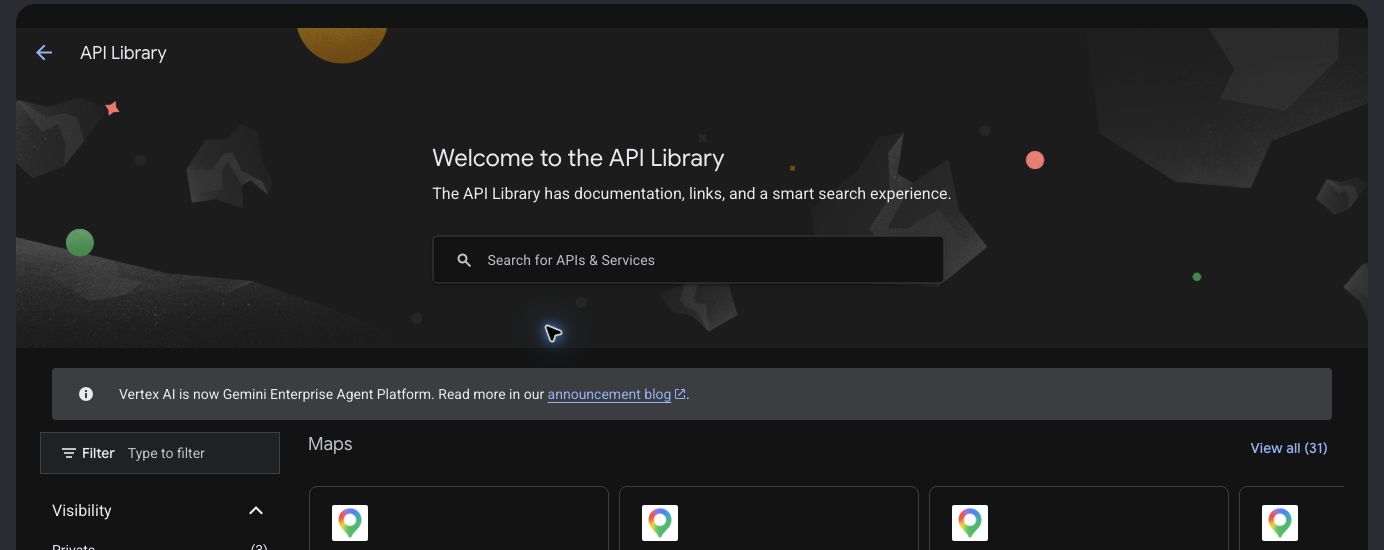
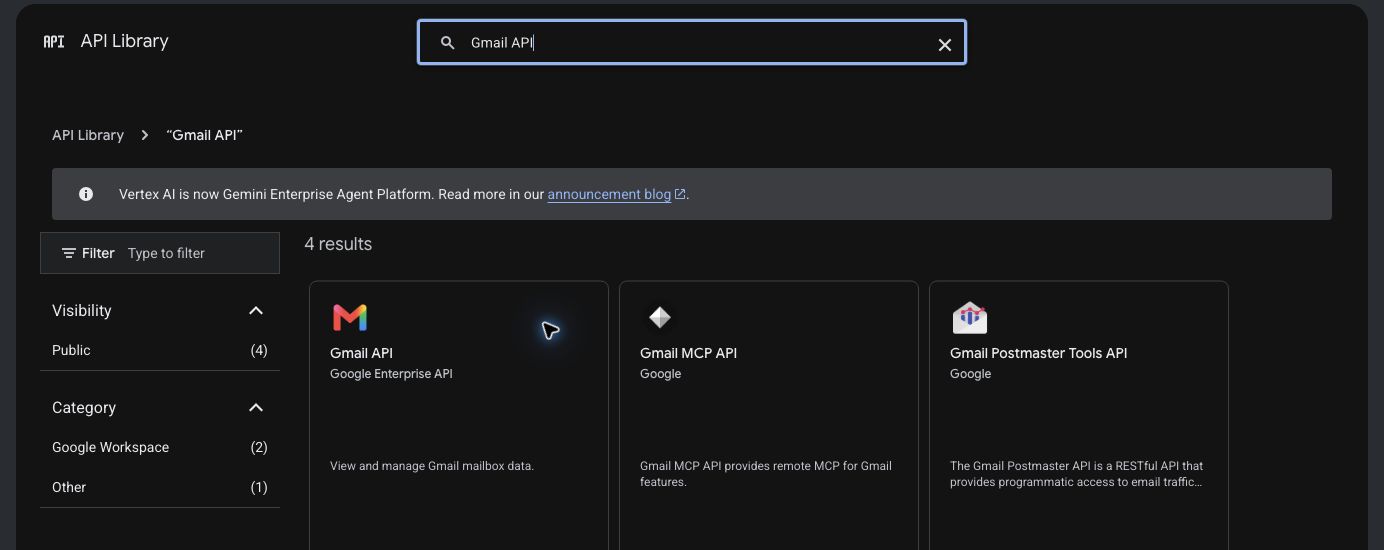
Open APIs & Services → Library. Search for the service, open its API page and select Enable if it is not already enabled. An existing configuration shows API Enabled and Manage.
For email, select Gmail API, not Gmail Postmaster Tools or an unrelated MCP API merely because it appears in search.
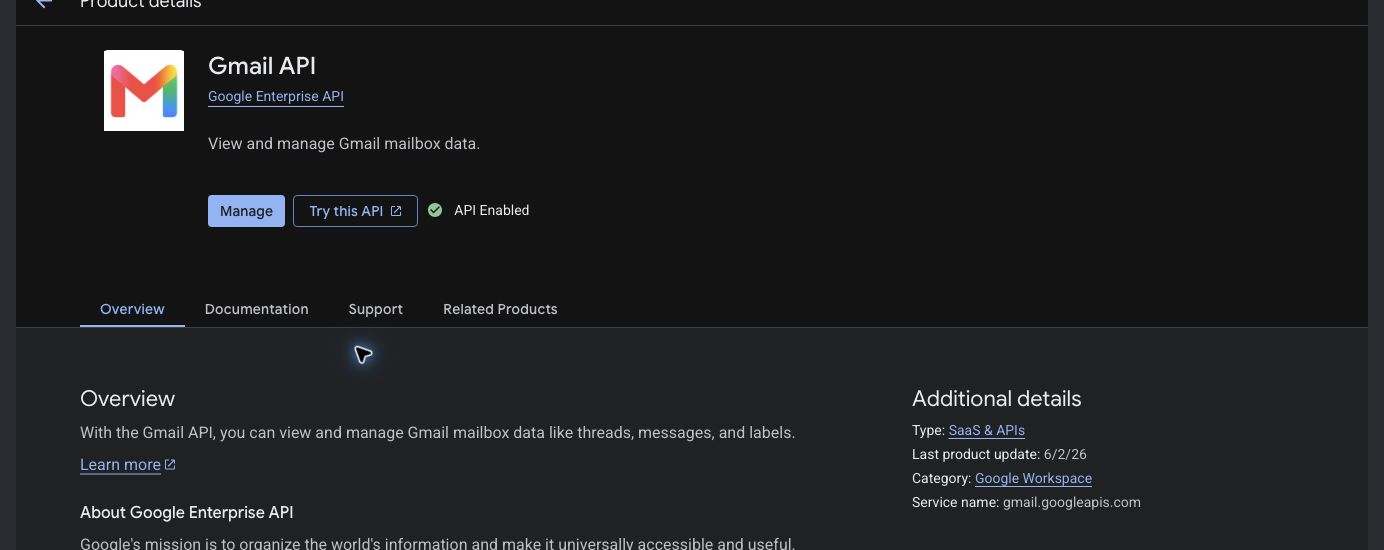
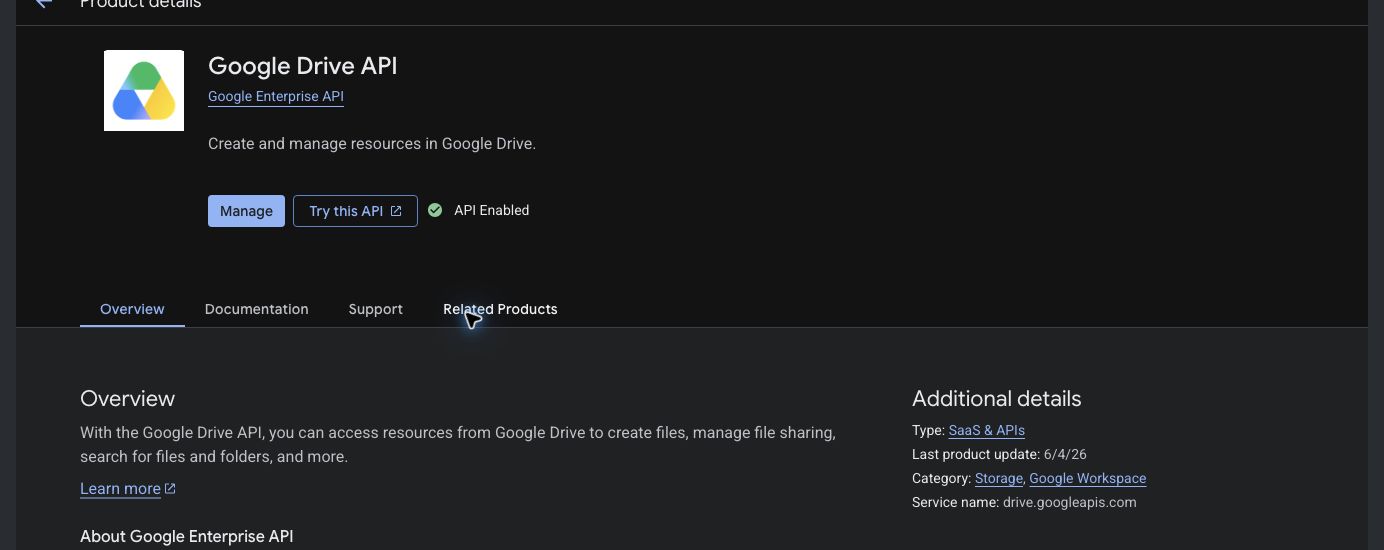
Common API families are Gmail API, Google Drive API, Google Calendar API, Google Docs API, Google Sheets API and Google Slides API. Reporting and marketing workflows can additionally need Google Analytics Data/Admin APIs, Search Console API, Google Ads API, Data Manager API, Tag Manager API, YouTube Data API or the supported Merchant API family. Confirm each connector's current instructions. Enabling an API does not grant user access, create a token or satisfy an API-specific production approval.
Checkpoint: the APIs behind your selected Outloop connectors are enabled. Do not enable unrelated APIs just to match a screenshot's count.
3. Configure application Branding
Open Google Auth Platform → Branding. New projects may first show a setup wizard. Supply truthful application information and save it.
| Field | What belongs here |
|---|---|
| App name | The real application identity users should recognize. Use a name that accurately describes your organization's Outloop deployment; do not impersonate Outloop's central application. |
| User support email | An eligible, monitored address that users can contact about authorization. The Console may restrict which addresses you can select. |
| Homepage | A public page explaining the application and its functionality. |
| Privacy policy | A public policy describing the actual Google-data access, use, storage and transfers. |
| Terms | Your applicable public terms, where supplied. |
| Authorized domains | The domains actually used by your application configuration. |
| Developer contact | A monitored address for Google's verification correspondence. |
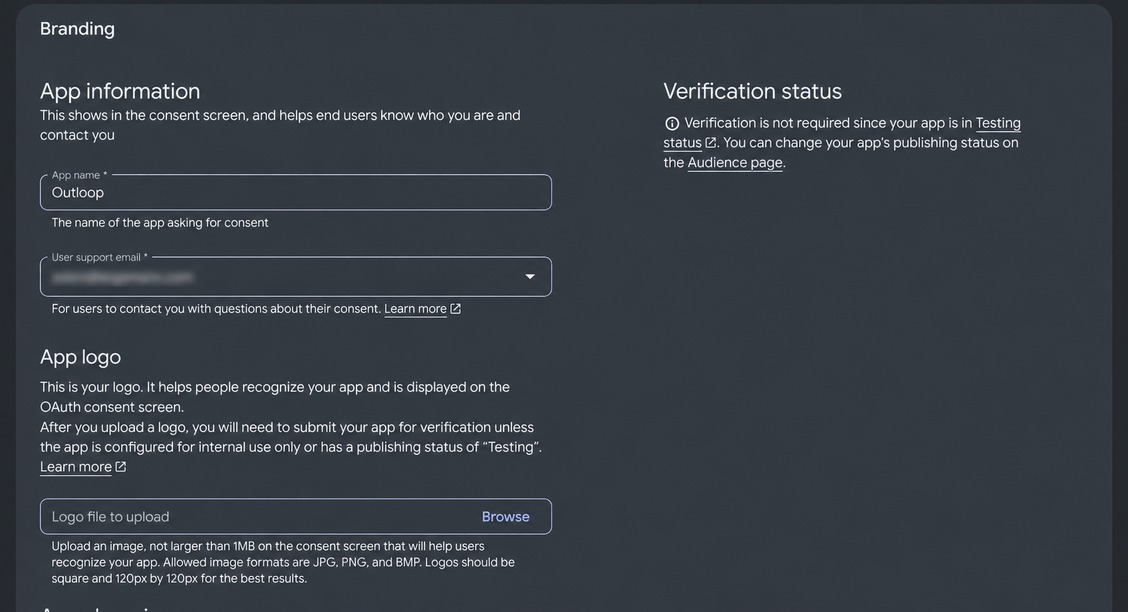
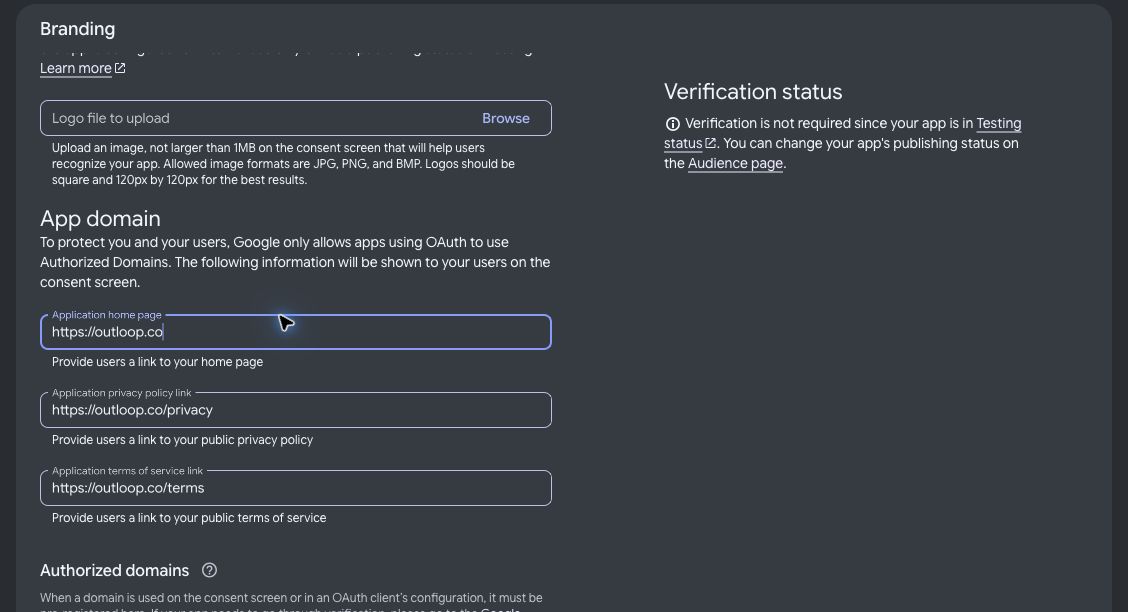
These screenshots show Outloop's branding as an example, not legal text for every agency to adopt. Your organization cannot claim ownership of Outloop's domain. Where domain verification is required, have the appropriate project owner/editor verify the domain through Search Console, using the DNS value Google generates for that domain/account. Preserve existing DNS records. Do not reuse a verification TXT value from a screenshot.
Checkpoint: the saved values are correct, the links work publicly, and the people receiving support and verification mail are known.
4. Choose Audience and test users
Open Audience. An eligible organization-only deployment may use Internal; an app serving users outside that organization needs External. Agency customers do not automatically count as internal members of your Google Workspace organization.
External apps in Testing restrict who can authorize them. Add the specific test accounts before attempting consent. For non-identity scopes, Testing authorizations and their refresh tokens expire after seven days. This makes Testing unsuitable as a promise of unattended, indefinite operation. Production is a separate publishing state and does not mean scopes are verified. Google Audience documentation
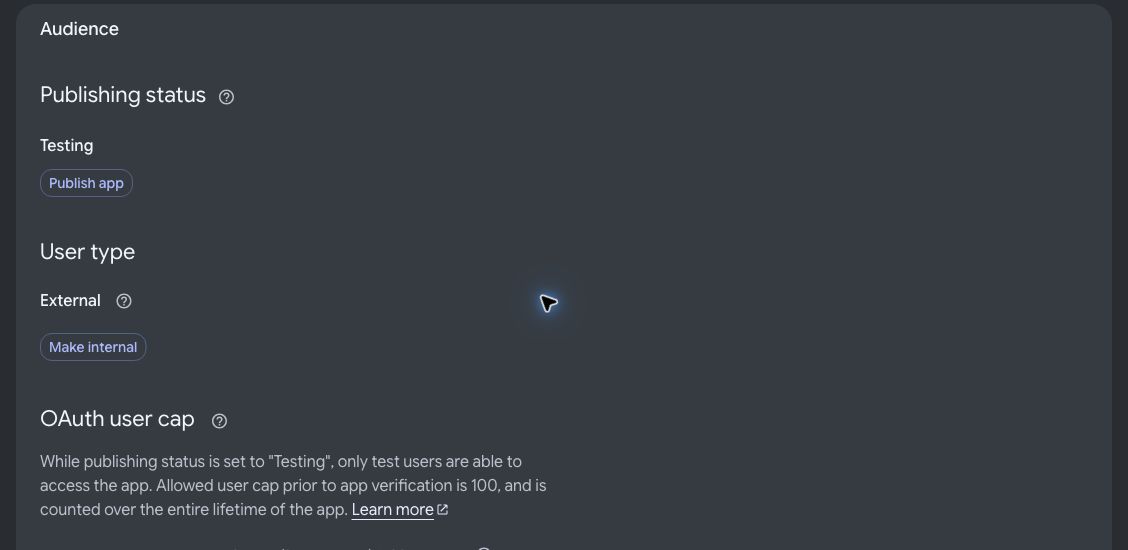
Checkpoint: the Google identity you will use for testing is allowed. Do not switch Audience just to make a tutorial screenshot; use the readiness process in step 9.
5. Declare the scopes needed by your connectors
Open Data Access → Add or remove scopes. Select the scopes required by the supported Outloop connection options you plan to offer. If a scope is missing from the table, check API enablement and use Manually add scopes where appropriate.
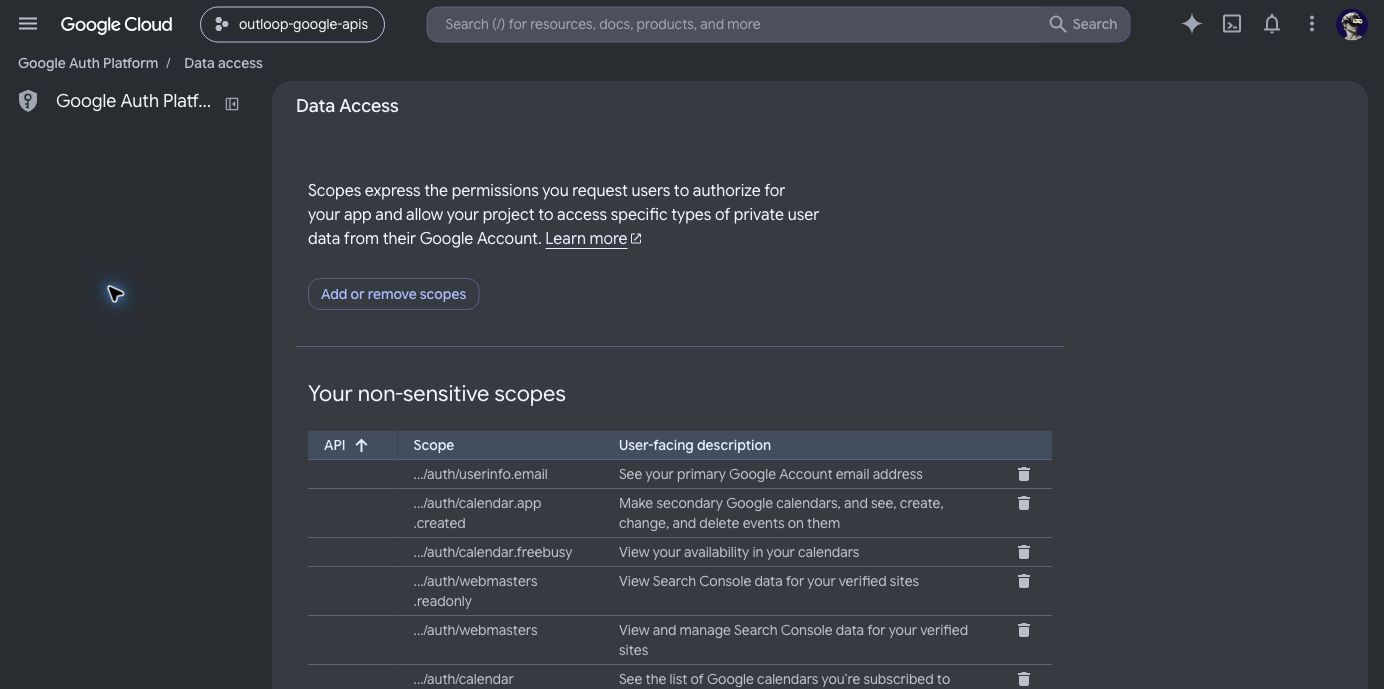
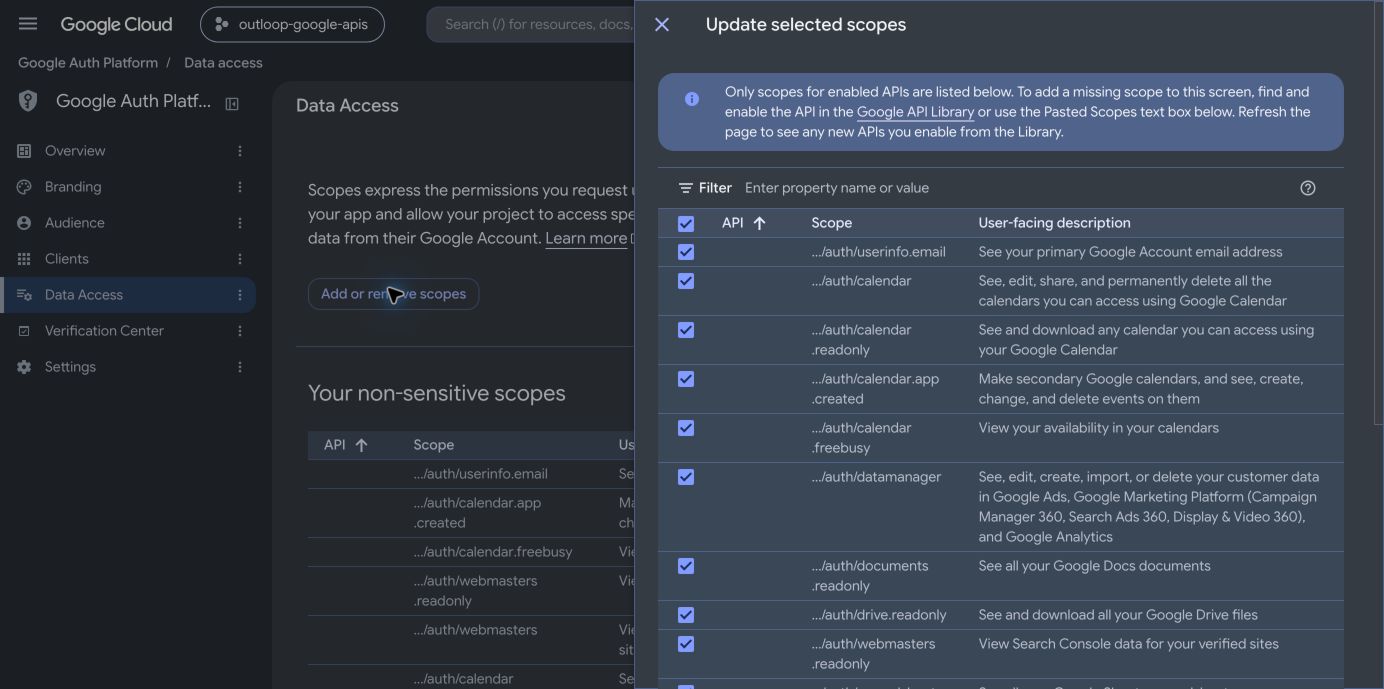
Enter full scope strings, one per line or separated as the Console allows. Choose Add to table, review the selection, then Update. Back on Data Access, choose Save and read the saved categories again. A change in the selection drawer alone is not the final saved configuration.
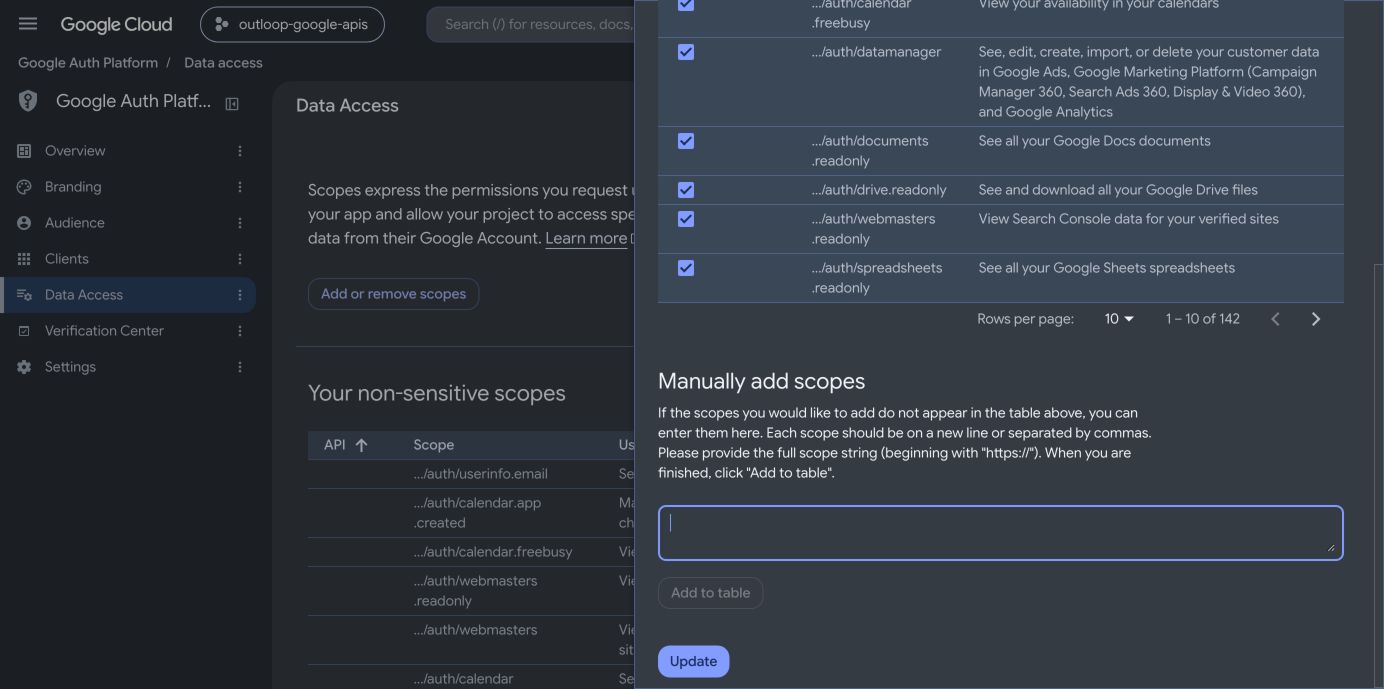
Choose scopes by the capability you need, not by copying another project’s entire scope list. Some options below are alternative read-only and read/write tiers. Confirm the exact full scope strings against your selected connector and Google’s current documentation before saving.
| Capability | Typical scopes to evaluate | Why the distinction matters |
|---|---|---|
| Gmail reading and thread context | gmail.readonly | Send-only cannot supply message content. |
| Gmail drafts | gmail.compose | Draft preparation is separate from Outloop's send authorization. |
| Gmail organization | gmail.modify | Labels/trash workflows; not a reason to request permanent mailbox deletion. |
| Gmail sending | gmail.send | Final sending still needs the appropriate host capability and workflow authorization. |
| App-accessible Drive files | drive.file | Prefer this where the app-created/opened/selected-file model meets the workflow. |
| Existing-file discovery/automation | drive.readonly or drive | Broader access needs a real existing-file use case and justification; workspace limits still apply. |
| Docs, Sheets, Slides | Corresponding read-only or read/write scopes | Match the chosen connector tier. |
| Calendar | Events, calendar-list, availability or full-calendar options | Event creation alone does not justify every calendar-administration capability. |
Declaring a scope in Cloud does not put it into an existing token. The connector's authorization request and the user's grant determine granted scopes. Later capability expansion can require a new consent flow for the affected connection.
Checkpoint: enabled APIs, declared scopes and Outloop's actual requested scopes agree. Retain necessary approved capabilities; do not remove working scope declarations without an impact review.
6. Create the Desktop AI client
Open Google Auth Platform → Clients → Create client. Select Desktop app. Give it a recognizable name, for example Example Agency Desktop AI Worker. For this AI workflow, select Use this client for an AI-powered agent.
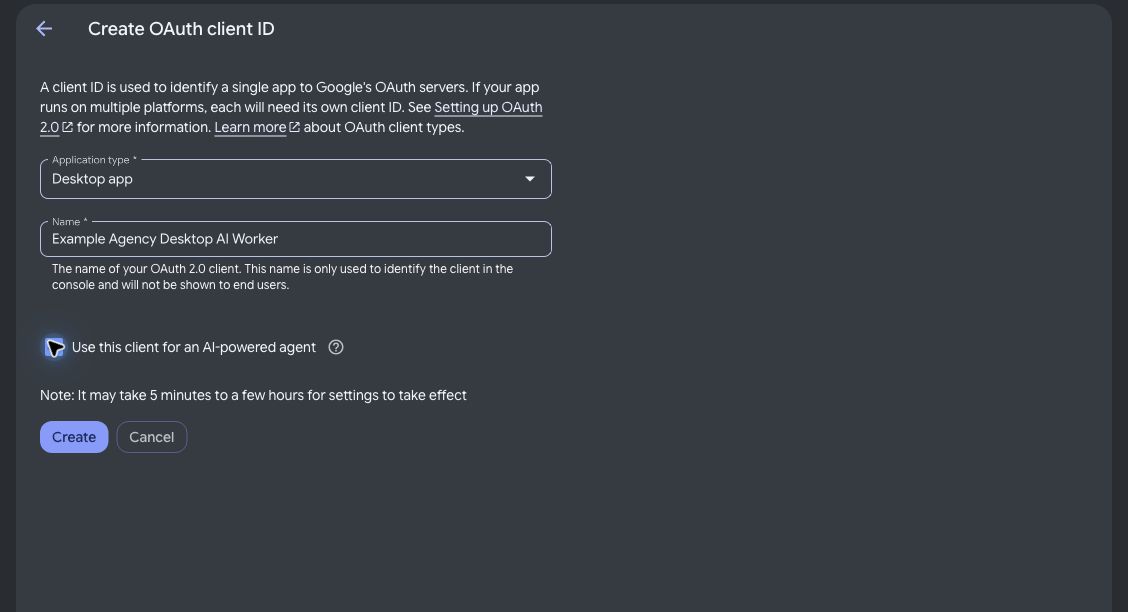
The example above is an unsaved instructional form. It did not create an additional client. The AI designation identifies how the client is used; it does not grant additional API permissions. Google's guidance calls for separate clients when an application combines AI-agent workflows with standard interactive features. Google client-management guidance
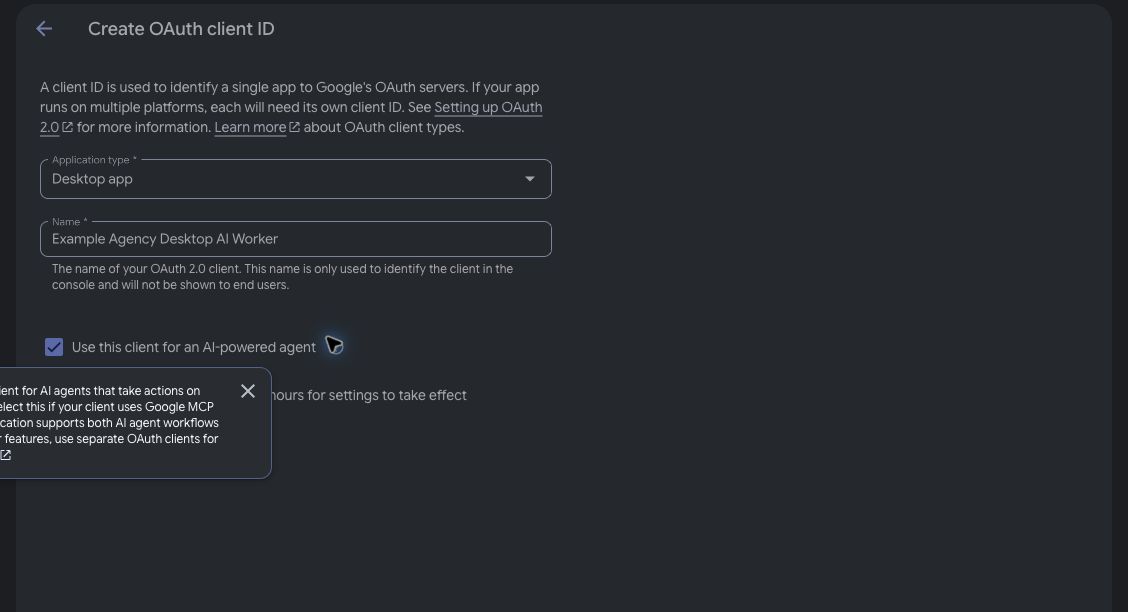
When you are ready and authorized, select Create once. Google displays the new client's details. Preserve any issued credential material through the secure setup flow; do not screenshot the creation dialog or expose it in chat. Confirm the new entry says Desktop in the Clients list.
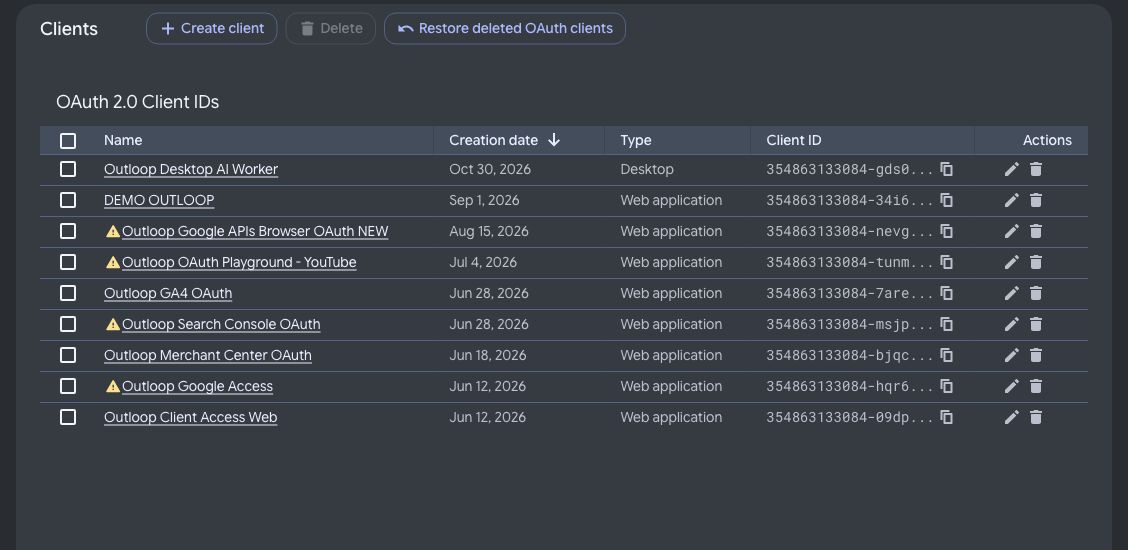
Desktop apps are public OAuth clients. A Google-issued secret value must not be treated as proof that a distributed application can keep a server secret. The inspected Outloop implementation can accept Google's issued client credential pair; use the supported Outloop UI without removing PKCE or inventing a public callback service. End-to-end compatibility of the new client must still be tested on the release you deploy.
Checkpoint: the new client exists with the intended type and designation, and all unrelated existing clients remain intact.
7. Save the application identity in Outloop
In the inspected Outloop build, existing reusable applications are under Advanced → Authentication Profiles → Google OAuth Apps. The page explains that connectors receive separate authorizations and scopes.

For a new connection, choose the intended workspace and Google connector through Outloop's connection setup. Use an existing Google OAuth app when appropriate, or Use a different Google OAuth app… for the new client. Enter its Client ID and issued Client Secret only in the secure Outloop credential fields. Where offered, enable Save this Google OAuth app so other Google connectors can reuse it. Use a recognizable application label rather than a misleading connector-only name.
The connection-form labels were checked in Outloop 1.57.4 source. The screenshots here do not demonstrate a newly connected Desktop profile or a completed browser authorization. Validate those steps on your installed release.
Choose the connector's appropriate scope option and Connect in your browser. Sign into the account that owns or can reach the desired Gmail mailbox, Drive files or other resources. This may not be the Google Cloud project-owner account. Read Google's requested permissions and complete the supported consent flow. Outloop handles the return and token storage; this native path does not require manually copying a refresh token from OAuth Playground.
Checkpoint: verify the returned account identity and connection status, then verify an actual permitted API operation. A “saved profile” alone is not evidence that Google authorization succeeded.
8. Verify account and workspace isolation
Test using synthetic resources before assigning customer workflows:
- Read a known test Gmail thread and retrieve a known test Drive file.
- Create a synthetic document or calendar event only where authorized; read it back from Google.
- Send a test message only to an authorized test recipient; verify delivery in that mailbox.
- Confirm a workspace cannot access an unapproved account or resource.
- Verify refresh and restart behavior without printing tokens or blindly replaying writes.
- Confirm the selected AI runtime's disclosed processing and consent behavior in the deployed build.
- Restore temporary test settings and document the tested version and outcomes.
Shared application credentials do not authorize shared access to business data. Do not change a connection from Dedicated to Shared merely to make a test pass. Revocation at Google can affect more than a single local connector, depending on the grant; do not promise that revoking an application's access leaves all its other connections untouched.
9. Publish and verify when the application is ready
Only the application/project owner follows this section. An end user granting account access is not submitting an application for developer verification.
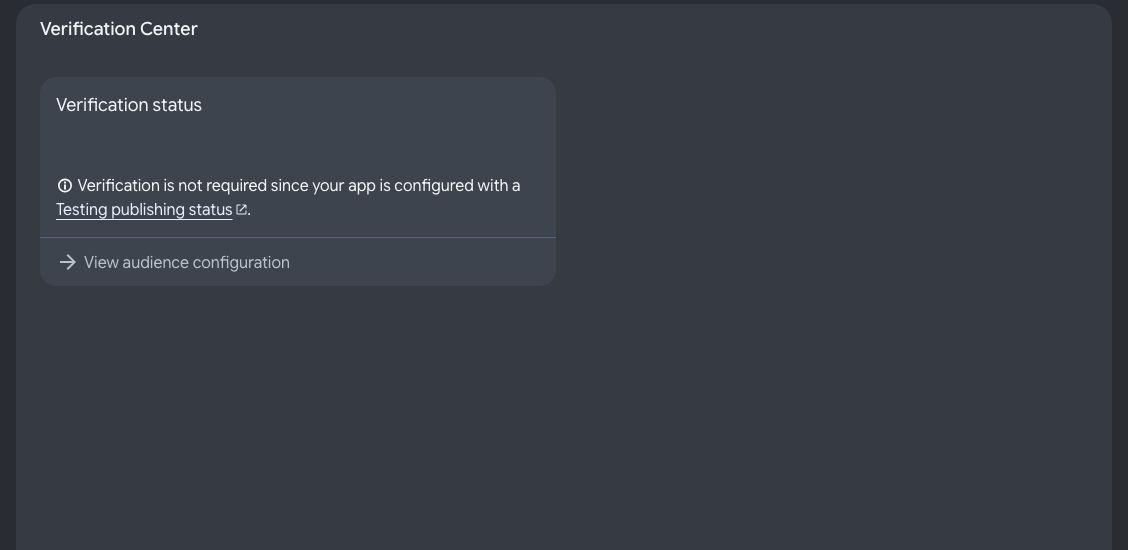
The observed Console in Testing does not offer Verify Branding. It directs the owner to Audience. When the application is ready, follow the Console’s available actions to publish the app, request brand verification and publish approved branding. Complete any required data-access verification separately; the exact controls and review steps depend on the project’s state. Branding may require manual review; do not label the application verified while a review is pending. Google's brand-verification process
Prepare a scope-by-scope justification tied to real features, an English demonstration of authorization and actual workflows, accurate privacy/deletion disclosures, and clear reviewer instructions. Describe where Google content travels, including AI providers. Do not describe a local-first product as local-only if content is sent for remote inference.
For restricted-scope review, remote processing/storage of restricted data can require a security assessment. Follow Google's actual CASA referral and assessor requirements; do not assume a local credential store creates an exemption. Complete the initial verification submission when Google permits, rather than waiting for a separately referred assessment to finish. Paid assessor commitments require the application's owner. Restricted-scope verification
AI disclosure must reflect the actual shipped experience. Google Workspace content must not be repurposed for prohibited advertising use or generalized model training. Publish Limited Use statements only when supported by actual operations and provider arrangements. A future consent screen must not appear in a current demonstration. Workspace user-data policy
Checkpoint: record actual Google status, not just a successful Save. Production, brand publication, scope submission, Google approval and CASA completion are distinct milestones.
Troubleshooting
| What you see | Check | Safe next step |
|---|---|---|
| Reconnection after about seven days | External/Testing status and token issue date; also inspect the actual error | Complete readiness/verification. Do not promise old Testing tokens gain a longer lifetime retroactively. |
access_denied or test-user restriction | Correct Google identity, test-user eligibility and Workspace admin policy | Resolve the specific restriction; do not weaken organizational controls. |
org_internal | An external account is trying to use an Internal app | Use the correct organization account or have the owner reassess intended audience. |
redirect_uri_mismatch | Actual client type and the app's callback | For a legacy Web client, investigate its exact registered callback. Do not follow stale Web-only instructions for a new Desktop client. |
invalid_client | Client identity, matching credential pair, deletion/rotation | Use the correct saved application; avoid changing unrelated working profiles. |
invalid_grant | Revocation, expiration, account changes or other token conditions | Diagnose the real error, then reconnect only the affected authorization if needed. |
| API disabled / service not enabled | API enablement in the project that issued the Client ID | Enable the required service under the project owner's authority. |
| Insufficient scope | Actual connector request and token grant, not only Data Access declarations | Reauthorize the affected connection with the justified scope option. |
| Connected but resource denied | Google sharing/account role and Outloop workspace/resource grants | Correct the intended boundary; OAuth does not override either layer. |
| No Verify Branding button | Audience remains Testing | Complete readiness, then follow the ordered Production/Branding sequence. |
| Local callback does not complete | Outloop still running, expected port available, correct browser/account, actual error | Retry through the supported flow after diagnosis; do not expose the loopback listener publicly. |
| A reviewer requests more evidence | Exact requested scope/client/workflow | Supply matching real evidence; do not delete clients or resubmit repeatedly to avoid review. |
Completion checklist
- Correct project owner and application identity.
- Required APIs enabled; scopes match actual connector capabilities.
- Desktop AI client created and read back; existing clients preserved.
- Reusable app stored through the secure Outloop flow.
- Each connector uses the intended Google account and explicit workspace access.
- Synthetic provider operations, refresh and restart tested on the deployed build.
- Accurate AI disclosure, consent, retention and deletion behavior demonstrated.
- Actual Production/Branding/scope-review status recorded where verification applies.
- No credential JSON, secrets, refresh tokens or customer data in the guide or review video.
Need help? Contact Outloop support with the non-secret error code, connector name and relevant application version. Never send a credential file or token.