Check your Workspace and worker
New Workspace or Ollie not active? Start with First Workspace: create, connect and activate Ollie. Return here when Ask Ollie is available.

Open your Workspace → AI Worker → Settings. Check the engine, Ask Ollie availability and automatic email state separately. Then open Workspace Knowledge → Skills → Outloop to see the built-in capabilities.
For a first task, ask Ollie for an internal draft using known files. Specify the objective, source material, target and desired output. Review the result before asking for an external action. You do not need to send an email to use Ask Ollie.
Before the first request: confirm the intended Workspace, an available engine and Ask Ollie availability. Automatic email is optional.
The four built-in Skills
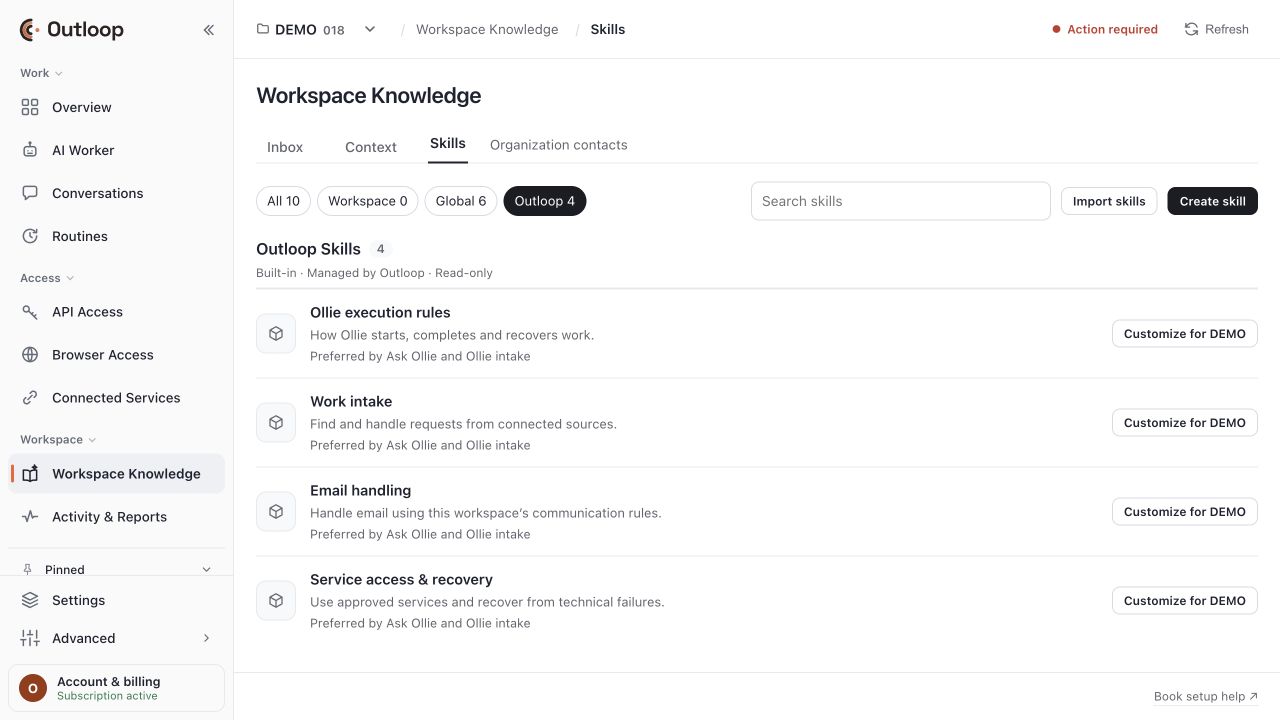
Ollie execution rules
guides how Ollie starts, completes and recovers work. Use this mental model when interpreting a run: a request must be permitted, the work must be performed, and the result must be checked. A completion statement alone is not provider evidence.
Work intake
guides finding and handling requests from connected sources. Automatic email also depends on the selected mailbox, sender authorization, trust, trigger filters and checking state. A manual Ask Ollie request is a different entry point.
Email handling
guides email work according to this Workspace’s communication rules. Check the intended thread, recipients, content, attachments and review policy before delivery. An internal request does not automatically require an approval; the configured policy and requested action determine that.
Service access & recovery
guides use of approved services and recovery from technical failures. A connected service is not a blanket permission for every operation. When an operation fails, inspect the named service, allowed action and actual error before retrying.
These four Skills are built in, managed by Outloop and read-only in the observed installation. “Customize for [Workspace]” is a separate Workspace customization entry point; it is not permission to overwrite the Product-owned original. Customization was not exercised for this guide.
Need to authorize a Context, Workspace Skill or Routine update? Check person permissions, selected scope and instruction identity before retrying.
Try your first request
Copy this into Ask Ollie in a suitable demo Workspace:
A draft you can check
Use only this synthetic Luma & Leaf campaign data: Search spend $1,200, revenue $4,800; Social spend $1,800, revenue $4,500. Target ROAS 3.5. Calculate channel and blended ROAS, identify three opportunities, and draft a short action plan here. Label every figure synthetic. Do not send email, change campaigns or modify Context, Skills or permissions.
Check your result. Expected arithmetic: Search 4.0; Social 2.5; blended 3.1 ($9,300 ÷ $3,000). Blended ROAS is total revenue divided by total spend, not the simple average of channel ratios. Recommendations should distinguish the supplied facts from assumptions.
After the draft, ask: “Which Workspace Context and Skills did you actually load, which tools succeeded, what evidence supports the result, and what remains unverified? Give a concise activity summary, not private reasoning.”
To request a real external action later, specify the intended recipient and action and follow the Workspace’s existing policy. This example is instructional; it was not executed during this read-only guide capture.
Context, Skills and tools: three different jobs
Context supplies client facts, goals, preferences and working rules. Keep current facts here: what the client does, the target, the approved sources and what a good result looks like.
Skills supply reusable methods. Workspace Skills are specific to one Workspace. Global Skills are shared across Workspaces on this Mac. Outloop Skills are maintained by the product. A listed Skill may not be approved for delivery to runs. Settings → Tools & skills reports which Skills are given to runs; the run’s activity records whether a Skill was loaded. Neither proves that every instruction was followed correctly.
Tools perform actions
approved APIs, connected services, Workspace files and Managed Browser. Inspect Tools & skills for actual availability. Browser readiness is not proof of a successful website login or completed browser action. API readiness is not proof that every provider resource or write operation is allowed.
In the observed Claude Code configuration, the readiness description says it can read and edit Workspace files and has no shell. Do not assume terminal access, identical capabilities across engines, or access to another client’s Workspace.
Learning and improvements must remain within the authorized scope. A Skill or client document cannot give itself runtime, API or Global administration rights. Use the supported review/management workflow for changes; preserve versions where supported.
Need to authorize a Context, Workspace Skill or Routine update? Check person permissions, selected scope and instruction identity before retrying.
Understand automatic email requests

Ask Ollie can be available while automatic email requests are off. “Active” describes the worker; “Accepting email requests” describes a separate configured path.
To understand the effective email scope, check: the selected mailbox; trusted instruction-source state; People authorized to Request work; the “Automatic email listens to” summary; checking state; and any custom Routine sender or label restriction.
Authorization and discovery are separate. If five people may request work but a custom trigger listens to only two, the other three may not start automatic work. Keep an intentional custom restriction, or have an authorized operator review the relevant setting. Never grant extra permissions just to make a test pass.
“Check now” checks through the supported intake path; it is not an authorization bypass. Use it only when you intend to check for eligible work. Do not use repeated checks or Run now to force a refused historical message through.
Read the cadence and custom-Routine explanation shown in your installation. Do not assume an exact detection time or after-hours behavior from the word “Live” alone. Checking paused, trust disabled, sender mismatch and engine unavailable are different problems.
Need to connect a mailbox? Follow the Gmail setup guide or Microsoft 365 Mail setup guide.
Who can request, review and receive work?
Work owner
the person responsible for the work and the relevant configured failure notifications. Confirm the address and notification path.
Reviewer
a person eligible to approve the relevant action under the existing review policy. Being a requester or result recipient does not make someone a reviewer.
Escalation
a contact for situations requiring human attention, according to the configured rules. A contact listing alone is not approval or administration authority.
Email requester
a Person authorized to send instructions. Their mail must also meet intake and sender-verification requirements.
Client approval contact
a business contact for reviewing a deliverable. Business sign-off is not the same as permission to authorize Outloop runtime actions.
Result recipient
the intended receiver of the output. This role does not grant execution or management authority.
Use existing Workspace People where available. Verify effective permissions separately. Reviewers and requesters may overlap only where the actual policy permits it. Never approve as someone else or use the worker’s sending mailbox to bypass reviewer identity checks.
Person permissions: delegate work and controlled improvements
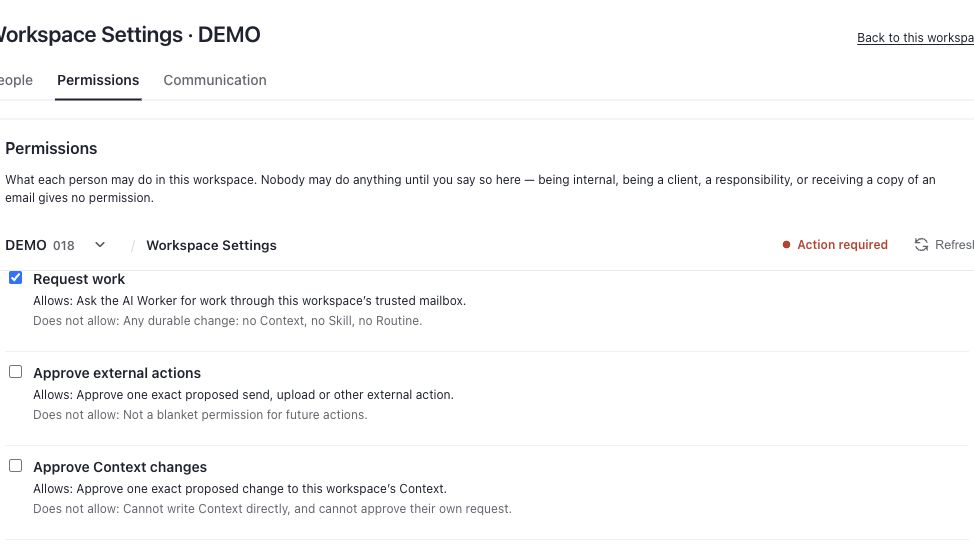

Open the Workspace → People and communication → Permissions → Edit permissions beside the intended person. This is where you decide what that person may instruct or approve in this Workspace. Being an internal contact, client, Work owner or email recipient does not itself grant permission.
Request work
permits asking the AI Worker for work through this Workspace’s trusted mailbox. It does not authorize durable changes to Context, Skills or Routines.
Approve external actions
permits approving one exact proposed send, upload or other external action. It is not blanket approval for future actions.
Approve Context changes
permits approving an exact proposed Context change. It does not permit direct writing or approval of the person’s own request.
Directly update Context
permits their explicit instruction to update the Context sections selected by the operator, without a separate approval step. The observed UI excludes People, permissions, access, unselected sections and removal of approved content.
Approve Workspace Skill changes
permits approving an exact proposed change to a Skill in this Workspace. It does not permit direct editing or approval of the person’s own request.
Directly update Workspace Skills
permits their explicit instruction to change the selected Workspace Skills without a separate approval step. It excludes Outloop’s built-in instructions, Global/shared Skills and other Workspaces.
Approve Routine changes
permits approving an exact proposed Routine change in this Workspace. It does not permit direct changes or approval of the person’s own request.
Directly update Routines
permits explicit instructions to change selected Routines’ timing, frequency, pause/resume state and instructions without a separate approval step. The observed UI excludes creating, deleting or starting a Routine, changing its engine, practice/live mode or event trigger, and changing another Workspace.
Choose the appropriate route
use approval permission when each proposed change should receive a decision; use scoped direct-update permission when a trusted person should be able to instruct the chosen changes without repetitive review. Do not enable every checkbox as a setup shortcut. Direct update still requires an explicit instruction and the configured scope.
For an authorized operator configuring this
verify the correct person and Workspace, choose the required permissions and applicable target sections/Skills/Routines, review the trusted instruction address, then Save permissions. Read back the resulting permission summary. Confirm identity through the supported flow; a display name alone is not sender verification. A trusted address does not bypass mail authentication or intake filters.
Example
a client contact can request campaign analysis. An account manager can additionally receive direct-update authority for selected client Context sections and a selected Workspace reporting Skill. A reviewer can approve a proposed external message. These are different capabilities; one does not imply the others.
“Full capabilities” should mean doing the permitted work with approved tools—not unlimited administration. This person-permissions screen does not grant Global Skill management, cross-client access, new connector scopes or permission to override required approvals. API Access and Browser Access remain separate controls. The worker needs both an authorized request and an allowed operation.
If a requested edit is denied, check the exact person, verified instruction identity, permission type and selected target. A Request work grant alone is insufficient for a durable edit. If a direct edit becomes a proposal, inspect the effective scope rather than disabling review. If a Global Skill needs changing, use its separately authorized administrative workflow; this Workspace Skill checkbox does not cover it.
Evidence boundary
the controls and explanations were inspected live on 12 October 2026. No checkbox was changed and the editor was closed with Cancel. Target selectors that appear after enabling direct-update grants and end-to-end mutation behavior were not exercised for this guide. The screenshots show existing demo selections, not recommended defaults. The screenshots show the Permissions navigation and the first three controls; the remaining descriptions are based on the recorded inspection of the permission editor.
Review the action, then check the evidence

If the policy requires approval, open the current approval version. Check To/CC, subject, thread, body and all attachments. Request changes when necessary, then review the revised version. An earlier approval is not approval of later content.
Use an actually authorized reviewer and the supported dashboard or email route. Follow the approval message’s instructions. If an email decision is not recognized, inspect identity, version and recorded status before replying repeatedly.
Keep work state and delivery state separate. A partial report can be sent while unresolved work still needs attention. Do not mark a whole request successful just because one message was sent.
Reported complete: the worker says it finished; review the supporting evidence. Awaiting approval: an action still requires a decision. Sent: consult the recorded provider/send evidence. Sent-folder readback: confirms the message present in the sending account matches the checked details. Recipient receipt: separate evidence from the recipient’s mailbox. None of these is interchangeable with proof that the person read it.
For an unknown send outcome, reconcile the provider record before attempting another send. Re-running the entire task can create an unintended second action; use the supported recovery path.
Know which screen answers your question
AI Worker
What is Ollie doing? What needs attention, is in progress, or has finished? Open the relevant work item and its result.
Conversations
What was requested and communicated? Review the available conversation history, linked work, approvals and outcomes. One conversation can contain several independent requests. A direct engine conversation is not automatically an Ollie job.
Routines
What starts the work and when? Inspect trigger, schedule, instructions and run history. A run’s completion and the overall customer request’s completion are different things.
Activity & Reports
What evidence is available? Check relevant tool activity and recorded outcomes. Tool requests are not the worker’s private reasoning and do not, by themselves, prove a successful external action.
Troubleshoot in the right order
Ollie is Active but an email did not start work
- Check
- Check automatic email state, mailbox, sender permission and effective trigger scope
- Next step
- Fix only the identified setting with the appropriate operator authorization
- Evidence
- Success means a fresh eligible message has a recorded work/run entry.
A Person is authorized but not included in listening
- Check
- Read the custom sender/label restriction on the Routine
- Next step
- Review the restriction, not the Person’s unrelated privileges
- Evidence
- Success means the effective listening summary includes the intended sender.
Sender verification failed
- Check
- Read the exact refusal and provider evidence
- Next step
- Distinguish authentication failure from an unreadable result or integration error; do not assume DNS/DKIM is broken
- Evidence
- Escalate the precise error if needed; never disable sender checks.
A Skill is visible but not used
- Check
- Check scope, approval/delivery and run activity
- Next step
- Confirm relevance to the task; ask for a concise account of loaded Skills
- Evidence
- Success is recorded loading and a result consistent with the required method, not just a library listing.
An API or browser action failed
- Check
- Inspect the affected service and exact operation, login/readiness and allowed scope
- Next step
- Use Outloop Browser Login recovery for a configured website login. For connection setup or a reported credential update, use the supported secure Outloop UI; never share credentials in chat
- Evidence
- Success is a permitted real operation, not a green setup label alone.
An approval is waiting
- Check
- Check reviewer identity, current version and notification status
- Next step
- The eligible reviewer decides through the supported route
- Evidence
- Success is the recorded decision followed by the expected continuation.
Work says complete but the client has no reply
- Check
- Inspect approval and send records separately
- Next step
- Check provider confirmation and Sent-folder readback before any retry
- Evidence
- Confirm recipient receipt separately when available.
Work is partial, failed or interrupted
- Check
- Open the work’s unresolved items and run history
- Next step
- Continue or retry only through a supported action after checking completed external mutations
- Evidence
- Success resolves the missing work without repeating completed sends.
Context or Skill saving failed
- Check
- Read the precise validation, scope, version or authorization error
- Next step
- Use the supported management workflow and resolve the named conflict
- Evidence
- Read back the saved change; do not edit Product files as a workaround.
A global attention indicator disagrees with a work count
- Check
- Open the indicator to inspect its cause
- Next step
- Readiness and work-item counts can describe different issues
- Evidence
- Resolve the specific cause, not an unrelated job.
Need to authorize a Context, Workspace Skill or Routine update? Check person permissions, selected scope and instruction identity before retrying.
Frequently asked questions
A prompt for your AI assistant
Keep this guide open beside your AI assistant. Share only a redacted description of your screen. A web chat does not automatically have access to your Outloop Workspace.
Guide companion prompt
Read the public guide linked below. If you cannot access it, say so and ask for the relevant non-secret section; do not claim you read it. Help me use Outloop using this guide and my current screen. First identify my Workspace, goal, installed version if known, and whether I am using Ask Ollie, email intake or a Routine. Explain the next useful step in plain language. Use exact labels only when observed. Separate Context, Skills, tools, requester authorization and reviewer authority. Do not assume a listed Skill ran, a green setup status proves execution, or Sent proves recipient receipt. Before retrying a possible external mutation, check its recorded outcome. Never request secrets or silently change permissions, intake, approval policy, schedules or client data. Ask only for missing information necessary for the next step. Explain expected evidence and report uncertainty. Do not claim direct access to my Outloop unless you actually have it. Guide: https://outloop.co/guides/ollie-ai-worker
Download the complete text guide if your assistant cannot open the page.