


For agencies running client work through Drive, Shared Drives & media folders

Agents can work with real client files, not just write instructions.

Upload, move, rename, and organize approved files — scoped to the right client.

Take me out of the damn API loop.

Agents write the caption, the report, and the creative brief — then a human uploads, renames, moves, and files it all by hand. With approved Google Drive and Shared Drive access through Outloop, the agent finishes the file work too, without ever seeing a token or touching the wrong client's folder.

No handed-over tokens. No wrong-client folders. Every file action audited.

Create your trial. Download the Mac app. Run your first API proof locally.

Guided setup included · API keys stay local · Cancel anytime

outloop file & media access vault stays locked

One access setup Workspace approved Runtime allowed secret_exposed:false

Reuse approved API access across the runtimes your team already uses

One approved access layer for Cowork-style sandboxes, Claude Code, Codex, Hermes, and OpenClaw — without rebuilding setup for every platform.

One credential. The right workspace. Any approved agent runtime. secret_exposed:false

Independent tools. Names and logos belong to their respective owners; Outloop is not affiliated with or endorsed by these projects.

Learn · Multi-client AI operations

AI agents and real client file work

Last updated:

In short

Outloop lets agents use approved Google Drive and Shared Drive access to upload, copy, move, rename, download, export, and organize client files and media assets while keeping secrets hidden, workspace boundaries scoped, and audit proof available.

The agent requests an approved file action; Outloop checks the client workspace policy, applies the OAuth credential host-side, and returns a redacted result. Shared Drive and folder pins keep every operation inside the right client boundary, wrong-client access is blocked before any call, and each action lands in a redacted local audit. The agent never sees raw secrets, OAuth tokens, upload-session credentials, or local absolute paths.

The bottleneck after the thinking is done

Agencies run client operations through Google Workspace, Shared Drives, and project folders. Agents got good at the thinking part fast: strategy, captions, reports, creative instructions. Then the workflow hits the file system and stops. A human uploads the video, renames the thumbnails, moves the report into the client's folder, exports the deck. The agent wrote the caption; it couldn't move the file.

The blocker was never the model — it was access. Handing an agent a Drive OAuth token has the same problems as handing it any raw credential (the pillar guide covers why), plus a sharper one: files are the most client-identifiable material an agency touches, and a wrong-client mistake in a shared folder is immediately visible to the client.

What agents can do with approved Drive access

Under the authorized OAuth scope, the Drive API covers the full file lifecycle, and Outloop's Google Drive + Shared Drives guide documents it end to end — including a verified real write (copying a file into a team Shared Drive, HTTP 200, secret_exposed: false):

Upload & update

Create files, upload content, and update existing files and metadata under the authorized scope.

Copy & move

Copy files — including into a Shared Drive, as verified — and move them between approved folders.

Rename & organize

Update names and metadata, and keep client folders organized inside the pinned boundary.

Download & export

Download file content and export Google Docs, Sheets, and Slides to standard formats.

Media assets — images, videos, thumbnails, captions, reports, client files — follow the same pattern when they sit inside approved Drive/Shared Drive boundaries or approved local media roots. The local-root media capability is proven in product testing; Drive and Shared Drive file work is documented and verified in the connector guide.

Scoped to the right client, by construction

  • Resource pins — each workspace can be pinned to one Shared Drive and, optionally, a folder inside it. Listing and new files stay inside the pin.
  • Access mode & capability flags — what kind of file work a workspace may do is an explicit grant, not a side effect of holding a token.
  • Connected identity & OAuth scopes — Google enforces Shared Drive membership on the connected account; Outloop requires a pin before broad scopes are usable.
  • Host allowlists, redaction & audit — every file action goes to the approved host, returns redacted, and is written to the local audit.

A file-action audit line carries the proof: access_mode · capability · connected_identity · secret_exposed:false.

And the sharp edges stay off by default: public-link sharing, ownership transfer, and hard deletes are blocked by runtime policy regardless of scope. Sharing to specific people and groups works. If a client's agent tries to reach another client's drive, the request is denied before any call — the wrong-client mistake is blocked, not cleaned up after.

What happens when the agent requests a file action

  1. 01

    Agent request

    The agent asks for an approved action or alias — not a raw key.

  2. 02

    Policy & tenant check

    Outloop checks project, tenant identity, and runtime policy before anything runs.

  3. 03

    Local broker

    On approval, the local broker uses the credential on the wire to perform the call.

  4. 04

    Redacted result

    The agent receives a sanitized, non-secret result. Raw values never enter its context.

  5. 05

    Audit log

    Every attempt is written to a redacted local audit — decision, tenant, service.

The agent never sees the credential. A wrong-tenant request is denied at the policy check, before any backend call.

What Outloop is not

Outloop is not a file manager, a digital asset management tool, or a publishing platform — and it does not claim to work with every file system or to fully automate every publishing workflow. It is the runtime access layer underneath that work: the agent does the file work through approved access, and Outloop decides which client workspace may use it, keeps the credential hidden, and writes the audit.
Keep reading

How it works

How you reuse API access in 3 steps

Add it once. Approve the workspace. Let the agent use it safely.

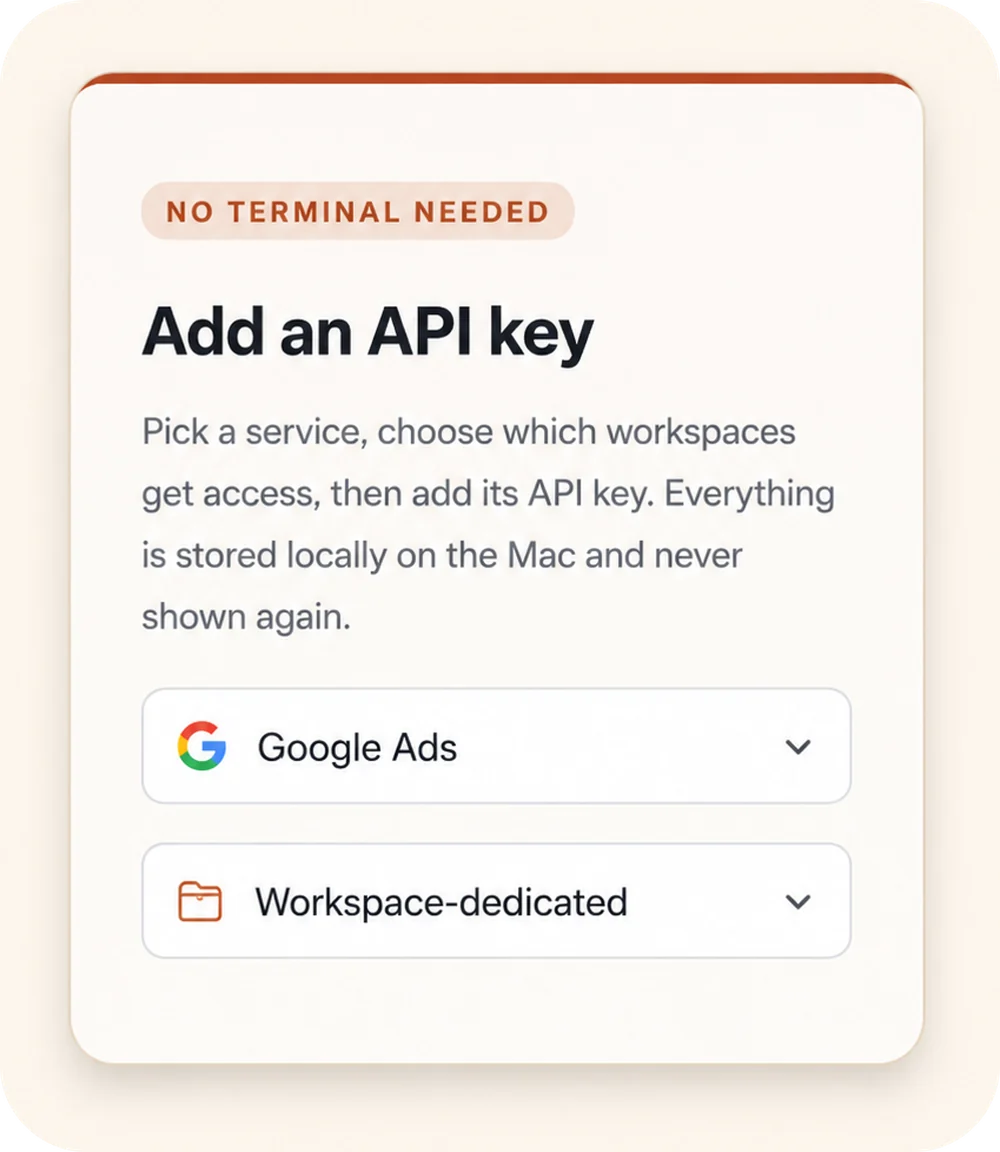
Outloop “Add an API key” panel: a “No terminal needed” badge, a service picker set to Google Ads, and a Workspace-dedicated access selector.
00

Add API access once

Choose a service, select the workspaces that should get access, and store the credential locally on the Mac.

Keys stay local
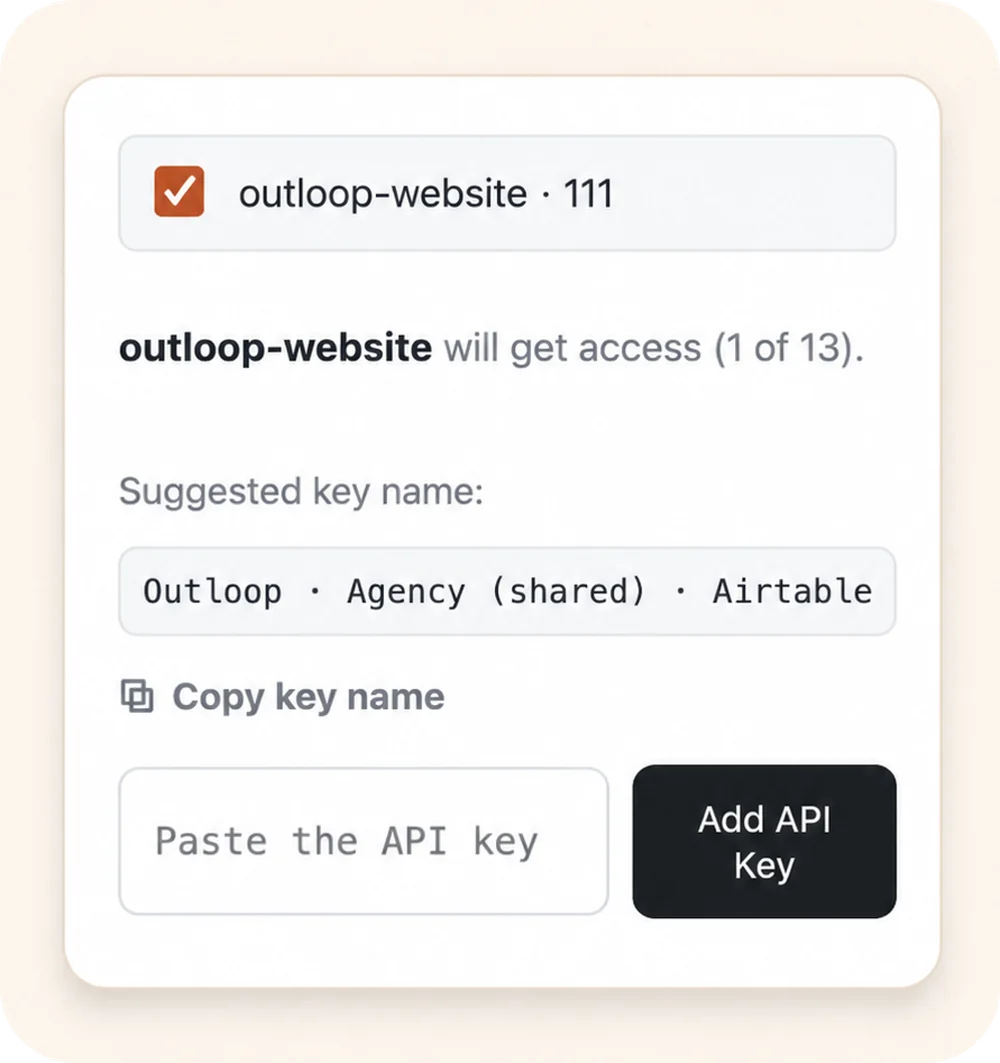
Outloop workspace approval: the outloop-website workspace selected to receive access, with a suggested key name and an empty “Paste the API key” field.
00

Approve the right workspace

Grant access only to the client workspace that should use it. Each workspace stays isolated.

Wrong-client access blocked
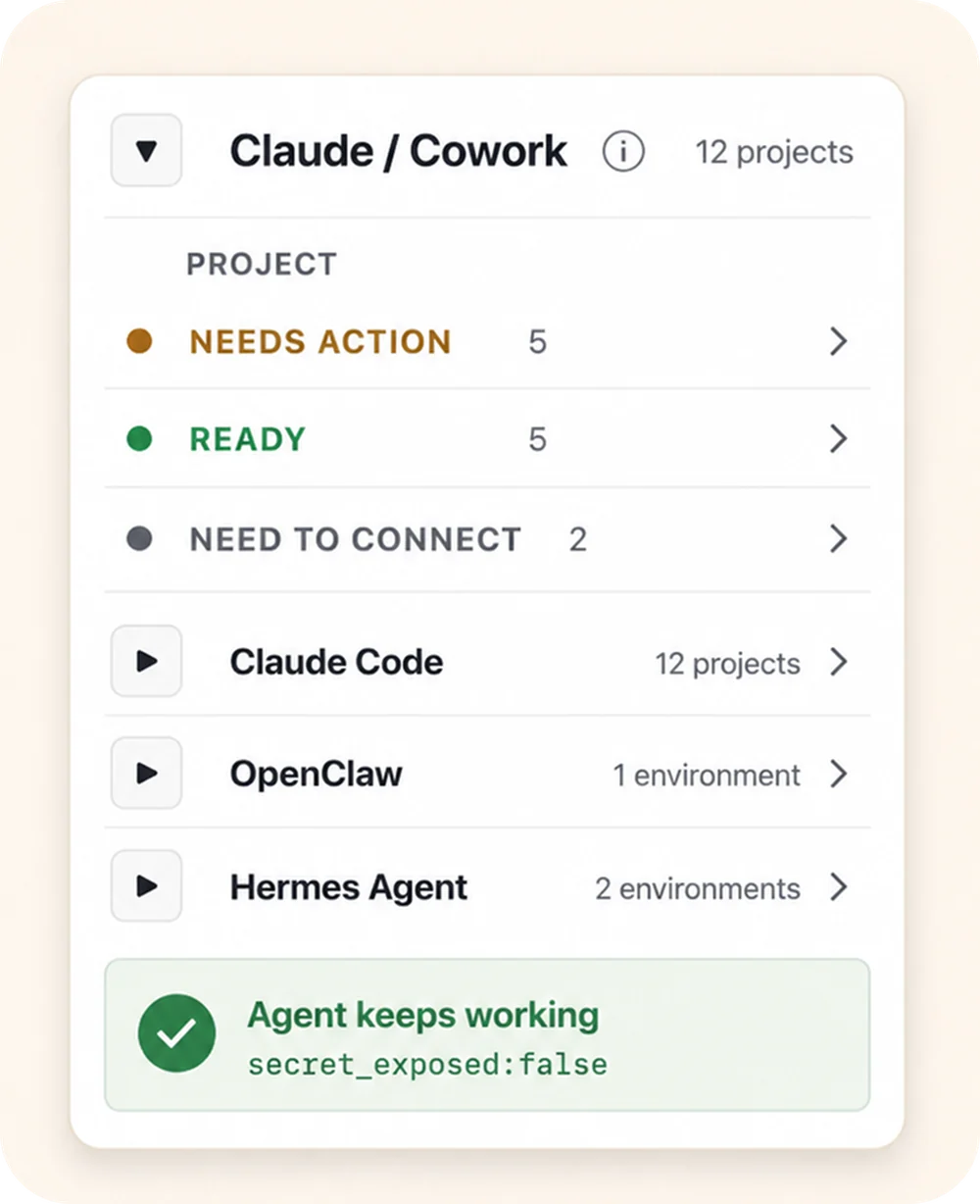
Outloop agent-projects panel: the Claude / Cowork runtime expanded to show per-project status (Needs action, Ready, Need to connect), above the Claude Code, OpenClaw, and Hermes Agent runtimes, with an “Agent keeps working — secret_exposed:false” proof badge.
00

Let agents use approved access

Connect agent projects, then let approved agents request access through Outloop without seeing the raw key.

Agent keeps working secret_exposed:false

Keys stay local Workspaces stay scoped Agents request access, not keys

Agency workflow proof

Built from real agency API workflows.

Outloop was built while running real client-agent workflows across ads, CRM, data, file, reporting, and automation APIs.

The lesson was simple: agencies don't need another place to paste keys. They need one approved access layer that lets agents work across client workspaces safely.

Explore agency API workflows
Google Ads Campaign checks
Meta Ads Account reporting
Merchant Center Product feed review
Airtable CRM & ops data
Google Drive Client asset folders
Gmail Inbox workflows
Apify Data collection
Firecrawl Web research

Example services shown for workflow context. Logos and names are trademarks of their respective owners; no official integration or endorsement is implied.

Keep your vault. Control runtime access.

1Password
macOS Keychain
Infisical
Doppler

Outloop works above Keychain, 1Password, Infisical, Doppler, and other secure backends. It does not replace your vault. It controls which workspace and runtime can use approved access.

  • No API keys uploaded to cloud.
  • No raw key returned to the agent.
  • No .env files required.
  • Wrong-client access is blocked before credential use.

Let agents finish the file work — inside the right client boundary.

Outloop is available with guided onboarding for AI agencies, operators, and dev shops.

See how approved access is checked, used, and audited in the security model.

Start 14-day guided trial
Frequently Asked Questions

AI agents and client file work — FAQ

Ready to get out of the API loop?

Run more client AI workflows without rebuilding API access every time.

Connect API access once and reuse it across every client workspace — instead of rebuilding setup for each new one.

For agencies and operators managing 5 to 100 client workspaces.