Learn · Setup guides
How to Connect Google Drive API and Shared Drives to AI Agents with Outloop
Last updated:
In short
Google Drive uses OAuth, not an API key — and Outloop keeps the whole OAuth credential away from the agent.
You enable the Google Drive API, add a Drive scope, create one Google Cloud OAuth client, then connect the account in your browser from Outloop — there is no refresh token to copy. Outloop stores the credential in macOS Keychain, pins each workspace to an optional Drive folder or Shared Drive, and agents use approved Drive access through the API Bridge without ever seeing the client secret, refresh token, or access token.
What this setup gives you
You will enable the Google Drive API in Google Cloud, add a Drive scope, create an OAuth client once, and connect the account from Outloop in your browser — no refresh token to copy — storing the credential locally — with an optional Drive folder and Shared Drive pin per workspace. After that, AI agents get full approved Google Drive and Shared Drive access through Outloop: the OAuth credential stays in macOS Keychain, is used on the wire host-side, and never appears to the agent, in chat, logs, repos, or project files.
client_secret, refresh_token,
access_token, authorization code, or Authorization header. Their only
destination is the Outloop Mac app — never Outloop Cloud, the website, chat, docs, or
.env files. Every screenshot in this guide has the credential fields redacted.
What you need before starting
- ✓Access to a Google Cloud project.
- ✓A Google account with access to the Drive content — for Shared Drives, that account must be a member of the Shared Drive.
- ✓Outloop installed and activated, with a workspace selected.
Which Google account connects what
Three separate identities — keep them apart
Most failed Google Drive setups are one confusion: assuming the Google account that manages the Cloud project is also the account that can open the client's folders and Shared Drives. It does not have to be, and often should not be.
- 1
The Google Cloud project and OAuth app
This owns the Client ID and Client Secret. It can belong to your agency or to your client — Outloop does not care which, and cannot tell the difference.
cloud-admin@agency.example— manages the Google Cloud project - 2
The connected Google account
This is the account you pick in Google's own chooser during the browser sign-in. It is the account that must actually own or be able to open the client's folders and Shared Drives.
data-owner@client.example— is chosen at sign-in because it owns the client's folders and Shared Drives - 3
Outloop workspace access
This decides which workspace may use the stored credential, which resources it may reach, and which capabilities agents get. It is set in the Access Profile, after the sign-in succeeds.
In that example, cloud-admin@agency.example
created the OAuth app once, and every connector after it reuses that app — but the account you
actually sign in as is data-owner@client.example,
because that is the identity Google Drive will check when an agent asks for a file.
- →If the app's audience is External and it is still in Testing, the account must be added as a Test user first.
- →If the audience is Internal, only accounts inside that Google Workspace organisation can sign in at all.
- →The Google Drive API must be enabled in the Google Cloud project the app belongs to.
- →The account must genuinely have access to the client's folders and Shared Drives. A successful sign-in proves identity, not reach.
See approved files inside an agency workflow.
Watch how client Context and approved assets contribute to a campaign job, then continue with the Drive-specific setup below.
This preview is workflow context; it does not demonstrate every Drive setup step or a Drive upload.
- Approved client Context and brand assets
- Human review before execution
- Real campaign objects, kept PAUSED
Create your trial, then install on your company-controlled Mac. Set up your first workspace.
67-second Ellātu preview · Google Ads + Meta · No form required
Demo brief and assumptions. Real Google Ads and Meta execution, configured PAUSED. Review emails are labeled staged reconstructions. No delivery or performance claim.
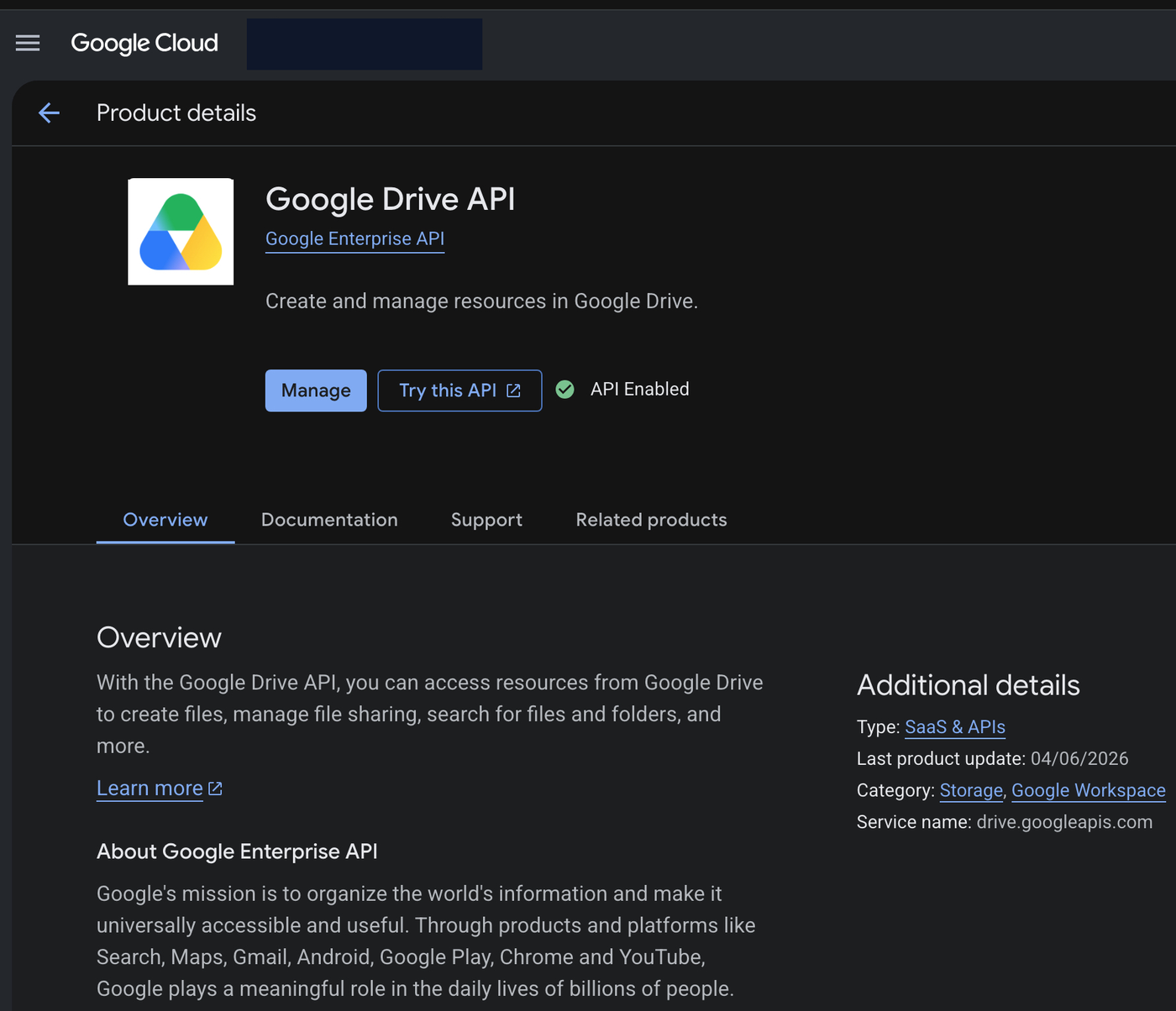
1. Enable the Google Drive API
In Google Cloud Console, open APIs & Services → Library, search
Google Drive API, and click
Enable. The product page confirms with a green
API Enabled badge (service name
drive.googleapis.com).
2. Add the Drive scope
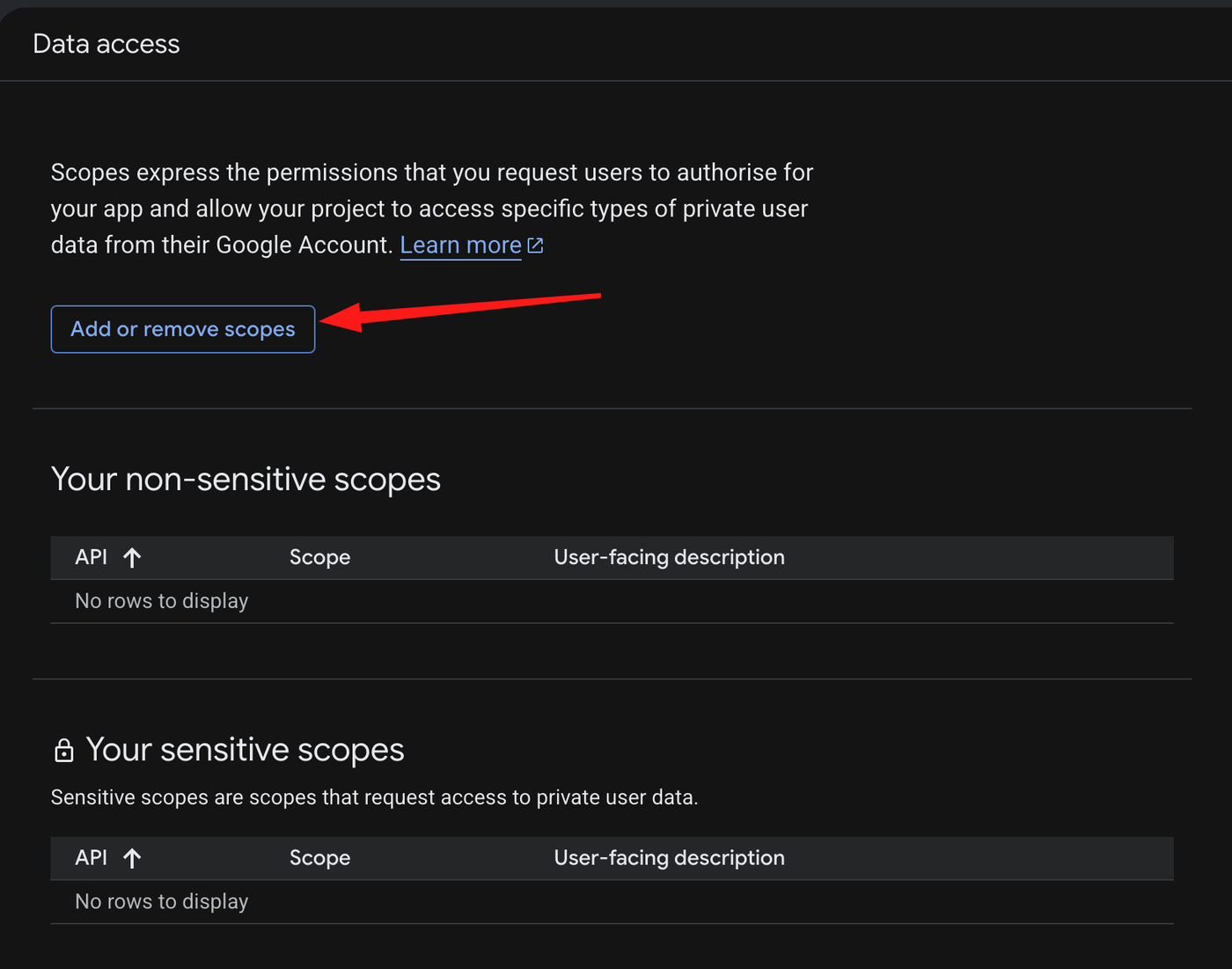
In Google Auth Platform → Data access, click Add or remove scopes.
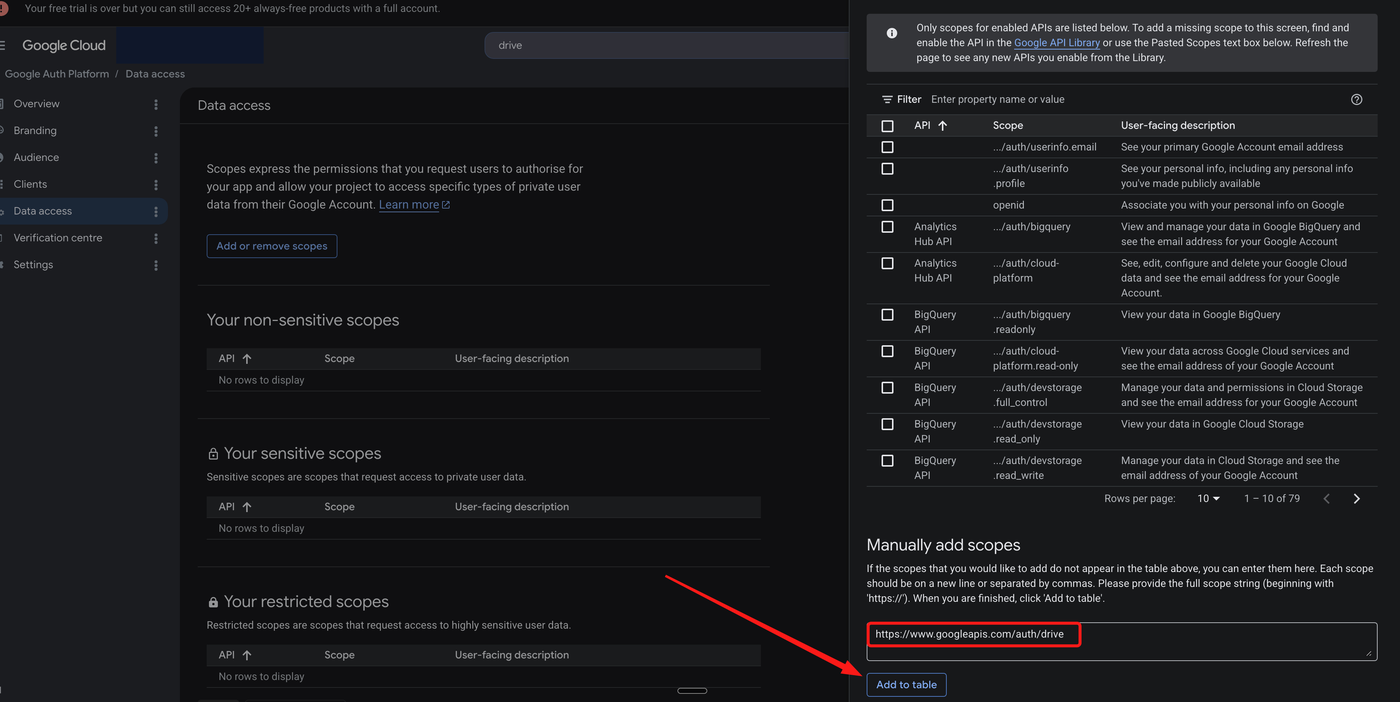
In the panel, scroll to Manually add scopes, paste the scope for the tier you intend to use, and click Add to table, then Update. Outloop offers three tiers and preselects the narrowest — start here:
https://www.googleapis.com/auth/drive.file
That is the tier Outloop recommends and preselects. If your agents genuinely need existing files
they did not create, authorize one of the wider tiers instead — paste
https://www.googleapis.com/auth/drive.readonly
for whole-Drive reads, or
https://www.googleapis.com/auth/drive
for full read + write. Authorize one tier, not all three.
drive.file, widen only if you must. drive.file covers only the files the agent creates
or that you open through this credential — it is the tier Outloop recommends and preselects, and it is not a
restricted scope. The two wider tiers reach existing files and Shared Drive content and are classed by Google
as restricted scopes, so an app requesting them needs Google's verification for anything
customer-facing. Outloop labels both of them
“requires a folder / Shared-Drive pin” — with a wide scope authorized, set the boundary in step 7
rather than leaving the workspace pointed at the whole Drive. Whichever tier you authorize here must match the
one you pick in Outloop in step 4; a wider tier in Google does not
widen anything by itself.
3. Create the OAuth client (once, for all Google connectors)
In Google Auth Platform → Clients, create a new OAuth client. Choose Application type: Web application, give it one neutral name that is not tied to a single service, and under Authorized redirect URIs add Outloop's local callback:
http://127.0.0.1:44317/oauth2/callback
You do this once for every Google connector. The full walkthrough — project, APIs, the whole scope set in one paste, and the publishing-status step that stops a working connection expiring after about a week — is in Set up one reusable Google Cloud OAuth app. If you already have a saved Google OAuth app, skip to step 4.
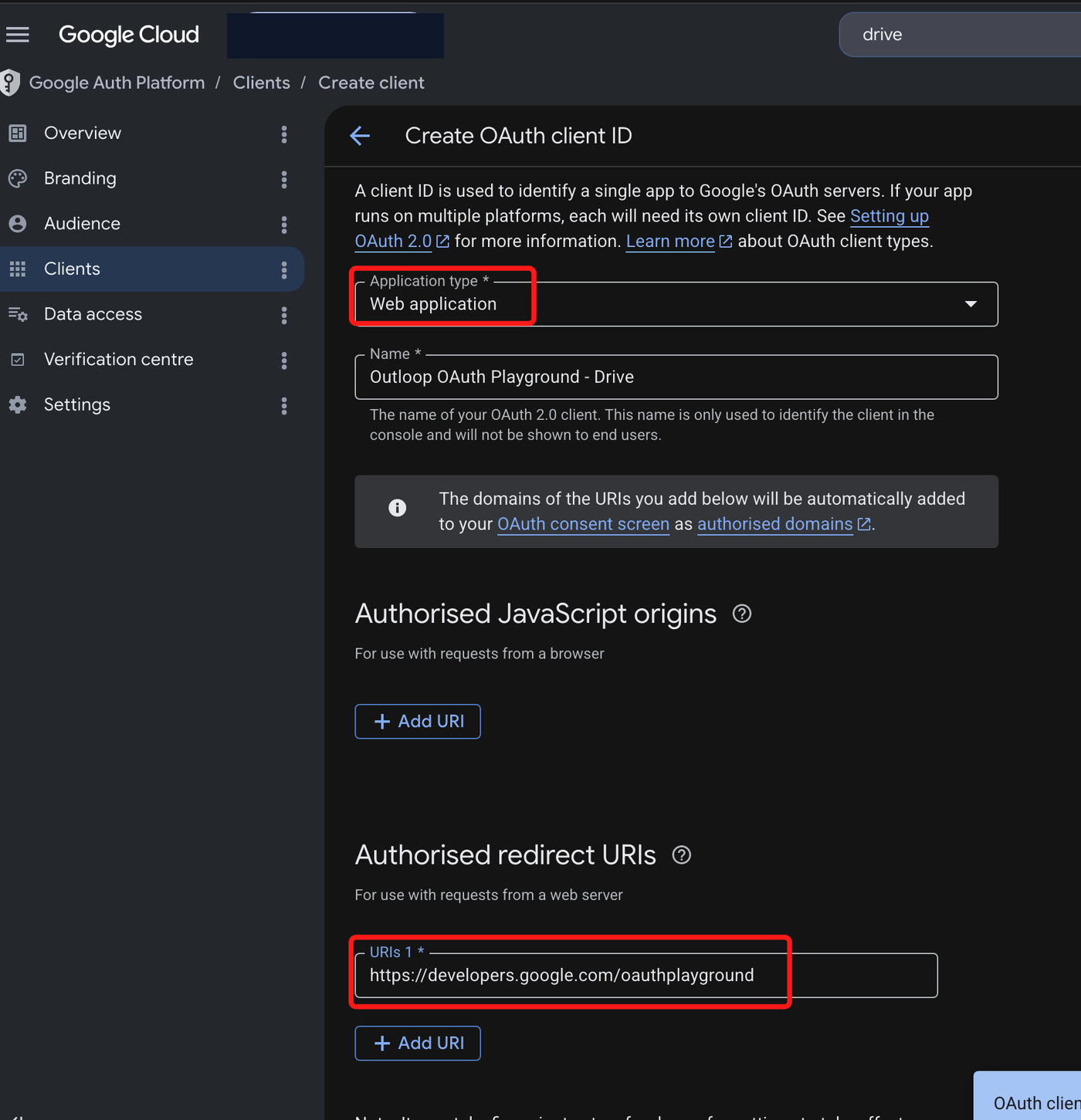
Click Create. The confirmation dialog shows the Client ID and Client secret — copy both now.
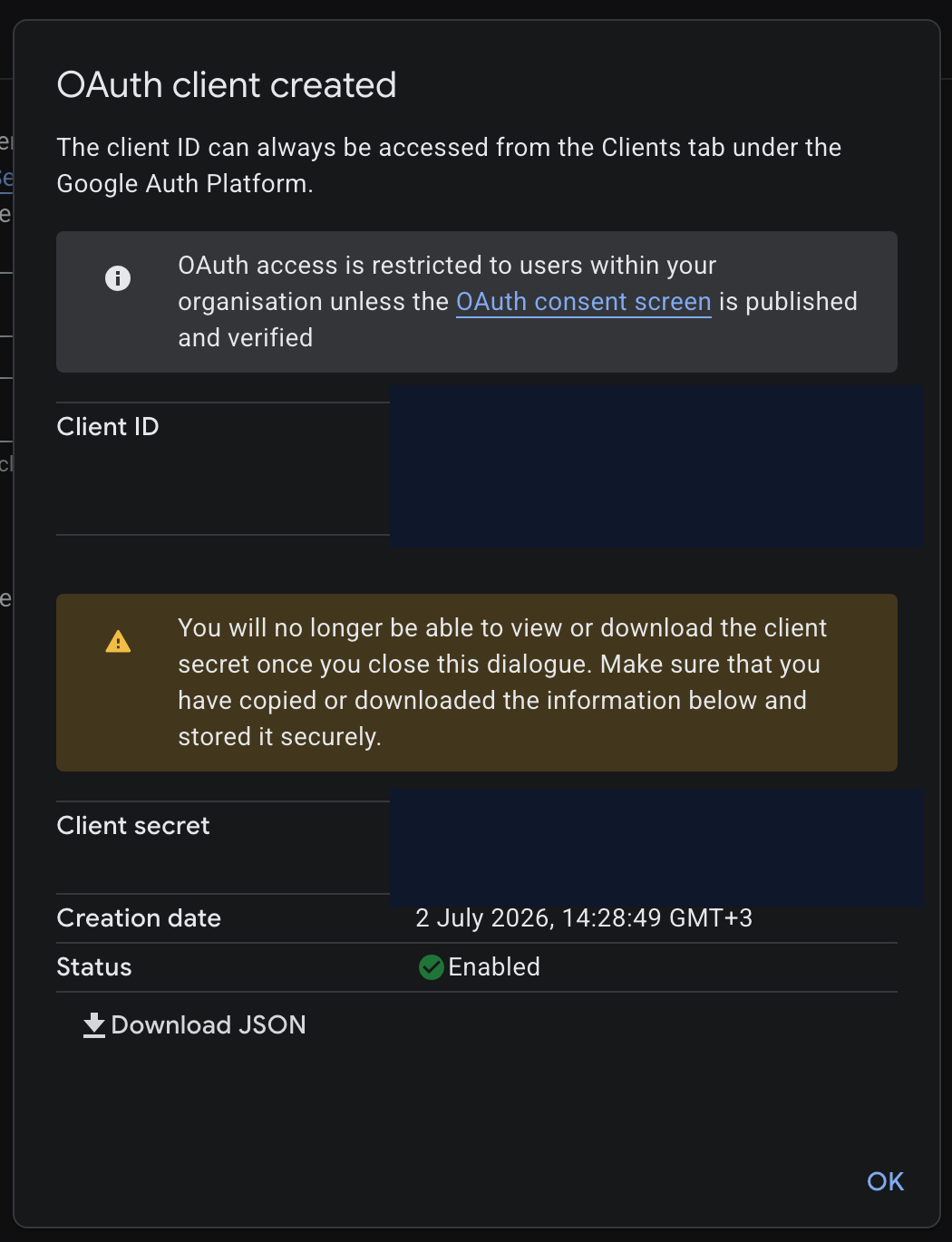
You only enter the Google OAuth app once
The first Google connector you set up asks for the Client ID and Client Secret from your Google Cloud OAuth client. Tick Save this Google OAuth app so other Google connectors can reuse it and every later Google connector — Gmail, Sheets, Docs, Slides and Google Ads — picks it from the Google OAuth app dropdown with no Client Secret to re-enter. The saved app is then listed under Authentication Profiles. When a saved profile supplies the app, Outloop shows “Using <client-id>. Its Client Secret comes from the saved app — nothing to paste. This connector still signs in separately and gets its own access.”
Reusing the app does not mean sharing one login. Each connector still opens its own browser sign-in and gets its own refresh token, its own scopes and its own connected account — so you can revoke or re-authenticate one connector without touching the others.
Shared agency app or workspace-dedicated?
Which setup should I choose?
There are two reasonable answers for Google Drive, and the right one depends on who owns the Google Cloud infrastructure — not on how many clients you have.
Agency-global (shared OAuth app)
One OAuth app your agency owns, reused by every Google connector you add. This is the default and the right choice for most agencies.
- ✓Client ID and Client Secret entered once, then picked from a dropdown.
- ✓Every connector still runs its own Google sign-in.
- ✓Each one gets its own scopes, its own refresh token, its own connected account and its own revocation.
- ✓Reusing the app grants no data access by itself — workspace grants and Access Profiles stay explicit.
Workspace-dedicated
A separate OAuth client — or a separate Google Cloud project — for one workspace or one client.
- →The client owns the Google Cloud infrastructure and wants to keep owning it.
- →They need stronger administrative separation, or their own consent branding and audience rules.
- →They want separate quotas and their own lifecycle control.
- →The client's Shared Drives live in their own Google Workspace and their admin wants the OAuth app inside that organisation.
A separate Google Cloud project is the strongest operational separation. A separate OAuth client inside the same project is lighter separation — useful, but the project is still shared.
4. Add Google Drive in Outloop
In Outloop, open API Keys & Access → Add an API key and choose Google Drive from the Google Workspace Pack. Pick the workspace scope — Workspace-dedicated for one client, or shared if several workspaces will use the same Google account (shared is recommended for Google Drive).
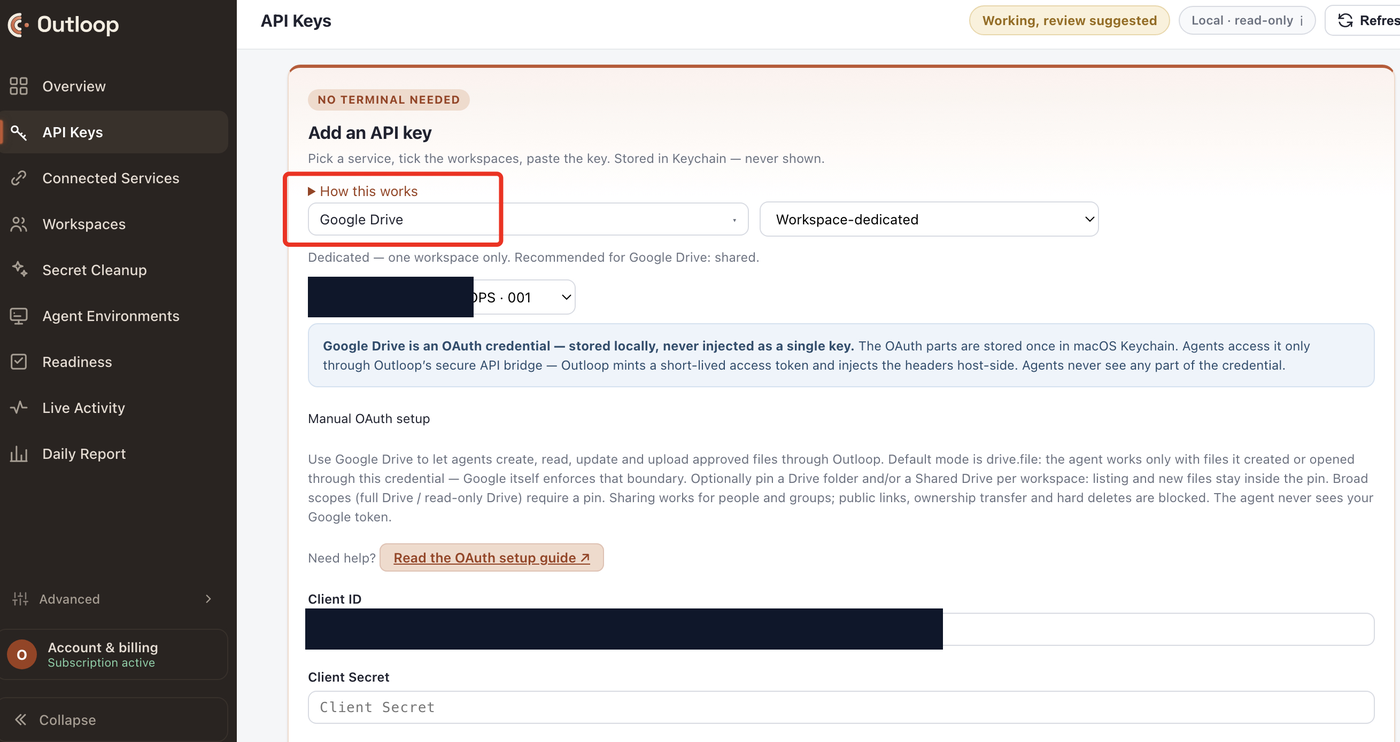
The panel opens on Connect in your browser. Two collapsed disclosures hold the background — Setup details — Google Cloud OAuth client, scopes and caveats and Before you connect with a prerequisite count. Under Access to request from Google, choose the level agents should have. Drive offers three: App files, read + write — only files the agent creates or opens — carries (recommended) and is preselected; a read-only whole-Drive tier and a full read + write tier are available but never preselected, and both are Google-restricted scopes that expect a folder or Shared Drive boundary. This must match the scope you authorized in step 2. Check the Google OAuth app dropdown — a saved profile supplies the app with no Client Secret to re-enter.
5. Connect the account in your browser
Click Connect Google Drive in your browser. Google's own sign-in opens, you sign in with the account that has access to the Drive content, and you approve the consent screen on Google's page. Outloop mints and stores the refresh token host-side.
.env file. Prefer to mint the token yourself?
Advanced — manual refresh token
is still fully supported.
6. Confirm the account and capabilities
Outloop shows Connected as the Google account you just used — check it before any agent touches client files. Under Agents will be able to (change any time in the Access profile), practical capabilities are pre-checked and destructive ones are prefixed ⚠ and left unchecked. Then click Confirm — this is the approved account.
secret_exposed: false. Turn on
Runtime access on the key row to let agents use it.
7. Shared Drives: pin the boundary
OAuth is not the finish line — the Access Profile is
When Google Drive hands you back to Outloop, the connector is authenticated but not yet authorized. Agents cannot use it until you make the authorization decision yourself:
- OAuth connected
- Confirm the account
- Open the Access Profile
- Choose account-wide or specific folder and Shared Drive IDs
- Choose capabilities
- Save the Access Profile
- Copy the proof prompt
In the Access Profile you set two things. Reach — either account-wide, or a specific list under Drive folder ID / Shared Drive ID. And capabilities — what agents may actually do inside that reach, with anything destructive left off unless you turn it on.
Outloop supports Google Shared Drives when the connected Google user has access to the Shared Drive — Shared Drive membership is enforced by Google itself, so a credential from a user who is not a member cannot reach it.
- →Use
shared_drive_idto set the Shared Drive boundary for the workspace: listing and new files stay inside that Shared Drive. - →Optionally add
drive_folder_idfor a folder inside the Shared Drive when the workspace should be narrower than the whole drive. - →The IDs come from the Drive URL: open the Shared Drive (or folder) in your browser and copy the ID segment after
/drive/folders/.
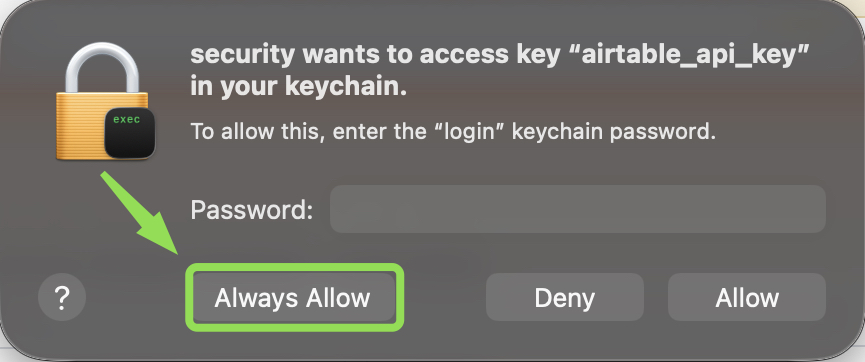
8. macOS Keychain: click Always Allow
The first time Outloop reads a stored credential from macOS Keychain, macOS shows a permission dialog naming the key being read. Click Always Allow. If you click Allow instead, macOS asks again on every read — and if the prompt is dismissed, runtime access can fail even though the credential is stored correctly.
9. Real proof: copy into a Shared Drive
This setup was verified with a real write through Outloop: an agent asked Outloop to copy a test image into a team Shared Drive. The request went through the API Bridge, the credential was used on the wire host-side, and the copy succeeded:
POST /drive/v3/files/{fileId}/copy?supportsAllDrives=true
HTTP 200
secret_exposed: false
The copied file appeared inside the pinned team Shared Drive, and the audit entry shows the allow decision
with secret_exposed: false — the agent used the
credential's capability without ever seeing the credential.
GET /drive/v3/about?fields=user
confirms access without changing any data. A proof only counts when it goes through Outloop and returns
secret_exposed: false — a result from an MCP, an
SDK, or the Drive UI proves nothing about Outloop access.
Advanced — manual refresh token
Skip this if the browser connect worked. It stays documented because it still works, and because some teams prefer to mint the refresh token themselves — for instance when the machine running Outloop cannot open a browser session as the target Google account. In the Outloop panel it sits behind the collapsed Advanced — manual refresh token disclosure.
Get a refresh token from the OAuth Playground
redirect_uri_mismatch:
https://developers.google.com/oauthplayground
Open developers.google.com/oauthplayground, click the gear icon, and set: Access type Offline, Force prompt Consent Screen, and check Use your own OAuth credentials. Paste the Client ID and Client secret from step 3 (do not screenshot the pasted values).
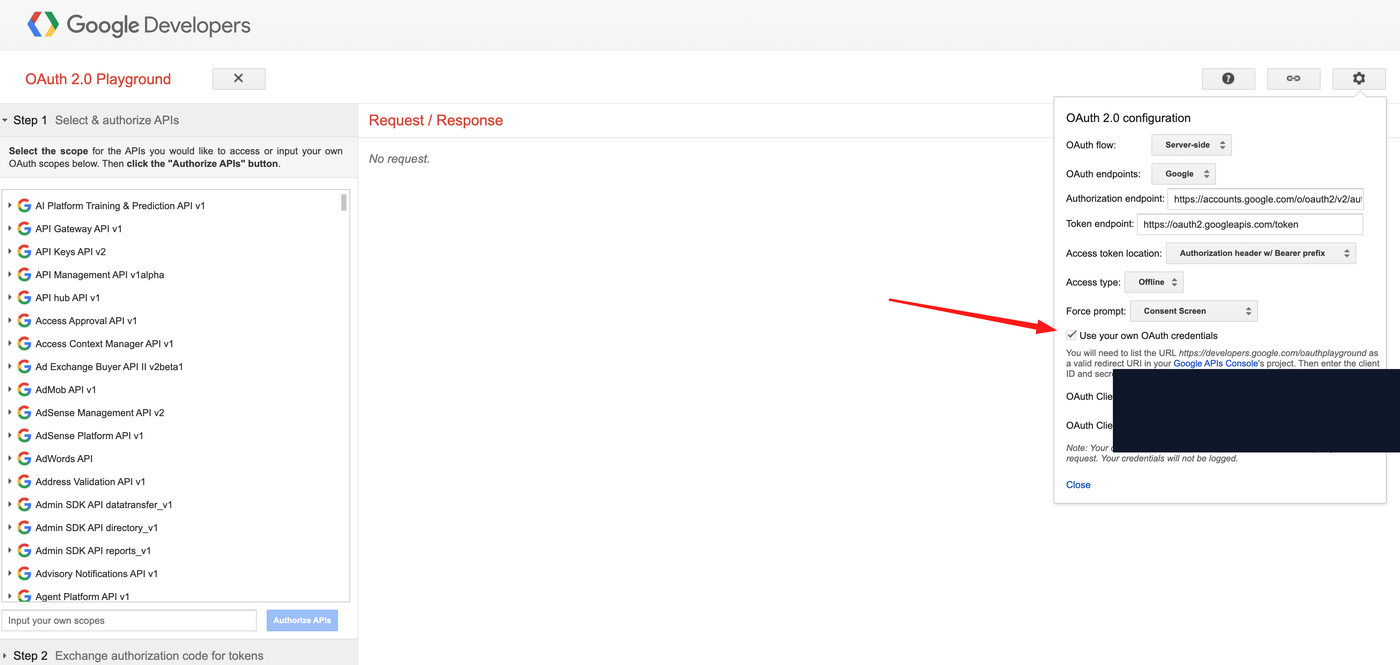
In Step 1, paste the Drive scope you added
(https://www.googleapis.com/auth/drive) into
Input your own scopes and click
Authorize APIs. Sign in with the Google account that has access to
the Drive content and approve the consent screen.
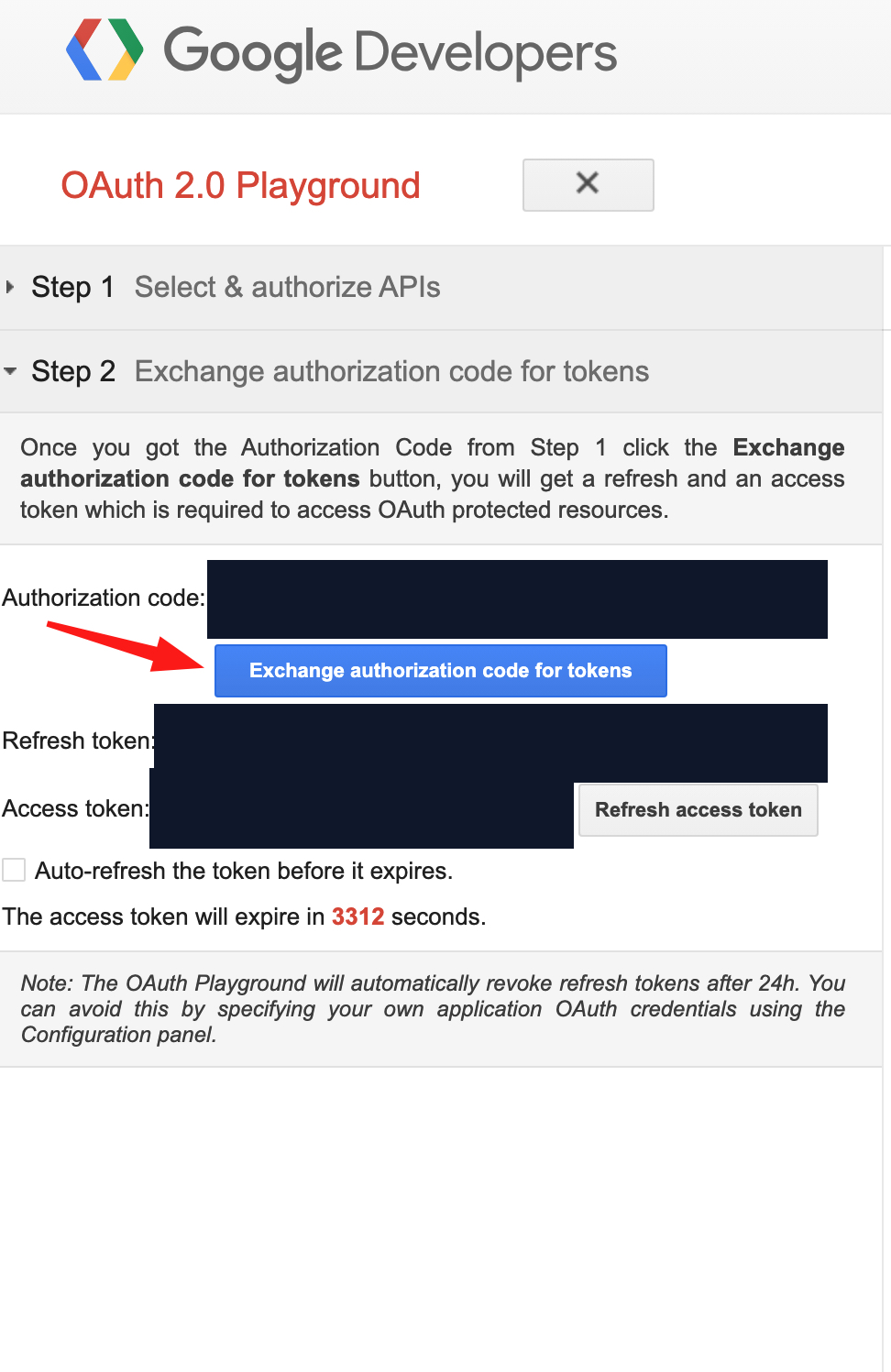
The Playground returns to Step 2 with an authorization code. Click
Exchange authorization code for tokens and copy the
refresh_token (do not screenshot or publish it —
the access token you can ignore; Outloop mints its own).
Paste the values into Outloop
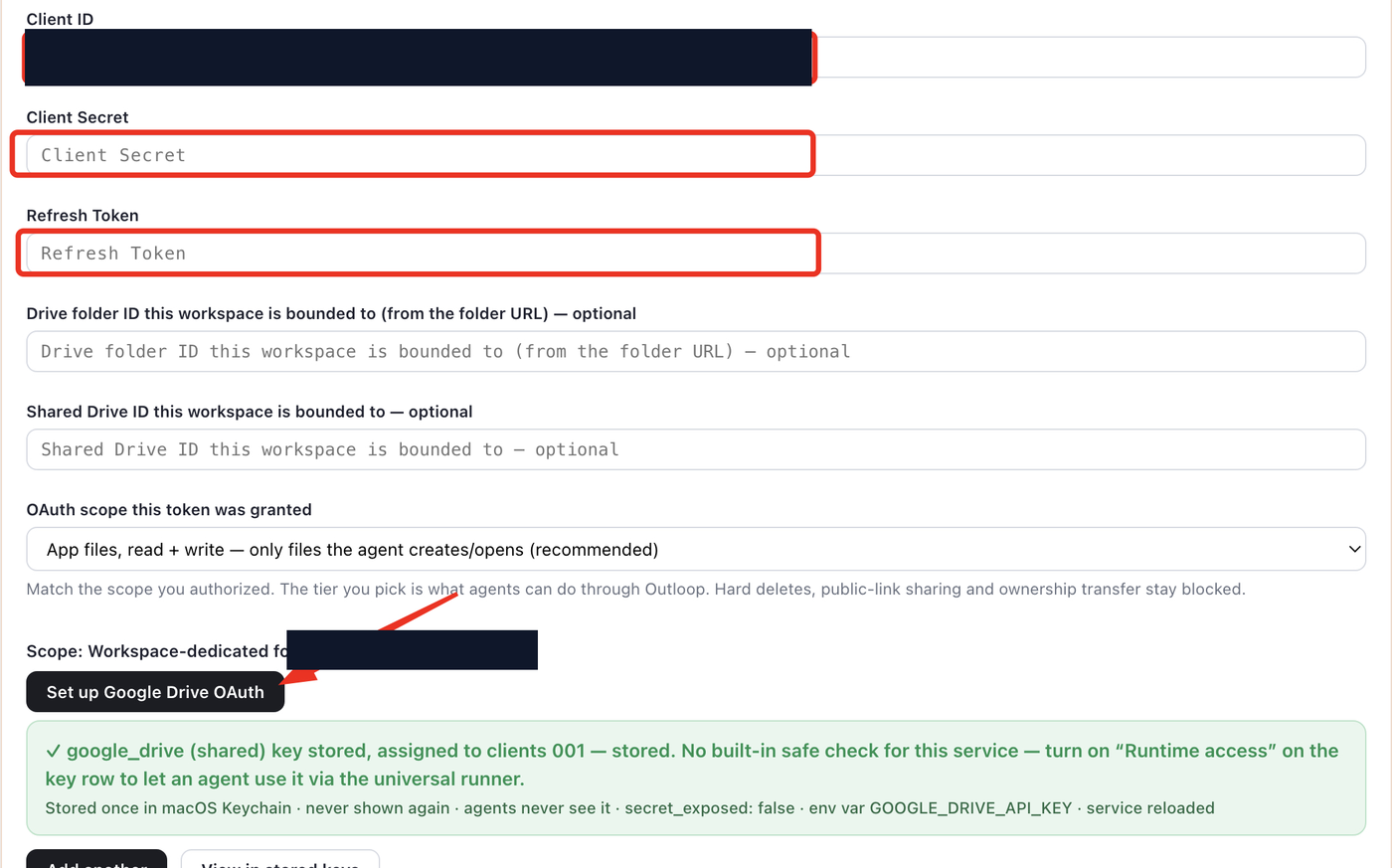
Open Advanced — manual refresh token in the Google Drive panel and fill in:
- →Client ID and Client Secret from Google Cloud (step 3) — or leave them to a saved Google OAuth app profile.
- →Refresh Token from the OAuth Playground.
- →Drive folder ID — optional; from the folder URL, bounds the workspace to one folder.
- →Shared Drive ID — optional; bounds the workspace to one Shared Drive (step 7).
- →OAuth scope this token was granted — must match what you authorized in the Playground.
Then click Save pasted refresh token.
Changing the account or the credential later
Changing the account or the credential later
Three controls on the Google Drive connector look similar and do different things. Picking the wrong one is the most common way a working connector gets broken on purpose.
Re-authenticate
Reuses the OAuth app you already selected and refreshes the authorization for the account that is already connected.
When: Use it when the refresh token expired or was revoked and you want the same account back.
Safety: It must not quietly become an account switch. If Outloop finds a different account at the other end, it reports the mismatch and keeps the previous token.
Connect as a different Google account
Keeps the same Client ID and Client Secret and opens Google's account chooser so you can pick another identity.
When: Use it when the wrong account was connected, or when the client moved the data to a different Google account.
Safety: The stored token is replaced only after Outloop positively verifies that the newly connected identity is the one you intended. A mismatch, a missing identity, a failed verification or a cancelled sign-in all leave the previous credential exactly as it was.
Replace the full credential
Swaps the OAuth app itself — a different Google Cloud project, Client ID or Client Secret.
When: Use it when the OAuth app is changing hands, or a client is moving the connector onto their own Cloud project.
Safety: This is not the same as choosing another Google data account. Confirm with "Sign in and replace" only when you actually mean to change the app.
What the Drive API can do through Outloop
Under the authorized scope, the Drive API v3 covers the full file lifecycle. Shared Drive operations use the
same endpoints with supportsAllDrives=true (and
driveId +
includeItemsFromAllDrives=true when listing).
Reads
- ✓Search and list files and folders (
files.list), including inside a Shared Drive. - ✓Read metadata (
files.get), download content, and export Google Docs/Sheets/Slides to standard formats.
Writes
- ✓Create and upload files (
files.create), update content and metadata (files.update), move between folders. - ✓Copy files (
files.copy) — including into a Shared Drive, as verified above. - ✓Share to specific people and groups (
permissions.create).
Blocked by Outloop runtime policy
- ✕Public-link sharing ("anyone with the link").
- ✕Ownership transfer.
- ✕Hard deletes.
Verified vs not claimed yet
- Verified Copying a test image into a team Shared Drive through Outloop:
POST /drive/v3/files/{fileId}/copyreturned HTTP 200 withsecret_exposed: falseand an audit entry. - Supported, not verified yet The rest of the Drive API v3 surface (search, download, export, upload, update, sharing to people/groups): supported by the API and permitted through bridge policy under the authorized scope, but not runtime-verified in this guide.
- Not claimed Public-link sharing, ownership transfer, and hard deletes are blocked by runtime policy — this guide makes no claim that agents can perform them through Outloop.
Google Drive API through Outloop vs the Drive MCP
Google offers a remote Google Drive MCP server (currently part of the Google Workspace Developer Preview Program) with eight tools for searching, reading, creating, copying, and downloading files. MCP can be a useful path; the comparison below is specific to Google Drive and to what is actually live in this workspace.
| Area | Drive API through Outloop | Google Drive MCP |
|---|---|---|
| Live in this workspace | Live now The API path is the only Google Drive path connected here. | Not connected here Google offers a remote Drive MCP server (Google Workspace Developer Preview), but it is not connected in this workspace. |
| Verified in this guide | Verified in this guide Proven with a real Shared Drive copy through Outloop (HTTP 200, secret_exposed: false). | Not verified here |
| Auth model | OAuth client + refresh token stored in macOS Keychain; Outloop mints short-lived access tokens host-side. | OAuth 2.0 session between the AI application and Google; token handling depends on the client. |
| Raw secret exposure to the agent | Secret-safe The credential is used on the wire; the agent never sees the client secret, refresh token, or access token. | Depends on the connector/OAuth session model. |
| Audit trail | Audited Every API Bridge request is auditable through Outloop. | Not through Outloop. |
| Workspace / client routing | Workspace-scoped Folder and Shared Drive pins bound each workspace; wrong-client access is blocked by policy. | Not through Outloop. |
| Read actions | Full Drive API v3 reads under the authorized scope: files.list, files.get, downloads and exports, Shared Drive listing. | search_files, list_recent_files, read_file_content, download_file_content, get_file_metadata, get_file_permissions. |
| Write actions | Drive API v3 writes under the authorized scope and runtime policy: upload, update, copy, move, sharing to people/groups. Public links, ownership transfer, and hard deletes stay blocked. | create_file and copy_file are documented; the toolset is narrower than the raw API. |
Troubleshooting
Google shows an account chooser
Expected. Outloop asks Google for the chooser on purpose, so a sign-in can never silently reuse whichever account your browser happened to be logged into. Pick the account that owns or can open the client's folders and Shared Drives — which is often not the account that manages the Google Cloud project.
“Google hasn’t verified this app”
This appears because the OAuth app is your own and has not been through Google's verification. If it is your app and you trust it, expand Advanced and continue. If you do not know who owns the app, stop — that warning is doing its job, and clicking past an unknown app is not a routine step.
Which audience the app uses decides who can get that far at all. An External app in Testing only admits accounts added as Test users. An Internal app only admits accounts inside its Google Workspace organisation. For customer-facing production use, complete Google's verification rather than living in Testing.
The wrong Google account got connected
Use Connect as a different Google account on the connector. It keeps the same Client ID and Client Secret and reopens Google's chooser. The stored token is only replaced once Outloop verifies the new identity is the intended one — if it does not match, Outloop reports the mismatch and keeps the previous credential. Nothing is lost by trying.
A credential that works but sits on the wrong account is deliberately not marked runtime-verified for that workspace. Working and correct are different things.
BACKEND_AUTH_FAILED during connect
Google rejected the sign-in, so the new credential failed Outloop's safe verification. The important part: the previous credential is unchanged. Do not delete the connector, the OAuth app or the workspace as a first move. Check, in this order — that you signed in as the account that can reach the client's folders and Shared Drives; that the account is admitted by the app's audience (a Test user on an External+Testing app); and that the API is enabled in the right Cloud project. Then try the connect again.
Reconnecting never asked for the Client ID and Secret
Expected. Disconnecting a Google Drive credential does not delete your saved Google OAuth app profile — that is a separate object, kept on purpose so later connectors do not re-enter a Client Secret. Outloop reused it. If you specifically want a different app, pick another saved profile from the Google OAuth app dropdown, or create a new one and save it alongside. This is reuse working, not a stale credential silently retained.
“Copy workspace run prompt” is not available
The Access Profile has not been saved yet. Open the Access Profile, choose the reach and the capabilities, and click Save Access Profile — the run prompt becomes available once the authorization is recorded. OAuth succeeding is not the same as the workspace being authorized, and this is the step that closes the gap.
The connection stops working after about a week
If the OAuth app's audience is External and its publishing status is still Testing, Google expires refresh tokens for that app after roughly seven days. Two honest options: publish the app to In production, or use an Internal audience if everyone signing in is inside your Google Workspace organisation. Publishing may require Google's verification review depending on the scopes the app requests — that is Google's process and its outcome and timing are not ours to promise.
Drive can see a file but Docs, Sheets or Slides returns 403 on it
Expected when the connectors are signed in as different Google accounts — they are separate connectors with separate identities. Finding a file through Drive proves nothing about whether the editor connector's account can open it. Check Connected as on the Docs, Sheets or Slides connector and share the file with that exact address.
I do not see a refresh token in the Playground
Confirm Use your own OAuth credentials is checked, Access type is Offline, Force prompt is Consent Screen, and the redirect URI in Google Cloud is exactly https://developers.google.com/oauthplayground. Then authorize again.
Requests fail with 403 or "File not found" on a Shared Drive
Usually the connected Google user is not a member of that Shared Drive, or the request is missing supportsAllDrives=true. Confirm the user's Shared Drive membership and that the shared_drive_id pinned in Outloop is the right one.
The agent can create files but cannot read existing ones
The credential was authorized with the drive.file scope, which only covers files the agent created or opened through this credential. For existing files and Shared Drive content, authorize the full auth/drive scope (step 2), generate a new refresh token, and match the scope tier in Outloop.
Runtime access fails even though the key is stored
Check the macOS Keychain prompt was answered with Always Allow (step 8) and that Runtime access is turned on for the Google Drive key row in Outloop.
Rotate or revoke access
- →Narrow a workspace — change the pinned folder or Shared Drive ID and save. The boundary moves immediately; the credential is untouched.
- →Rotate the token — use Re-authenticate on the connector. Same account, fresh authorization.
- →Revoke everything for this connector — remove the Google Drive credential in Outloop, then revoke Outloop's access for that account at myaccount.google.com/permissions. Do both: removing the local credential does not revoke the grant at Google.
- →Off-boarding a client — also remove the connected account from the client's Shared Drive membership. Revoking on your side does not remove that account's standing membership on theirs.
Official Google documentation
- →Google Drive API v3 reference — files, permissions and the
supportsAllDrivesparameter. - →Drive API scopes — what
drive.filecovers versus the fulldrivescope. - →Working with Shared Drives — membership, roles and how they differ from My Drive.
- →Using OAuth 2.0 to access Google APIs — refresh-token behaviour, including the Testing-status expiry.
Outloop is available with setup guides and product support for agency teams. Outloop is an independent tool and is not affiliated with or endorsed by Google. See the security model, the Google Analytics GA4 setup guide, or the Google Search Console setup guide.
Once the proof succeeds, your agents can use Google Drive and Shared Drives through Outloop — without seeing the OAuth credential.
Outloop is available with setup guides and product support for AI agencies, operators, and dev shops.