AI workers for multi-client agencies · PandaDoc
Put an AI worker to work in PandaDoc.
Give your AI worker approved PandaDoc access inside the right client workspace. See a recorded Sandbox workflow create a draft, check its status and retrieve a PDF for review.
Create your trial, then install on your company-controlled Mac. See plans and pricing.
- Client-specific workspace
- Approved API operations
- A document you can inspect

PandaDoc access. A real result to inspect.
See the client workspace, approved PandaDoc access, a verified API read and the sample PDF returned by the approved download operation.
Edited PandaDoc Sandbox demonstration. It shows one demo client workspace, human credential entry, provider verification and the recorded draft/status/PDF workflow. Nothing was sent or signed.
Follow the PandaDoc setup walkthrough →1:28 · PandaDoc inside a client workflow · No form required · Open video directly
Read the video transcript
PandaDoc already has a powerful API. What gets interesting is when an AI worker can actually use it inside the right client workflow. In Outloop, that work starts inside one client workspace, with the context and approved tools that belong to that client. A human adds the PandaDoc credential once. It stays in Outloop's host-side flow while the worker gets the approved operation it needs, not the raw key. Before the worker relies on it, Outloop verifies the provider operation against PandaDoc. Then, each call is recorded, including the successful response. In this sandbox workflow, the worker prepared a draft, checked its state and brought back the PDF for review, using only the operations we declared. PandaDoc provides the document API. Outloop gives the AI worker the client workspace, approved access, context and the runtime to use it within those boundaries. If you work with agencies using PandaDoc, I'd love to show them this workflow. Send them this video or connect us and we'll walk through it together.
Download English captionsWhat the video shows
The opening introduces PandaDoc’s API in a client workflow. The edit shows a demo workspace, a separately labeled Saved Context example, the credential reference, Custom API configuration, provider verification and a successful read receipt. It then shows the returned Sandbox PDF, declared operations and recorded activity. The document was not sent or signed.
What this AI worker demonstrated in PandaDoc.
One document task, carried through to a file you can open. The short film shows access, a verified read and the returned PDF. The full setup walkthrough also records draft creation and status checks:
- 01 / CREATE
Prepare a Sandbox draft.
The approved create operation returned a new synthetic document. Creation was a write, separate from sending it to anyone.
- 02 / CHECK
Check the same document.
The worker checked its status until it reached draft. A bounded document listing also found the demo document.
- 03 / RETRIEVE
Bring back the PDF.
The draft downloaded successfully and was opened for inspection. This proves that recorded result, not download availability for every document or account.
How PandaDoc fits into a client workflow.
Start with the client request and the correct workspace. Approved Context supplies the brief; configured access determines the PandaDoc actions the worker may use.
The worker carries the document ID through the task, checks the result and returns the file for review. PandaDoc is the document system. Outloop provides the worker’s client environment and approved access.
How approved runtime access works →Keep the client and the decision clear.
- Choose the right workspace.Keep each client’s Context and approved access with their task. The demo’s status and download operations were restricted to the exact synthetic document.
- Review before the next action.Inspect the returned PDF. Sending a document for signature is a separate action requiring its own configuration and authorization; this demo did not send anything.
- Use access without passing around keys.The credential stays in Outloop’s host-side flow. The worker receives the action result; the recorded receipts report no secret exposure.
Ready to connect PandaDoc?
Follow the PandaDoc walkthrough in the Custom API setup guide. It covers the configuration and verification behind this workflow.
Follow the PandaDoc setup walkthrough →Let the Custom API Setup Skill help configure it · Set up your first client workspace
API setup, evidence and workflow limits
This workflow uses PandaDoc through Outloop’s Custom API configuration. PandaDoc provides the API; Outloop does not supply a PandaDoc account or a built-in PandaDoc connector. A saved configuration, enabled workspace access and successful provider verification are separate checks.
The recorded evidence covers one synthetic Sandbox document in Claude Cowork on 13 September 2026. It does not prove sending, signing, deletion, unrestricted cross-client isolation or the same workflow in every agent runtime. Reverify your own approved configuration and document state.
PandaDoc also offers its own AI Assistant and ChatGPT app. Outloop’s focus here is an external worker’s client workspace and approved workflow. No official partnership or endorsement is implied.
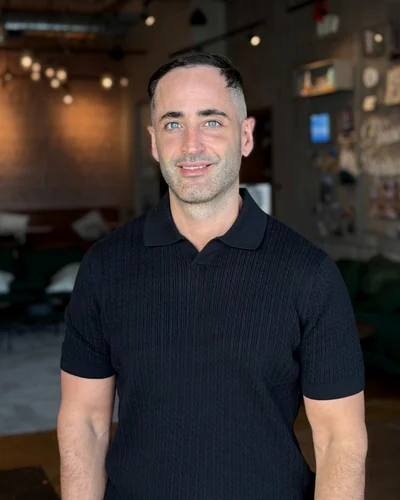
Built by an agency operator
I'm Adam Argaman, founder of Outloop and CEO of a digital marketing agency.
After 15+ years across marketing, creative, data and systems—and 7+ years running client delivery—I built Outloop around the work agencies actually do.
The model needs a working environment: client Context, approved systems and clear human approval boundaries.
PandaDoc and AI agents: common questions
Start with one client document workflow.
Create your trial. Download the Mac app. Set up your first workspace.
Want help mapping the workflow? Request an AI Workflow Review.
Company-controlled Mac · Guided setup · See plans and pricing