Help Ollie recognize authorized email requests
An email arriving in Gmail or Outlook does not establish a trusted instruction source. Ollie must verify who sent it before using that person’s Workspace permissions.
Correct authentication helps reduce domain spoofing and phishing, strengthens domain trust and supports major mailbox-provider sender requirements. It can improve deliverability, but does not guarantee inbox placement or prevent every phishing attempt.
- SPF
- Lists the mail systems allowed to send for your domain.
- DKIM
- Adds a digital signature to outgoing messages so the receiver can check the signing domain and message integrity.
- DMARC
- Checks whether passing SPF or DKIM aligns with the visible From domain, and publishes a policy for messages that fail.
DMARC passes when at least one method passes and aligns: SPF with the envelope-sender domain, or DKIM with the signing domain. Both methods do not need to pass individually. Alignment follows your domain’s relaxed or strict policy. Configure all three for broader email security; publishing a DMARC record alone does not fix alignment.
1. Find your email and DNS administrators
Identify the domain in the address that will send requests, its email provider, and the administrator of its authoritative DNS. This is usually your IT, Google Workspace or Microsoft 365 administrator, plus whoever manages DNS.
Configure the domain that SENDS the instructions, which may differ from the receiving mailbox’s domain. Personal gmail.com and outlook.com users cannot edit those providers’ DNS. Connecting a mailbox/API, authenticating a sender and authorizing that person in Outloop are separate checks.
Inventory every legitimate sending service, including your CRM, marketing tools and website forms, before changing SPF or DMARC policies. DNS records are edited at your DNS host; DKIM signing is enabled at your email provider. These may be managed by different people.
Keep access with the administrator. Never give an AI agent your registrar password, private DKIM key or mailbox credentials.
Ready to continue: You know who owns each change and which systems must keep sending mail.
2. Authenticate the sending domain
Use the instructions for the provider that sends your business email. If authentication already works, validate it before changing records. Have your administrator use the exact values shown for your domain, then allow DNS changes to propagate.
Choose your provider: Google Workspace · Microsoft 365 / Outlook
Google Workspace
- SPF: have your DNS administrator update the domain’s SPF TXT record to cover all legitimate senders. Do not create a second SPF record. Google: set up SPF.
- DKIM: generate a public record for your sending domain, save it at your DNS host, then return to Google Admin to start signing. Follow the walkthrough below. Google: set up DKIM.
Google DKIM: generate → save DNS → start authentication
For Google Workspace custom domains. These TXT instructions do not apply to Microsoft 365’s CNAME setup.
Select the sending domain
Use an authorized Google Workspace super administrator account. Open Apps → Google Workspace → Gmail → Authenticate email. Select the domain used in the From address and inspect its status. Preserve working signing keys; do not generate replacements unnecessarily.
Expected result: The correct sending domain and its existing status are visible.
Generate the public record
For a new setup, choose Generate new record, select 2048 bits where your DNS host supports it, and use selector/prefix google unless you intentionally use another. If google is already in use, choose a distinct selector rather than overwriting it. Select Generate; copy Google’s exact DNS hostname and complete public TXT value.
Expected result: You have the domain-specific hostname and full public value. Keep the private key out of DNS and chat.
Save the TXT record at your DNS host
Cloudflare example: select the correct zone → DNS → Records → Add record. Enter the fields below and Save. Other DNS hosts may expect a relative label or the full hostname; avoid adding your domain twice. Use the hostname and complete value Google supplied, not the example placeholder.
- Type
- TXT
- Name
- google._domainkey (for selector google)
- Content
- The complete Google-provided value, shaped like v=DKIM1; k=rsa; p=…
- TTL
- Auto
The ellipsis (…) is a placeholder, never a usable key. Preserve other legitimate DKIM selectors, including Postmark: their records do not enable Google Workspace signing.
Cloudflare: manage DNS records
Expected result: The authoritative DNS contains the full public record for the chosen selector.
Return to Google and activate signing
Return to Authenticate email with the same domain selected and choose Start authentication. Saving DNS alone does not activate Google signing. If Google cannot find the record, check authoritative DNS, domain, selector and complete value, then allow propagation under Google’s guidance (up to 48 hours). Do not repeatedly rotate keys.
Expected result: Google Admin shows “Authenticating email with DKIM”. This is configuration evidence; verify a fresh received message next.
- DMARC: after SPF/DKIM are working, publish and monitor a DMARC TXT record at _dmarc for your domain. Have your administrator stage enforcement after reviewing legitimate senders; do not blindly replace an existing policy. Google: set up DMARC.
Microsoft 365 / Outlook
- SPF: include Microsoft 365 and any other legitimate sending systems in your domain’s single SPF TXT record. Your DNS administrator makes this change. Microsoft: email authentication overview.
- DKIM: open the Microsoft Defender portal’s Email authentication settings → DKIM and select your custom domain. Publish the two CNAME records Microsoft supplies in DNS, then enable signing for that domain. Use the displayed values rather than guessing the targets. Microsoft: configure DKIM.
- DMARC: follow Microsoft’s domain rollout after SPF and DKIM setup. Publish the DNS TXT policy, review reports and account for all sending services before increasing enforcement. Microsoft: configure DMARC.
Ready to continue: Your administrator has configured SPF, enabled aligned DKIM signing and reviewed the DMARC rollout.
3. Check a fresh message
Send a NEW email from the intended business address to a separate receiving mailbox. For Google DKIM verification, use another Gmail or Google Workspace recipient and inspect the received message there; a message sent to yourself is not sufficient. Test the selected Outloop intake mailbox separately in step 5. Old messages do not acquire new signatures.
In Gmail on a computer, open the message → More beside Reply → Show original. In new Outlook or Outlook on the web, open the message → More actions → View → View message details. Classic Outlook uses File → Properties → Internet headers.
Confirm the receiving provider reports DMARC PASS through aligned SPF or aligned DKIM. To verify Google custom-domain DKIM specifically, also confirm DKIM PASS with your sending domain. Never weaken DMARC policy to make a check pass.
DKIM says PASS, but is it your domain?
A provider-managed signing domain ending in gappssmtp.com can pass DKIM without aligning with a From address at example.com. DMARC may still pass through aligned SPF. That is neither proof of custom-domain Google DKIM nor proof that Outloop must reject the message.
Enable and verify domain-aligned DKIM for stronger authentication resilience. A Postmark selector signs mail sent through Postmark; it does not activate Google signing. Different legitimate services can use different selectors—preserve them.
Example results for a fresh received message
- From
- user@example.com
- DKIM
- PASS with domain example.com
- SPF
- PASS
- DMARC
- PASS
Exact domain equality makes this example easy to read. Relaxed alignment can allow the same organizational domain; strict alignment requires an exact match. DMARC still needs only one passing, aligned method. This all-PASS example does not make both SPF and DKIM mandatory.
Ready to continue: A fresh real message passes DMARC through at least one aligned method.
4. Match the sender to the right Workspace
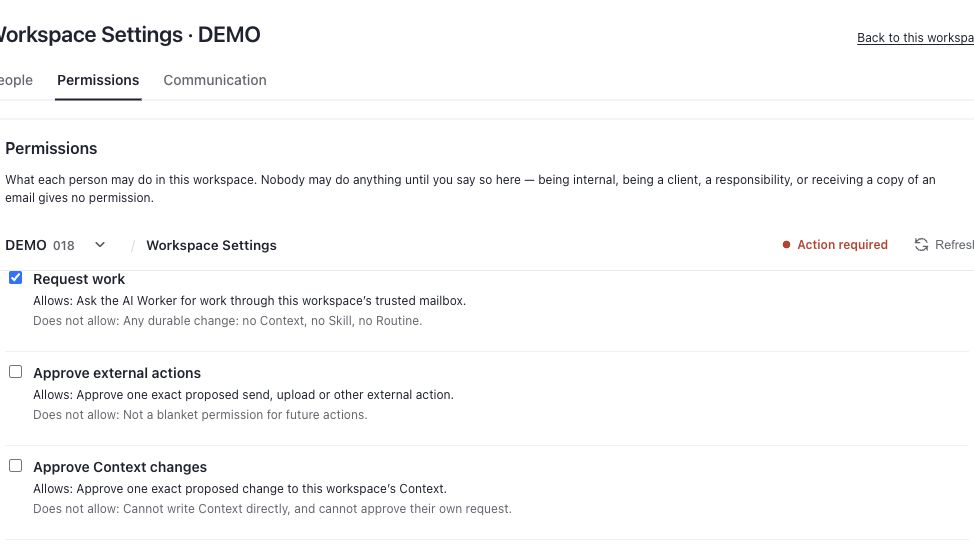
Open the intended Outloop Workspace → People and communication → Permissions → Edit permissions beside the person. Confirm their sending address and Request work (request_work). A contact entry or job title alone grants no permission.
In AI Worker → Settings, confirm the selected trusted mailbox, trusted instruction-source state, automatic checking and the “Automatic email listens to” summary. Check any custom Routine sender or label restrictions and whether intake is paused. Confirm that the configured engine is available.
Microsoft 365 domain authentication and Microsoft Graph API connection are separate setup tasks. This guide does not establish Outlook automatic Ollie intake support or Gmail trigger parity. Verify support for your installed version and selected connector before relying on Microsoft mailbox intake; use Ask Ollie for manual work when needed.
Ready to continue: The verified sender is authorized, the mailbox is correct and the supported intake path is enabled.
5. Test one new request end to end
After setup, send one fresh, small request from the authorized address to the selected mailbox, asking for an internal draft. Use the configured automatic intake path; do not force a refused historical message through repeated checks.
Confirm the message creates the expected Ollie work item in the correct Workspace. Inspect the recorded intake and execution evidence, the actual output and any approval needed for the requested action. A work item appearing is not proof that its action succeeded.
A successful DNS check alone is not Outloop acceptance. If intake or execution fails, resolve the specific cause below without bypassing sender verification.
Completion checklist
- Email authentication: a fresh received message passes DMARC through aligned SPF or DKIM; Google custom-domain DKIM is separately verified if you configured it.
- Sender authorization: the intended person has Request work in the correct Workspace.
- Mailbox and intake: the correct mailbox is connected and trusted, and its supported intake path is enabled.
- Engine: the configured engine is available.
- Execution: one fresh request produces the expected output and recorded evidence, with any required approval.
- Reply: when the workflow supports or requires a reply, confirm one expected reply in the original thread; check existing send evidence before retrying.
Ready to continue: The new request has a matching work item and evidence for the resulting action.
Email arrived, but Ollie did not start?
| What you see | What to do |
|---|---|
| Missing or incorrect SPF | Inventory legitimate senders; have the DNS administrator correct the single SPF record. Retest a new message. |
| DKIM passes under another domain | Check the signing domain. DMARC may already pass through aligned SPF while custom-domain Google DKIM is absent. Enable and verify Google’s domain-aligned DKIM; preserve other providers’ selectors. |
| Google TXT saved, but signing is not active | Return to Google Admin → Authenticate email → Start authentication for the same domain. Check the full key, selector and authoritative DNS if activation fails; allow propagation rather than rotating repeatedly. |
| DMARC fails | Compare the visible From domain with SPF’s envelope sender and DKIM’s signing domain. Fix at least one passing, aligned method; adding the policy alone is insufficient. Never weaken DMARC policy just to make the check pass. |
| DNS change is not visible yet | Check the authoritative DNS record and provider propagation guidance. Wait for propagation, then send a fresh message. |
| Sender is unverified or unauthorized | Check receiver-reported authentication and the exact Workspace People address with Request work. Never bypass verification or widen permissions just to pass a test. |
| Mailbox mismatch | Compare the destination address, selected trusted mailbox and intended Workspace. Correct the configuration before a new test. |
| Intake Routine is disabled or paused | Have the authorized operator review checking state, supported intake, schedule and sender/label filters. Do not use Run now to force a rejected message through. |
A request for your IT administrator
Copy this into a message and add your business domain and intended sending address.
Please authenticate the domain that sends our Outloop AI worker instructions. Confirm the sending provider and authoritative DNS administrator; inventory legitimate senders and preserve existing SPF, DMARC and other services’ DKIM selectors. For Google Workspace, inspect existing signing first. If setup is needed, generate a 2048-bit record where supported with a nonconflicting selector, save Google’s exact public TXT record in DNS, then return to Google Admin and choose Start authentication. For Microsoft 365, follow its own CNAME procedure instead. Verify a NEW message at a separate receiving mailbox: DMARC must pass through aligned SPF or DKIM; also verify DKIM PASS with our sending domain when configuring Google custom-domain signing. Please share a redacted result, not credentials or keys. Do not weaken DMARC policy to pass a check. We will separately verify Workspace Request work permission, the trusted connected mailbox and supported intake, engine availability, expected output/approvals, and one reply in the original thread when the workflow requires it.