Guides · Setup
How to Connect the WooCommerce API to AI Agents with Outloop
Last updated:
In short
WooCommerce uses a Consumer Key and Consumer Secret — a different credential from anything in WordPress itself.
You generate dedicated REST API keys in WooCommerce → Settings → Advanced → REST API, tied to a WordPress user and a permission level. Outloop stores them locally in macOS Keychain against the plain site domain, derives the /wp-json REST base, and lets agents work with the store through the API Bridge without ever seeing the Consumer Secret.
What this setup gives you
You will generate one dedicated pair of WooCommerce REST API keys — a Consumer Key and a Consumer Secret — and connect them in Outloop against the plain site domain. After that, AI agents can work with that store through Outloop's secure API Bridge, within whatever the key's permission level, the linked WordPress user's capabilities, the grant, and runtime policy allow. The Consumer Secret never appears to the agent, in chat, logs, repos, or project files.
Authorization header. Their only destination is the Outloop Mac
app — never Outloop Cloud, the website, chat, docs, or .env files. Every
screenshot in this guide was captured before any key was generated, and identifying details are redacted.
What you need before starting
- ✓A WooCommerce store served over HTTPS. Over HTTPS the keys authenticate with HTTP Basic Auth; plain HTTP would require OAuth 1.0a instead.
- ✓Permalinks set to anything other than Plain.
- ✓Access to WooCommerce settings, and a WordPress user for the key to act as.
- ✓Outloop installed and activated, with the client workspace selected.
1. This is not the WordPress credential
WooCommerce and WordPress are two separate connectors in Outloop, with two separate credentials. This is the single most common source of confusion, so it is worth being blunt about it:
- ✕A WooCommerce Consumer Secret is not a WordPress Application Password.
- ✕Neither of them is your normal WordPress login password.
- ✕A working WooCommerce key does not authenticate WordPress, and a working WordPress credential does not authenticate WooCommerce.
- ✓They live on the same domain, are created in different places, and are revoked independently.
If you also want agents working with posts, pages and media metadata on the same site, set that up separately in the WordPress setup guide.
2. Check permalinks are not Plain
Open Settings → Permalinks. WooCommerce needs a human-readable permalink structure — select any option other than Plain. With Plain selected, the WooCommerce REST routes do not resolve and no credential will help.
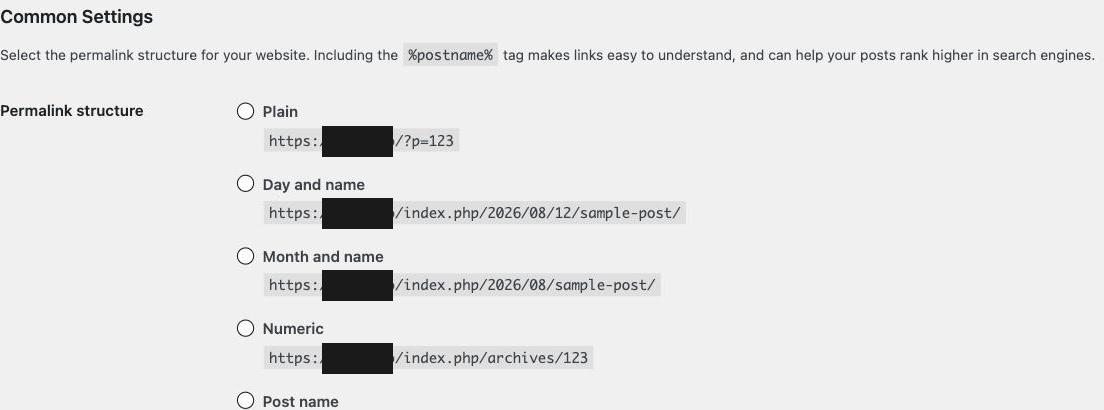
/?p=123. The REST routes need the path-based rewrite rules that every other
option enables. Post name is the usual choice.
3. Open the REST API settings
Go to WooCommerce → Settings → Advanced → REST API and press Add key.
4. Create the API key
Give the key a Description that identifies the integration — Outloop WooCommerce — then choose the User the key should act as.
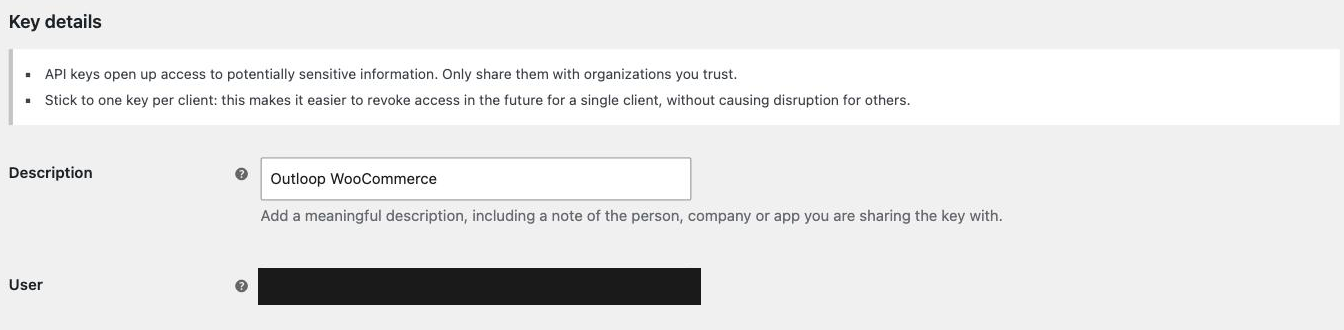
WooCommerce's own guidance on that screen is worth following exactly: "Stick to one key per client: this makes it easier to revoke access in the future for a single client, without causing disruption for others." That is the same isolation model Outloop uses per workspace.
Set Permissions. Read/Write is the recommended default, because most real store workflows eventually need to change something. Choose Read if the workflow only ever reports on the store. Then press Generate API key.
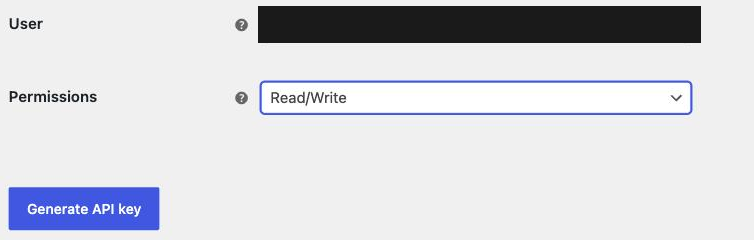
Afterwards the key list shows only the last characters of the Consumer Key, the permission level, and when it was last used. The secret is never shown again.

5. Add WooCommerce in Outloop
In Outloop, open API Keys, confirm the workspace this client belongs to, and choose WooCommerce.
- →Enter the plain HTTPS site domain. Outloop derives the REST base ending in
/wp-jsonitself — you do not type the API path. - →Confirm the workspace. WooCommerce is workspace-dedicated and does not support shared access — it belongs to one workspace only.
- →Enter the Consumer Key and Consumer Secret, then save. Both go into macOS Keychain on your Mac.
The connector then appears under that workspace, alongside WordPress if you have connected it — separately, with its own credential:

6. Discovery is not proof
Outloop's first step reads the site's public REST index to confirm the address and detect WooCommerce — explicitly with no credential used for that step. There are four distinct states, and only the last two involve your credential:
- 1API discovered. The store answers on its public REST index. Anyone can get this.
- 2Credentials securely saved. The Consumer Key and Secret are in macOS Keychain. Saved is not working.
- 3Authenticated proof passed. A request that requires authentication succeeded.
- 4Connector runtime verified. That call ran through the Outloop API Bridge with an audit entry and
secret_exposed: false.
GET of
/wp-json/wc/v3 returns HTTP 200 to anyone —
it is the documented way to check connectivity without credentials. It is the single most likely
thing to be mistaken for a successful connection. Prove with an authenticated store read instead.
7. Authenticated proof
In Outloop's activity log, both states are visible for an already-connected WooCommerce connector.
Grant preflight → PREFLIGHT_OK answers "is this grant live?" from policy, with no
provider call. api_bridge.request → OK is the real authenticated request:
service: woocommerce
verb: api_bridge.request
decision / code: allow / OK
secret_exposed: false
runtime-verified: yes

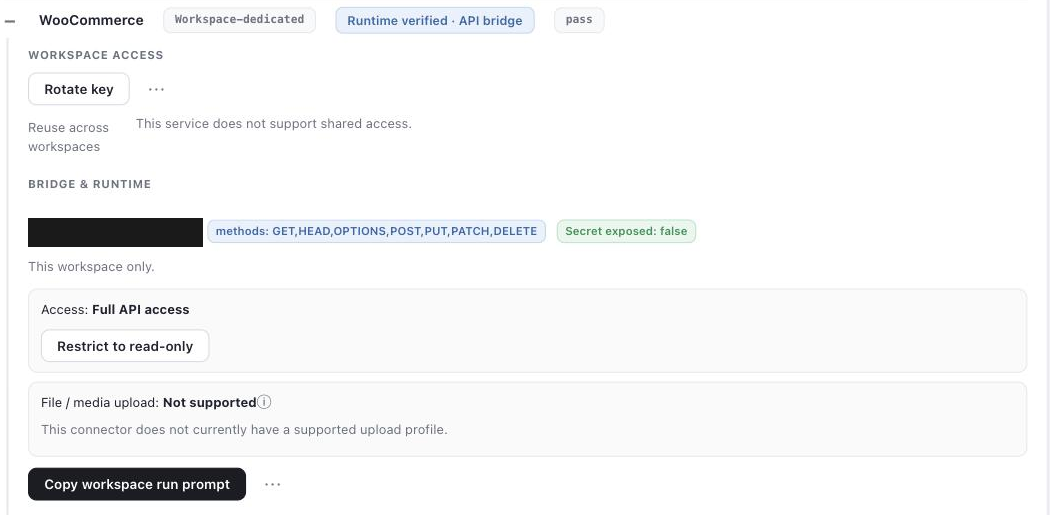
The connector card then shows the verified state — runtime verified through the API bridge, the approved
methods, the access tier, and Secret exposed: false:
What the agent never sees
- ✓Agents never see the Consumer Key, the Consumer Secret, or the Authorization header.
- ✓Credentials are stored in macOS Keychain and read host-side at request time — used on the wire, never handed to the agent.
- ✓Access is workspace-dedicated; this connector does not support shared access, so another client's workspace cannot use it.
- ✓Every runtime request is audited and results are redacted. Outloop's dashboard never displays a key, token, header, length, or hash.
Access tier and methods
The verified grant shows Full API access as the default tier, with these methods approved:
GET, HEAD, OPTIONS, POST, PUT, PATCH, DELETE
High-risk operations are acknowledged before enabling and are always audited. If a workflow only needs reporting, you can restrict the connector to read-only at any time from its card in Outloop, and raise it again later. Note that the key's own WooCommerce permission level and the linked user's capabilities still apply — the effective ceiling is the narrowest of them.
Verified vs not claimed yet
- Verified Authenticated WooCommerce access through Outloop: an
api_bridge.requestreturned decision allow / OK withsecret_exposed: falseand an audit entry, on an already-connected connector. - Supported, not verified yet Write operations. Read/Write is enabled and
POST,PUT,PATCHandDELETEare approved on the grant — but an enabled permission level is not evidence that a production write was tested, and this guide does not claim one was. - Not claimed File and media upload, including product images — no supported upload profile on this connector.
- Discovery only A
200from/wp-json/wc/v3. That endpoint requires no authentication.
Rotate or revoke safely
- →Revoke in WooCommerce: WooCommerce → Settings → Advanced → REST API, then revoke the named key. One key per client means this affects only that integration.
- →Rotate: generate a new key, update Outloop, confirm a fresh authenticated proof, and only then revoke the old key.
- →Independent of WordPress. WooCommerce and WordPress credentials are created and revoked separately. Revoking one leaves the other working.
Troubleshooting
Work through these in order — the most likely and least invasive checks come first.
Permalinks are set to Plain
Check this first, because it breaks everything downstream and takes seconds to fix. Settings → Permalinks → select any option other than Plain, then save.
The Consumer Key and Consumer Secret are swapped
Easy to do, and it presents as a plain authentication failure. Over HTTPS the Consumer Key is the username and the Consumer Secret is the password. Re-enter them in the right fields in Outloop.
Wrong site or base URL
Enter the plain HTTPS site domain in Outloop, not an API path. Outloop derives /wp-json itself, so typing the path as well produces a malformed base.
The key is tied to the wrong WordPress user
The key inherits that user's capabilities, so a key created against an under-privileged user will fail on operations the workflow needs even with Read/Write selected. Check the User column in the key list and generate a new key against the intended user if it is wrong.
Read permission on a workflow that writes
A key created with Read cannot write, regardless of Outloop's access tier. Generate a new key with Read/Write, update Outloop, then revoke the old one.
The key was revoked or rotated
If the key was revoked in WooCommerce, Outloop still holds a credential that no longer authenticates. Generate a new key and update it in Outloop.
HTTP 401 versus HTTP 403
WooCommerce documents 401 as an authentication or permission failure — for example incorrect keys. A 403 more often points at a server, security plugin, or firewall layer rejecting the request before WooCommerce sees it. Treat 401 as a credential question and 403 as an infrastructure question.
A security or cache layer is interfering
Caching and firewall layers can intercept REST requests or serve stale responses. Exclude the REST routes from caching, and ask whoever manages the site to allow them through the firewall. Do not delete the security plugin.
The Authorization header is stripped
Some servers fail to pass the Authorization header through to PHP, which looks exactly like an invalid key. This is a hosting and server configuration issue: ask your host to forward the Authorization header correctly.
I connected WooCommerce but WordPress still does not work
Expected. They are separate connectors with separate credentials. Set WordPress up separately in the WordPress setup guide.
Public Store API access mistaken for authenticated proof
WooCommerce exposes public endpoints, and the API index itself needs no authentication. A 200 from those says nothing about your credential. Prove with an authenticated store read.
The connector saved but I do not see it
Confirm you are looking at the same workspace you selected in the connector form. WooCommerce is workspace-dedicated, so it appears under that one workspace only.
Official documentation
- →WooCommerce REST API — generating keys, permissions, and the permalink requirement.
- →WooCommerce REST API documentation — authentication, endpoints, and status codes.
Outloop is available with setup guides and product support for agency teams. Outloop is an independent tool and is not affiliated with or endorsed by WooCommerce, Automattic, or WordPress. See the security model, the WordPress setup guide, or the Custom API Bridge guide.
Once the authenticated proof passes, your agents can work with the store through Outloop — without ever seeing the Consumer Secret.
Outloop is available with setup guides and product support for AI agencies, operators, and dev shops.