Guides · Setup
How to Connect the WordPress API to AI Agents with Outloop
Last updated:
In short
WordPress uses an Application Password — a separate API credential that is not your wp-admin login password.
You create a dedicated Application Password on a chosen WordPress user, then enter the plain HTTPS site domain and that user's exact login username in Outloop. Outloop derives the /wp-json REST base, stores the credential locally in macOS Keychain, and lets agents work through the API Bridge without ever seeing the credential.
What this setup gives you
You will create one dedicated Application Password on a WordPress user, then connect it in Outloop against the plain site domain. After that, AI agents can work with that WordPress site through Outloop's secure API Bridge — reading and writing content within whatever the chosen user's role, the credential, the grant, and runtime policy allow. The raw credential never appears to the agent, in chat, logs, repos, or project files.
Authorization header. Its only destination is the Outloop Mac app — never
Outloop Cloud, the website, chat, docs, or .env files. Every screenshot in
this guide was captured before any credential was generated, and identifying details are redacted.
What you need before starting
- ✓A WordPress site served over HTTPS. Application Passwords are available over HTTPS by default.
- ✓Access to a WordPress user whose role covers the work you want agents to do.
- ✓The WordPress REST API reachable (not blocked by a security plugin or server rule).
- ✓Outloop installed and activated, with the client workspace selected.
1. Choose the WordPress user
An Application Password is tied to one specific WordPress user and inherits that user's capabilities. It cannot do anything that user could not already do.
Create a dedicated WordPress user for Outloop and give it a role whose capabilities support your intended workflows — no more authority than the work requires. Some workflows genuinely need full administrative REST capability, and choosing an Administrator is a legitimate, deliberate decision in that case. It is not a requirement for every customer, and you should not assume it by default.
2. Find the exact login username
Open Users → Profile for that account (or Users → All Users → Edit for another user) and read the Username field. This exact value is what Outloop needs.

401 as a wrong password, which makes it easy to misdiagnose.
3. Open Application Passwords
Scroll down the same profile screen to Application Passwords. WordPress explains the mechanism in its own words here — note the last sentence in particular.
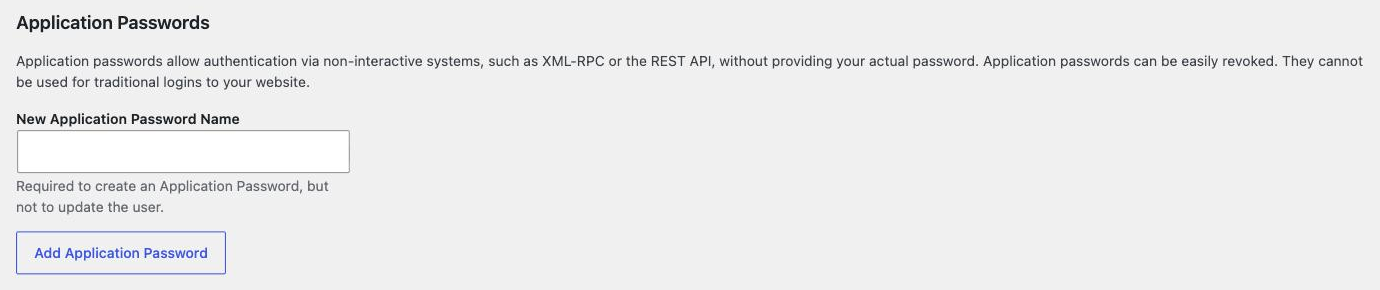
Application passwords authenticate non-interactive systems such as the REST API without providing your actual password, they can be revoked individually, and they cannot be used for traditional logins. That last point is why your normal wp-admin password will never authenticate an API request.
4. Create the Application Password
Enter a name that identifies the integration — Outloop WordPress — so you can revoke exactly this one later without disturbing anything else. Then press Add Application Password.
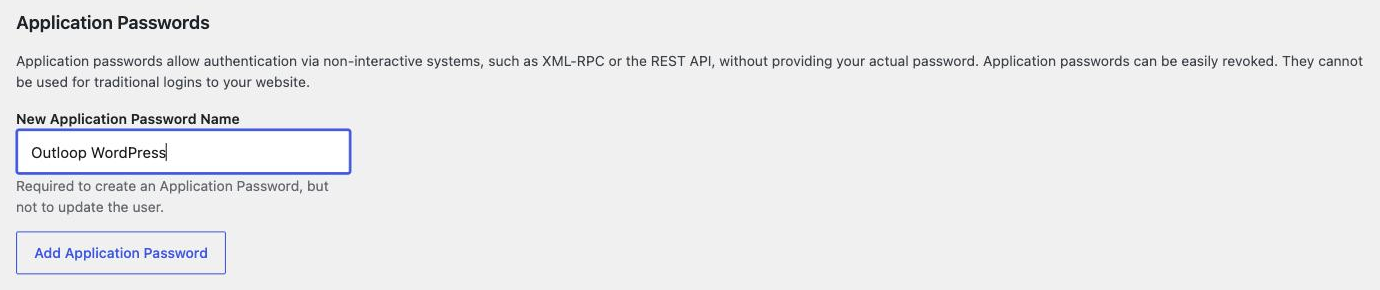
Create one dedicated Application Password per integration. One key per purpose means you can revoke a single integration's access later without breaking the others.
5. Add WordPress in Outloop
In Outloop, open API Keys, confirm the workspace this client belongs to, and choose WordPress. Step 1 asks only for the site address.
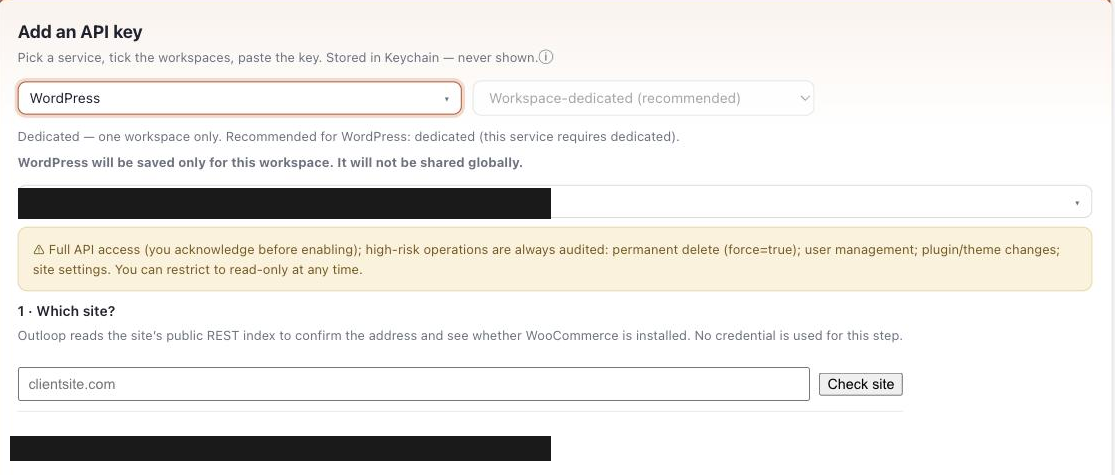
- →Enter the plain HTTPS site domain. Outloop derives the REST base ending in
/wp-jsonitself — you do not type the API path. - →Confirm the workspace shown in the connector form. WordPress is workspace-dedicated — it is saved for that one workspace and is not shared globally.
- →Enter the login username from step 2 and paste the Application Password, then save. The credential goes into macOS Keychain on your Mac.
The connector then appears under that workspace. Outloop also detects during this step whether WooCommerce is installed on the same site — that is a separate connector with a separate credential, covered in the WooCommerce setup guide.

6. Discovery is not proof
Outloop's first step reads the site's public REST index to confirm the address and see whether WooCommerce is installed. The form says so explicitly: no credential is used for this step. That is worth internalising, because it is where most people misread a successful connection.
There are four distinct states, and only the last two involve your credential at all:
- 1API discovered. The site answers on its public REST index. Anyone can get this — it proves the address is reachable, nothing more.
- 2Credentials securely saved. The username and Application Password are stored in macOS Keychain. Saved is not the same as working.
- 3Authenticated proof passed. A request that requires authentication succeeded and returned an identity-protected result.
- 4Connector runtime verified. That authenticated call ran through the Outloop API Bridge with an audit entry and
secret_exposed: false.
200 is not authentication. The WordPress REST index
and public post endpoints answer anonymously. If you test with those, you will get
HTTP 200 whether or not your credential works. Always prove with a request
that requires authentication, such as reading the current authenticated user.
7. Authenticated proof
In Outloop's activity log, the two states are visible side by side for an already-connected WordPress
connector. Grant preflight → PREFLIGHT_OK answers "is this grant live?" from
policy, with no provider call. api_bridge.request → OK is the real authenticated
request:
service: wordpress
verb: api_bridge.request
decision / code: allow / OK
secret_exposed: false
runtime-verified: yes

PREFLIGHT_OK means the grant is live right now — it is answered from policy and
makes no provider call, so it cannot tell you whether your credential authenticates. Only the
api_bridge.request result does that.
What the agent never sees
- ✓Agents never see the Application Password, the username/password pair, or the Authorization header.
- ✓The credential is stored in macOS Keychain and read host-side at request time — the credential is used on the wire, never handed to the agent.
- ✓Access is workspace-dedicated: the credential belongs to one workspace, so another client's workspace cannot use it.
- ✓Every runtime request is audited and results are redacted. Outloop's dashboard never displays a key, token, header, length, or hash.
Access tier and methods
The verified grant shows Full API access as the default tier, with these methods approved:
GET, HEAD, OPTIONS, POST, PUT, PATCH, DELETE
High-risk operations are acknowledged before enabling and are always audited — permanent delete
(force=true), user management, plugin and theme changes, and site settings. If a
workflow only needs reading, you can restrict the connector to read-only
at any time from its card in Outloop, and raise it again later.
Verified vs not claimed yet
- Verified Authenticated WordPress access through Outloop: an
api_bridge.requestreturned decision allow / OK withsecret_exposed: falseand an audit entry, on an already-connected connector. - Supported, not verified yet Write operations.
POST,PUT,PATCHandDELETEare approved on the grant, but this guide does not claim a production write was tested. The safest first write to try is creating a draft post. - Not claimed File and media upload — no supported upload profile on this connector.
- Discovery only A public REST index response. It proves reachability, never authentication.
Rotate or revoke safely
- →Revoke in WordPress: Users → Profile → Application Passwords, then revoke the named entry. This does not change the user's login password and does not affect other applications.
- →Rotate: create a new Application Password, update it in Outloop, confirm a fresh authenticated proof, and only then revoke the old one.
- →Independent of WooCommerce. WordPress and WooCommerce credentials are created and revoked separately. Revoking one leaves the other working.
Troubleshooting
Work through these in order — the most likely and least invasive checks come first.
401 rest_not_logged_in
The request reached WordPress but was not authenticated. In order of likelihood: the normal wp-admin password was used instead of an Application Password; the username is not the exact login username; the Application Password was revoked or mistyped; or the Authorization header never arrived (see below).
I used my normal wp-admin password
That will never work. Application Passwords are a separate credential class, and WordPress does not accept the login password for REST authentication. Create an Application Password and use that instead.
The Application Passwords section is missing
Two common causes. First, the site is not being served over HTTPS — the feature is available over HTTPS by default. Second, it has been disabled by a filter, often through a security plugin: WordPress exposes wp_is_application_passwords_available site-wide and wp_is_application_passwords_available_for_user per user or role.
A security plugin is blocking it
Ask whoever manages the site to re-enable Application Passwords in that plugin's settings. Do not delete the security plugin. If a temporary deactivation is genuinely needed to isolate the cause, treat it as a last resort, do it in a maintenance window, and reactivate it immediately afterwards with the original settings restored.
The Authorization header is stripped
Some servers and proxies drop the Authorization header before it reaches WordPress, which looks identical to a bad credential. This is a hosting and server configuration issue: ask your host to forward the Authorization header correctly to PHP. WordPress documents the behaviour but publishes no official workaround.
The REST API is disabled or blocked
Some security plugins and server rules block the REST API entirely, or restrict it to logged-in users. If the public REST index does not answer at all, the connector cannot even complete discovery. Re-enable REST access for the routes your workflow needs.
The connector saved but I do not see it
Confirm you are looking at the same workspace you selected in the connector form. WordPress is workspace-dedicated, so it appears under that one workspace only.
Public endpoints return 200 but authentication still fails
Expected, and the most misleading symptom of all. Public endpoints answer anonymously, so a 200 from them says nothing about your credential. Prove with an authenticated request instead.
Media reads work but uploads do not
Reading media metadata and uploading files are different capabilities. File and media upload is not currently supported by this connector, so uploads are expected to fail regardless of the user's role.
Official documentation
- →WordPress Application Passwords — the authoritative reference for creation, revocation, HTTPS, and the disabling filters.
- →WordPress REST API Handbook — routes, endpoints, and authentication.
Outloop is available with setup guides and product support for agency teams. Outloop is an independent tool and is not affiliated with or endorsed by WordPress, Automattic, or WooCommerce. See the security model, the WooCommerce setup guide, or the Custom API Bridge guide.
Once the authenticated proof passes, your agents can work in WordPress through Outloop — without ever seeing the Application Password.
Outloop is available with setup guides and product support for AI agencies, operators, and dev shops.