Secure Remote Execution
Give your AI worker the next WordPress maintenance job.
Move from a client’s request to a checked website fix. Use a dedicated client Workspace and approved SSH access while your team keeps ownership of scope, permissions and review.

Can an AI worker maintain my WordPress site?
Yes, with approved server access, suitable tools and a clearly scoped task, an AI worker can investigate a WordPress issue, make an authorized change and verify the result. Outloop’s SSH route keeps the connection key on the host and ties access to a client Workspace.
Will the worker see my SSH private key?
The Outloop model uses the key through its host-side broker. The worker requests execution without receiving the connection’s private key.
Can it reach another client’s files?
A remote account can reach everything its server permissions allow. Use separately scoped accounts and Workspace assignments. A Workspace alone cannot contain an overprivileged SSH account.
What should I let it do first?
Start with a read-only staging inspection. Verify the server and site, inspect the result, then authorize a bounded fix with a recovery plan.
Can I use this in Outloop today?
Yes. Use an installed Outloop release with Secure Remote Execution and configure the server connection for the intended Workspace.
A real WordPress staging test
In the agency’s reported test, an AI worker duplicated an airport service page, assigned a staging-only template, rewrote its hero and added a custom animated section. The staging page was independently opened during this website review. The implementation details below come from the operator’s test report.
- Duplicate a page. A new page retained all 180 reported fields, including service blocks, FAQs and images.
- Change the template. The copy received a dedicated staging template while the original retained its template.
- Rewrite content. The copy gained a new headline and two subtitles.
- Build custom design. A four-step arrival journey added a moving gradient, scroll reveals and hover effects. The operator reported mobile support and reduced-motion behavior.
- Keep the experiment on staging. The operator reported that production and the original page were untouched.
- Verify the result. The staging page loads in a browser. The operator also reported checking the animated section in a real browser.
These pages use custom templates and fields. Adding the section required theme code. The contact form was not tested, staging used the live tracking tag, and the standard PHP syntax checker failed even on the original file; the operator used PHP’s parser instead. This test establishes a particular staging workflow, with no measured speed, revenue or conversion claim.
Connect the server. Authorize the client Workspace.
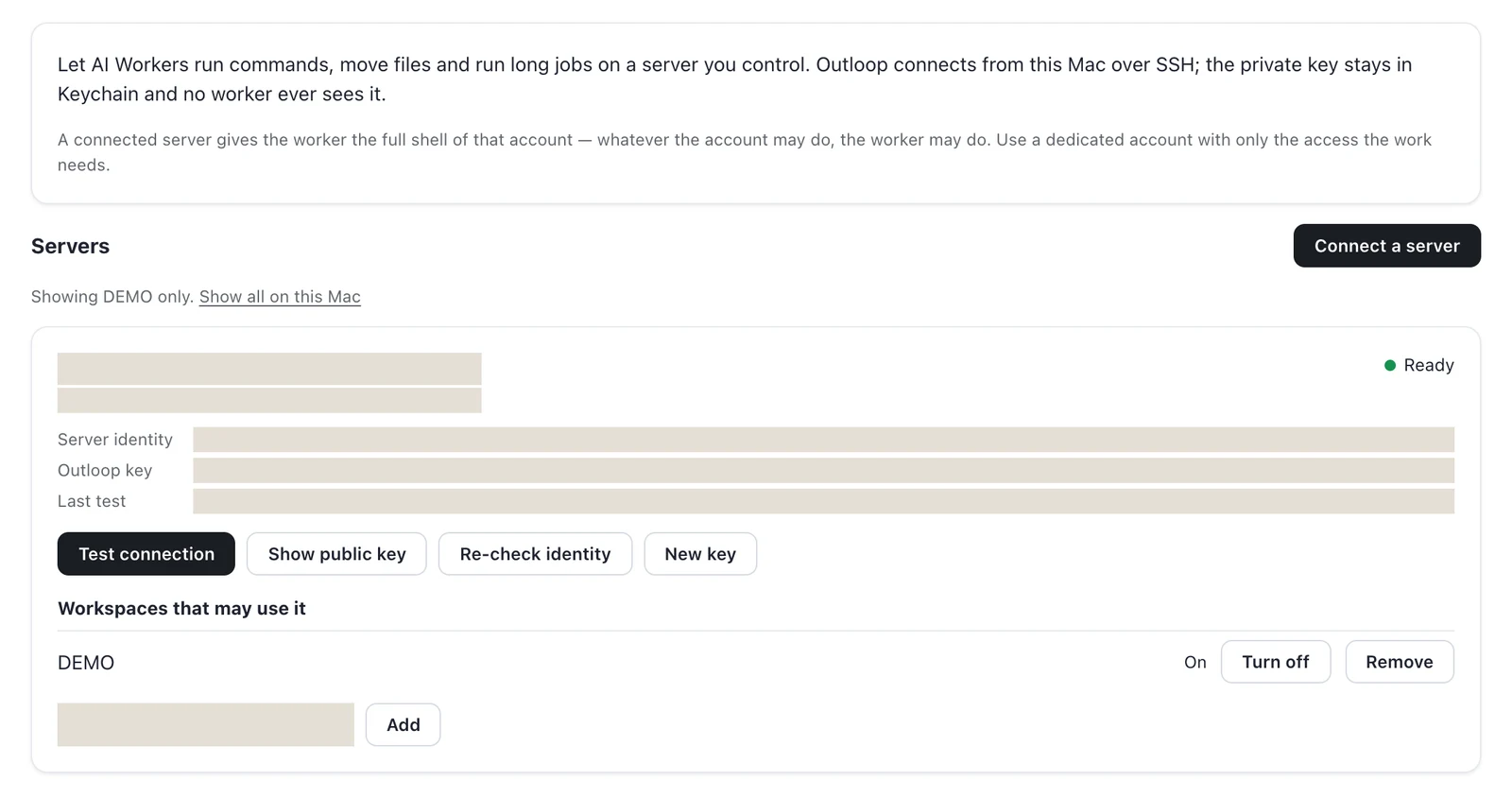
In Outloop, open Server Access and choose Connect a server. The screen shows server identity, connection readiness and the Workspaces allowed to use the connection.
- Configure a dedicated server account with the permissions the work requires.
- Verify the server identity and use Test connection to check access.
- Under Workspaces that may use it, authorize the intended client Workspace.
- Give the worker a bounded staging task, then review the result and execution record.
The inspected demo connection displayed Ready, an OK last test and long-job tracking. Its Workspace access was enabled. Connection details are intentionally omitted here.
Full shell access means the remote account’s full authority. The worker can run commands, move files and run long jobs using that account. Key protection and Workspace authorization do not reduce the account’s filesystem or database privileges.
A client reports a broken page. Your worker investigates.
An agency receives an email about a WordPress page that stopped rendering correctly. The worker identifies the client Workspace, retrieves the approved context and discovers the connection assigned to that Workspace. The request’s sender and authority must be established before the worker changes anything.
- Client requestIdentity and scope
- WorkspaceContext and approved connection
- Outloop BrokerHost-held SSH credential
- Approved serverRemote account permissions
- Verified resultChecks and report
This is an explanatory flow. Begin write testing in an authorized staging environment.
Follow the visual Server Access setup guide →
Investigate, fix and verify within the agreed scope
- Establish the target. Confirm the server, WordPress installation and staging URL. Record the symptom before changing the site.
- Investigate. Use available shell tools, selected logs, Git and WP-CLI to identify a likely cause. The server must provide those tools and the account must have permission to use them.
- Make the authorized change. Review a diff and recovery option. Apply the smallest justified fix on staging. Authorized work can include files, configuration, database operations, transfers, scripts and deployments, subject to actual server permissions.
- Check the website. Inspect the changed page and relevant application behavior. A command returning successfully is only one part of verification.
- Report the result. State what changed, what was checked, what remains uncertain and whether production work needs further authorization.
Reuse the method across clients
Outloop’s SSH capability brings server work into the same operating model as approved APIs, browser work, files and Routines. Each client has its own context, assigned connections and work history. Your agency can reuse reviewed diagnostic instructions while independently configuring every client’s access.
The worker requests execution through Outloop. The connection’s private key stays in the host’s protected credential infrastructure, outside agent prompts, project files and environment variables. The remote account still determines which files, commands and secrets are reachable.
What full SSH authority means
The capability permits commands within the authorized remote account’s authority without a command allow-list or a new approval prompt for every command. Agree the task’s business scope in advance. Configure a dedicated server account with the access the work requires.
A Workspace connection cannot restrict an overprivileged server account to one website. If that account can read another site’s files or database credentials, its shell commands can reach them. The server’s account, filesystem and database permissions need to enforce the intended boundary.
Choose the access path that fits the job
WordPress content operations can use the existing REST API connection. Server logs, deployments and command-line maintenance require suitable server access. Read the SSH preparation guide before planning that workflow.
Questions agencies ask
Does Outloop host the WordPress website?
Your hosting provider supplies the server. Outloop supplies the Workspace and execution route, and the AI worker performs the task.
Can an emailed request authorize production changes?
Use the configured requester permissions and review rules. Identify the client and approved scope before executing. An instruction inside a log or web page cannot grant additional authority.
How do I verify the work?
Inspect the execution record and independently check the changed website. Confirm the target environment, expected result and recovery option before expanding the task.