Guides · Setup
How to Connect the TikTok Ads API to AI Agents with Outloop
Last updated:
In short
Connecting TikTok Ads to Outloop means authorizing your advertiser accounts once in the browser, so AI agents can run approved Marketing API calls without ever holding the token.
You click Connect, approve your advertiser accounts on TikTok, and the access token lands in your Mac Keychain. Outloop then runs one read-only check — and only a real success turns agent access on. Each client workspace is pinned to its own advertiser IDs.
What this connection enables
One TikTok Business Center authorization, stored once, reachable by as many client workspaces as you assign — with each workspace bounded to its own advertiser accounts. Agents in those workspaces can read campaigns, ad groups, ads, creatives, audiences and reporting through the TikTok Marketing API, and make approved writes, without the token ever being visible to them.
- ✓The access token is stored in the macOS Keychain and read host-side at request time — it is never shown, never written into a project folder, and never returned to an agent.
- ✓Access is proof-gated: a stored credential does nothing until a read-only call actually succeeds.
- ✓Each workspace is pinned to its own advertiser IDs, so one shared Business Center credential never becomes shared reach.
- ✓Business Center administration and financial operations are off by default and each has its own explicit switch.
What you need before starting
- ✓Outloop installed on your Mac, with the account activated on that machine.
- ✓The client workspace already created and registered in Outloop — connecting a service never registers a workspace for you.
- ✓A TikTok account with access to the advertiser accounts you intend to approve, normally through a TikTok Business Center.
- ✓The advertiser IDs you plan to assign to each workspace. You can find them in Business Center under Accounts → Advertiser accounts.
You do not need your own TikTok developer app
This is the step most people expect and do not have to take. The browser connect flow never asks you for an App ID, an App Secret, an authorization code, or a refresh token — there is no field for any of them. You authorize your advertiser accounts, and Outloop receives a credential bound to the workspaces you selected.
Step 1: Add TikTok Ads access
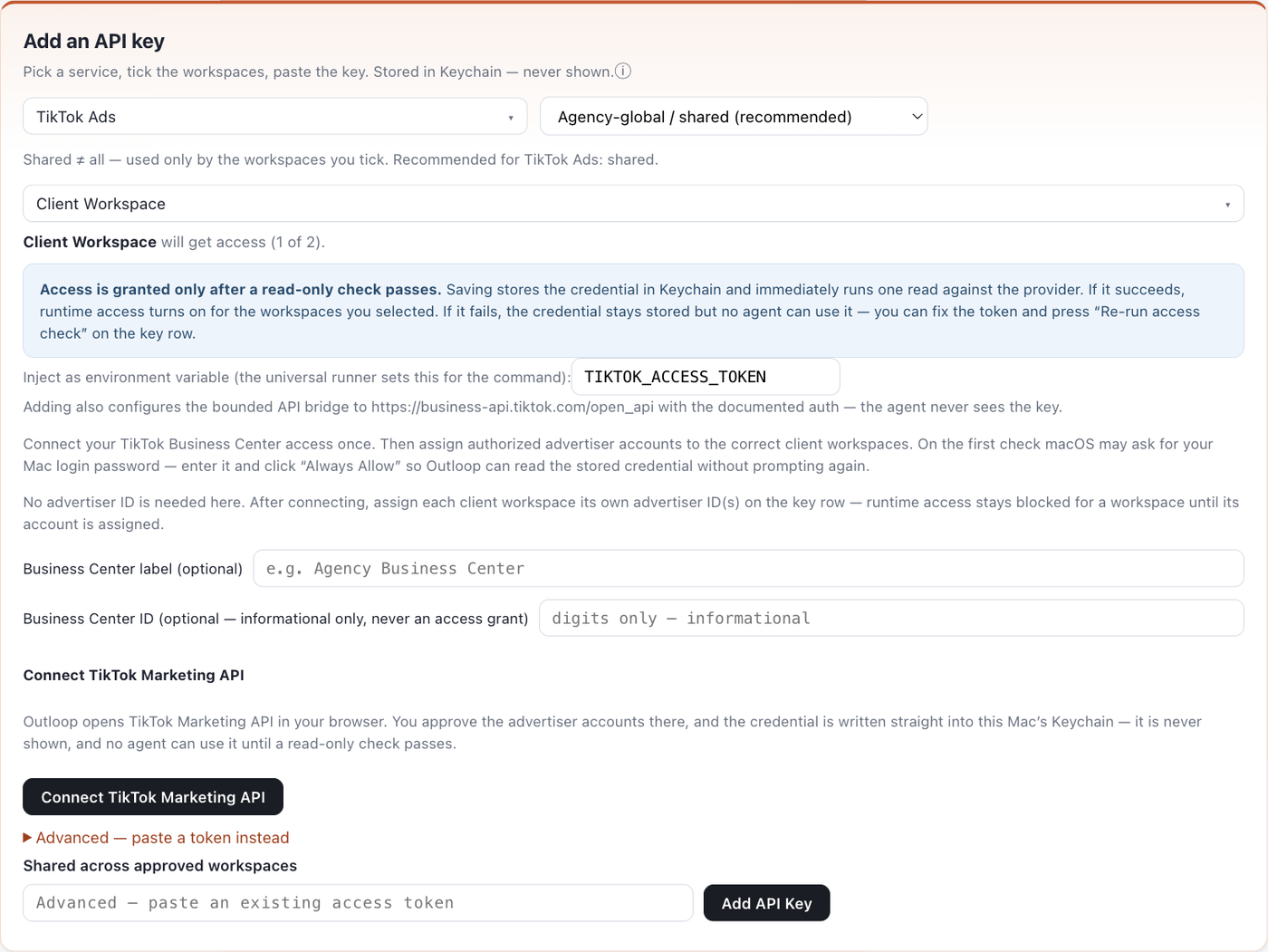
In the Outloop Mac app open API Keys & Access, then Add an API key, and choose TikTok Ads as the service. The panel changes to a connect-first flow. Note the banner: “Access is granted only after a read-only check passes.” That is the rule this whole connector is built around.
Step 2: Choose the scope and workspaces
For an agency Business Center that covers several clients, keep the recommended Agency-global / shared scope: the credential is stored once and assigned out. Shared is not the same as open — a workspace gets access only if you tick it here, and only to the advertisers you map to it later.
Tick the client workspaces that should get access. At least one is required; the connection is bound to the workspaces you select. The two Business Center fields below are optional and informational only — they help you recognise the credential later and are never an access grant.
Step 3: Connect TikTok in your browser
Click Connect TikTok Marketing API. Outloop opens TikTok in your system browser and the panel switches to “Waiting for you to approve…”. Leave the Outloop window open — it is waiting for the authorization to come back, and it resumes on its own when you return to the tab.

If the browser does not open by itself, Outloop shows the address to open manually rather than failing silently.
Step 4: Approve, then allow Keychain access
In the browser, sign in to TikTok if needed and approve the advertiser accounts you want this connection to cover. Approve only what the agent should be able to reach — this is the outer boundary, and the per-workspace advertiser mapping in Step 6 narrows it further.
On the first check macOS may show a dialog asking for your Mac login password. Enter it and click Always Allow so Outloop can read the stored credential without prompting again. This is a macOS Keychain permission prompt — it is not a request for the TikTok token, and no agent ever sees that dialog or the value behind it.
Step 5: The read-only check turns access on
As soon as the credential is stored, Outloop runs one read-only call against TikTok. Only a real success
arms runtime access — and “success” means both an HTTP 2xx status
and a TikTok body code of 0.

If the check does not pass, the credential is still stored but nothing can use it. This is the honest failure state, not an error to work around:

Fix the underlying access on the TikTok side, then press Re-run access check on the key row. Turning access back down is never gated — you can disable the connector at any time.

Step 6: Assign advertiser IDs per workspace
Expand the TikTok Ads key row and set each workspace its own TikTok advertiser ID(s) — digits only, comma-separated for more than one. This is what makes a shared agency credential safe to point at several clients.

- →Until a workspace is mapped, advertiser-scoped calls are refused with
CUSTOMER_RESOURCE_PIN_REQUIRED. - →A request naming any other advertiser is refused with
RESOURCE_ID_NOT_ALLOWED— before the credential is read. - →Once an advertiser is mapped, the access check upgrades from the Business Center read to a campaign read scoped to that advertiser.
The first safe proof
The proof is deliberately read-only. Before an advertiser is mapped, Outloop verifies the credential against the Business Center; once one is mapped, it verifies advertiser-scoped access:
GET /v1.3/bc/get/                                   # stage 1 — credential works
GET /v1.3/campaign/get/?advertiser_id=<ADVERTISER_ID>   # stage 2 — this workspace's advertiser
Success criteria — all of them, not just the HTTP status:
HTTP 200
code: 0
decision: allow
secret_exposed: false
audit entry exists
Full API capabilities and write actions
Outloop bounds the connection to the TikTok Marketing API base
https://business-api.tiktok.com/open_api, injects the credential host-side, and
redacts the response. Paths are versioned in the URL as /v1.3/<endpoint>/ and
most keep a trailing slash. Adding the connection also sets up that bounded bridge and an injected
TIKTOK_ACCESS_TOKEN environment variable for CLI tools that need the value in
their environment — in both cases the value is supplied host-side at run time and never shown to the agent.
Authorization: Bearer header. The connector
injects Access-Token, and that is the form the verified proof used. You never set
either one yourself — sending your own authentication header is not part of the request shape.
- Verified Reads: Business Center details and advertiser-scoped campaign reads, returned HTTP 200 with a TikTok code of 0, decision allow and
secret_exposed: false. - Supported, not verified yet Other reads across the approved surface: ad groups, ads, creatives, audiences, and reporting through
/v1.3/report/integrated/get/. - Supported, not verified yet Writes: the connector permits
GETandPOST, which covers creating and updating campaigns, ad groups, ads and audiences, and pausing or resuming delivery. No write has been runtime-verified in this guide. - Off by default Deletes and archives are classified as destructive and stay behind their own explicit switch, whether they arrive as a
DELETEor as a TikTok-stylePOSTcarrying a delete operation.
code of 0 before trusting the change. Never run a write as
part of an access check.
Business Center admin and financial actions
Two categories are treated as elevated and are off by default, each with its own switch on the key row. Ordinary campaign, creative and audience work never needs either.
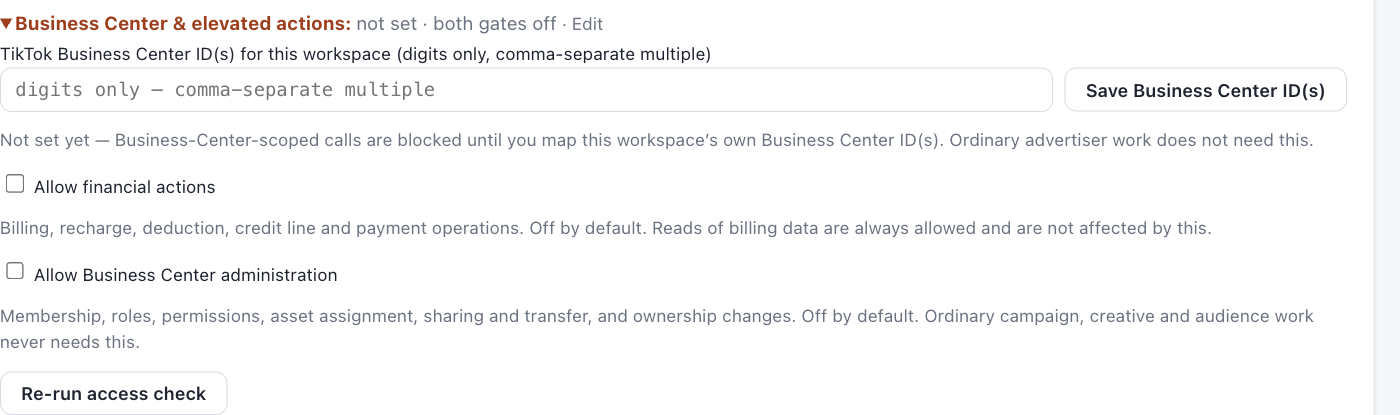
- →Allow financial actions — billing, recharge, deduction, credit line and payment operations. Reading billing data is always allowed and is not affected by this switch.
- →Allow Business Center administration — membership, roles, permissions, asset assignment, sharing and transfer, and ownership changes.
- →Business Center IDs are mapped separately from advertiser IDs, and one can never stand in for the other.
What is verified vs not claimed
- Verified The browser connect flow end to end: authorization, credential storage in the macOS Keychain, and a two-stage read-only check that returned HTTP 200 with a TikTok code of 0, decision allow and
secret_exposed: false. - Verified The proof gate itself: a stored credential whose check fails leaves runtime access off.
- Not claimed Write actions are permitted by the connector but are not runtime-verified in this guide. Treat every write as unproven until you have run a safe, reversible one yourself.
- Not claimed Elevated Business Center administration and financial operations have not been exercised, by design.
Marketing API through Outloop vs TikTok Ads MCP
| Dimension | Marketing API through Outloop | TikTok Ads MCP (official) |
|---|---|---|
| Status here | Runtime verified Two-stage read proof passed: decision allow, HTTP 200, TikTok code 0, secret_exposed false, audited. | Announced, not generally available Announced at TikTok World ’26 on 13 May 2026. As of the latest reporting there is no public self-serve install guide, no published tool spec, and no confirmed GA date. |
| Credential handling | Never seen by the agent Stored in the macOS Keychain, read host-side per request, redacted out of every response. | Depends on how the server is hosted and configured; not established in this workspace. |
| Per-client scoping | Enforced per workspace Advertiser IDs are pinned per workspace; any other advertiser is refused before the credential is read. | No workspace concept documented publicly; scoping would follow whatever account the server is pointed at. |
| Destructive actions | Off by default Deletes and archives are detected from method, path and body, and stay behind an explicit switch. | Reported to allow write operations; the boundary is not publicly specified. |
| Audit trail | Every call audited One redacted record per attempt, including denials, with the decision and the reason code. | Not established here. |
Advanced: pasting your own token
There is a manual route, kept deliberately behind a collapsed disclosure labelled Advanced — paste a token instead, because it is not the path most people need. It exists for operators who already hold an access token obtained another way. Expand it and the input reads “Advanced — paste an existing access token”.

Paste the exchanged access_token only — not the App Secret, App ID, authorization
code, refresh token, or the complete JSON response. Everything after that is identical: the value goes
straight into the Keychain, the same read-only check runs, and access turns on only if it passes.
Troubleshooting
- →HTTP 200 but the call failed. Check the body
code, not the status. Anything other than0is a provider rejection, and themessagenames the reason. - →
BACKEND_LOCKED. A macOS Keychain permission is missing — no call was made and nothing was exposed. Re-run after clicking Always Allow on the macOS prompt. It is never a reason to supply the token another way. - →The check fails right after connecting — the warning names the code it failed with, for example
BACKEND_AUTH_FAILED. The credential is stored but nothing can use it. Usually the approved advertiser access does not cover what was requested: check it on the TikTok side, then use Re-run access check on the key row. - →The workspace is not registered. Register the workspace through its own connection flow first — connecting a service never registers a workspace for you.
- →Nothing happened in the browser. Outloop shows the address to open manually when it cannot launch the browser itself.
Rotate or revoke safely
Turning access down is never gated — only turning it on is. Work from the narrowest change to the broadest:
- →Remove one client's reach. Clear that workspace's advertiser ID(s) on the key row. Advertiser-scoped calls from it are then refused with
CUSTOMER_RESOURCE_PIN_REQUIREDbefore the credential is read. The credential itself is untouched and the other workspaces keep working. - →Withdraw an elevated permission. Untick Allow financial actions or Allow Business Center administration. Both are independent of ordinary campaign access.
- →Rotate the credential. Run the connect flow again for the same service. The same read-only check applies to the new credential — access returns only if it passes, exactly as on first connect.
- →Revoke on TikTok's side. Withdraw the authorization from your TikTok account or Business Center. The stored credential can no longer authenticate, so the next access check fails and runtime access stays off — the stored-but-unusable state described in Step 5.
After any change on the TikTok side, press Re-run access check on the key row rather than assuming the new state — the check is the only thing that arms or disarms runtime access.
Official documentation
Verify anything platform-specific against TikTok's own current documentation rather than a third-party write-up — the authentication header in particular is described inconsistently elsewhere on the web.
- →TikTok API for Business — documentation portal, the source for Marketing API v1.3 endpoints and the
{code, message, request_id, data}response envelope. - →Accounts API authentication (v1.3) — TikTok's own account and authorization reference.
- →tiktok/tiktok-business-api-sdk — TikTok's official SDK, useful for confirming request shapes.
- →TikTok for Developers — where the developer profile and developer app live, for the Advanced route only.
The Outloop value
One authorization can reach many advertisers. Outloop makes that reach client-safe:
One Business Center credential may reach many advertiser accounts.
But each agent workspace only reaches the advertisers assigned to it.
Related: TikTok API for Business app approval · Meta Ads API setup · Google Ads API setup · AI agent API key management · Outloop for AI agencies.
Outloop is available with setup guides and product support for agency teams. Outloop is an independent tool and is not affiliated with or endorsed by TikTok. See the security model.
Run TikTok Ads agents without handing over tokens.
Outloop is available with setup guides and product support for AI agencies, operators, and dev shops.