AI workers + Higgsfield API
Put an AI worker to work with the Higgsfield API.
Generate images and video, move workspace media into the workflow, wait for the render and bring the finished asset back — through approved API access the AI worker can use without receiving the raw key.
Create your trial, then install on your company-controlled Mac. See plans and pricing.
- Real API workflow
- Image + video generation
- Workspace file upload
- Raw API key stays hidden

In short
An AI worker can use the Higgsfield API through Outloop. In a verified run it generated an image with Soul v2, waited for the render, saved it to its workspace, uploaded that file back through Higgsfield’s provider-issued upload flow, turned it into a Kling 2.5 image-to-video render and saved the finished video — without receiving the raw API key.
Last updated:
See the Higgsfield workflow in 42 seconds.
Watch an AI worker ask Higgsfield for an image, wait for the render, save it to its Outloop workspace, send that file back to Higgsfield and turn it into a Kling video — without ever seeing the API key.
Edited recording of the real run · Outloop Live Activity, the Custom API configuration and the files saved to the workspace · The raw API key never appears. Not every Higgsfield model or operation was individually tested.
If you work with teams building on the Higgsfield API, we’d love to show you this workflow. Feel free to share it with the community or connect us.
0:42 · A real Higgsfield API workflow · No form required · Open video directly
Read the video transcript
Everyone's using AI to make images and video. The hard part is everything around the generation. Here's a real run. My AI worker asked Higgsfield for an image, waited for the render, and saved it into its Outloop workspace. Then, it took that file, sent it back to Higgsfield, and turned it into a video with Kling. Every call went through Outloop. The worker never saw the API key. And the finished video? This is it, saved right back in the workspace. That's what AI workers need. Not a better model, a real workplace. Put one to work on your Higgsfield workflow.
Download English captionsWhat this workflow proves
- Higgsfield API configured through Outloop Custom API, with provider verification passing.
- A real Soul v2 image generation, polled from queued to completed.
- The generated image retrieved and saved into the Outloop workspace.
- That image, as a workspace PNG, uploaded back through Higgsfield’s provider-issued (presigned) upload flow.
- The returned public asset used in a real Kling 2.5 image-to-video generation, which Higgsfield accepted and completed.
- The finished video retrieved and saved back into the workspace.
- The complete workflow reported secret_exposed:false.
- Full signed upload URLs are redacted from agent-facing results; a refused result host is reported by its origin only.
No API key, full presigned URL or signed query string appears in this page, its screenshots or its video.
What the AI worker actually did with the Higgsfield API.
Two connected workflows from one real run on 24 September 2026. Each call went through Outloop, which used the Higgsfield credential host-side and returned a redacted result to the worker. Every image below is a capture from that run; select one to see it full size.
01Generate an image and bring it back
-
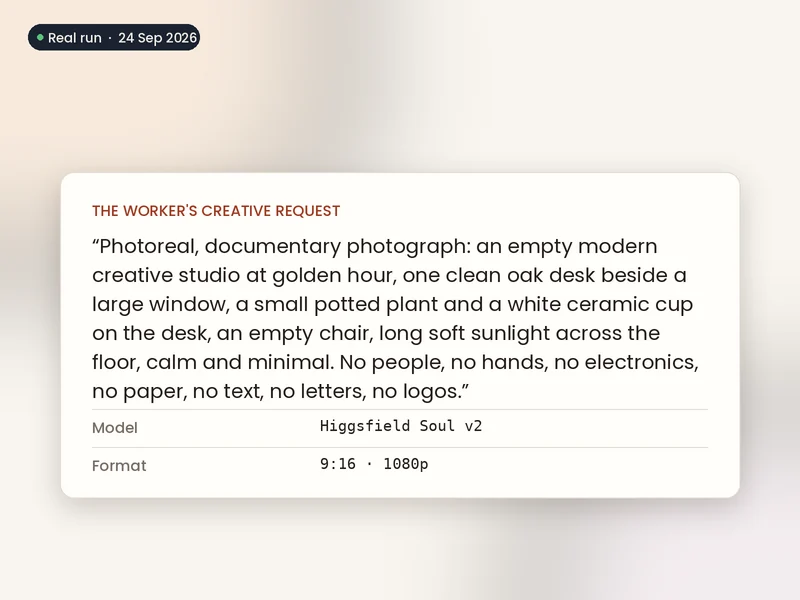 Step 1 of 4 PromptThe worker writes the creative request.
 -
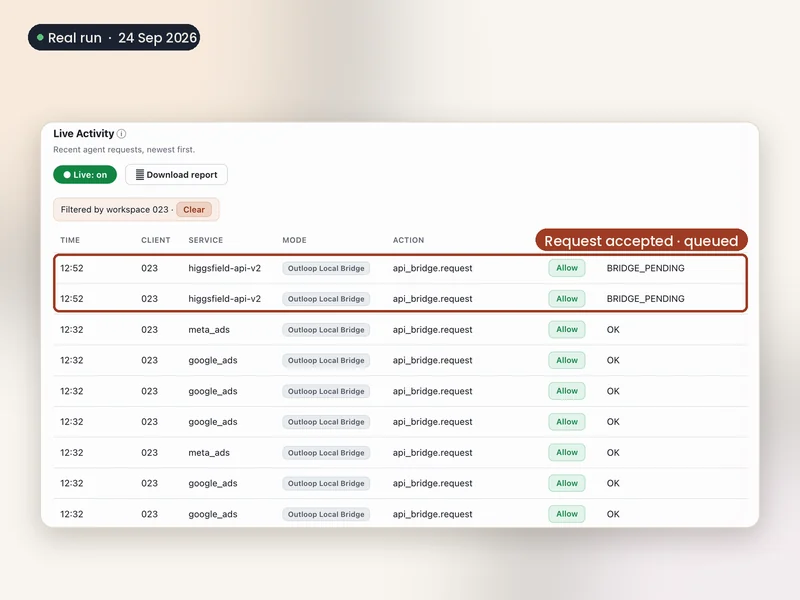 Step 2 of 4 Higgsfield image generationAn approved create call submits it to Soul v2.
 -
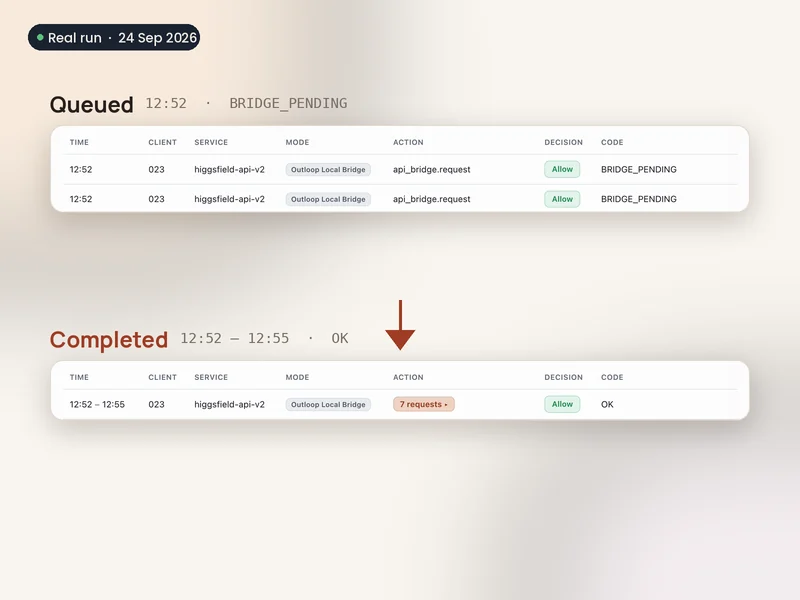 Step 3 of 4 Queued → completedThe worker polls until the render finishes.
 -
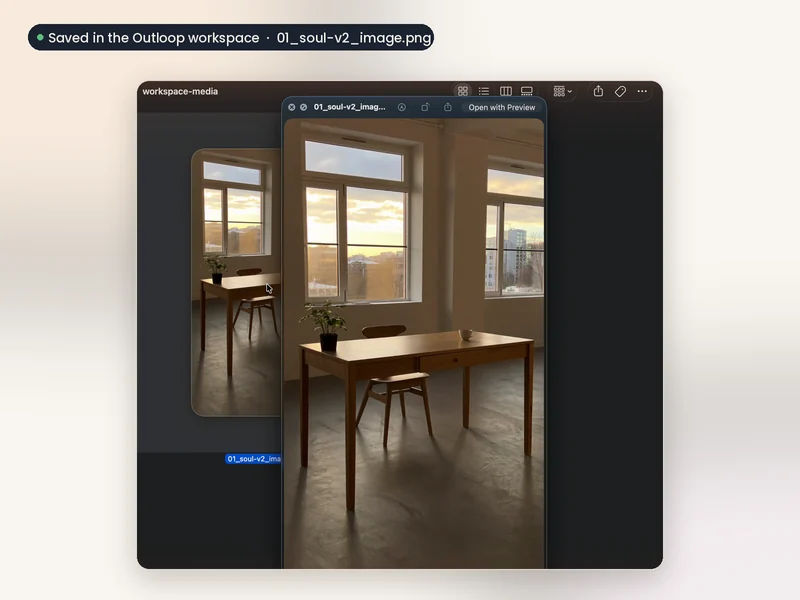 Step 4 of 4 Workspace imageThe generated image is saved as a workspace file.
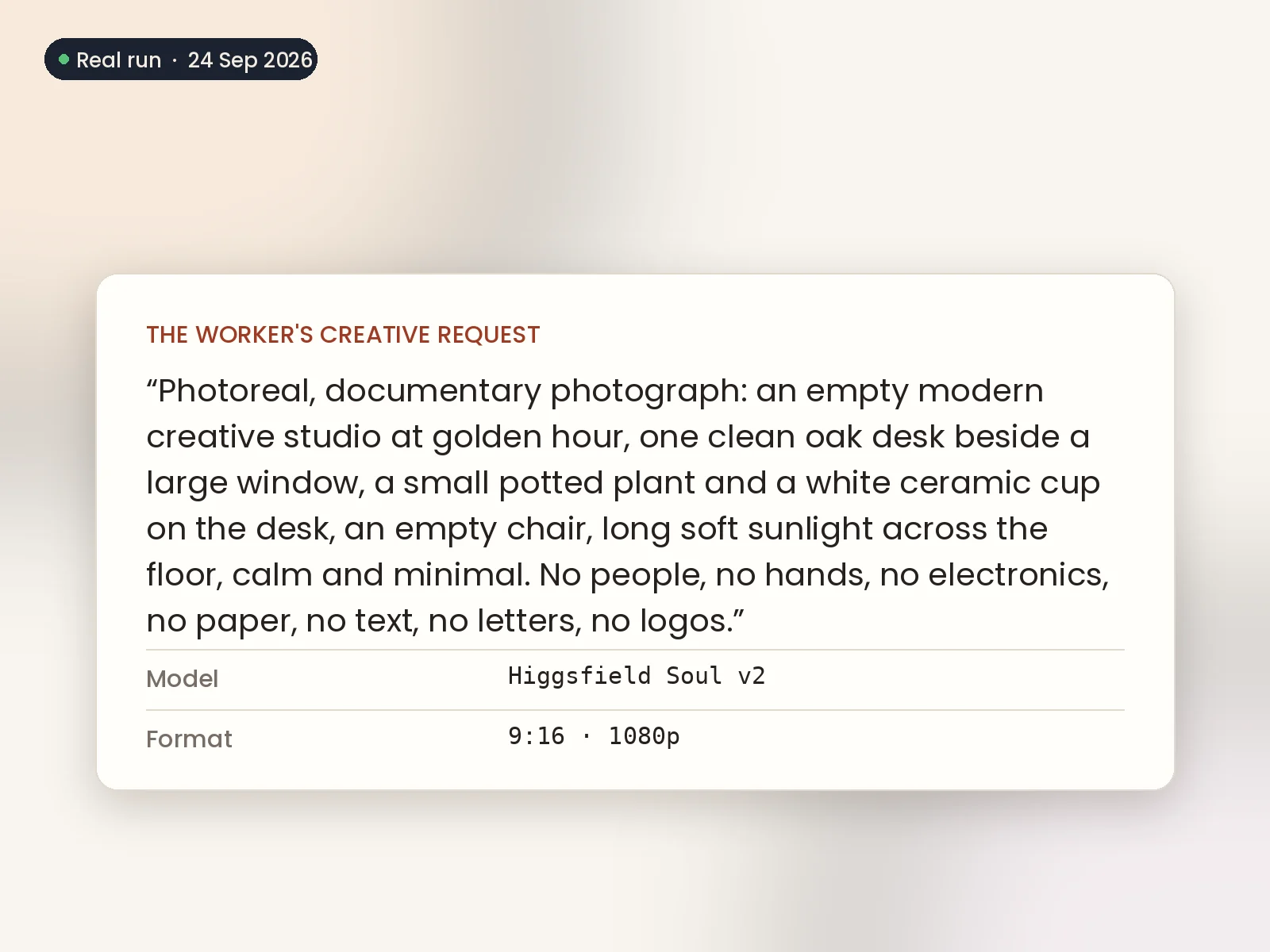
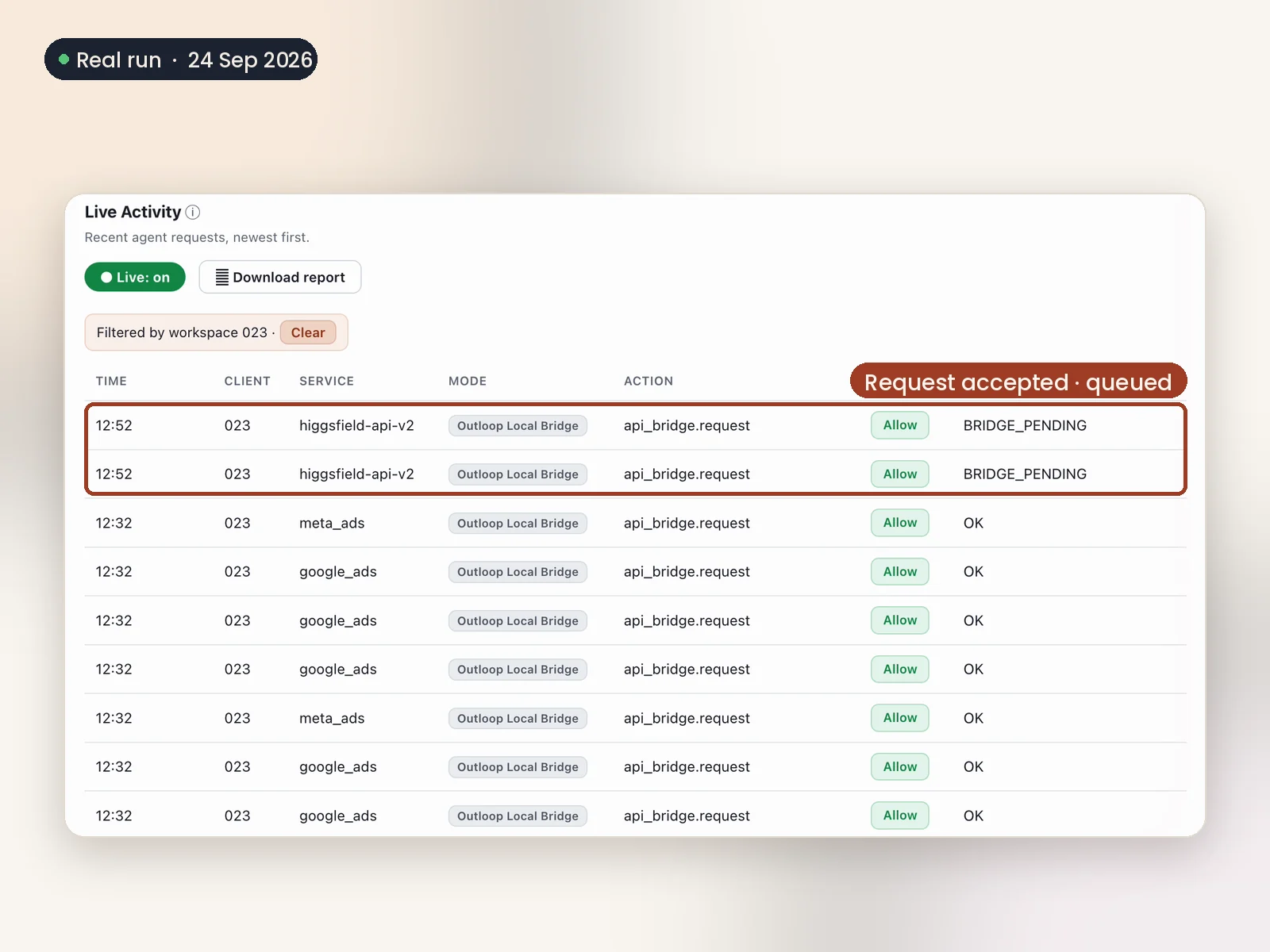
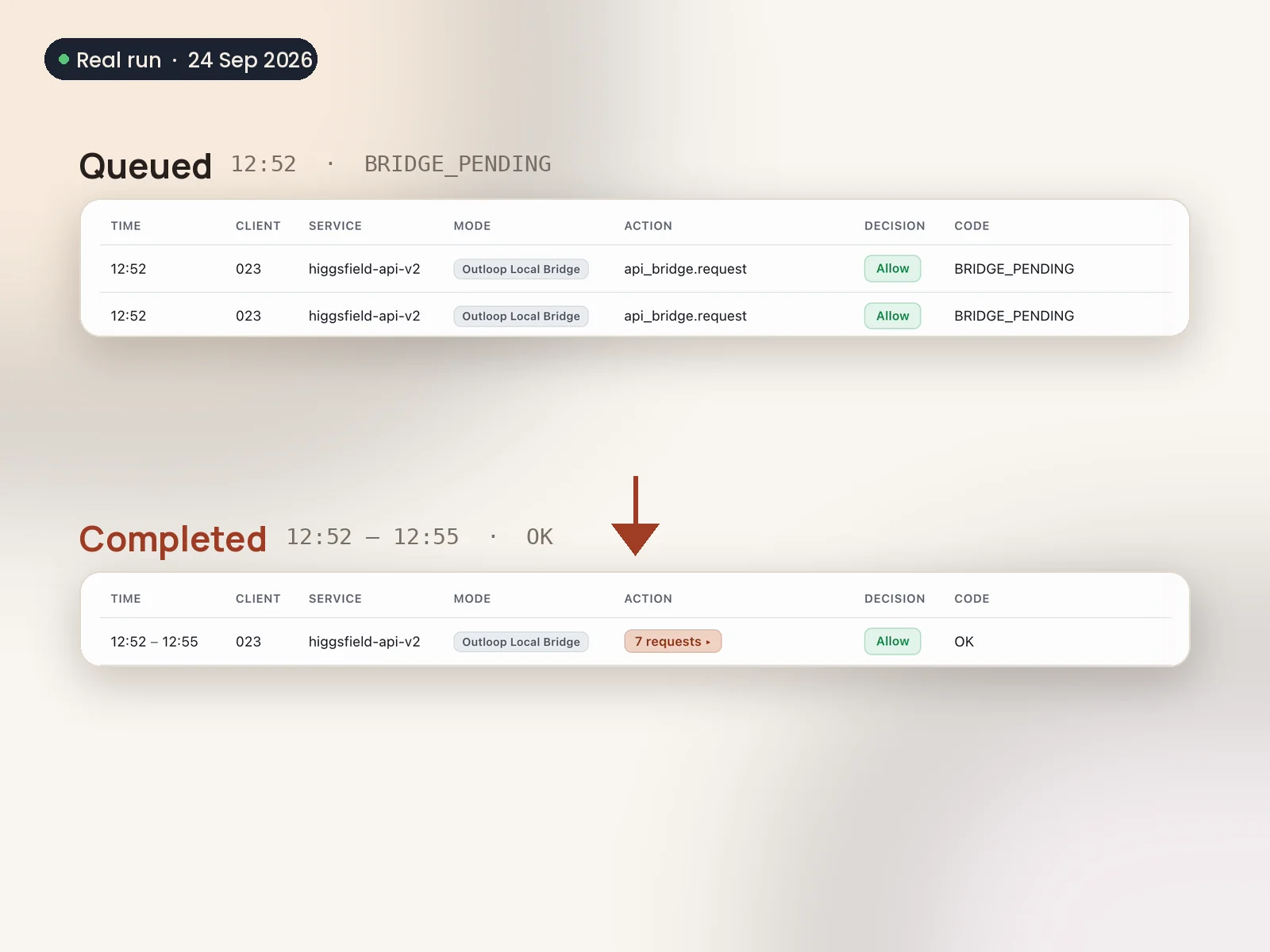
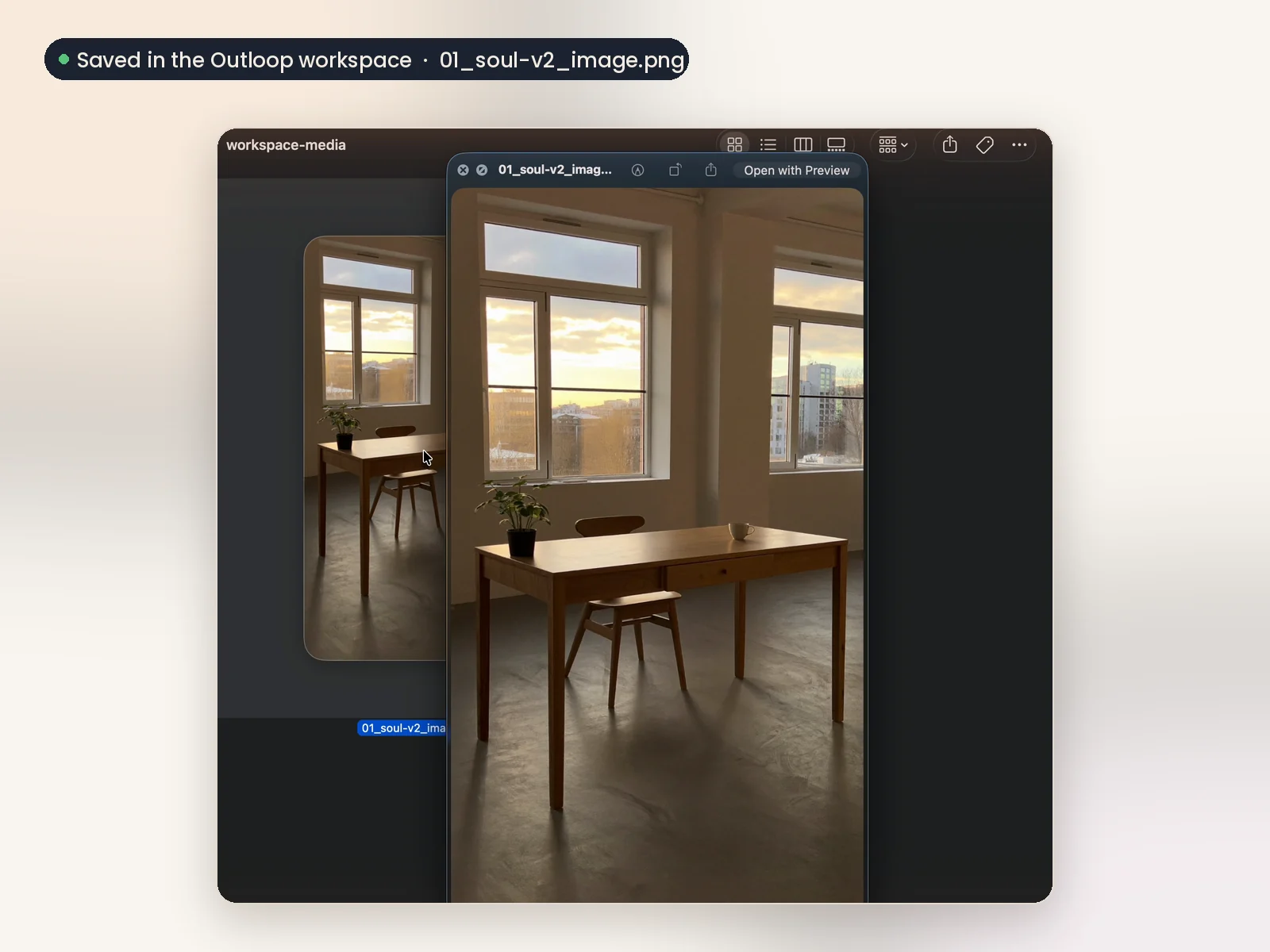
The worker asks Higgsfield for an image, carries the returned request ID while the render is queued, and saves the finished file into the Outloop workspace when it completes.
02Turn that image into a video
-
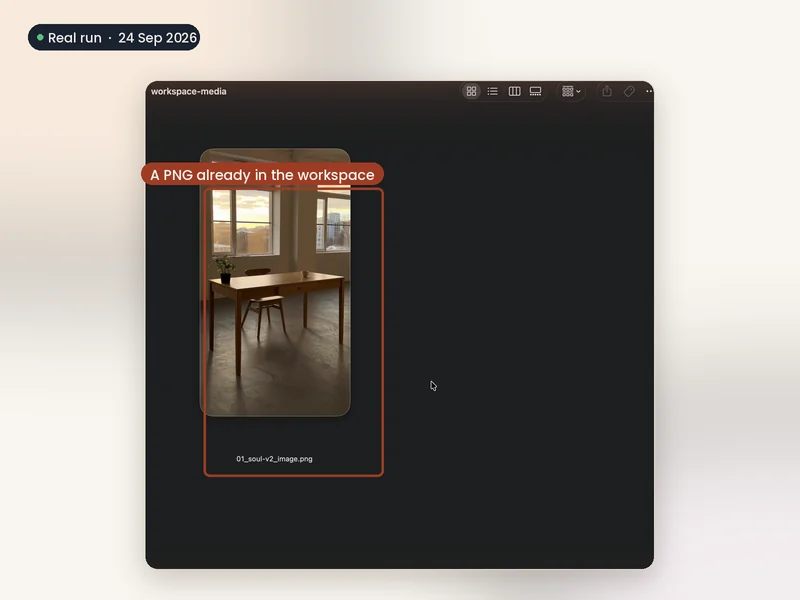 Step 1 of 5 Workspace fileThe generated PNG, now a file in the workspace.
 -
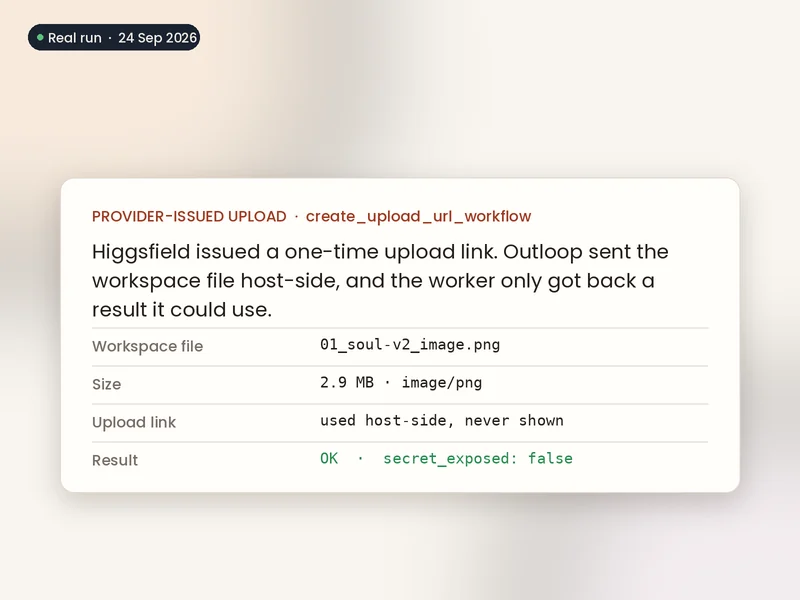 Step 2 of 5 Provider-issued uploadHiggsfield issues a one-time upload link; Outloop sends the file host-side.
 -
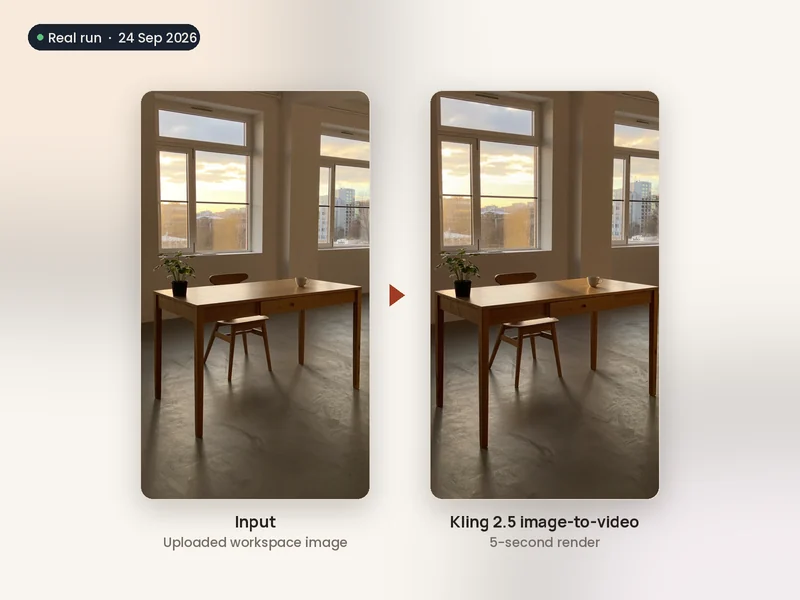 Step 3 of 5 Kling image-to-videoThe uploaded asset becomes the input for a 5-second Kling 2.5 render.
 -
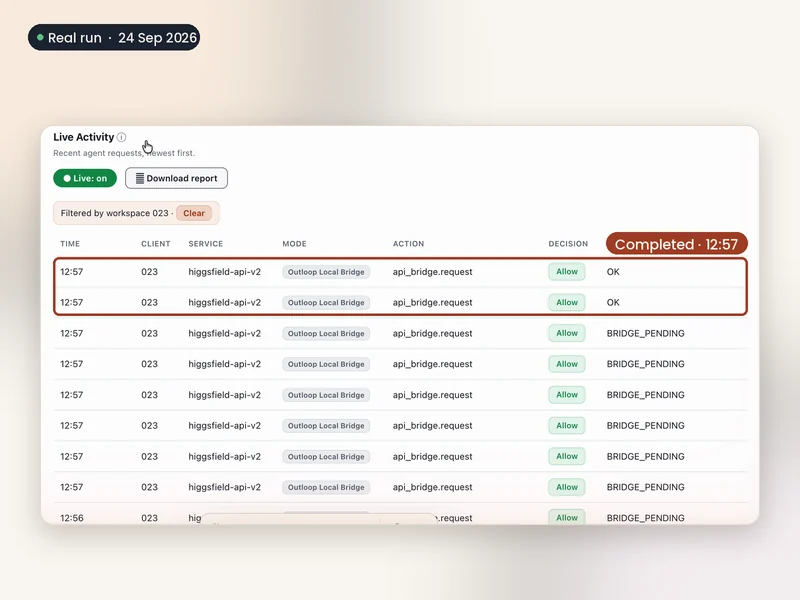 Step 4 of 5 Queued → completedHiggsfield accepts the job and completes the render.
 -
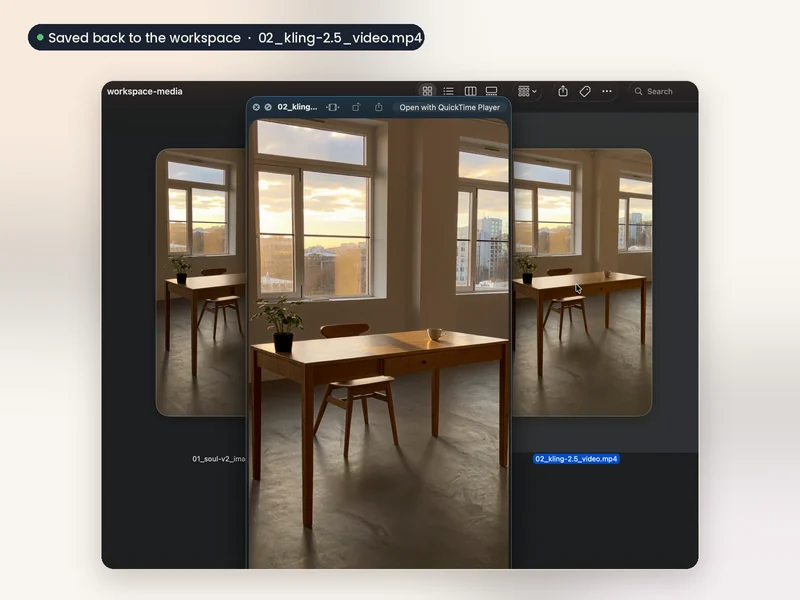 Step 5 of 5 Video saved to workspaceThe finished MP4 is retrieved and saved back.
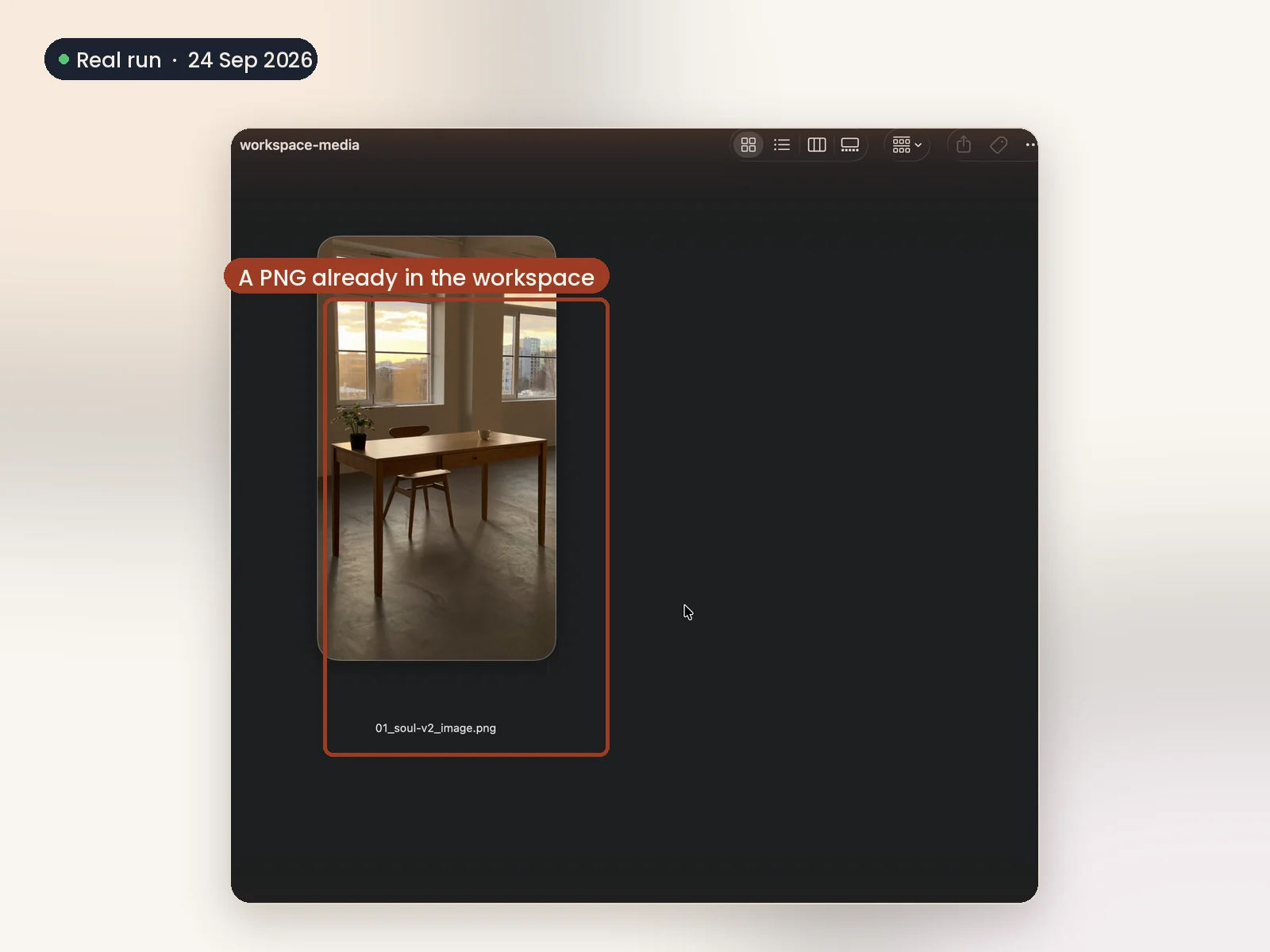
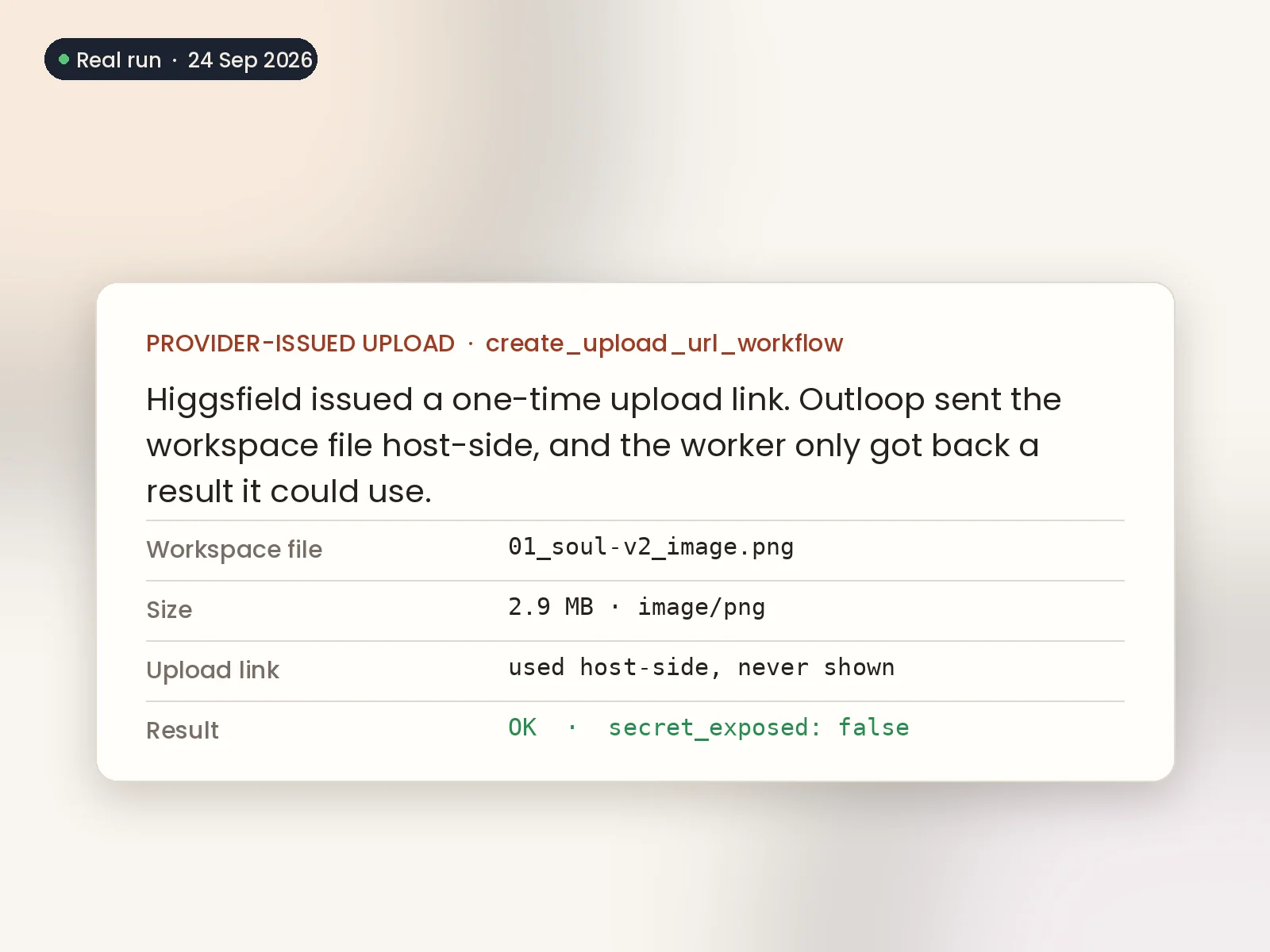
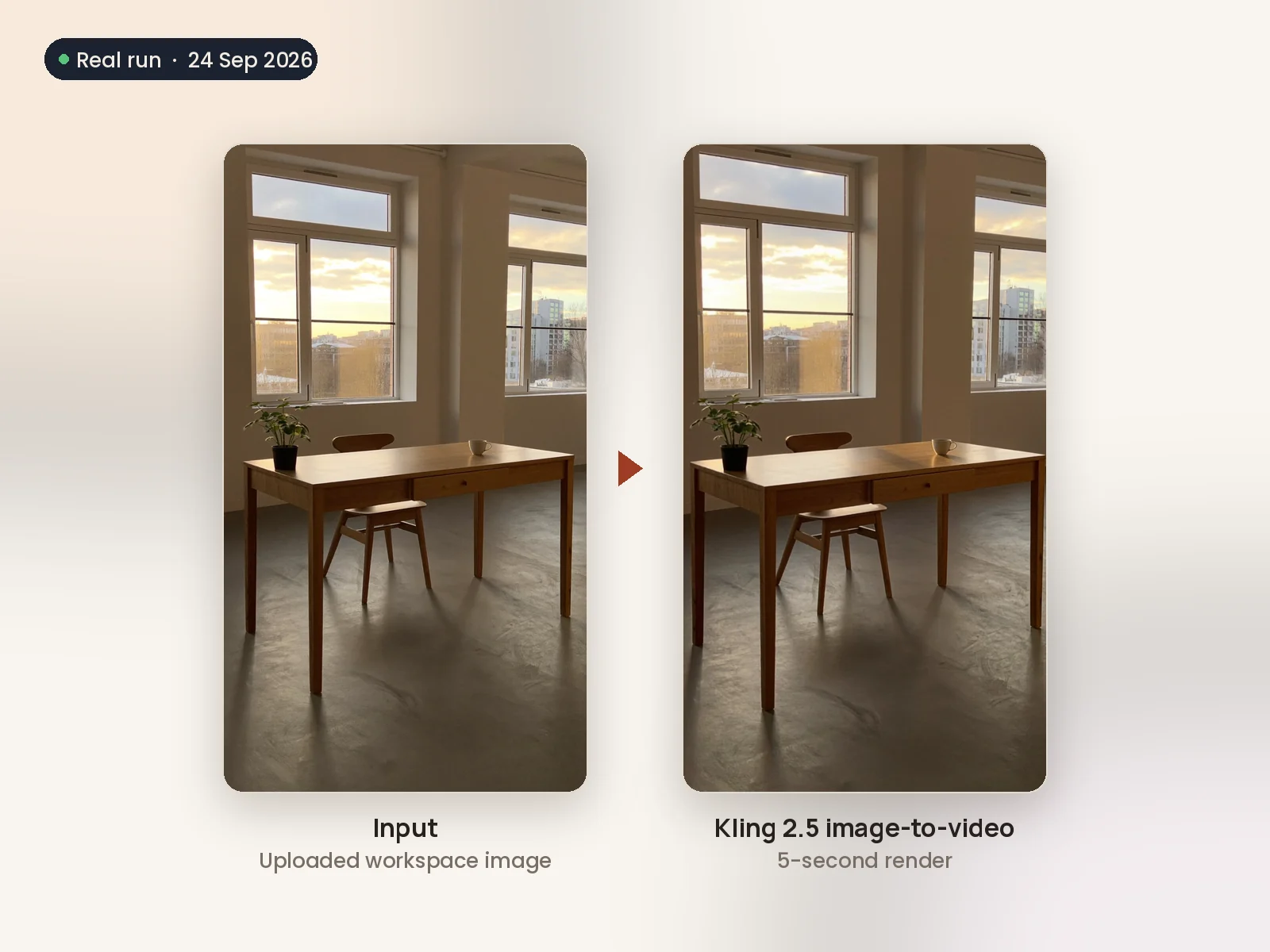
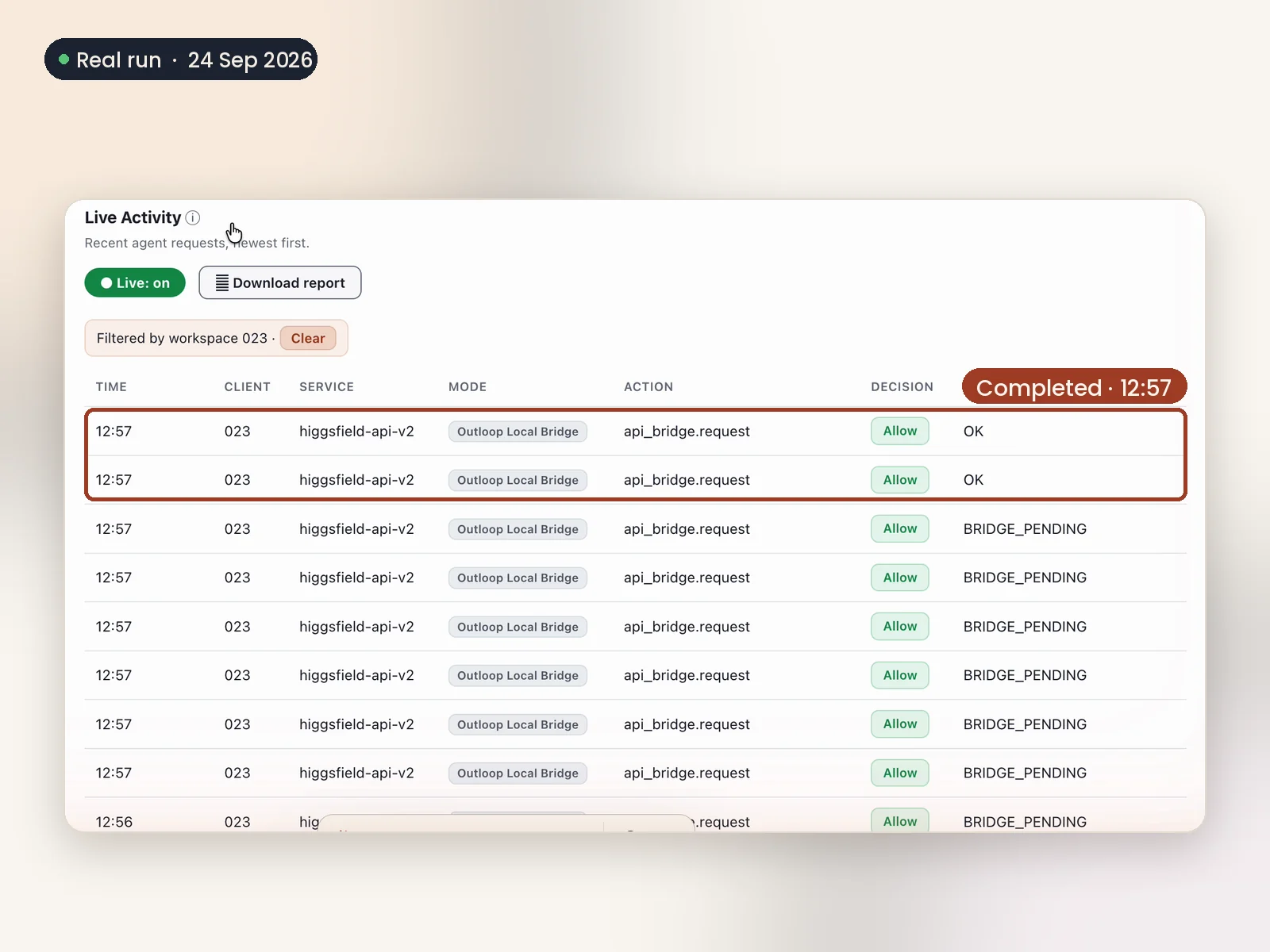
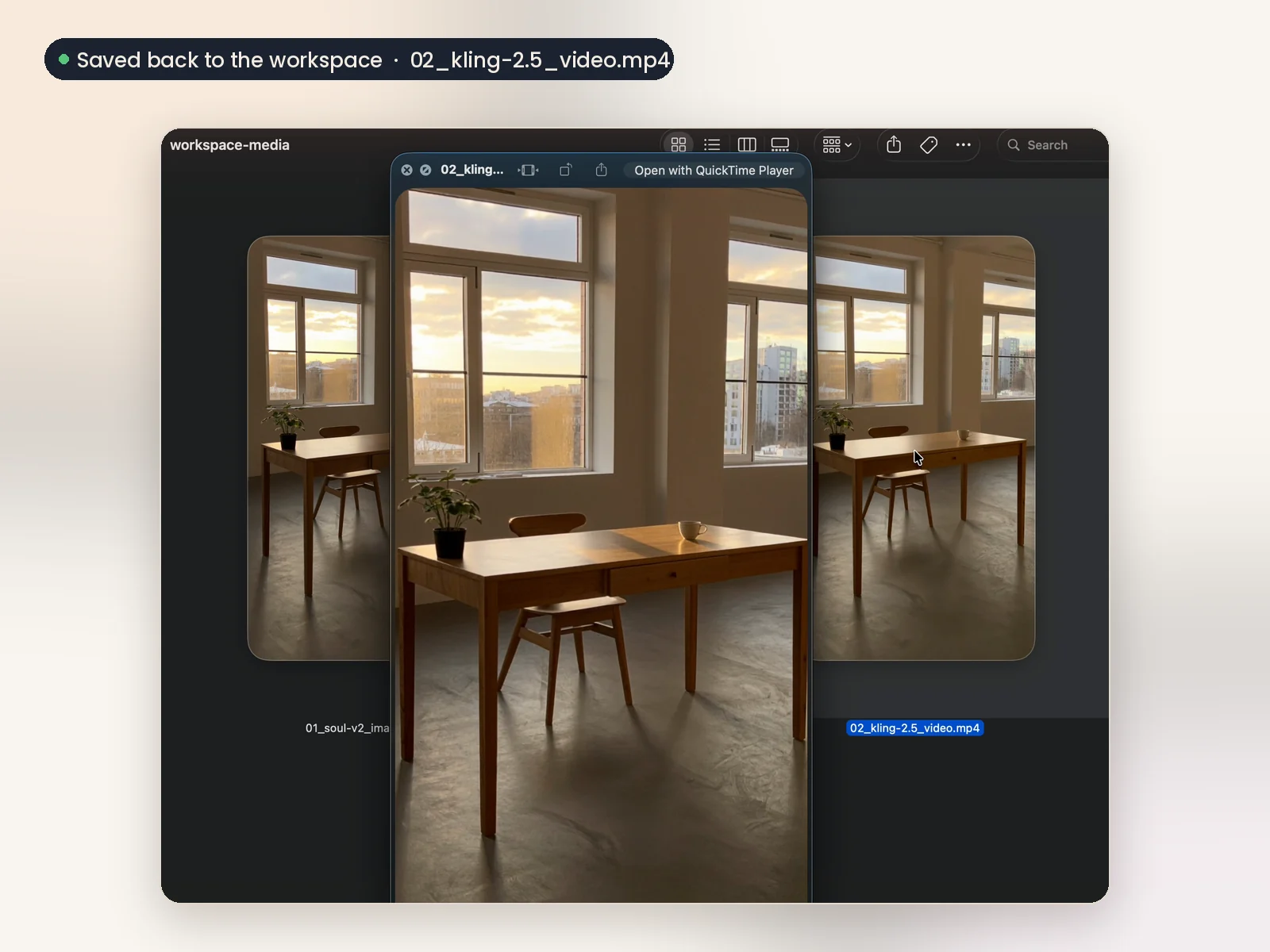
The worker sends the generated PNG back to Higgsfield through the provider’s own one-time upload link, uses the returned asset in a Kling 2.5 image-to-video generation and brings the finished video home.
These are the verified states of one real workflow. They are not a claim that every Higgsfield model or operation has been individually tested end to end.
Four clear roles in one creative workflow.
- Higgsfield
- The media-generation API: image and video models, uploads and renders.
- AI worker
- Carries out the creative task — writes the request, waits for the render and checks the result.
- Outloop
- The persistent workspace, approved API access, file movement and runtime controls.
- Human
- The creative objective and the final judgment on what gets used.
Outloop never hands the worker the key. It performs the approved call, moves the file and returns a result the worker can act on. See how runtime access works.
From generation to real work.
Generating a video is not the job. The job is what happens next. Because every render lands in the Outloop workspace as a real file, the generated files can continue into the creative production workflow — edited, reviewed, reused as the input to the next generation, or handed to the next task.
In this run, the image the worker generated became the source for the image-to-video render. The same pattern lets a worker chain generation, review and production steps without anyone copying files or keys between tools.
Configured through Outloop Custom API — no dedicated connector.
A new API does not need to wait for a dedicated integration before an approved AI worker can use it. Higgsfield runs here through Outloop Custom API: its operations, the async create → status → result pattern, the result origin and the provider-issued upload flow are described once, then verified.
That is the same path you would use for any other provider with a documented API. Outloop ships no Higgsfield-specific code.
Read the Custom API setup guideWhat you need to run Higgsfield with an AI worker.
Set up the workspace, install the Custom API Skill and tell your agent to connect Higgsfield. It prepares the operations; you create the API key in Higgsfield and paste it into Outloop once; it verifies a request before generating anything. Generations spend your Higgsfield credits, so start with a small test.
Evidence, limits and affiliation
This workflow uses Higgsfield through Outloop’s Custom API configuration. Higgsfield provides the API and the models; Outloop does not supply a Higgsfield account, credits or a built-in Higgsfield connector. A saved configuration, enabled workspace access and passing provider verification are separate checks.
The verified record covers one image-generation workflow and one Kling image-to-video workflow, both completed and retrieved into the workspace, with secret_exposed:false. It does not prove every Higgsfield model, setting or operation. Reverify your own configuration and account.
Outloop is not affiliated with Higgsfield. No official partnership or endorsement is implied.
Built by an agency operator
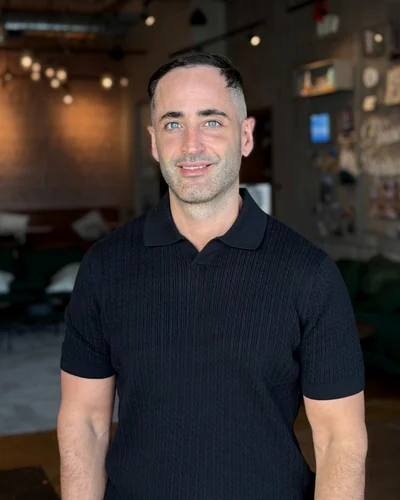
I'm Adam Argaman, founder of Outloop and CEO of a digital marketing agency.
After 15+ years across marketing, creative, data and systems—and 7+ years running client delivery—I built Outloop around the work agencies actually do.
The model needs a working environment: client Context, approved systems and clear human approval boundaries.
Higgsfield API and AI agents: common questions
Put your next creative workflow to work.
Create your trial. Download the Mac app. Connect the API your team already uses.
Want help mapping the workflow? Request an AI Workflow Review.
Company-controlled Mac · Guided setup · See plans and pricing